

Introduction
A Personal Passkey allows Tenant Admin to set up secure, passwordless authentication through passkeys. Tenant Admins can generate a passkey from the user profile in the Tenant Admin Portal.Prerequisite
- You must have access to Tenant Admin account.
- Personal Passkey must be enabled in the Tenant Admin portal. Refer: How to Enable Passkey SSO in Tenant Admin Portal
Steps to Generate Personal Passkey
- Log in to the Tenant Admin Portal.
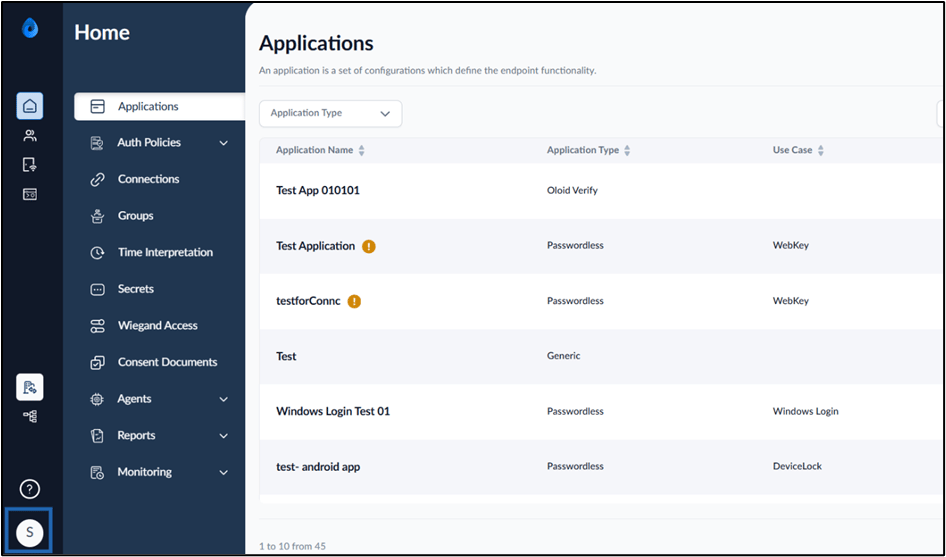
- On the homepage of the portal, click Profile icon on the bottom left corner of the menu panel.
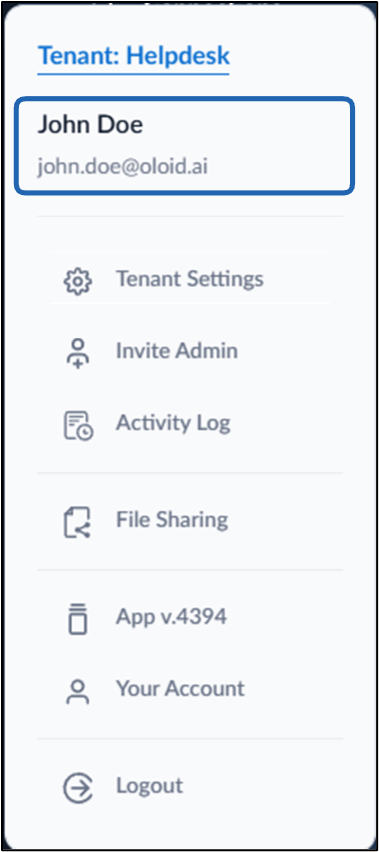
- Click Username.
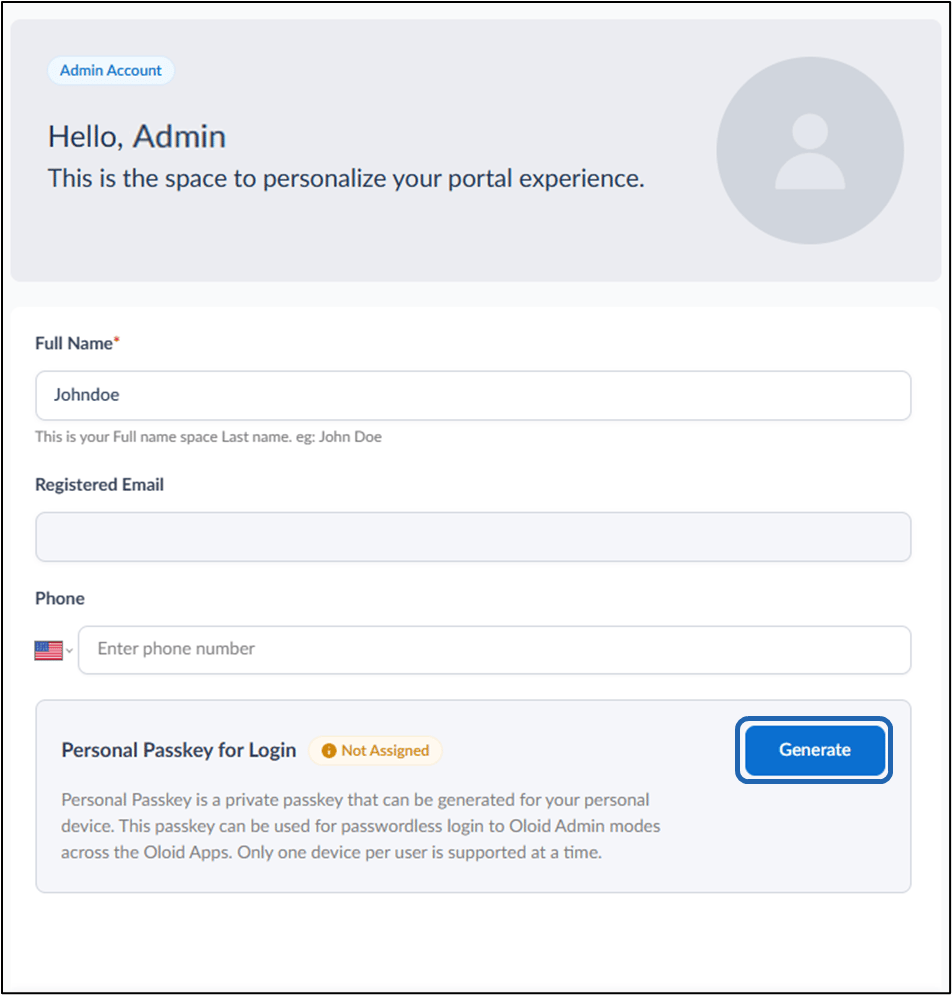
- Do the following:
-
Edit Full Name. (Optional)
-
Click Save.
Note: Click Save if Full Name field is changed.
-
Click Save.
- Click Generate.
-
Enter Phone number. (Optional)
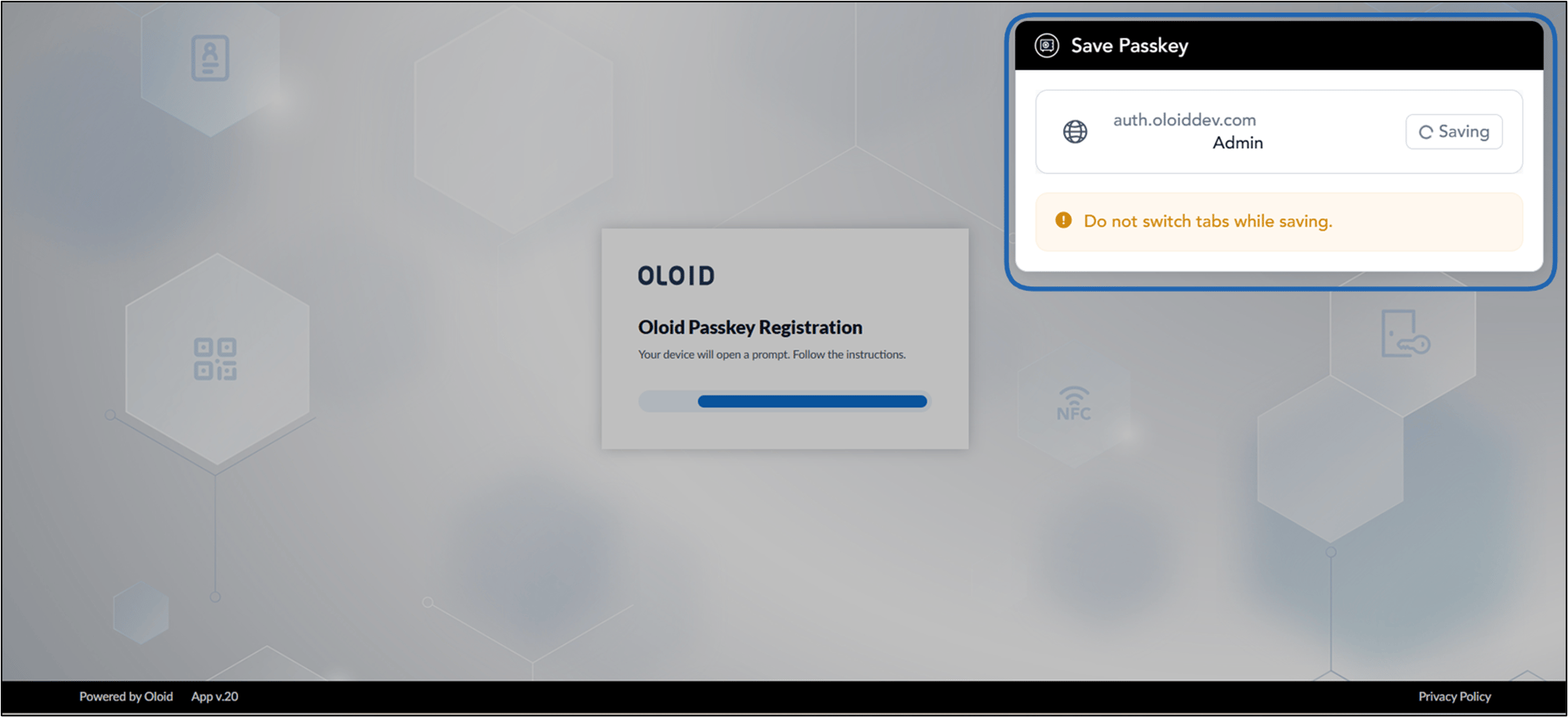
 Note: The Passkey will be saved to Oloid Vault, Windows Login, Google Password manager or Windows Hello.
-
Edit Full Name. (Optional)
