

Introduction
In Oloid Portal, enabling Auto recover Endpoint feature in Windows Login application allows you to recover the existing endpoint configuration in the Windows Authenticator App. Then, you must sync the application to pair the endpoint if required.Steps to enable Auto-recover Endpoint
- Log in to the Oloid Portal.
- On the Applications page, select the application paired in the Supervisor App (Windows Authenticator App).


- Go to Configure > Settings tab.

- Turn on Auto-recover Endpoint toggle button to automatically recover the endpoint configuration.

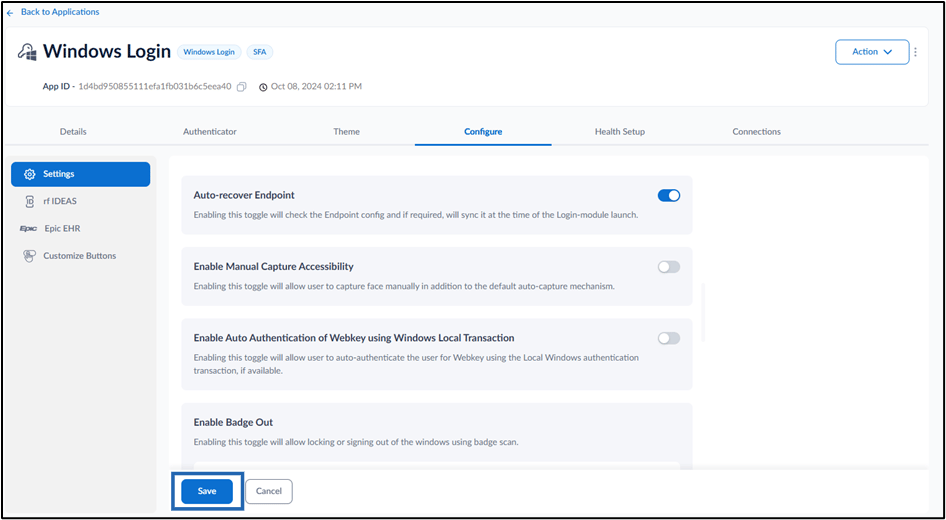
Note: In Windows Authenticator app, you must sync the configuration to Auto-recover Endpoint. For more details, refer How to sync configuration in Supervisor App
Steps to check Auto-recover Endpoint in Oloid Supervisor app
- Launch the Oloid Supervisor app.
-
Click Yes, pair my device.
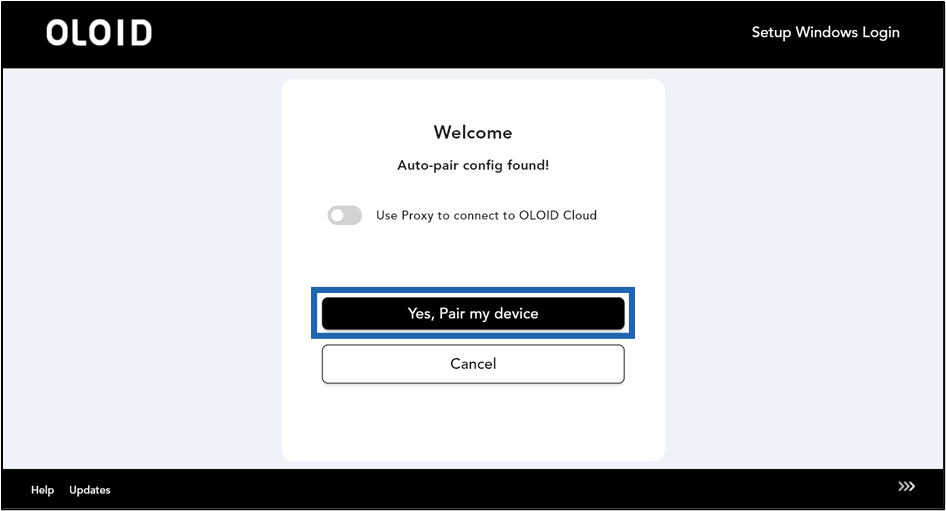

 ](https://oloid.help/en/articles/10441578-how-to-generate-auto-pair-config-file-for-windows-login-in-oloid-portal)Note: You must download the auto-configure file to your local system. For more information, refer to [How to generate Auto-Pair config file for Windows Login in Oloid Portal