Introduction
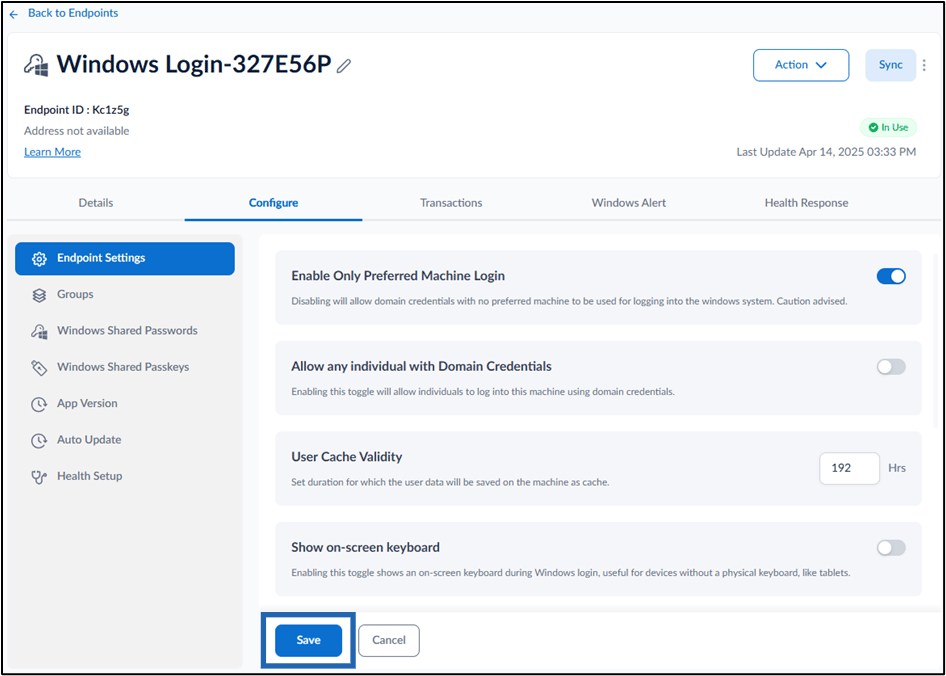
In Oloid Portal, enabling Only Preferred Machine Login feature allow domain credentials to be used only in preferred machine to log in to windows system.Steps to Enable Only Preferred Machine Login
- Log in to the Oloid Portal.
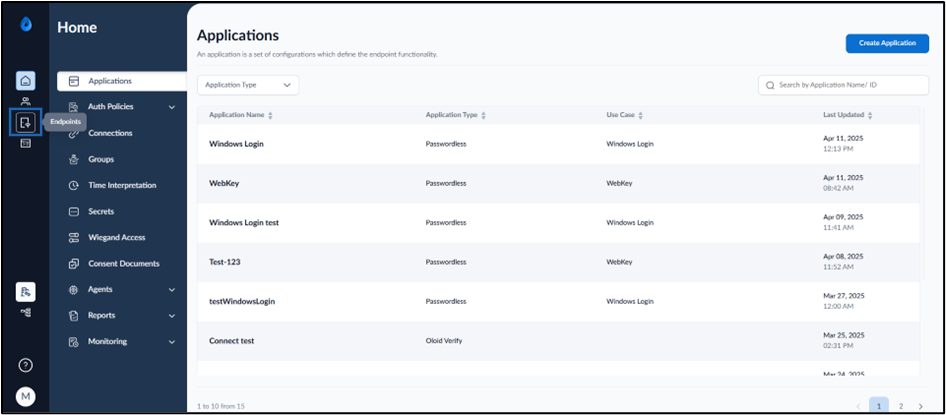
- On the home page of the portal, click Endpoints on the left menu panel.
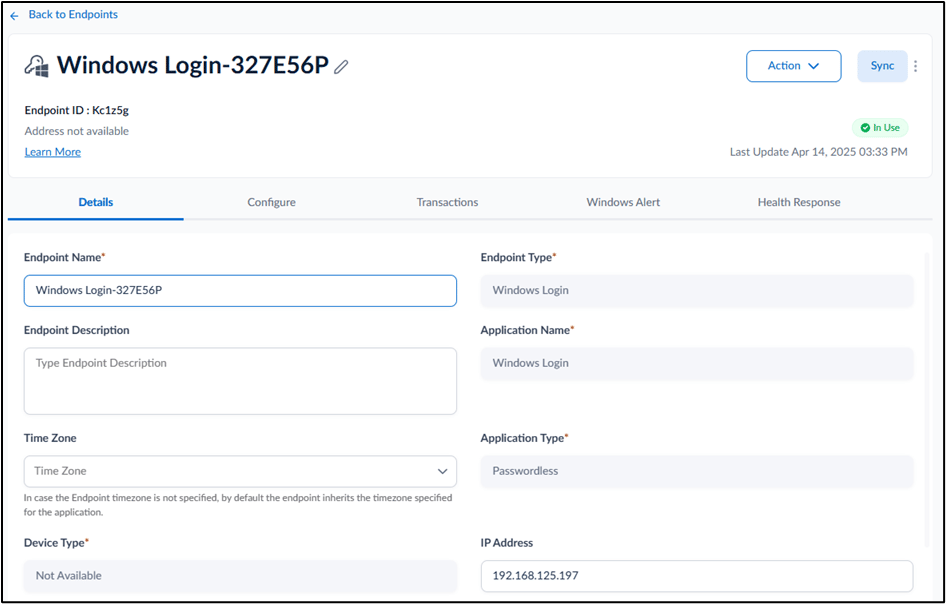
- Select the paired Windows Login Endpoint.

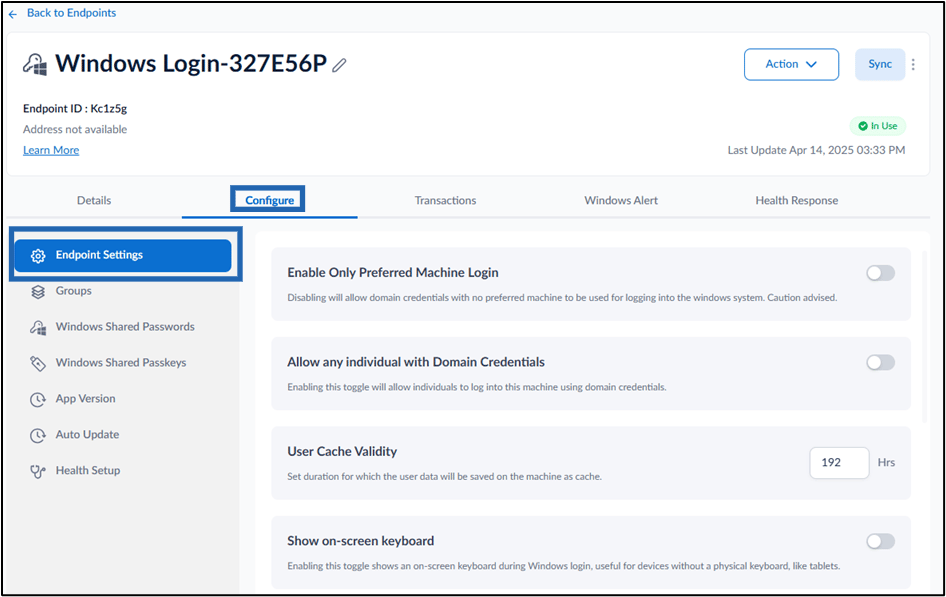
- Go to Configure > Endpoint Settings tab.
- Enable Only Preferred Machine Login toggle button to allow domain credentials to be used only in preferred machine to log in to windows system.

- Click Save.