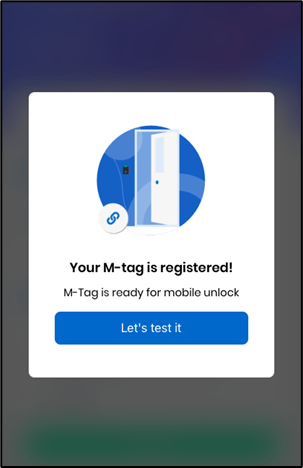
- Launch the M-Tag admin app.
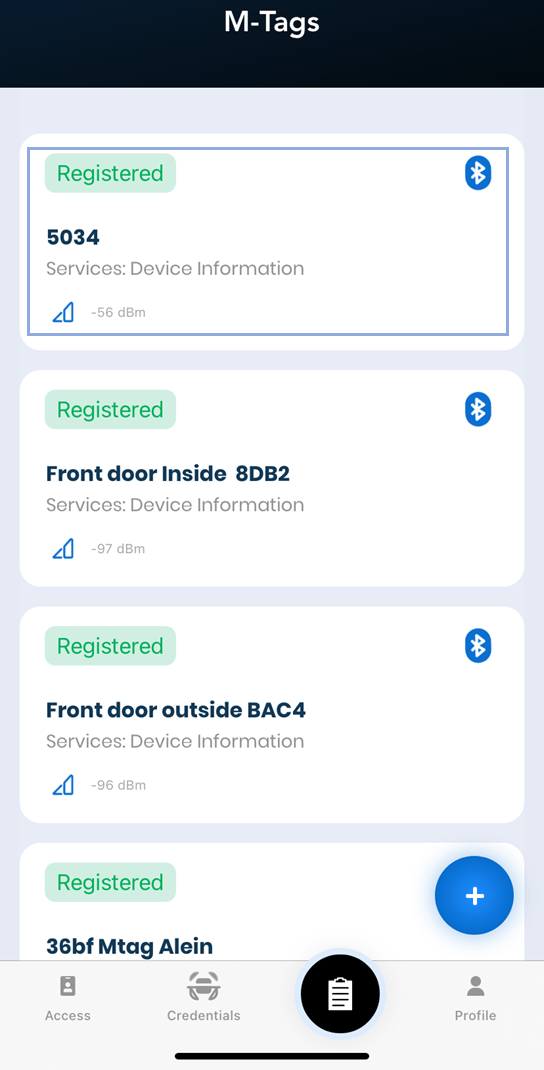
- Sign in to the app. The details screen displays a list of MAC Ids of the available M-Tags.
- Select a registered M-Tag.

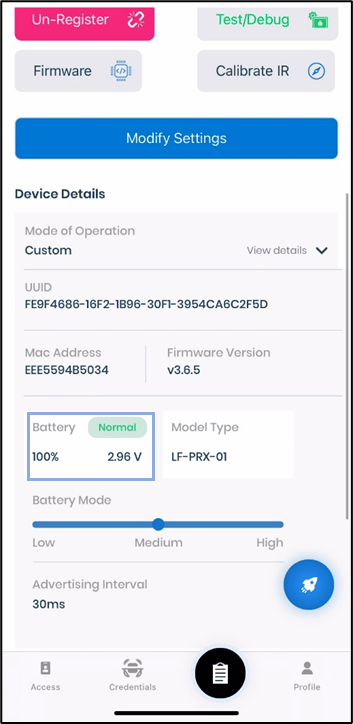
- In device details screen, Battery settings is at the bottom of the page.
- Battery Setting:
- Displays Normal, when battery is 100 percent
- Displays Low, when battery is less than 20 percent
- Voltage remains constant 2.92V
- Launch the M-Tag admin app.
- Sign in to the app. The details screen displays a list of MAC Ids of the available M-Tags.
- Select an unregistered M-Tag.
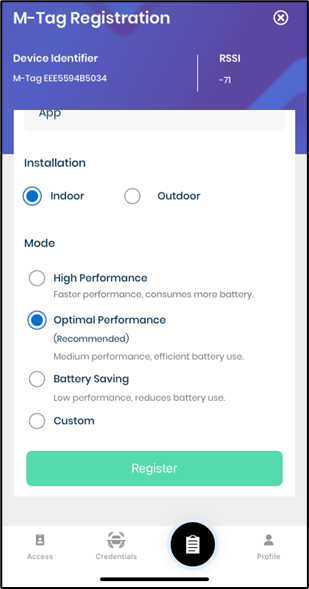
- Do the following, in the M-Tag Registration screen:
- Enter name of the M-Tag
- Select one from the following performance modes at the bottom of the screen:
- High Performance
- Optimal Performance
- Battery Saving
-
Custom
Note: High Performance, Optimal Performance, and Battery Saving mode the setting is pre-defined.
- Select Custom to configure performance mode on your own.
-
Toggle on IR Sensor to hold to unlock
Note: For push notification, background, and foreground unlock modes IR Sensor is not required.
-
Select IR Sensor Distance to change the distance of the hand gesture:
- Immediate
- Near
- Far
-
Select Advertising Interval Mode to change the signal strength:
- Low
- Medium
- High
-
Select Bluetooth Distance to change the distance from the app to M-Tag:
- Low
- Medium
- High

-
Toggle on IR Sensor to hold to unlock
- Tap on Register to successfully register and update the M-Tag.