

Badge
Steps to enroll PIN through Windows Login app:-
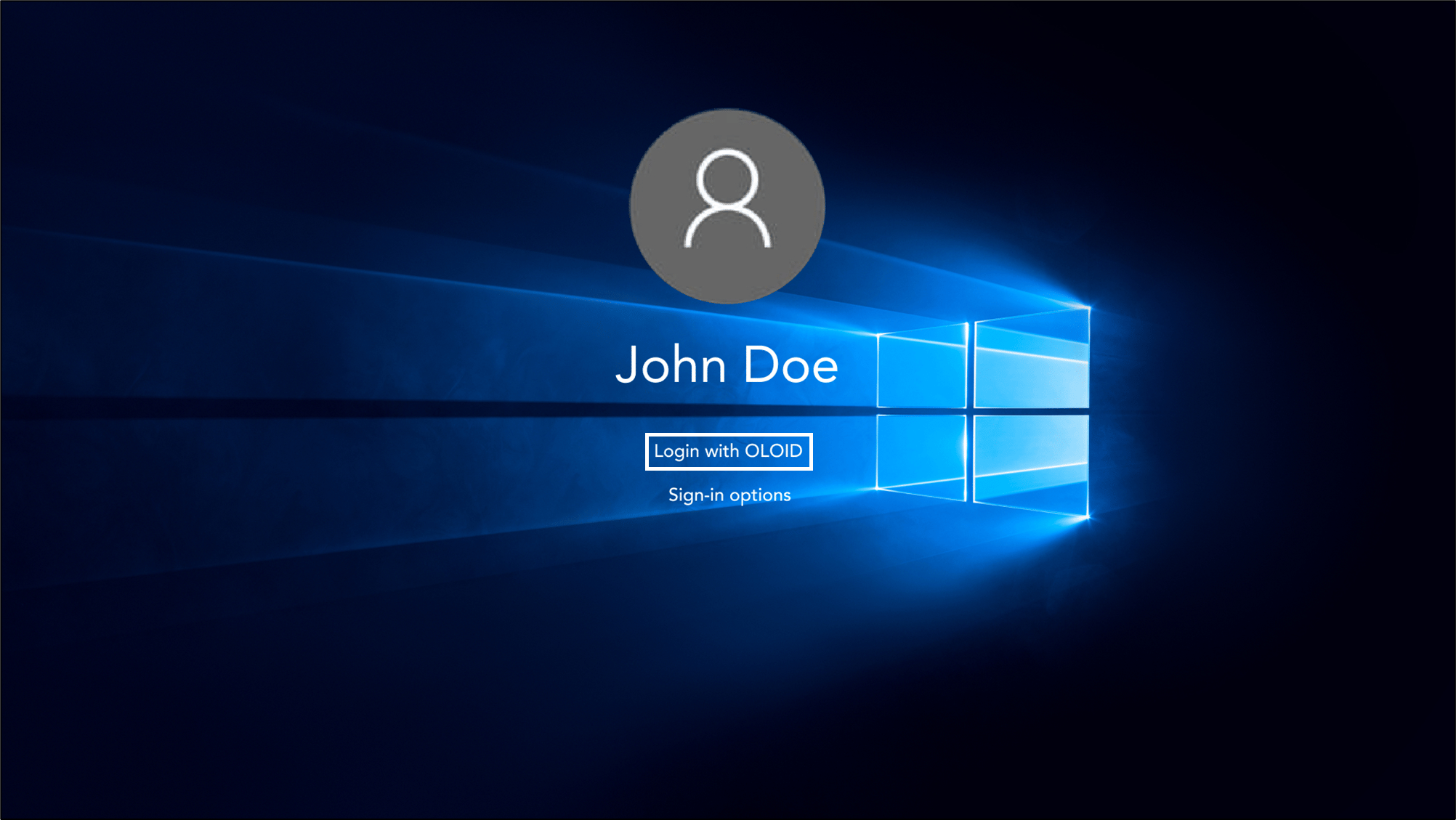
On the Windows lock screen, click Login with OLOID.
-
Select Login with Badge.

-
Tap the Badge on the Badge Reader to scan it.
Note: The badge reader must be connected to the computer.
 The Missing Credentials pop-up box is displayed.Note: If badge authentication is successful but your PIN is missing or expired, a Missing Credentials pop-up box is displayed to enroll PIN.
 -
Click Enroll Credential.

-
Do the following:
- Enter Domain\Username.
Enter your Windows domain and username in the format
Domain\Username. - Enter Password. Use your Windows account password.
- Select Enroll Windows credential to your account. (Optional)
- Click Continue.

- Enter Domain\Username.
Enter your Windows domain and username in the format
-
Select PIN.
 Note: You can configure PIN credentials in the Oloid Portal. For more details, refer How to configure PIN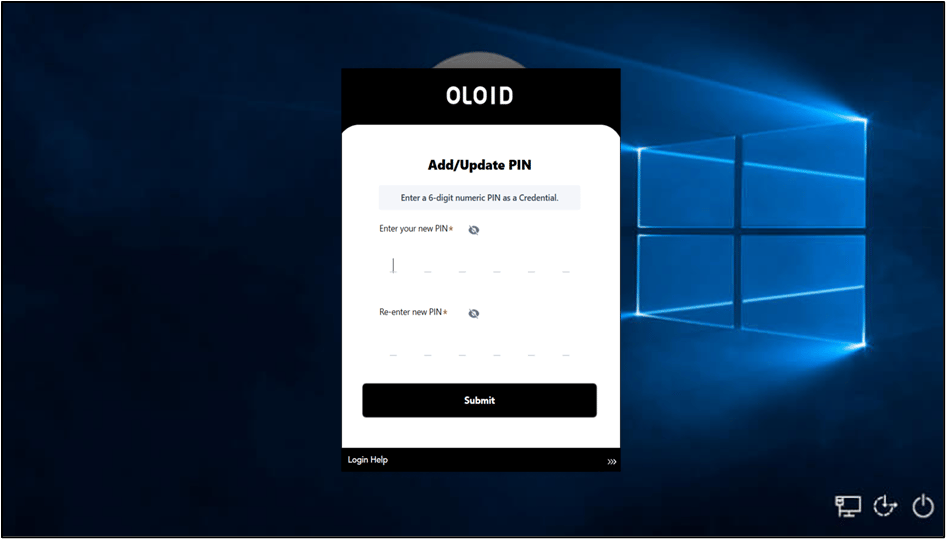
-
Do the following:
- Enter new PIN.
- Re-enter new PIN.
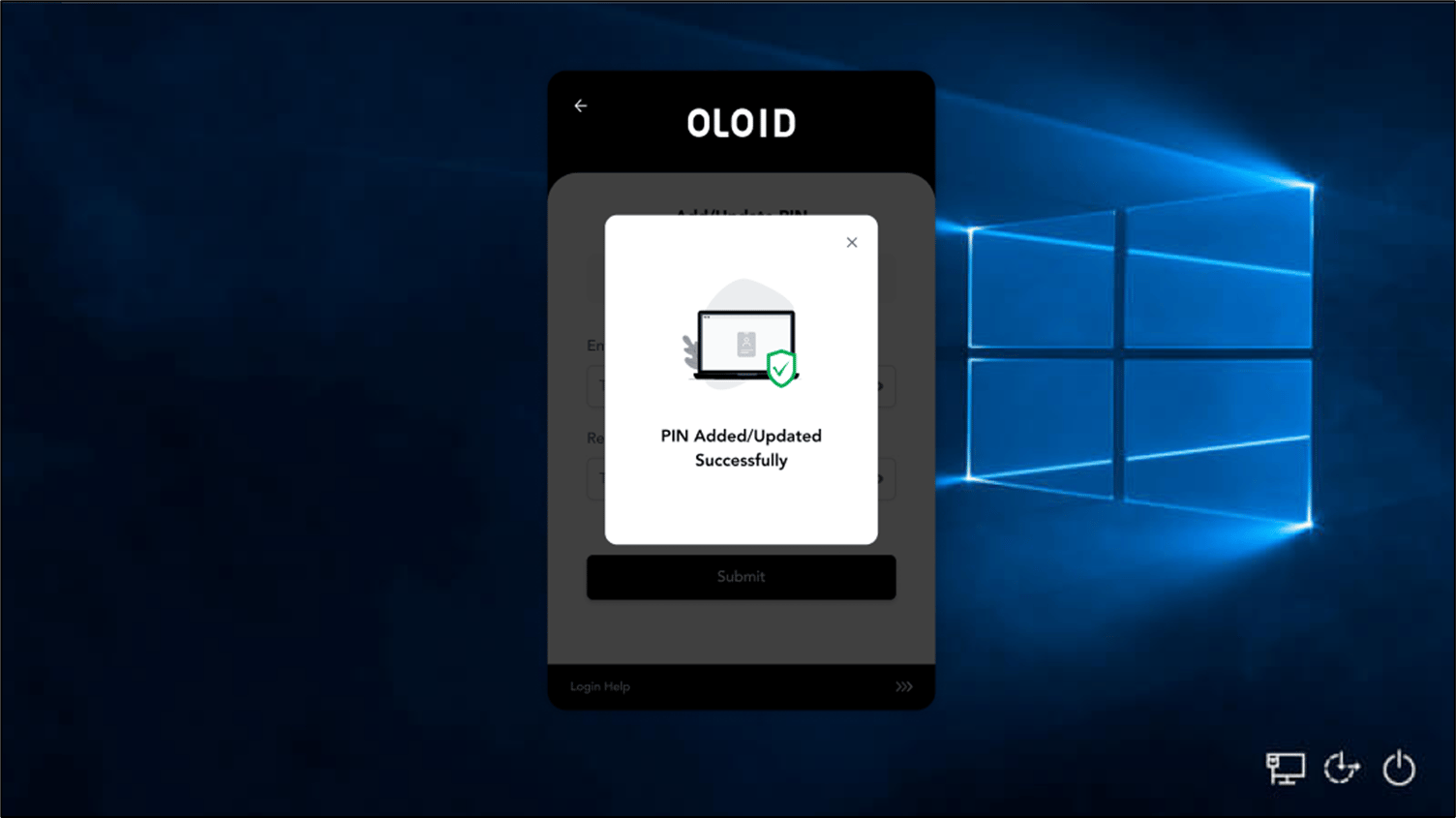
The PIN is enrolled successfully.
NFC
Steps to enroll PIN through Windows Login app:-
On the Windows lock screen, click Login with OLOID.
-
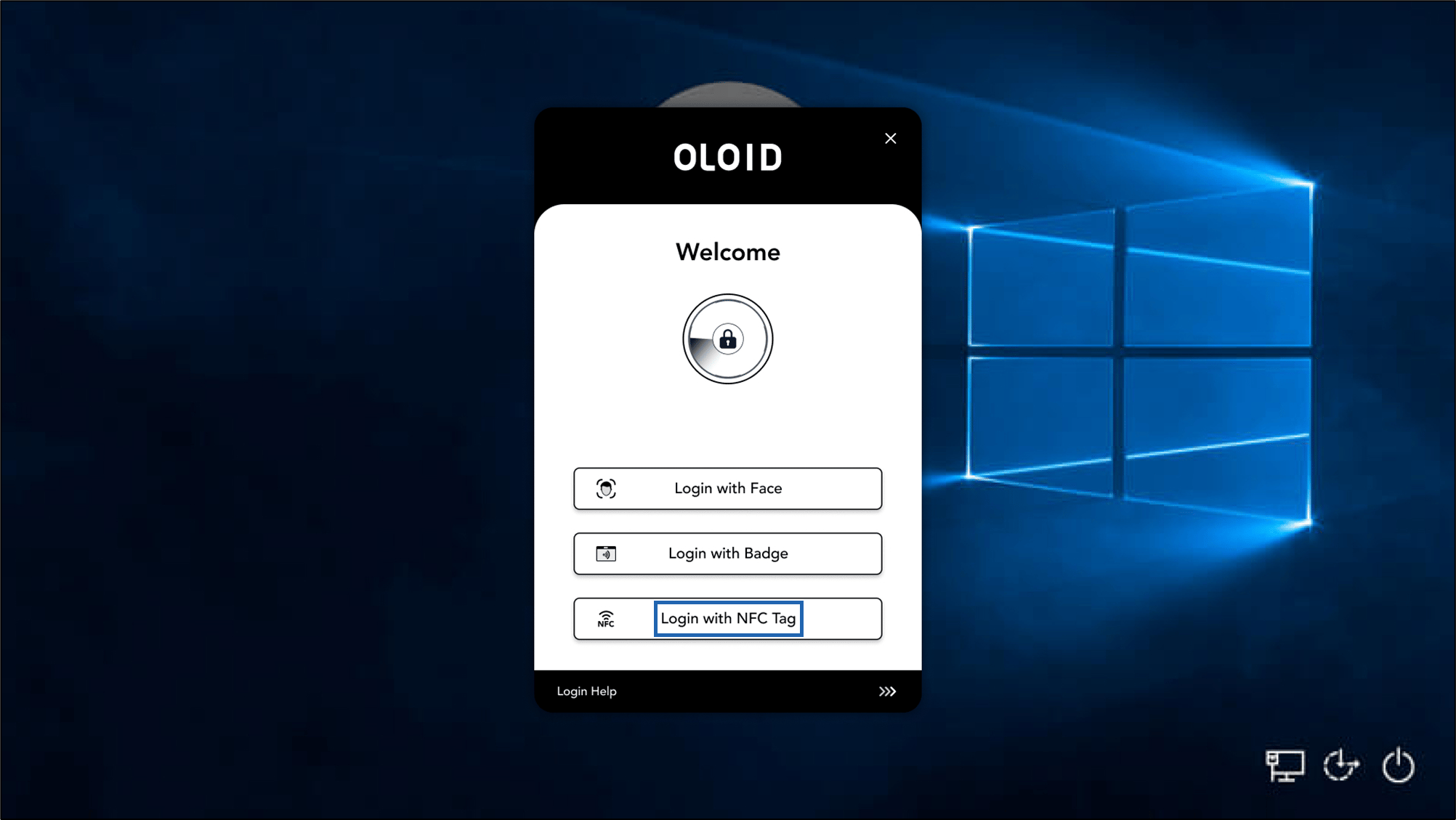
Select Login with NFC Tag.
-
Tap the NFC Tag on the Card Reader to scan it.
Note: The card reader must be connected to the computer.
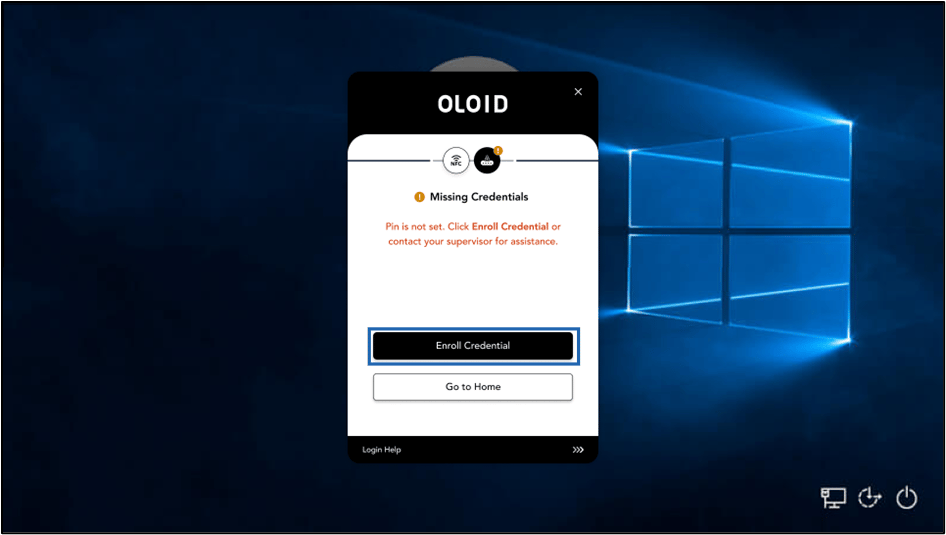
 The Missing Credentials pop-up box is displayed.Note: If NFC authentication is successful but your PIN is missing or expired, a Missing Credentials pop-up box is displayed to enroll PIN.
 -
Click Enroll Credential.
-
Do the following:
- Enter Domain\Username.
Enter your Windows domain and username in the format
Domain\Username. - Enter Password. Use your Windows account password.
- Select Enroll Windows credential to your account. (Optional)
- Click Continue.
- Enter Domain\Username.
Enter your Windows domain and username in the format
-
Select PIN.
-
Do the following:
- Enter new PIN.
- Re-enter new PIN.
The PIN is enrolled successfully.