

Introduction
This document provides instructions on how to configure a Data Mapper Table for Paychex Inbound in the Tenant Admin Portal.Prerequisites
- You must have access to the Tenant Admin Portal.
- Data Mapper Table for Paychex Inbound must be created. To create refer, Tenant Admin Portal - How to Create Data Mapper Table for Paychex Inbound
Steps to Configure Data Mapper Table for Paychex Inbound
- Log in to the Tenant Admin Portal.
- On the home page of the portal, go to Agents > Data Tables.

- Click preferred data table.
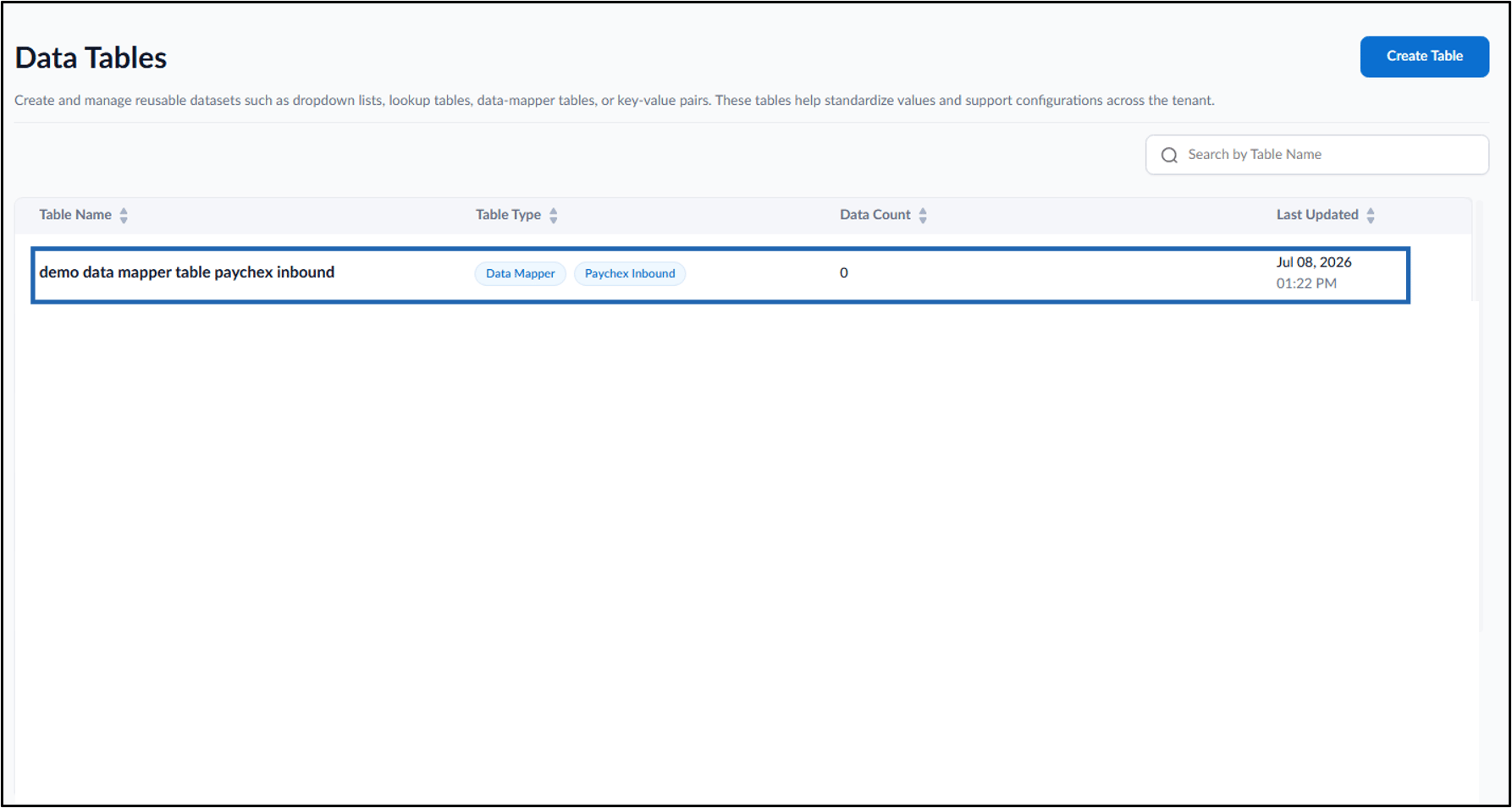
- Do the following:
- Configure Details Tab
- Setup Configure Tab
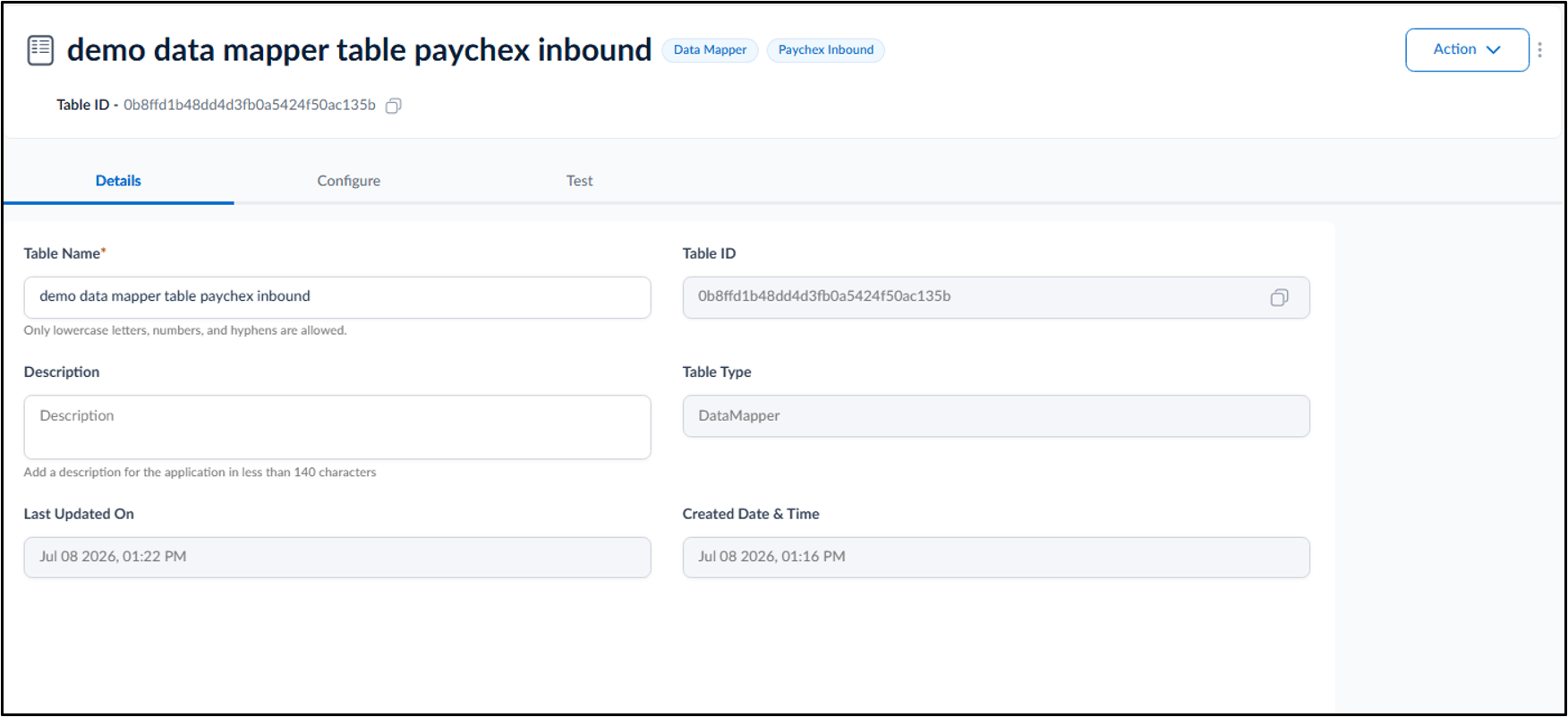
Configure Details Tab
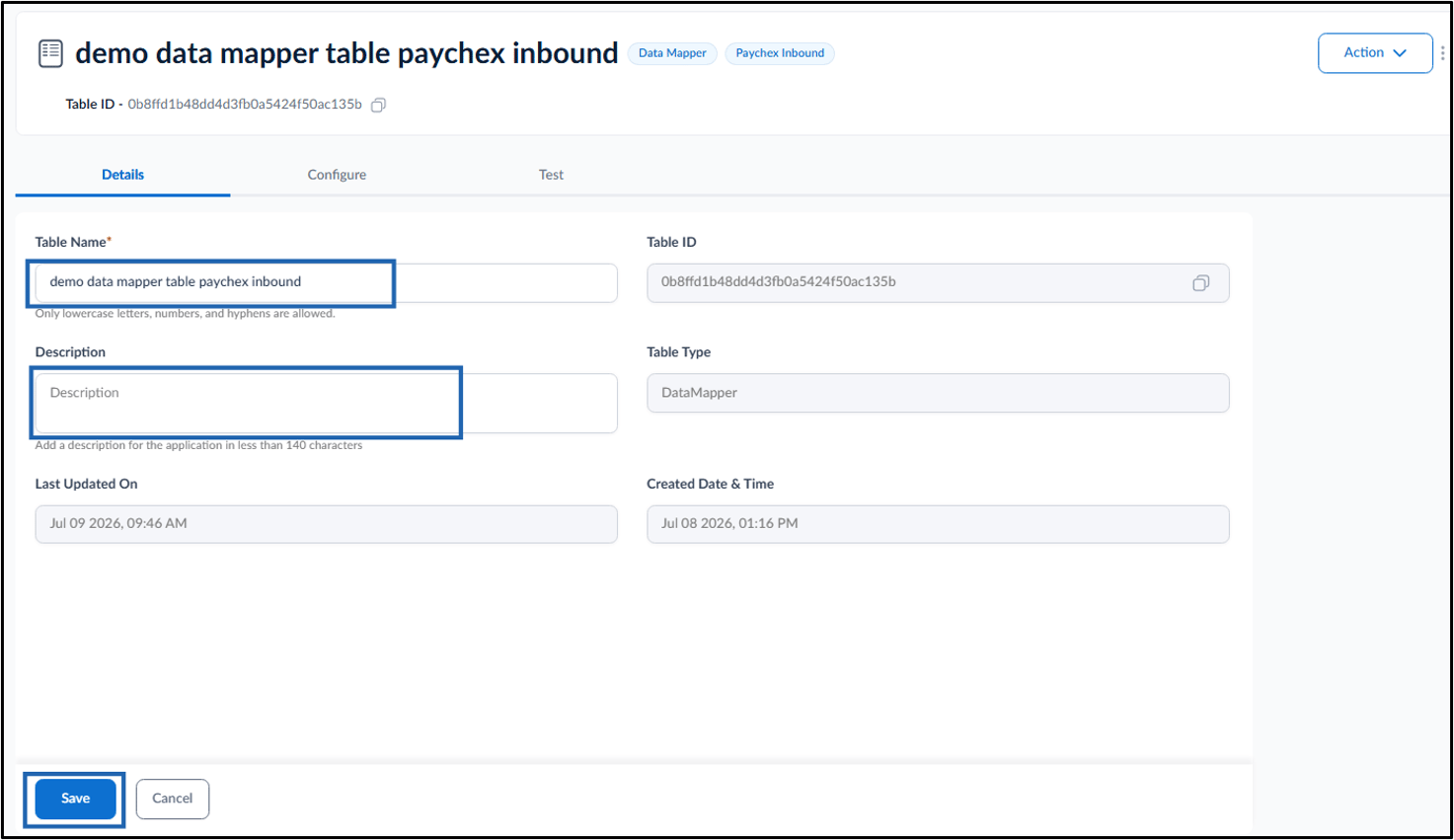
This tab is used to view and edit basic information about the data mapper table. Do the following:- Update the Table Name (if required).
- Enter Description (Optional).
- Click Save.
Setup Configure Tab
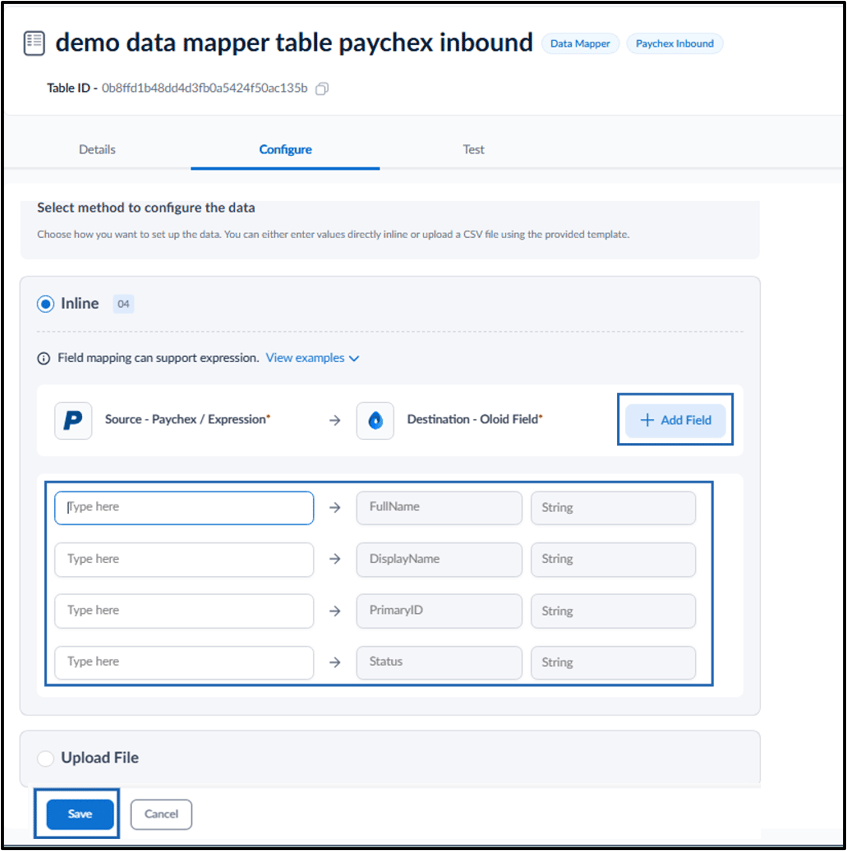
This tab is used to configure data field mappings between Paychex and Oloid.Note: The FullName, DisplayName, PrimaryID, and Status fields are mandatory and must be mapped to corresponding source fields or expressions before saving the configuration.
- Inline OR
- Upload File
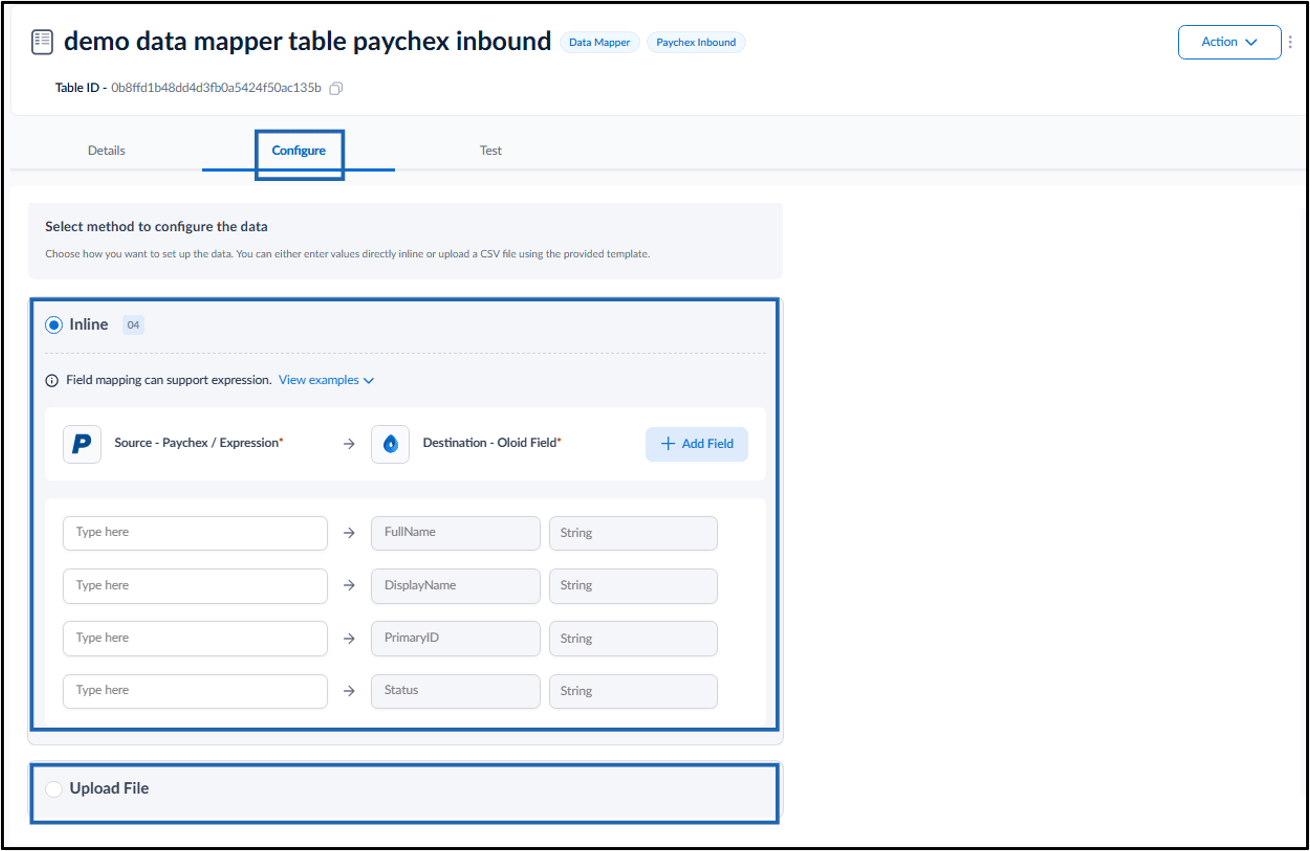
Inline
In the Inline section, define the fields as follows:- Source - Paychex / Expression: Enter the Paychex field name or expression that provides the source value.
- Destination - Oloid Field: Enter the Oloid field name to which the source value is mapped.
- Data Type: Select the data type from the drop-down.
-
Click Add field to add more fields.
Note: For mapping the table, refer Data Mapping Table.
-
Click Save.
Upload File
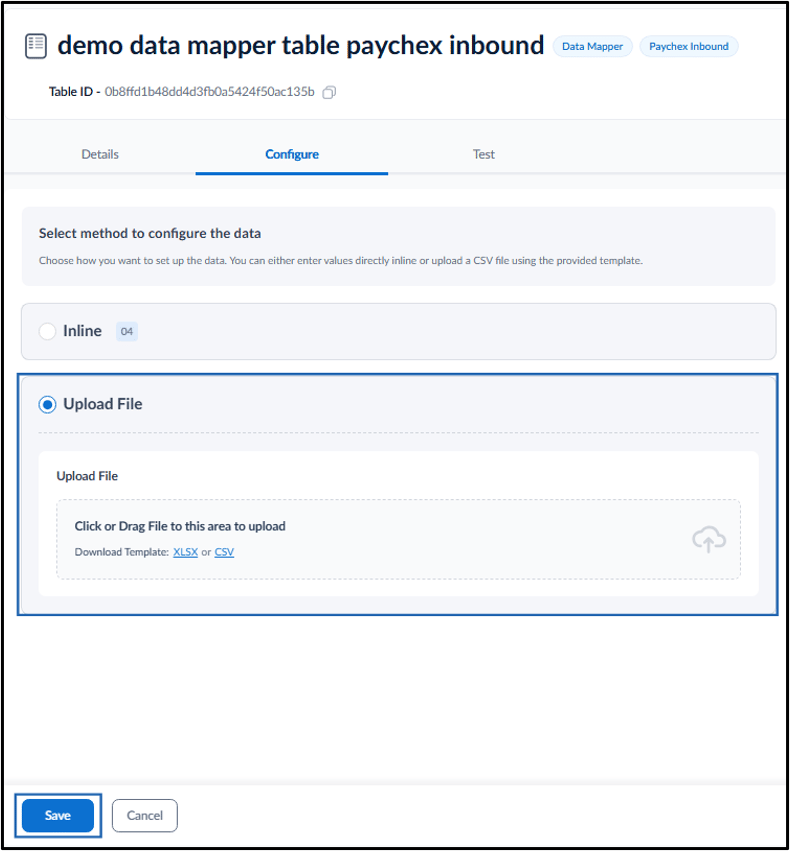
In the Upload File section, do the following:-
Select Upload File and upload the mapping file.
Note: The file format must be in .XLSX or .CSV.
-
Click Save.
Additional Information
Data Mapping Table
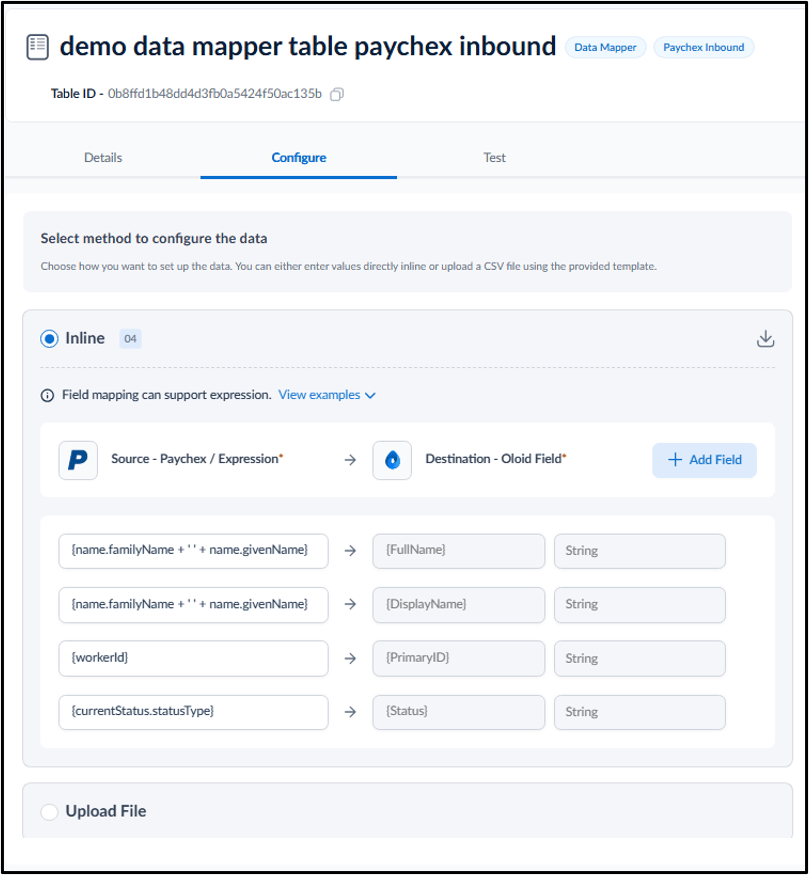
Use the following fields to define data mappings when configuring the Data Mapper Table. Paychex Use Field Oloid Use Field Data Type {workerId} PrimaryID String {name.familyName + ’ ’ + name.givenName} DisplayName String {name.familyName + ’ ’ + name.givenName} FullName String {workerType} {UserMetadata.WorkerType} String {currentStatus.statusType} Status StringNote: Contact Oloid support if you need assistance while configuring the Data Mapper table.