Introduction
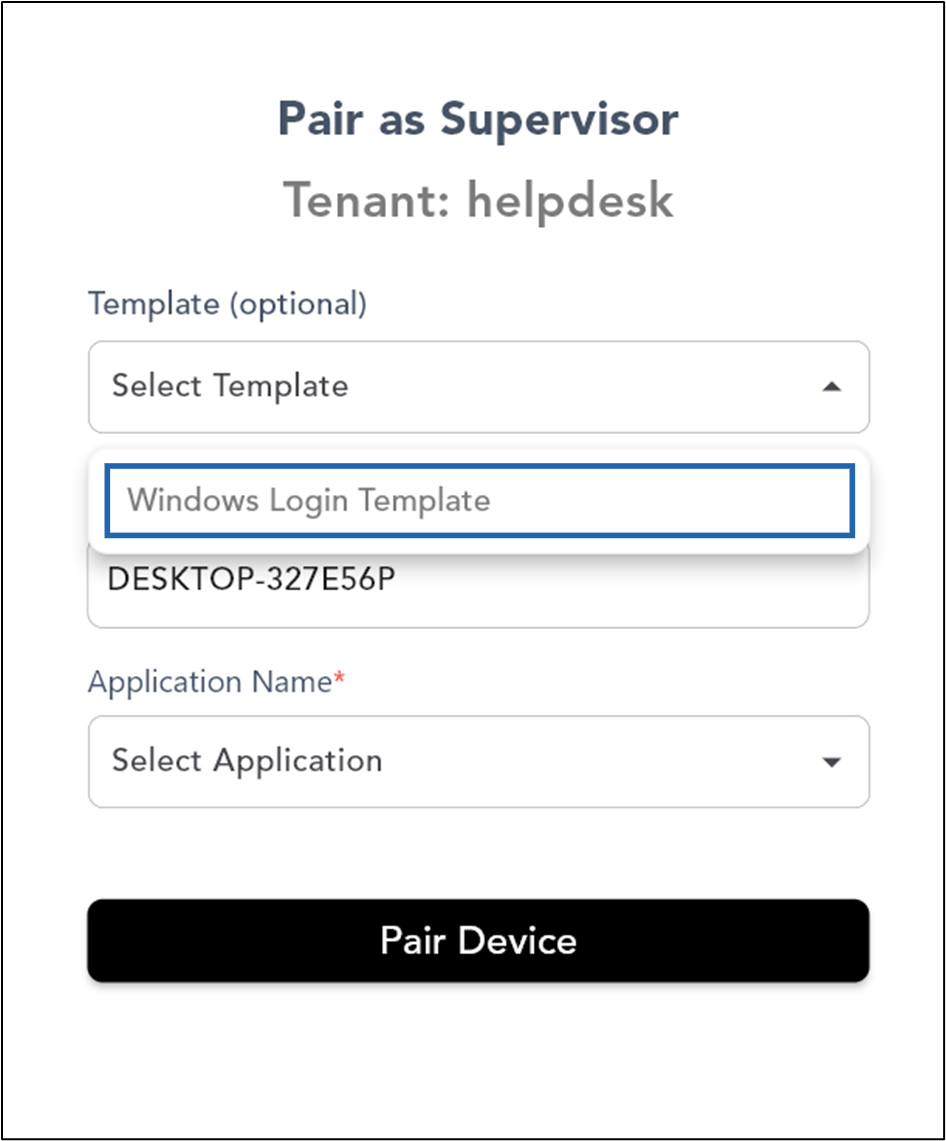
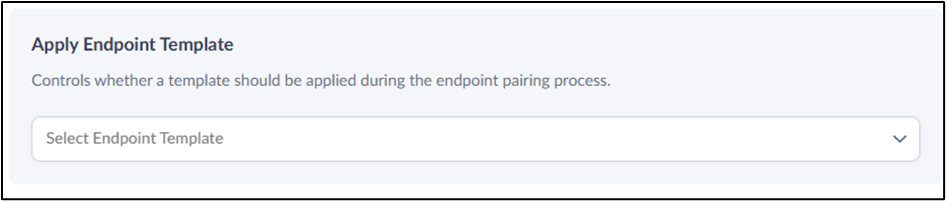
In Oloid Portal, enabling the Apply Endpoint Template feature allows Supervisors to view and select endpoint templates during the endpoint pairing process in the supervisor app.Steps to Apply Endpoint Template
- Log in to the Oloid Portal.
-
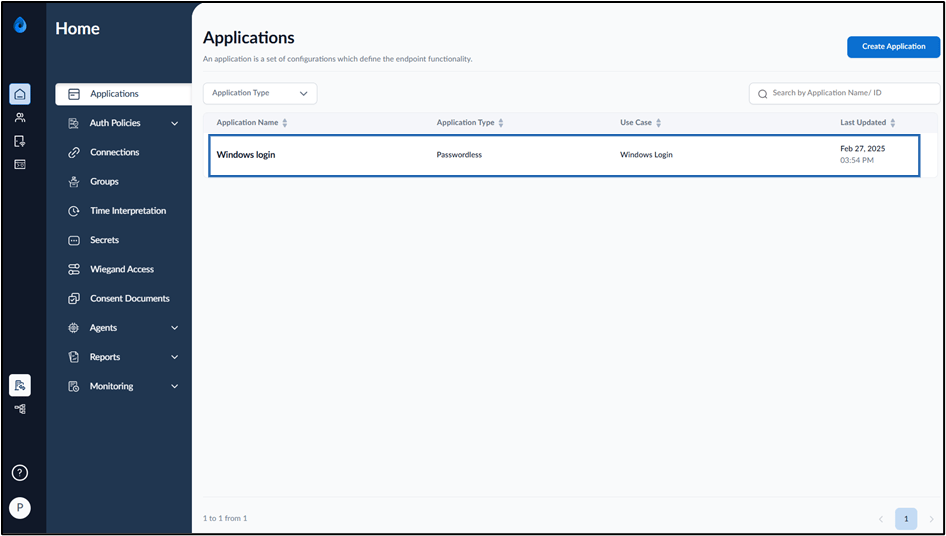
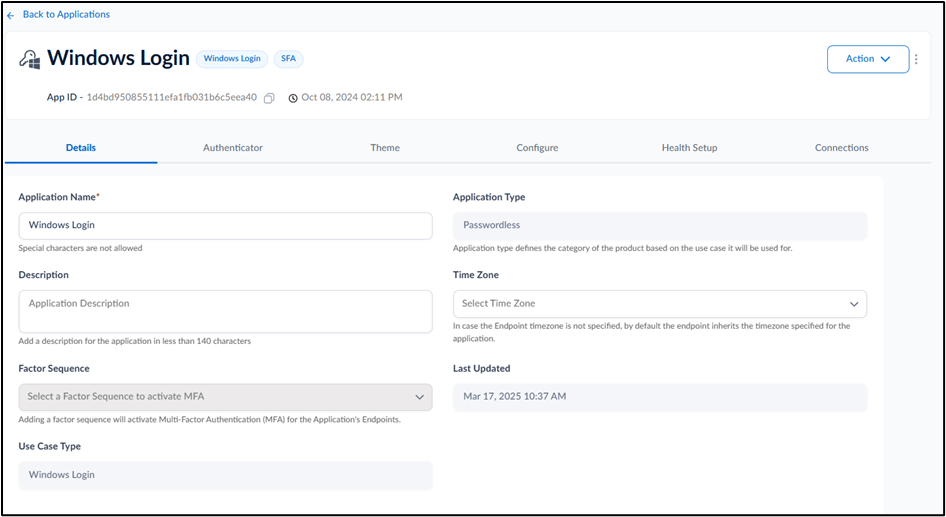
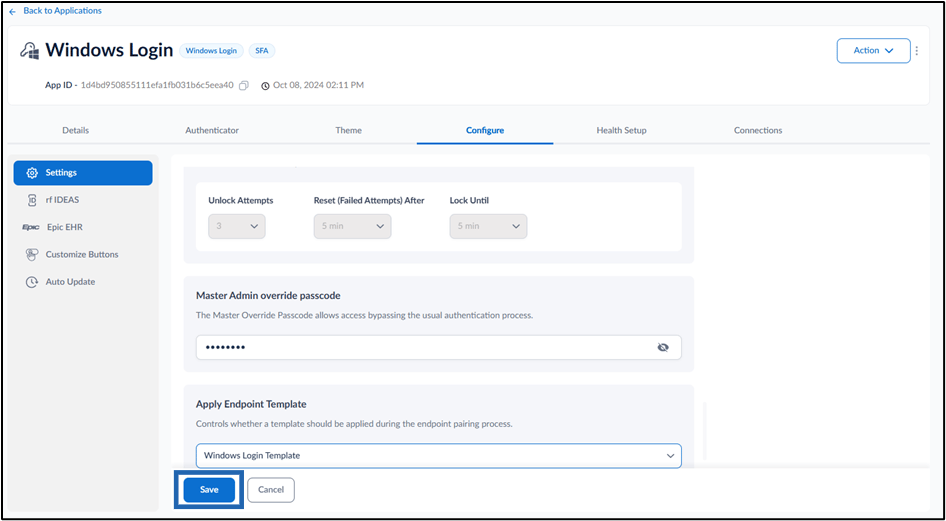
On the Applications page, select the application paired in the Supervisor App (Windows Authenticator App).
-
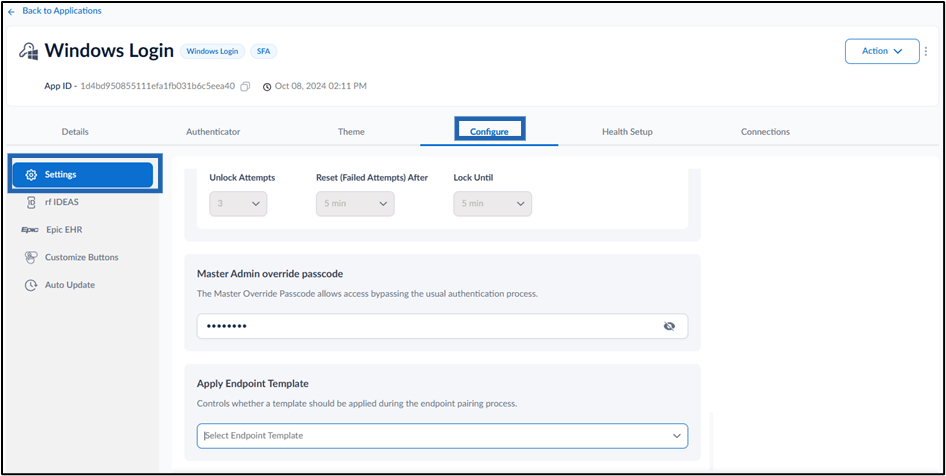
Go to Configure > Settings tab.
-
Click Select Endpoint Template field to select an endpoint template from the dropdown menu.
Note: You must create an Endpoint Template. For more, refer to How to create and configure Windows Login Endpoint Template
Note: In Windows Authenticator app, you must sync the configuration to Apply Endpoint Template. For more details, refer How to sync configuration in Supervisor App