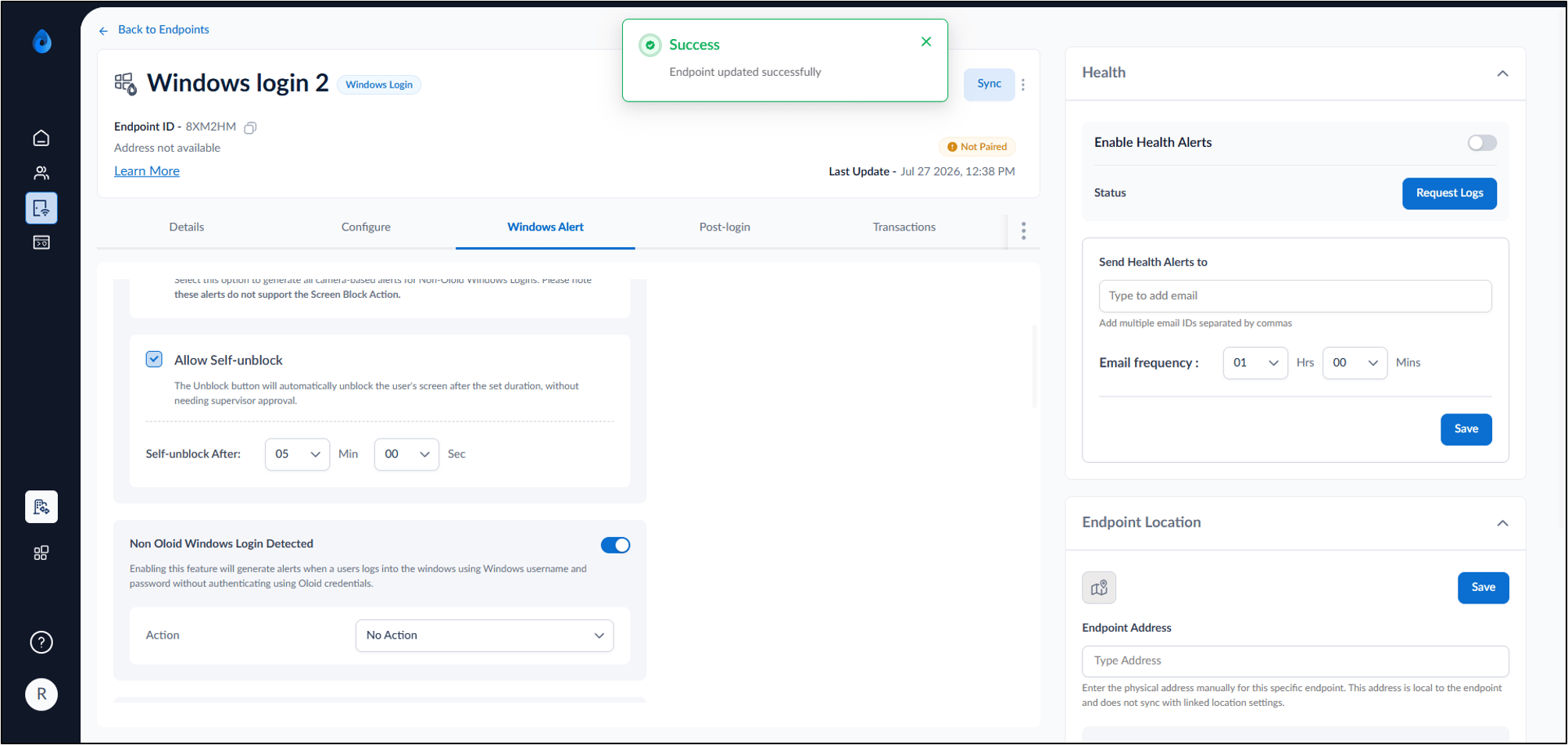
Introduction
Prerequisites
- You must have access to the Tenant Admin Portal.
- Ensure the endpoint is paired with the Windows Login application. refer: How to pair endpoint using Pair as Supervisor in Supervisor App
- Ensure that your system is unlocked
- Ensure that your system’s camera is working properly
Steps to configure Check Emotions
- Log in to Tenant Admin Portal.
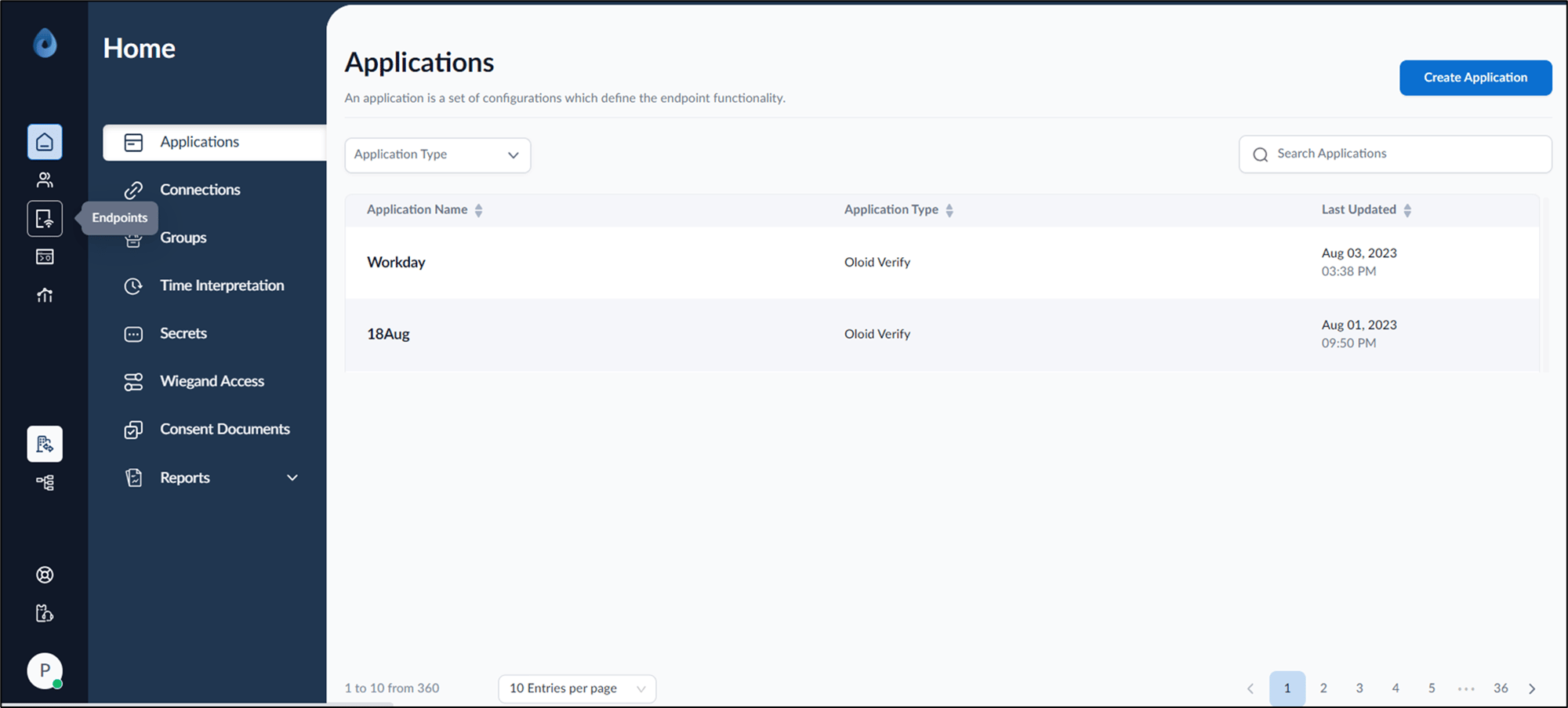
- On the home page of the portal, click Endpoints on the left menu panel.
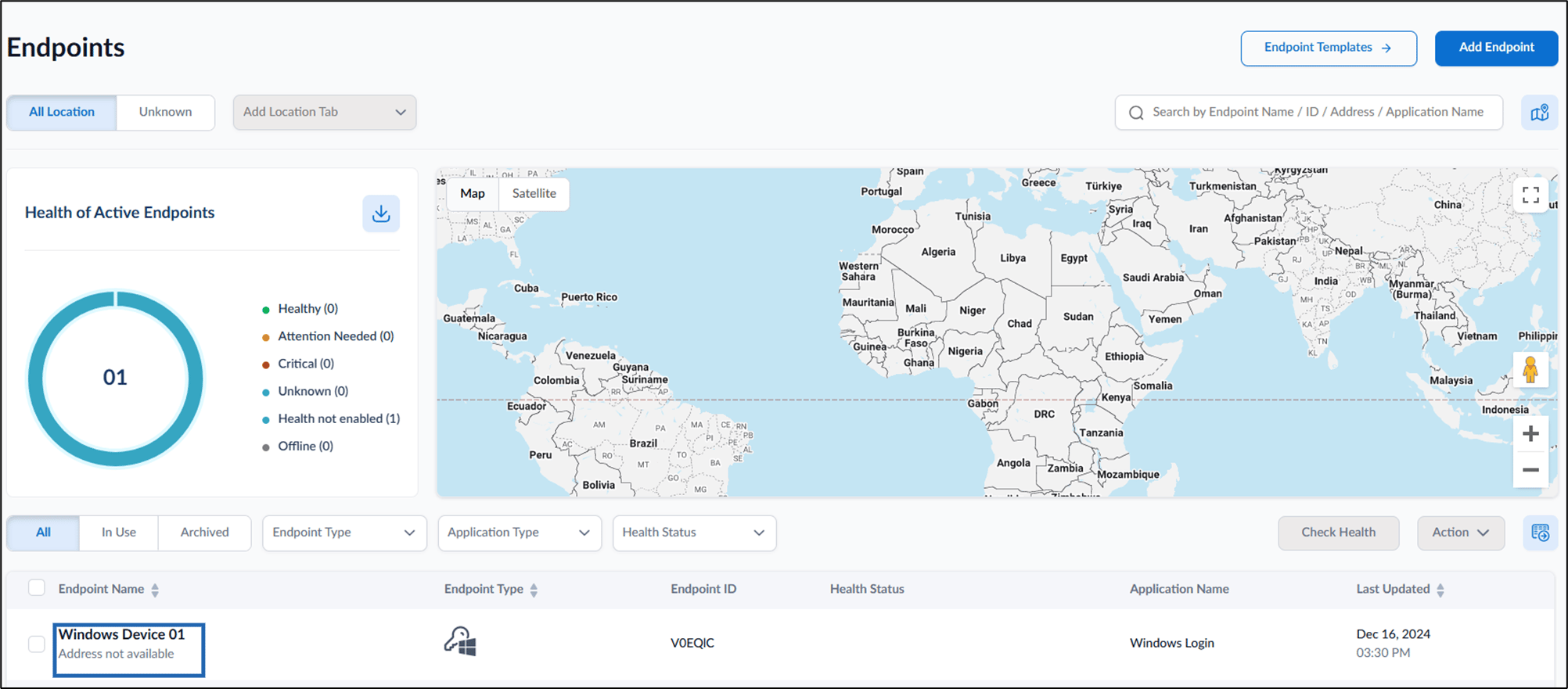
- Click endpoint name (Windows Login) to edit from the listed endpoints.
- Go to Windows Alert tab.
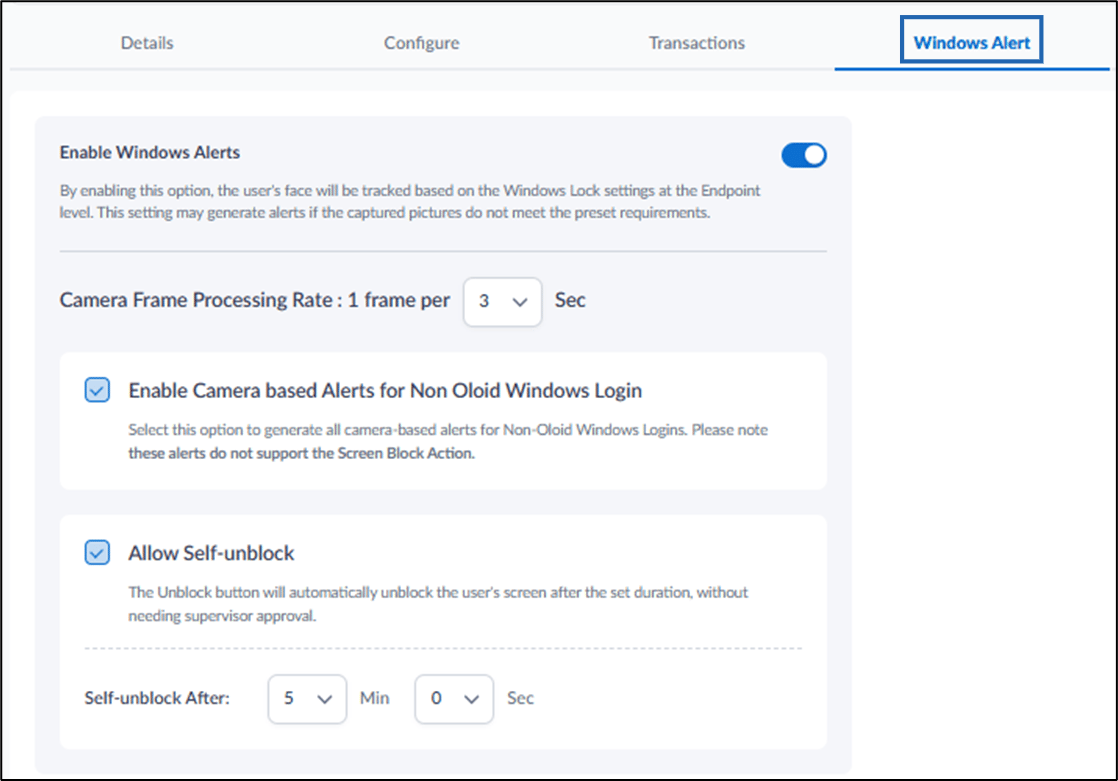
- Do the following:
- Enable the Check Emotions toggle button.
- Enter the Check Emotions frequency.
- Select Action from drop down.
- Click Save.