Introduction
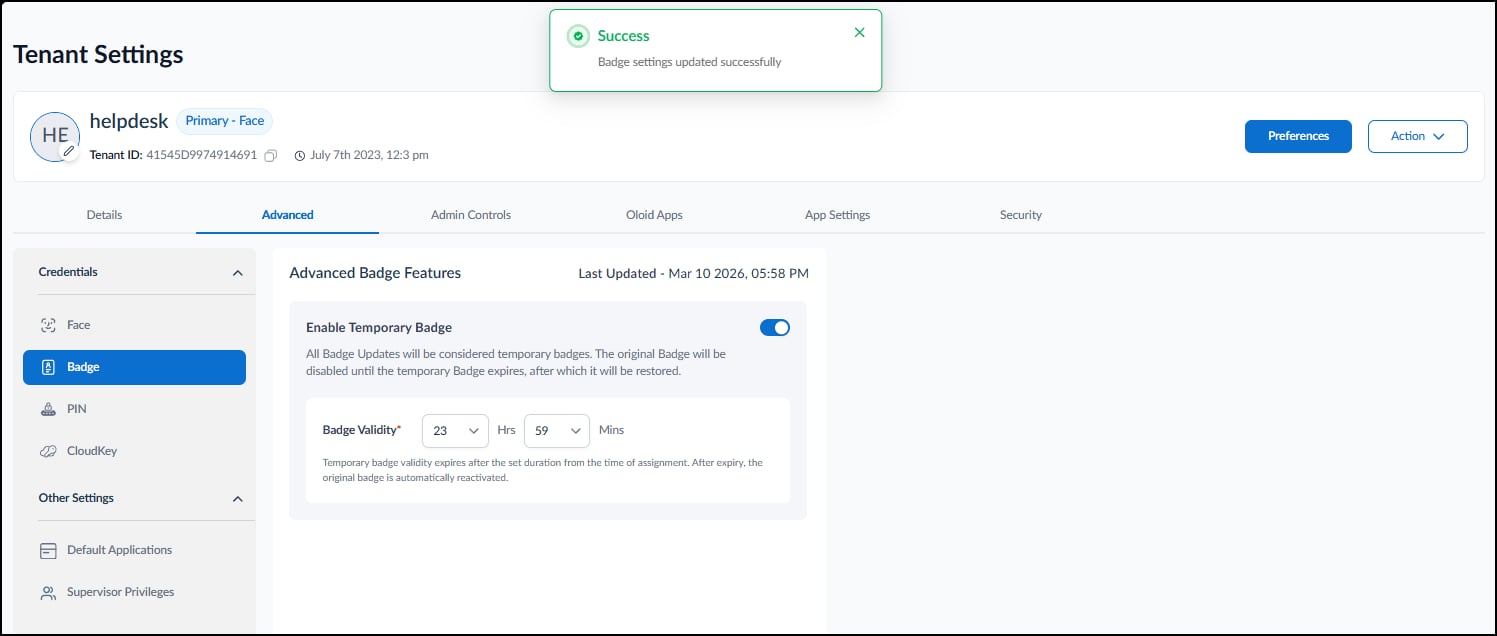
This document explains how to enable and configure a Temporary Badge in the Tenant Admin Portal. The Temporary Badge feature allows configuration of a badge credential with a defined validity period for badge authentication.Prerequisite
You must have access to the Tenant Admin Portal.Steps to Enable the Temporary Badge
- Log in to the Tenant Admin Portal.
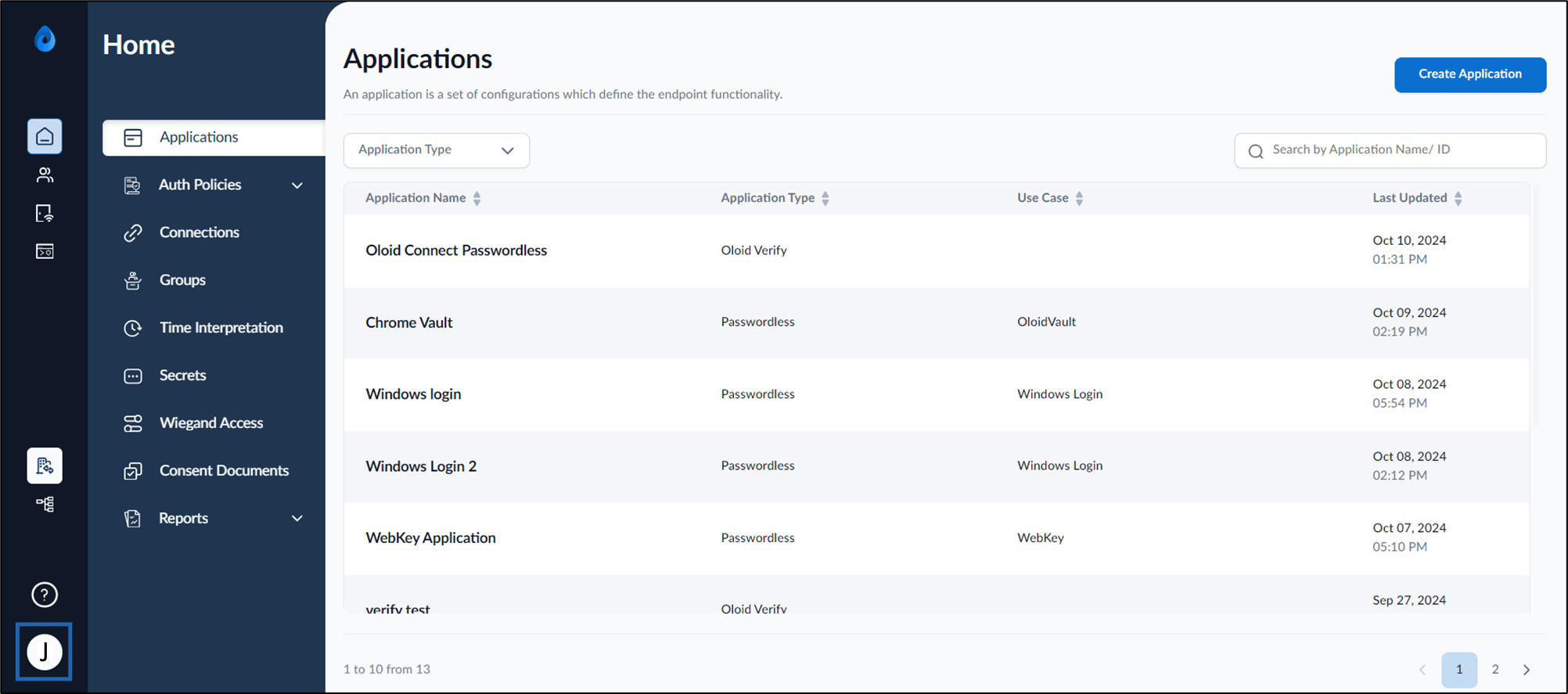
- On the homepage of the portal, click user profile icon on the bottom left corner of the menu panel.
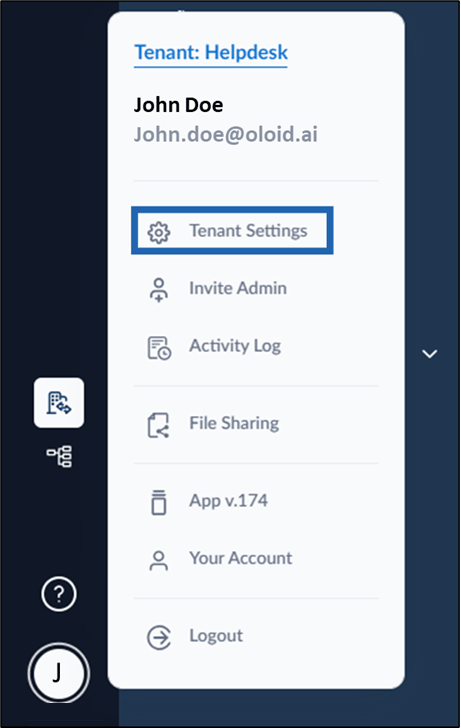
- Select Tenant Settings.
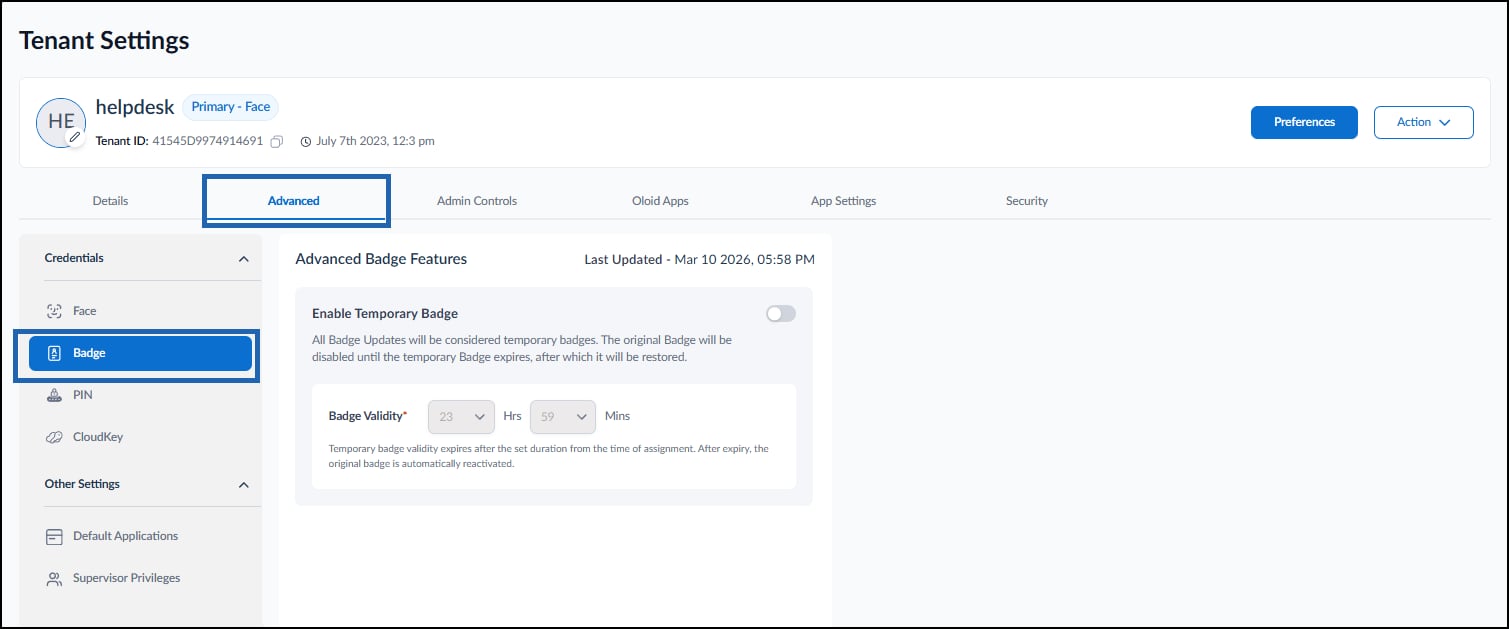
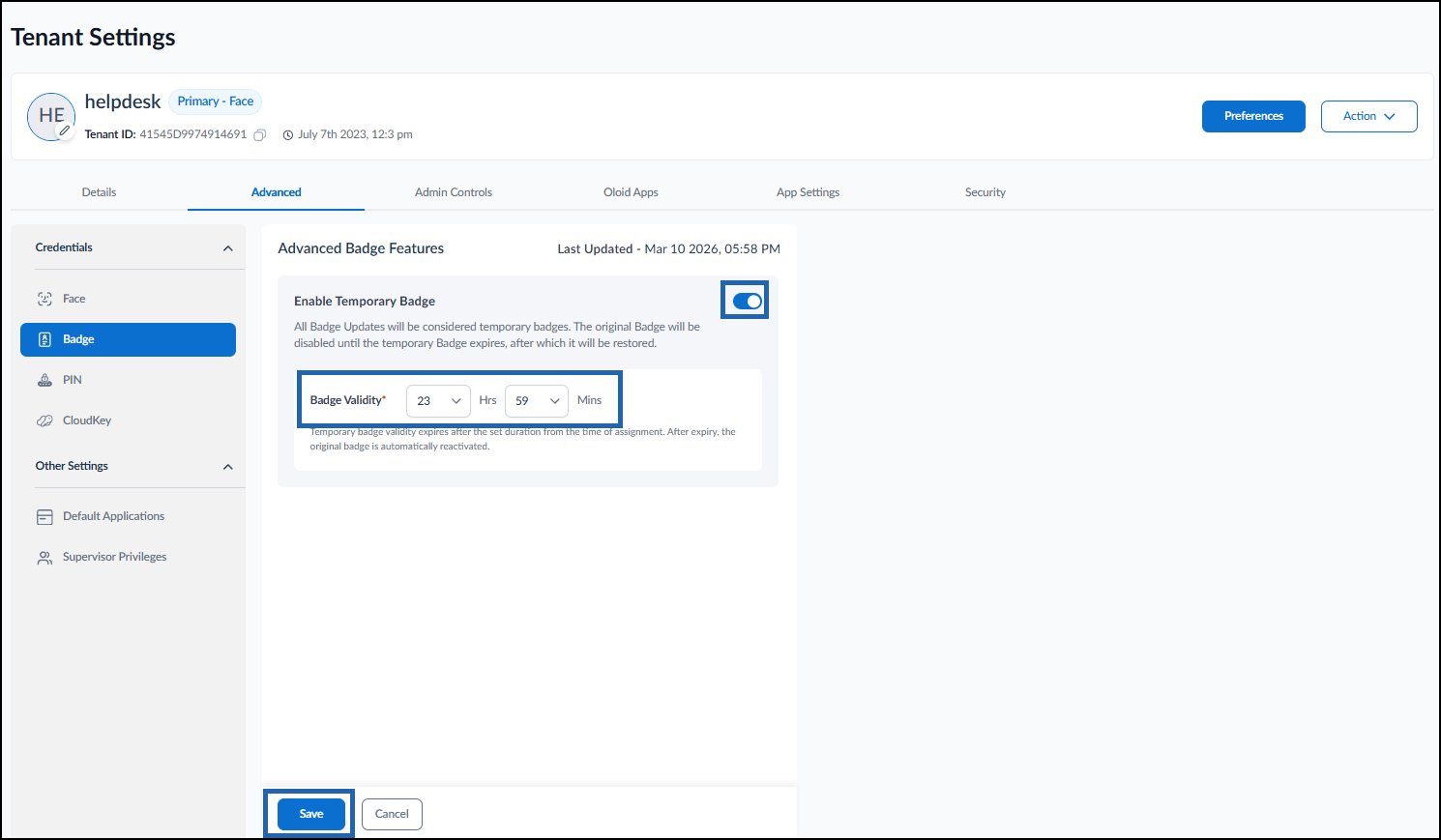
- Go to Advanced tab > Badge.
The Advanced Badge Features section is displayed.
- Do the following:
-
Turn on the Enable Temporary Badge toggle.
Note: When a temporary badge is assigned, the original badge becomes inactive. After the temporary badge expires, the original badge becomes active again.
-
Select the Badge Validity from the drop-down button.
Note: The maximum badge validity that can be configured is 23 hours and 59 minutes.
-
Click Save.
-
Turn on the Enable Temporary Badge toggle.