

Introduction
This document explains how to authenticate a user and record punches using the Offline Intent Screen in the Oloid Connect application. When the endpoint is offline, users can select an intent (such as Clock In, Start Break, End Break, or Clock Out) to record punches. These punches are stored locally and sync automatically when the endpoint reconnects to the network.Prerequisites
- The Oloid Connect application must be created and configured. For more, refer to How to Create and Configure Oloid Connect Application in Tenant Admin Portal
- The Offline screen must be configured in the Tenant Admin Portal. For more, refer to Oloid Connect - How to Configure Offline Intent Screen in Tenant Admin Portal
- The Oloid Connect endpoint must be paired. For more, refer to How to pair an Oloid Connect endpoint
- Badge reader
Steps to Authenticate using Offline Intent Screen using Badge
- On the Oloid Connect endpoint preview screen, tap Login with Badge.

- Scan the Badge at the Reader.

Record Punch Using Offline Intent Screen
- On the Choose Your Intent screen, tap the required intent button:
- Clock In
- Start Break
- End Break
- Clock Out
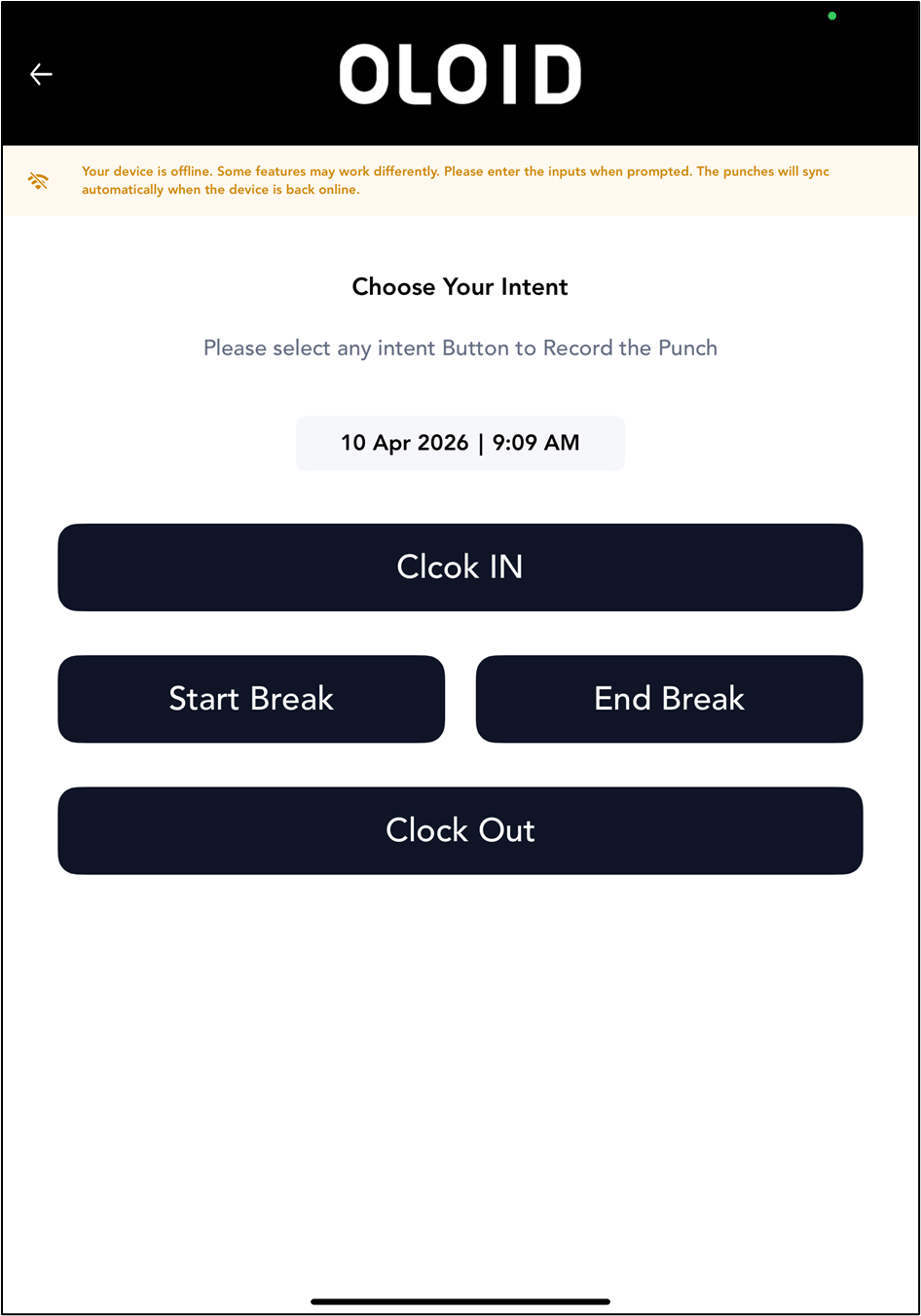
Note: These punches are stored locally and sync automatically when the endpoint reconnects to the network.
