

Introduction
Prerequisites
Steps to Install and Configure the Oloid Launcher in Citrix VDI
Install the Citrix Login to Windows via Citrix Download and Install the Windows Authenticator App Pair the Windows Authenticator AppInstall and Configure Citrix Workspace
-
On your local machine, go to https://www.citrix.com/downloads/workspace-app/windows/workspace-app-for-windows-latest1.html

-
Click Continue.

-
Select I agree checkbox and click Continue.

-
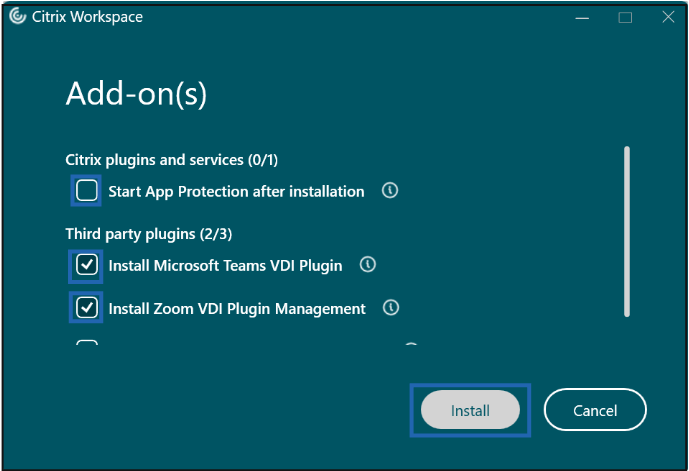
Select the preferred Add-on(s) and click Install.
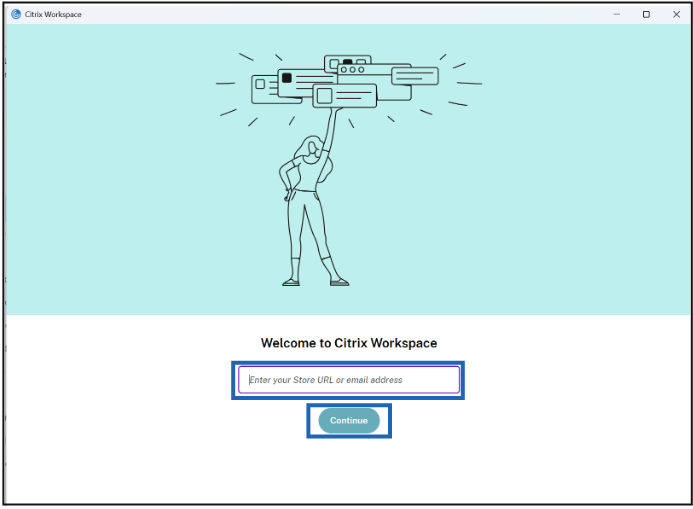
- Launch Citrix Workspace. The Welcome screen is displayed.
-
Enter the Store URL > Continue.
-
Do the following:
- Enter the User name.
- Enter Password.
- Click Log ON.

-
In the Citrix Workspace app, go to the Desktops Tab on top and select the published virtual desktop to connect.

-
You have successfully logged into the Virtual Desktop.
Citrix should automatically use your Workspace credentials to sign in to the Windows session. If Windows prompts you for credentials, enter the same username and password.
Note: If Microsoft Edge prompts you to create or configure a profile when you first access the VDI, complete the required setup before proceeding.
Install the Oloid Windows Authenticator App on Citrix VDI
- On your local device, login to Tenant Admin Portal.
- Go to User profile > Tenant Settings > Oloid App.
- Download the latest Windows Authenticator app v2 installer.
- Get the installer from your local machine into the remote session using whichever of these works given the customer’s Citrix policy:
- Clipboard copy-paste — copy locally (Ctrl+C), paste inside the session’s File Explorer (Ctrl+V).
- Browser download inside the session — if the session has internet access, open a browser inside it and download directly from the tenant URL in 2.1.

- Run the installer inside the session (as administrator if not prompted automatically) and step through the wizard.
- The Oloid Passwordless Login Setup pop-up box is displayed.
- Do the following
-
Click Start.

-
Select License Agreement checkbox and click Next.

-
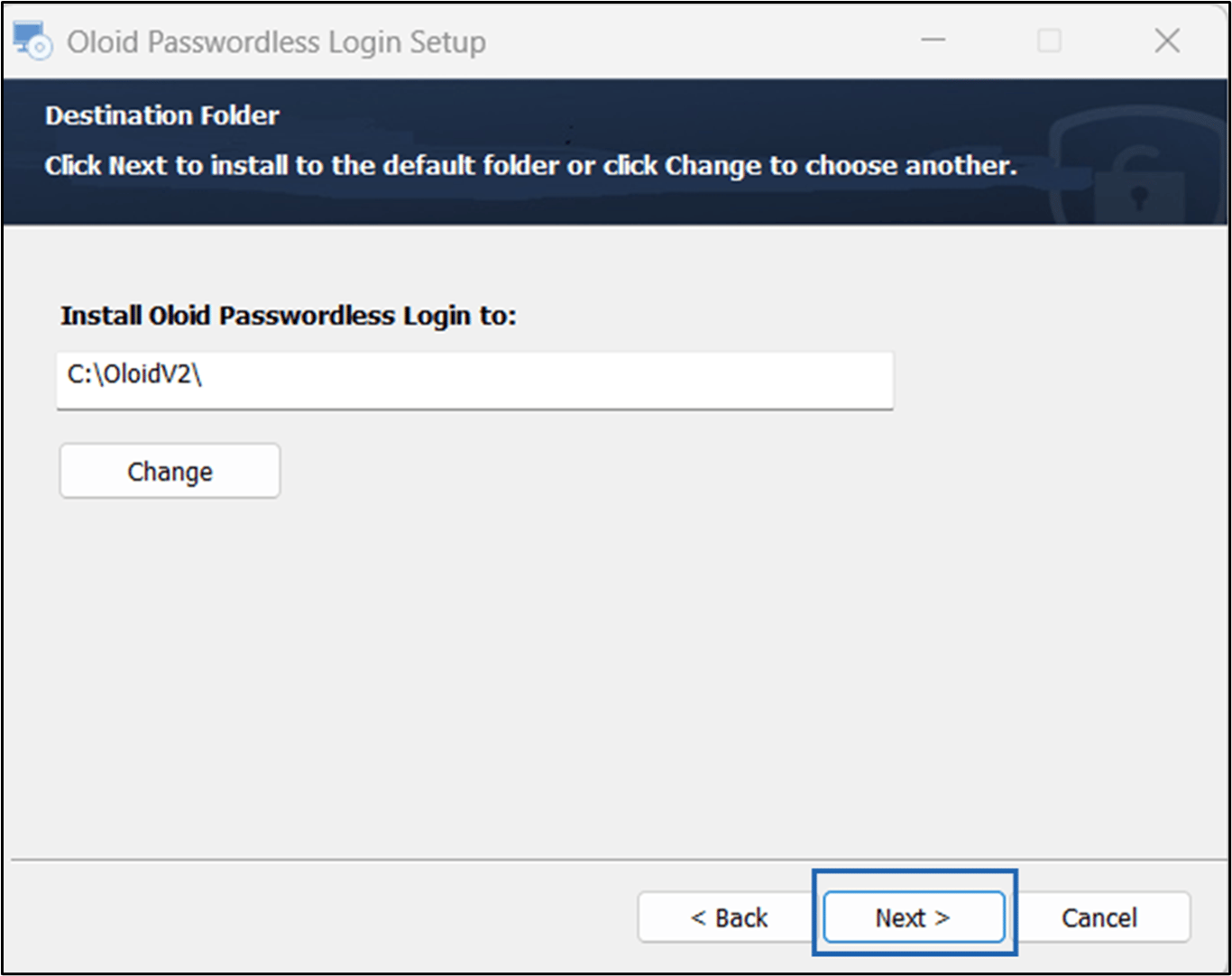
Use the default path to install the application and click Next.
-
Select the required feature check box(es) and click Next.
Note: The following provides additional details about each capability:
- On-device Face Recognition: Authenticates users locally using facial recognition even if the device is offline.
- Local Cache Server: Enables users to log in and authenticate using locally stored data when the network is unavailable or experiencing connectivity issues. This option is selected by default.
- Presence Detection: Detects user presence to enable hands-free login and auto-lock when the user leaves.
- Oloid Launcher: Provides a central interface to launch apps and workflows after authentication.
- EPIC Integration: Enables secure, passwordless access to Epic workflows through seamless authentication.

-
Select one of the following:
- None: Connects to OLOID services without using a proxy.
- Use Local System Proxy: Uses the proxy settings already configured on the Windows device to connect to OLOID services.
- Use Explicit Proxy: Uses a specific proxy server to connect to OLOID services. Enter the proxy server address in the URL field.
- Click Next.

-
Do one of the following:
-
Select Manual > click Next.
Note: Select this option to pair the Windows Login App after installation. Once installed, you can pair the application using one of the following methods:
- Supervisor App: Pair the Windows app using the Supervisor App. To pair the Windows app via supervisor app**,** refer Windows Login - How to Manually Pair the Supervisor App or
- Automatic Config File: Pair the Windows app using the Auto-Pair Config File. To pair the Windows app via Auto-Pair Config File, refer Windows Login - How to pair Supervisor App using auto-pair config file option

-
Select Automatic > Enter Encoded String in Text Box> click Next.
Note:
- The Automatic option enables the endpoint to pair automatically during installation. The pairing is completed after the Windows device restarts.
- To get the Encoded string, go to the Tenant Admin Portal and select TEXT as the Auto-pair config file format. Then, copy the config text or download the TEXT file. To copy or download the Text format refer, Windows Login - How to Generate and Download Auto-Pair config file for Windows Login in Tenant Admin Portal

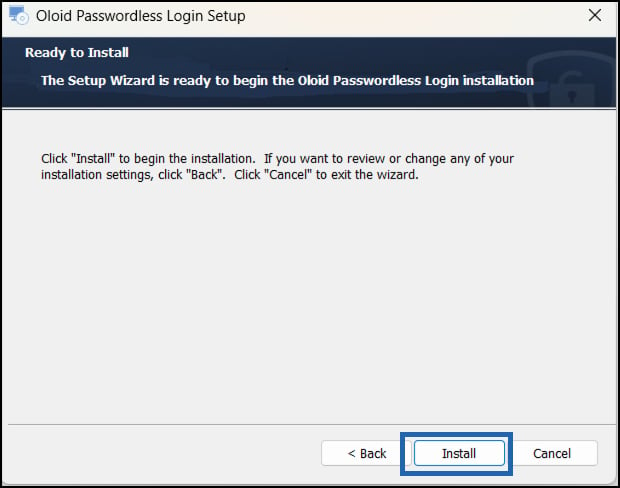
- Click Install.
-
Select Manual > click Next.
-
Click Start.
Pair the Oloid Windows Authenticator App on Citrix VDI
3.1 top 3.2Add a Citrix VDI Endpoint to a Group
- Sign in to the Oloid Tenant Admin Portal.
- Go to Groups.
- Select the group to which you want to assign the Citrix VDI endpoint.
- Select the Endpoints tab.
- Click Add Endpoint.
- Select and add the Windows VDI endpoint to the group.
Configure Oloid Launcher Settings
- Oloid Launcher configuration can be applied at three levels:
- Group: In the Tenant Admin Portal, open the required group, select the three-dot menu, and select Raw JSON to configure Launcher settings.
- Application: Open the required application, go to Configure, select the three-dot menu, and select Raw JSON.
- Endpoint: Open the corresponding endpoint and configure the Launcher settings using Raw JSON. Refer to the Oloid Configuration Guide for the complete list of supported Launcher configuration keys and values.