

- Log in to the Oloid Portal.
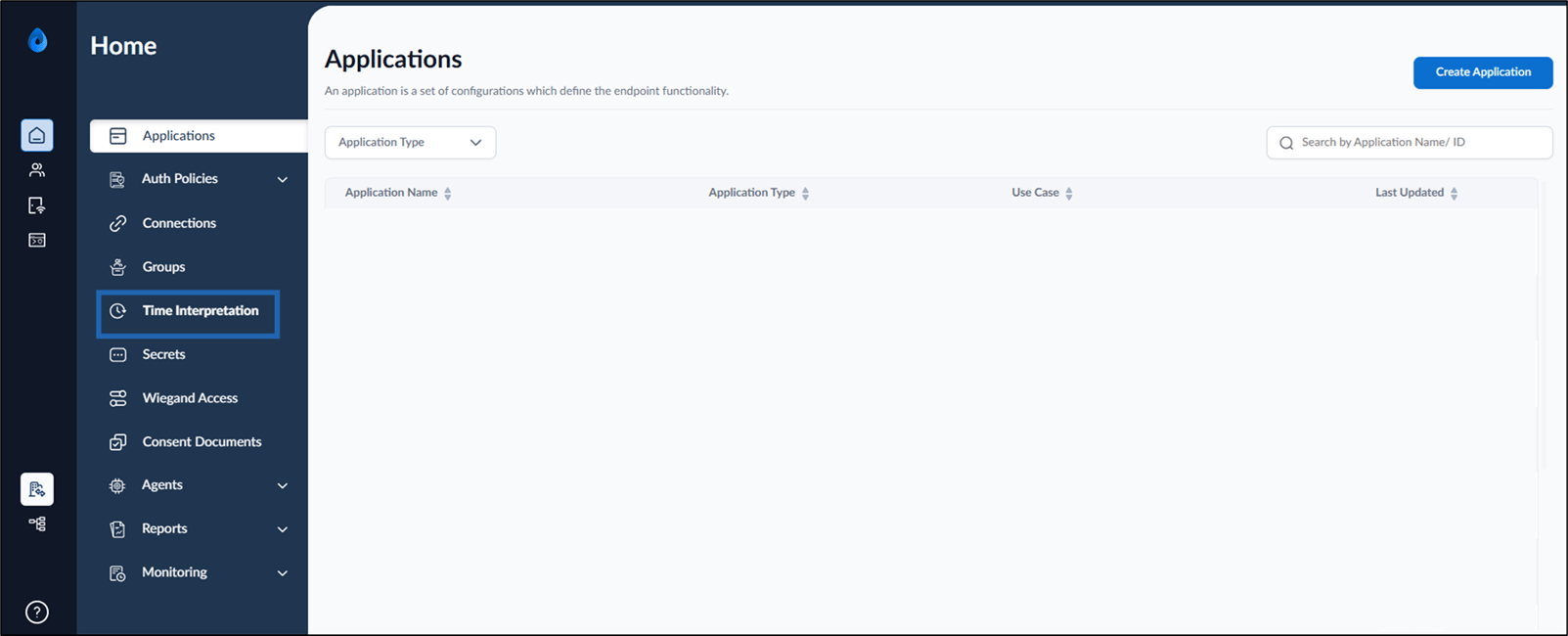
- On the homepage, select Time Interpretation from the left menu panel.
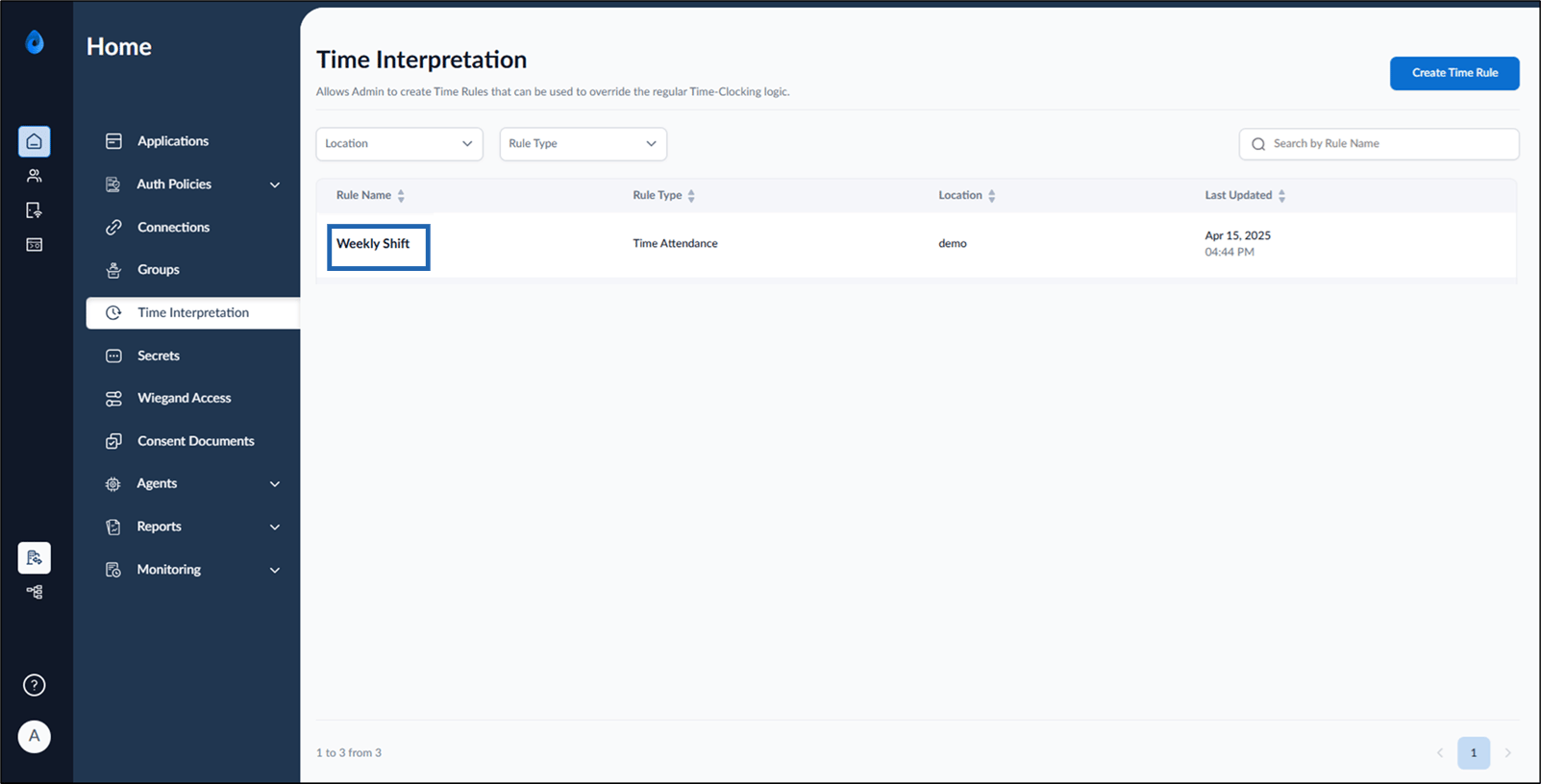
- Select the Time Rule to configure.
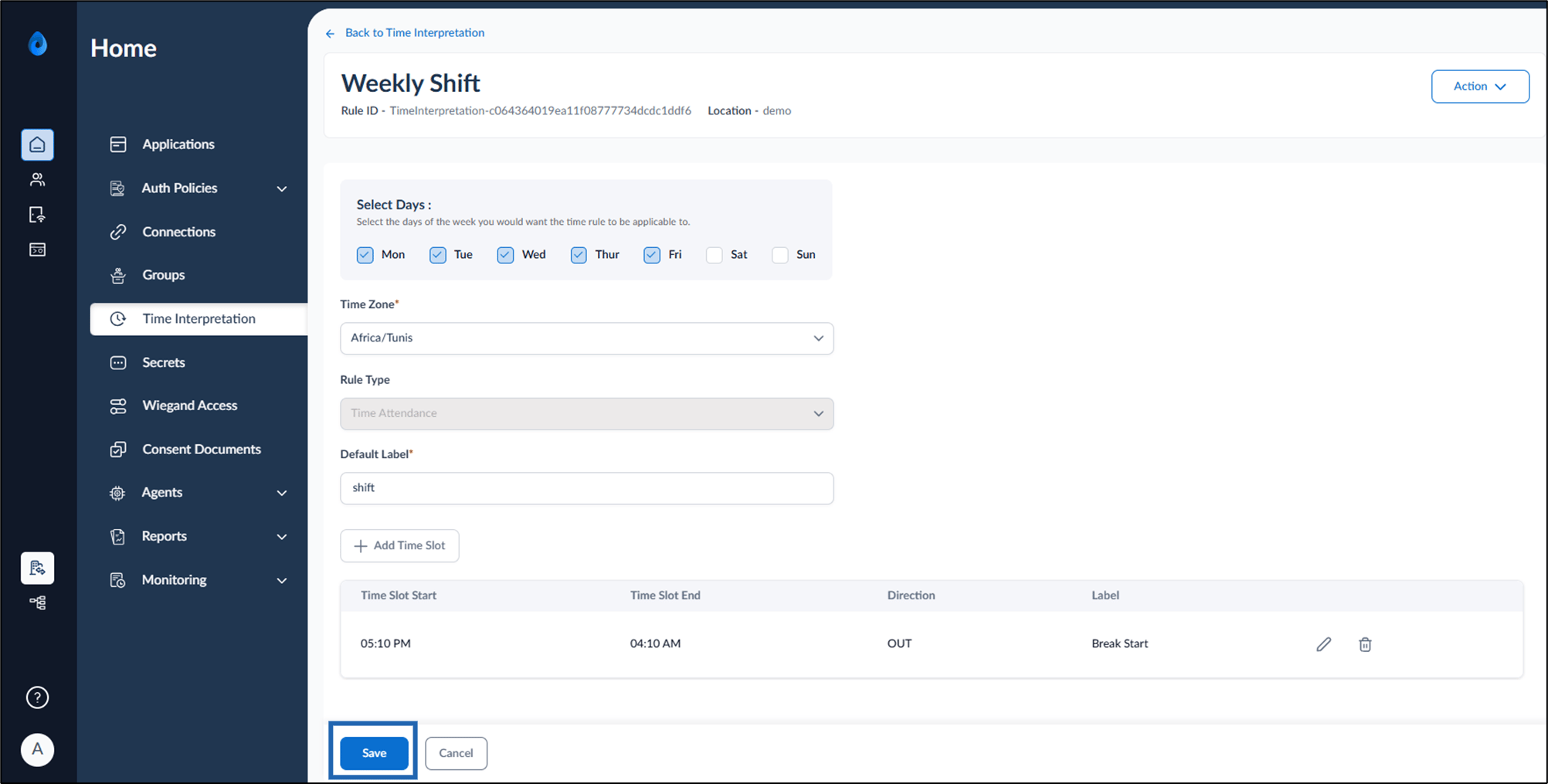
The Time Rule page is displayed.
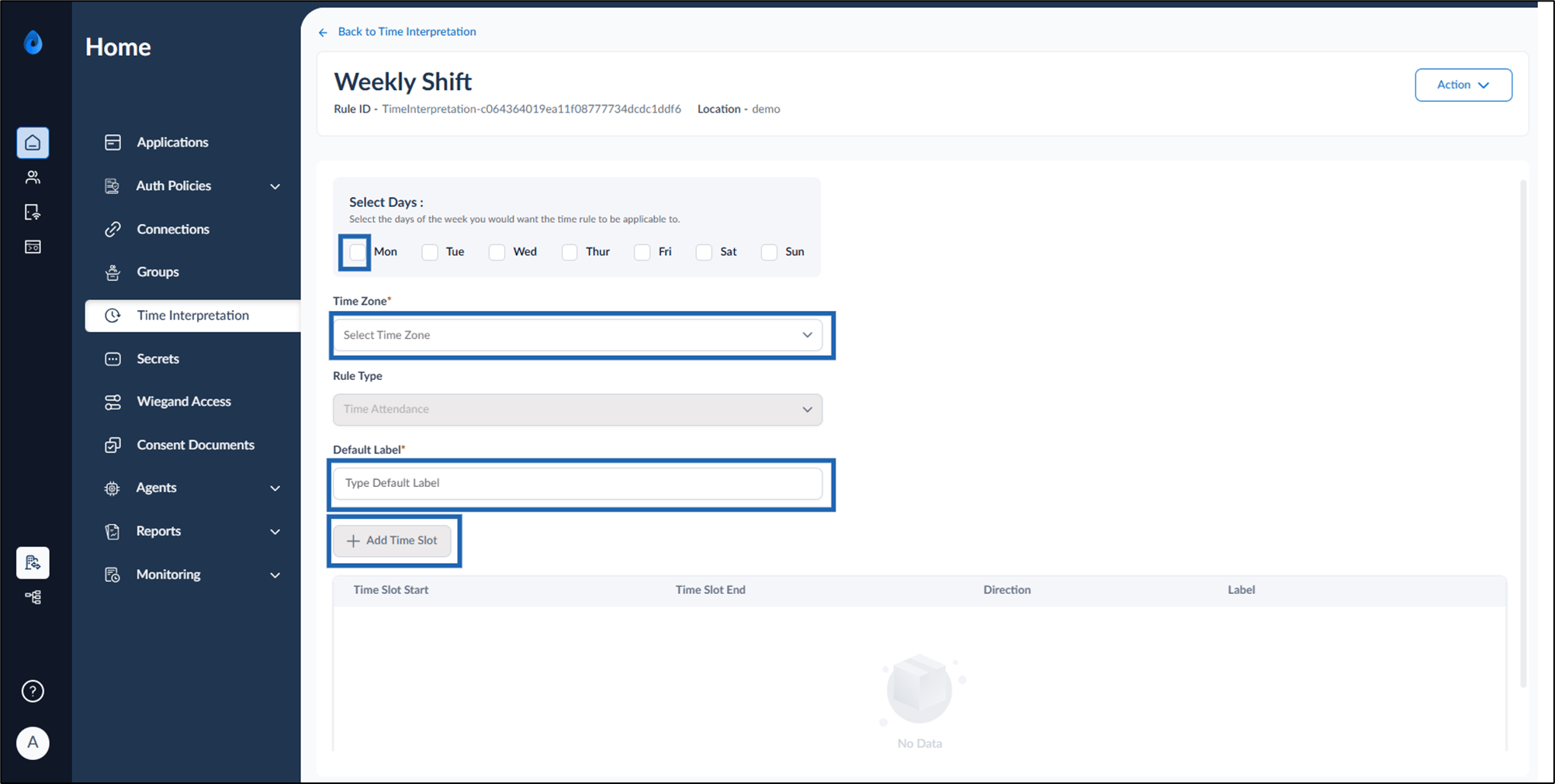
- Do the following:
- Select Day(s) of the week you want the time rule to applicable to.
- Select Time Zone from the dropdown list.
- Enter a label in Default Label field. (for what)
- Click +Add Time Slot.
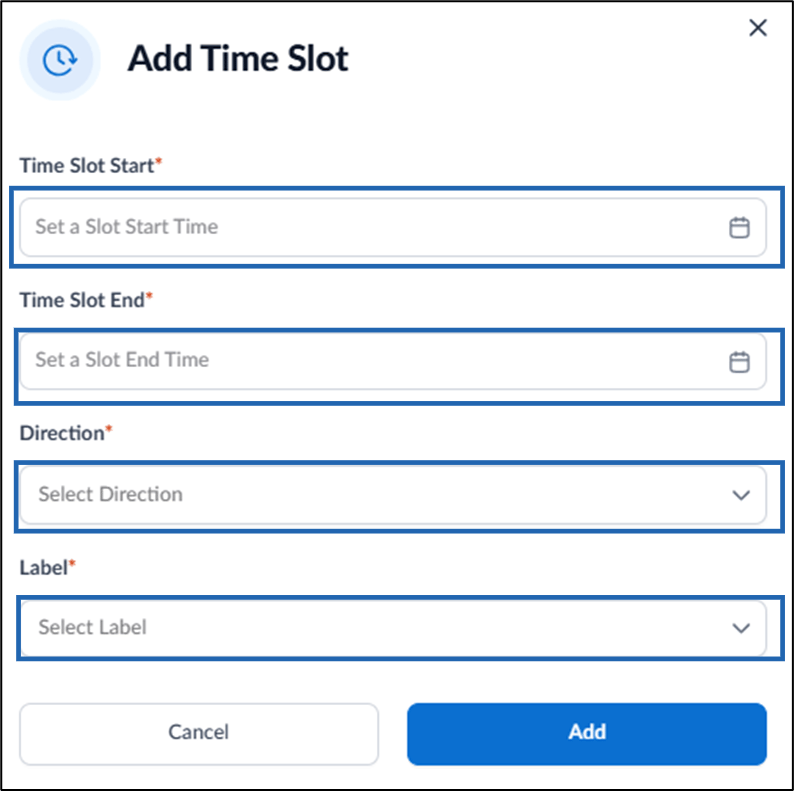
The Add Time Slot pop-up box is displayed.
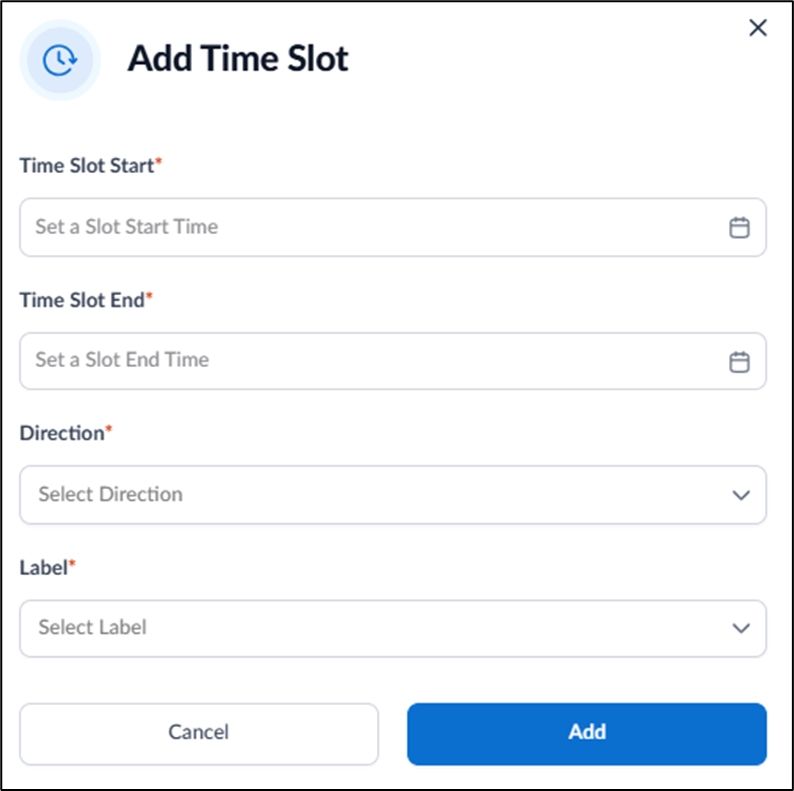
- Do the following on the pop-up box:
- Set start time in Time Slot Start field. (calendar option)
- Set end time in Time Slot End field.
- Select Direction from the dropdown as per the requirement.
- Select Label from the dropdown.
- Click Add.
- Click Save.
How to configure Time Rule for user in Oloid Portal
This document provides step-by-step instructions to configure Time Rule for user in Oloid Portal.
Introduction
A Time Rule defines the working schedule for users, including start time and end time that includes applicable working days, time zones, and punch directions. While configuring a time rule, these values are set to ensure the system accurately interprets attendance-based data on the user’s work schedule.
Pre-requisite
You must create the Time Rule in the Oloid Portal. Refer here for more details, How to create Time Rule.
Steps to configure Time Rule:
⌘I