

Introduction
This document provides step-by-step instructions to configure Oloid as an External Identity Provider (IdP) in Microsoft Azure using the SAML/WS-Fed protocol. It also explains how to invite external users in Azure AD to enable authentication through Oloid.Prerequisites
- You must have administrator access to the Microsoft Azure portal.
- Ensure that the SAML Identity Provider details are configured in the Tenant Admin Portal.
Steps to Configure Oloid as an External Identity Provider
Create SAML Identity Provider Invite External Users in Azure ADCreate SAML Identity Provider
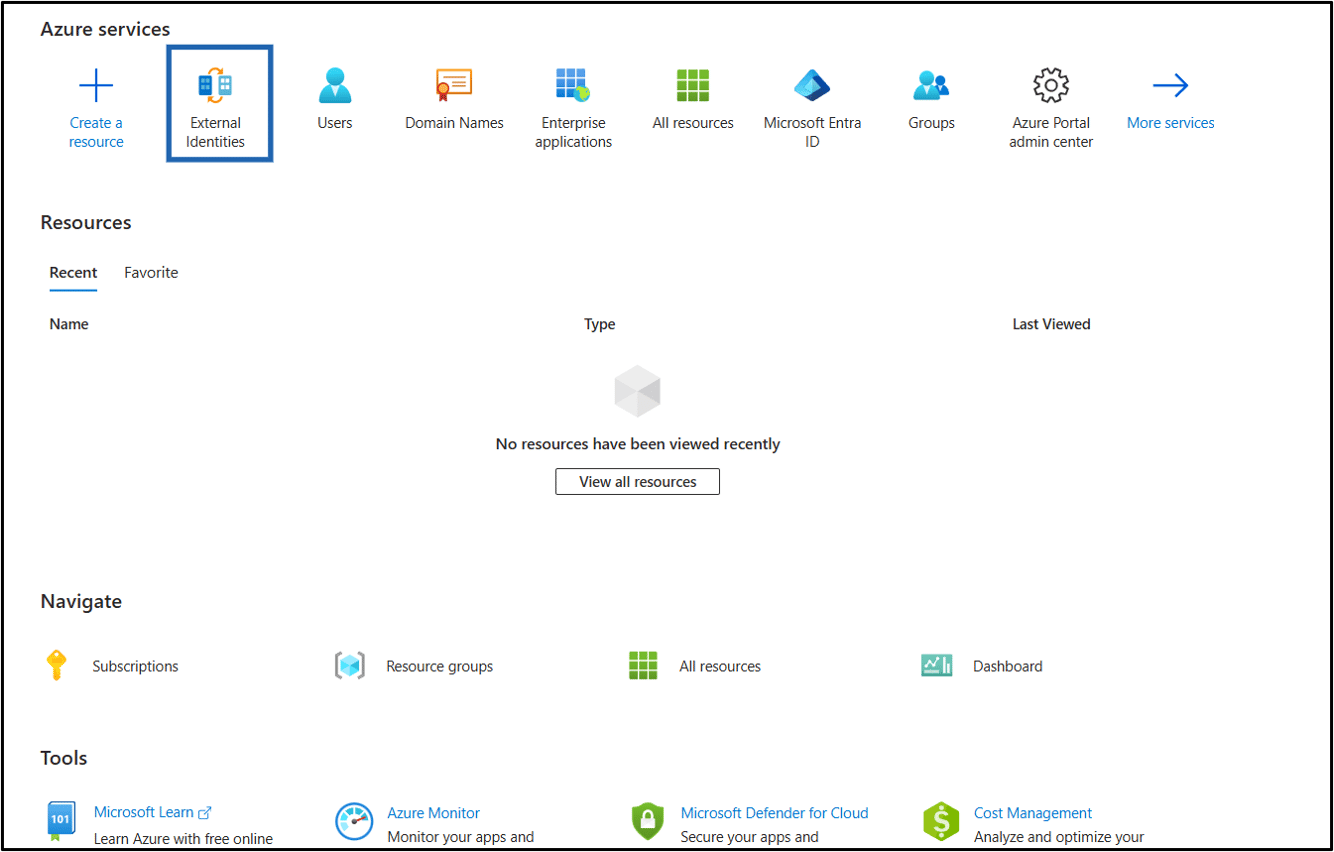
- Log in to the Microsoft Azure. The Azure homepage is displayed.
- Click External Identities.
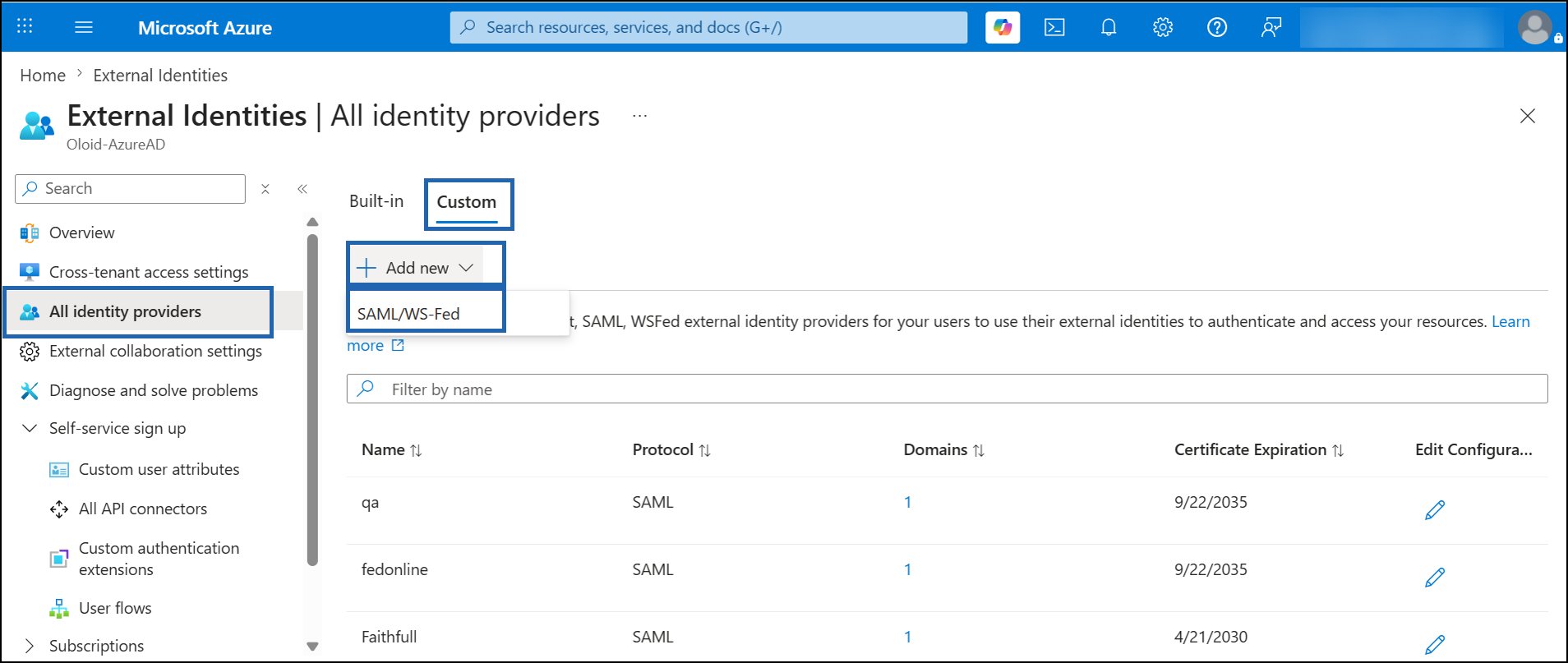
- Go to All identity providers > Custom > Add new > SAML/WS Fed.
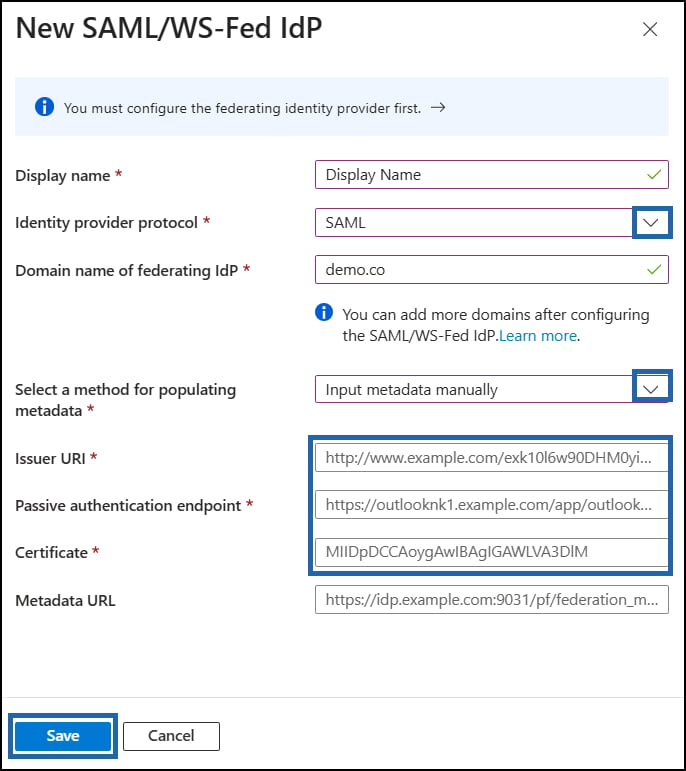
- Do the following:
- Enter Display name.
- Select SAML as Identity provider Protocol.
- In the Domain name of federating IdP field, enter the domain name.
-
Select a method for populating metadata.
Note: You can select either Parse metadata file or Input metadata manually.
-
Enter the Issuer URI value.
Note: The Entity ID value is the Issuer URI.
-
Enter the Passive Authentication Endpoint URL.
Note: The Sign-on URL value is the Passive Authentication Endpoint URL.
-
Enter the Certificate value.
Note:
- Click Download Certificate and paste it in the Certificate field.
- You can find the Issuer URI, Passive Authentication Endpoint URL, and Certificate from your Oloid Portal. To find, navigate to Identity Provider > SAML > Oloid Metadata.
- (Optional) Enter the Metadata URL.
- Click Save.
Invite External Users in Azure AD
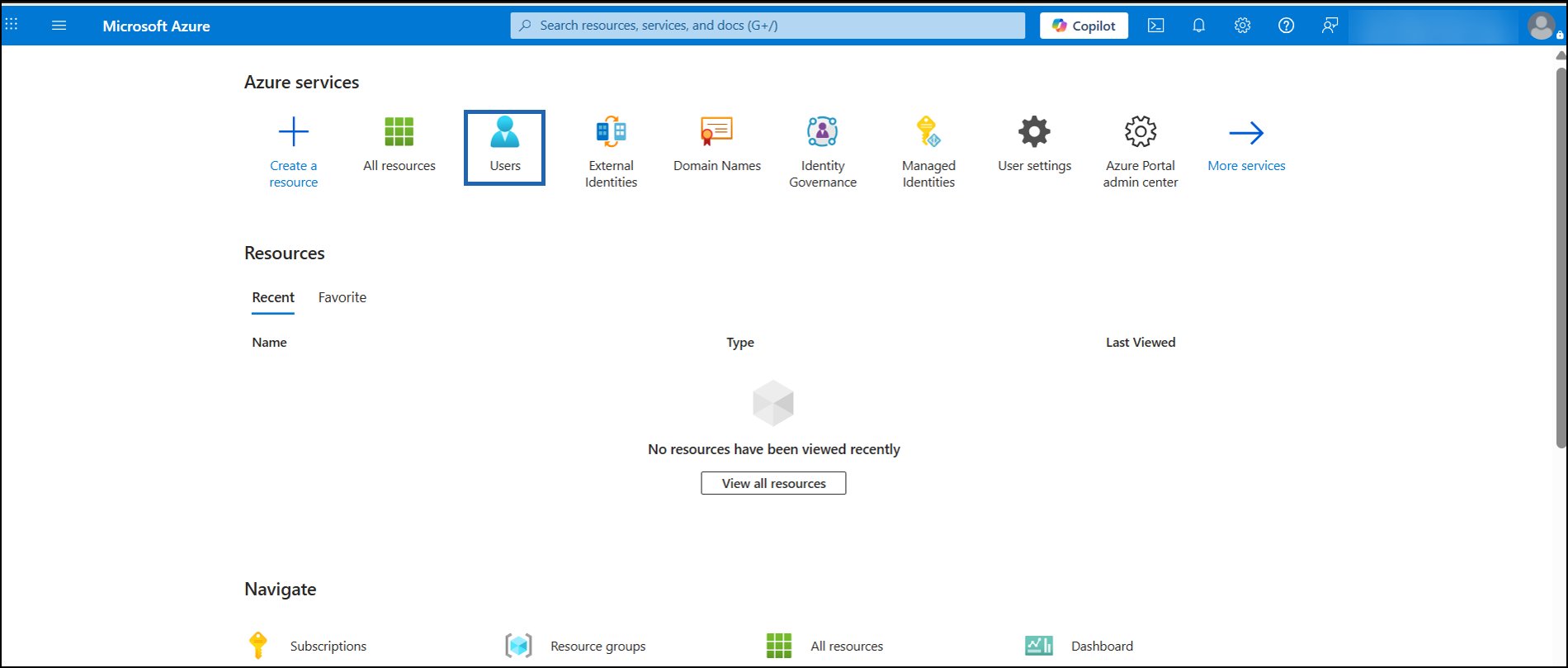
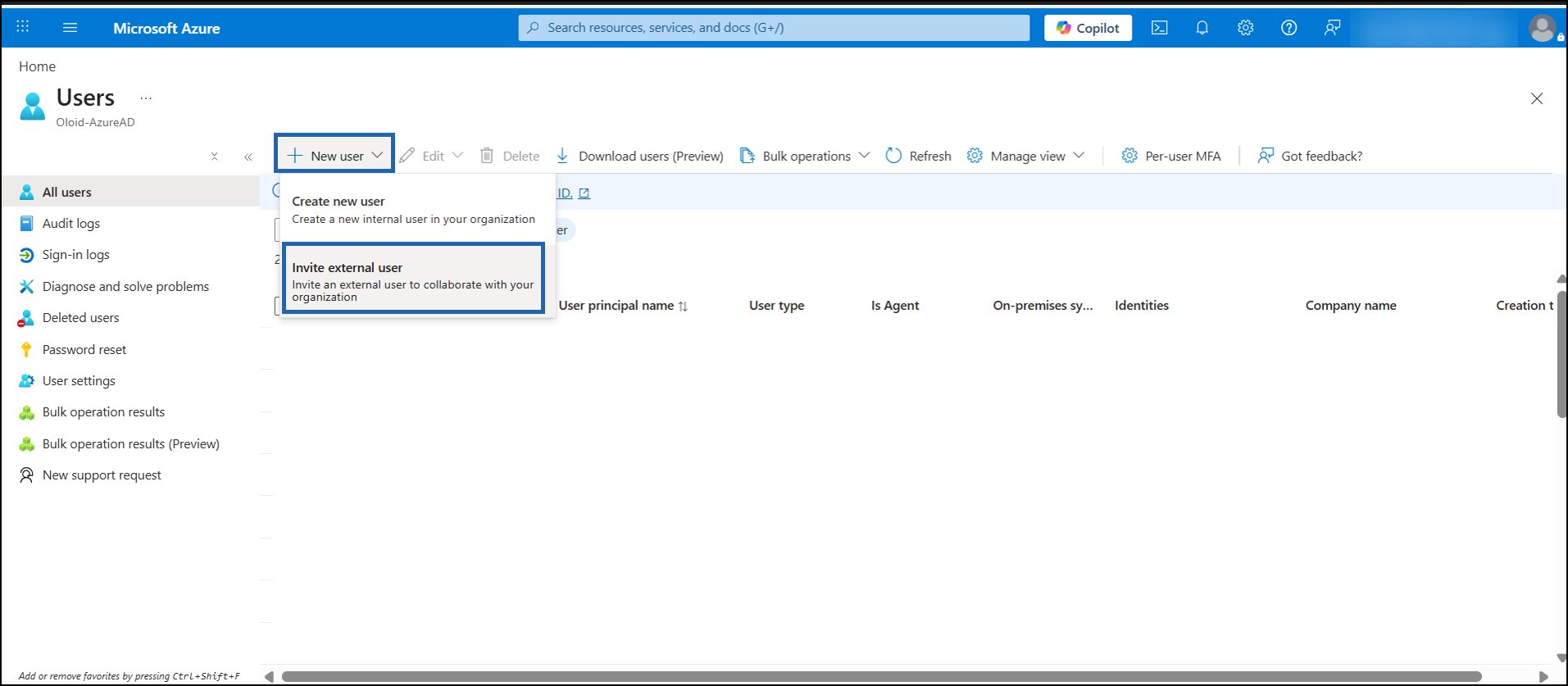
- Go back to the Home page of the Azure AD and select Users.
- Navigate to New user > Invite External User.
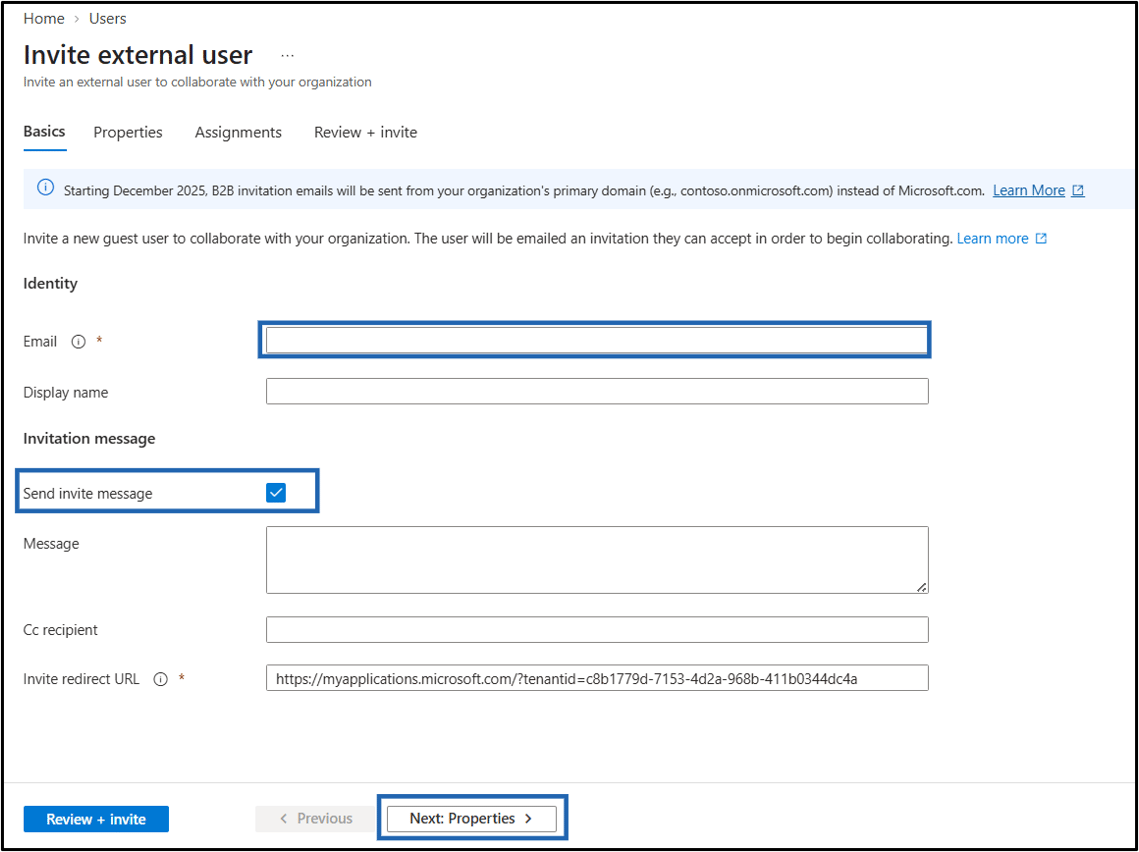
- Do the following:
- On Basic tab
- Enter Email ID.
- Enter Display Name (Optional)
- Ensure Send invite message checkbox is selected.
- Click Next: Properties.
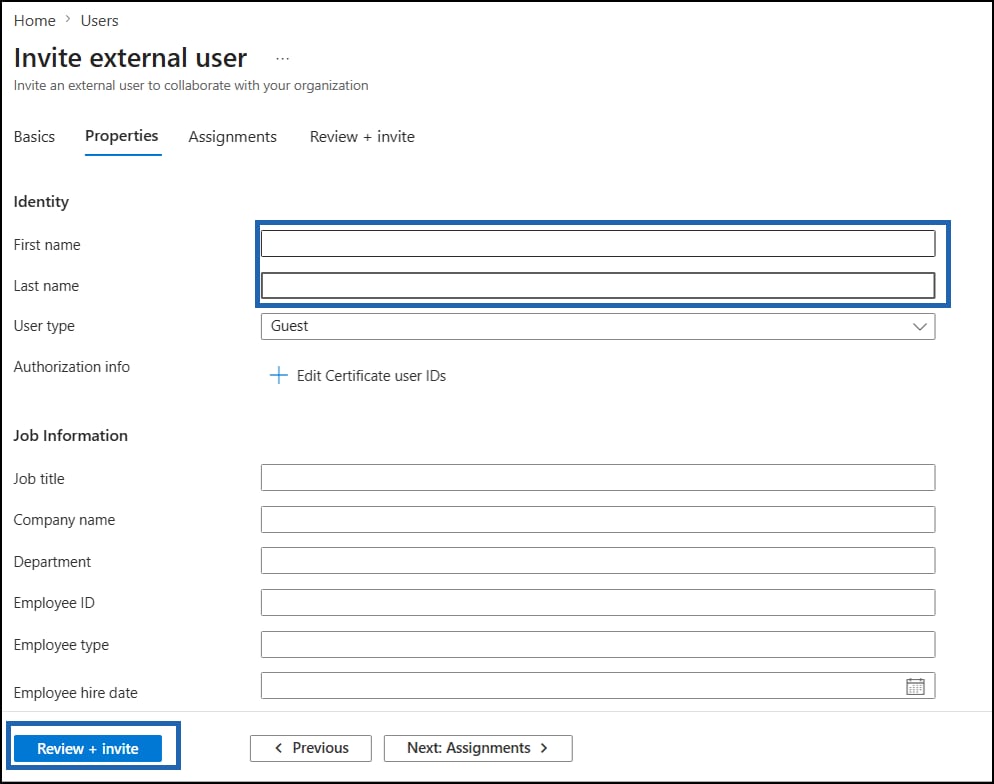
- Do the following.
- Enter First name.
- Enter Last Name.
- Click Review+invite.
- On Basic tab