Introduction
This document provides instructions to configure PingOne Single Sign-On (SSO) for the Oloid Connect App in the Tenant Admin Portal.Prerequisites
- You must have admin access to the Tenant Admin Portal.
- You must configure PingOne and generate the required SSO configuration details in the PingOne Administrator Console. For instructions, see How to Configure PingOne Single Sign-On (SSO) for the Oloid Connect in the PingOne Admin Console
Steps to Configure PingOne SSO
- Log in to the Tenant Admin Portal.
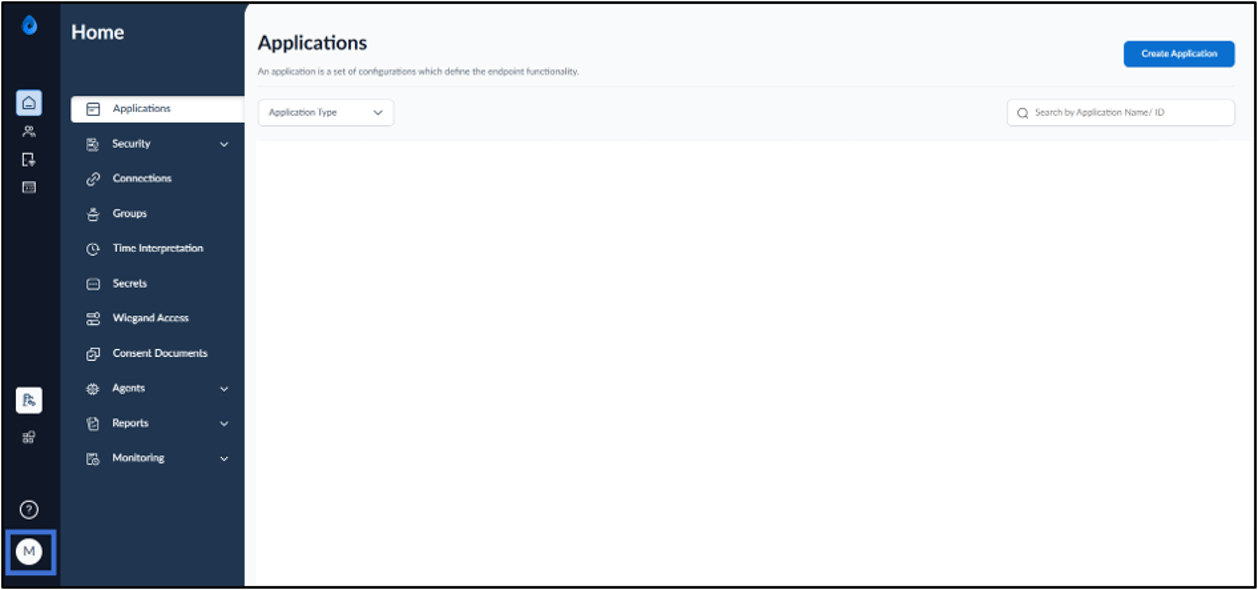
- On the homepage, click user profile icon on the bottom-left of the menu panel.
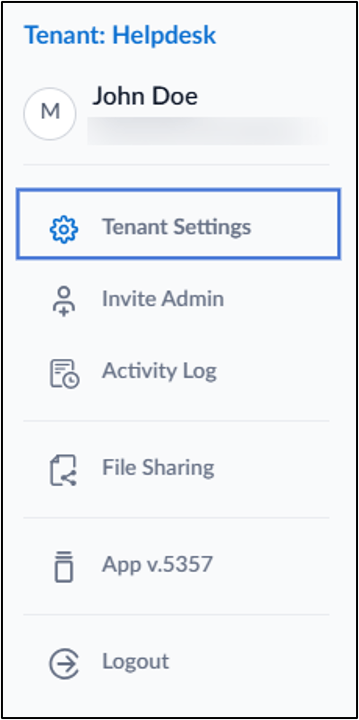
- Click Tenant Settings.
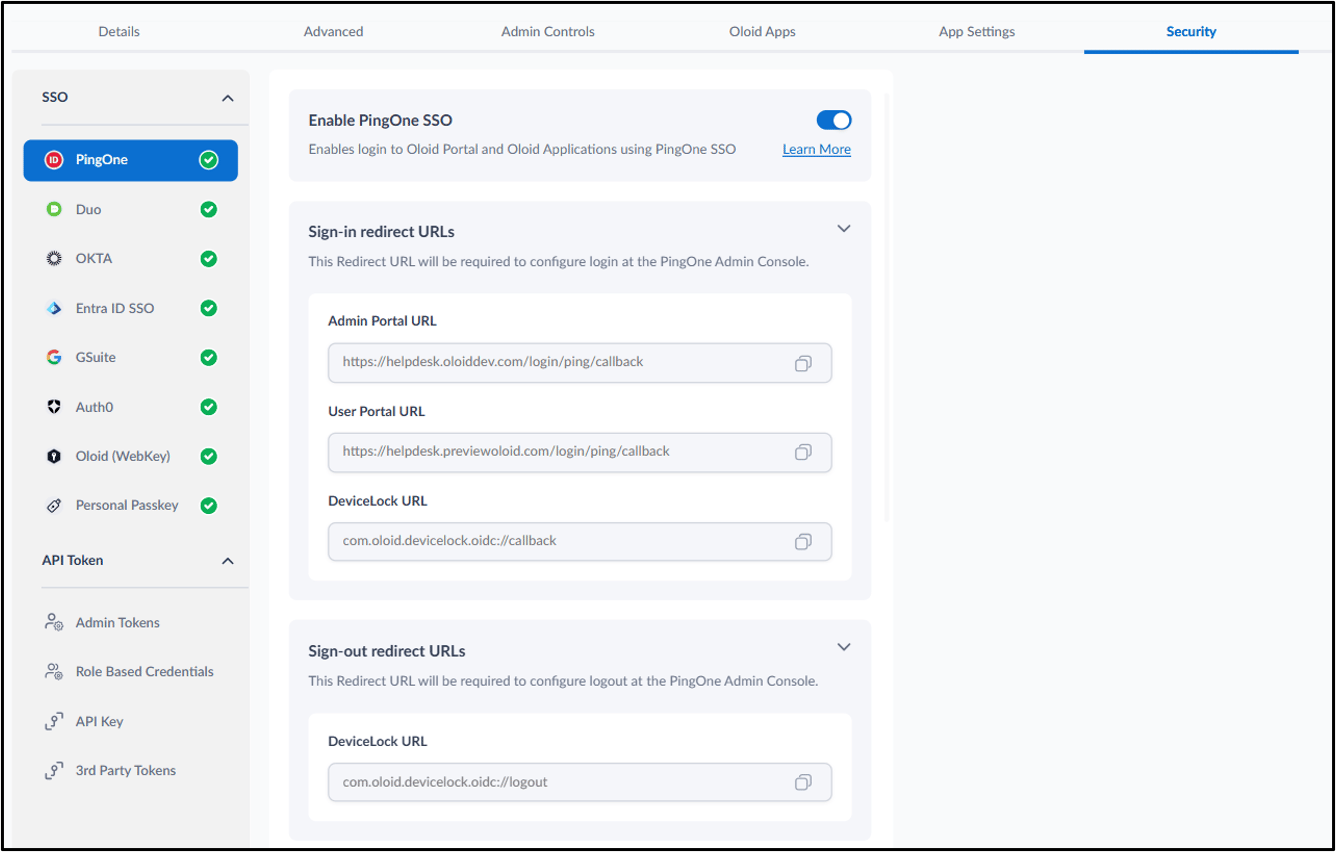
- Go to Security > PingOne.
The PingOne configuration section is displayed.
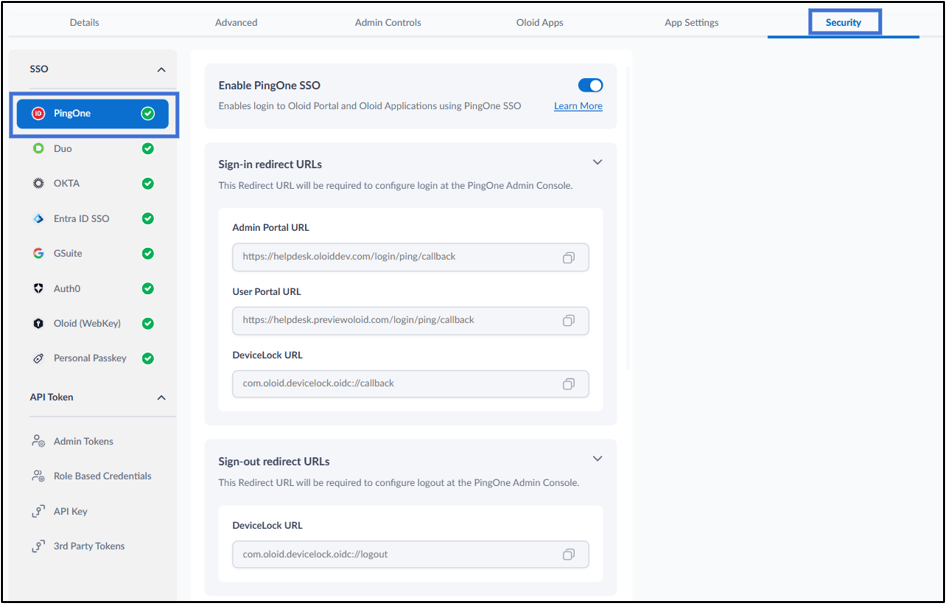
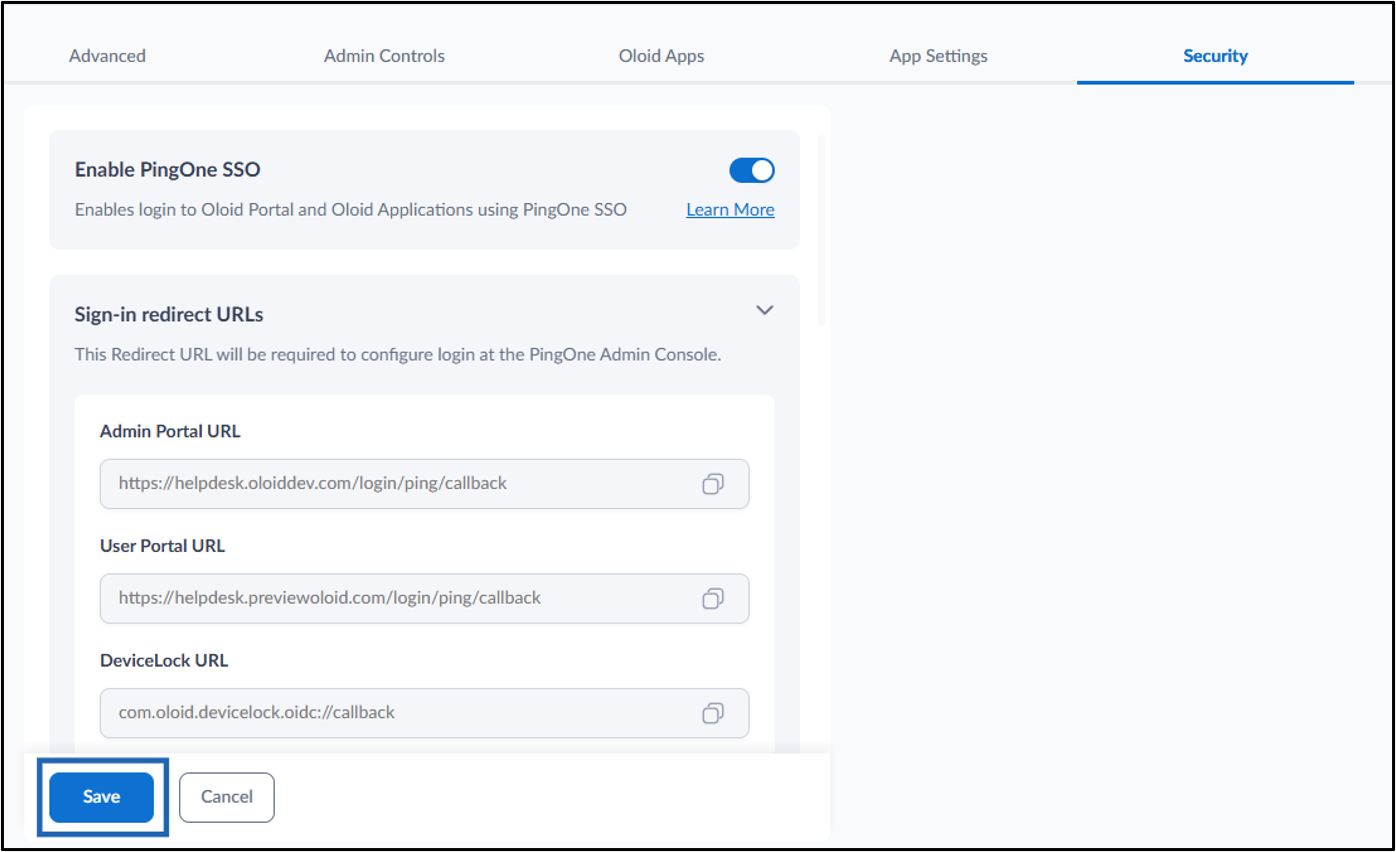
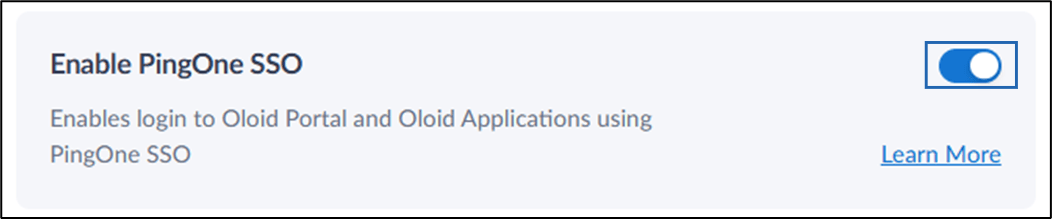
- Turn on Enable PingOne SSO toggle.
- Do the following:
-
Enter the Environment ID (Optional).

-
Enter the Native Client ID.
 Note: You can find the Environment ID and Native Client ID in the PingOne Administrator Console. To get these details, go to Applications > Overview > General, and copy the required information.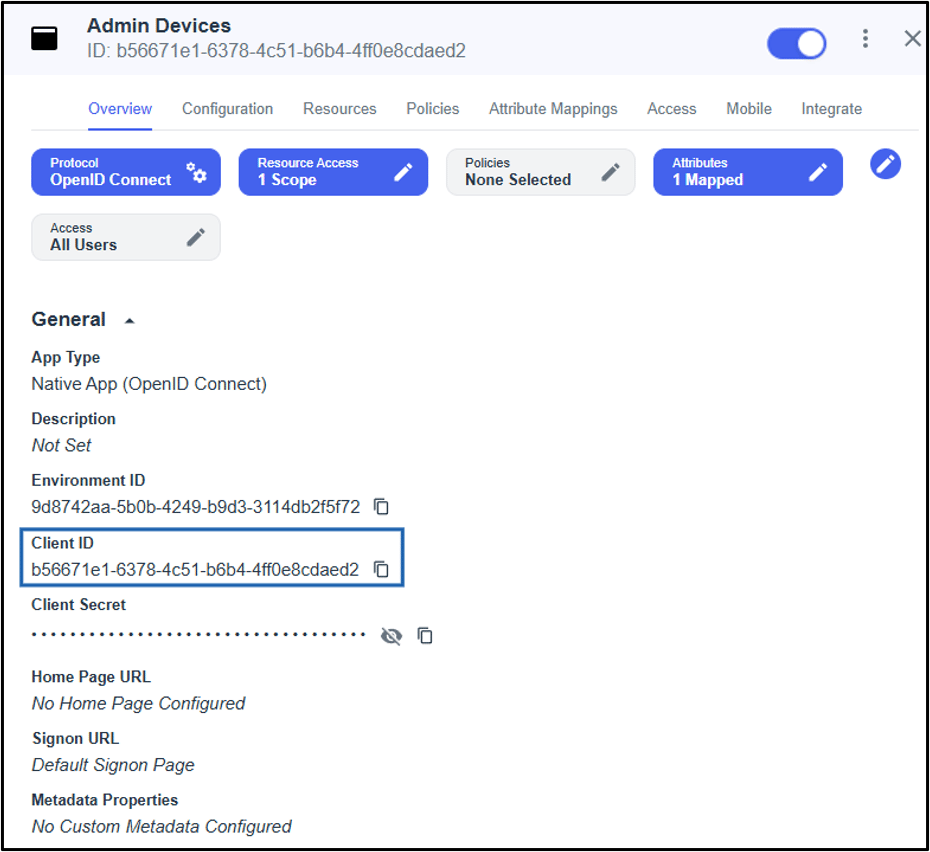
-
Enter the Discovery URL.

-
Enter the User Info URL.
 Note: You can find the Discovery URL and User Info URL in the PingOne Administrator Console. To get the URL, go to Applications > Overview > Connection Details, and copy the User Info Endpoint and OIDC Discovery Endpoint URL.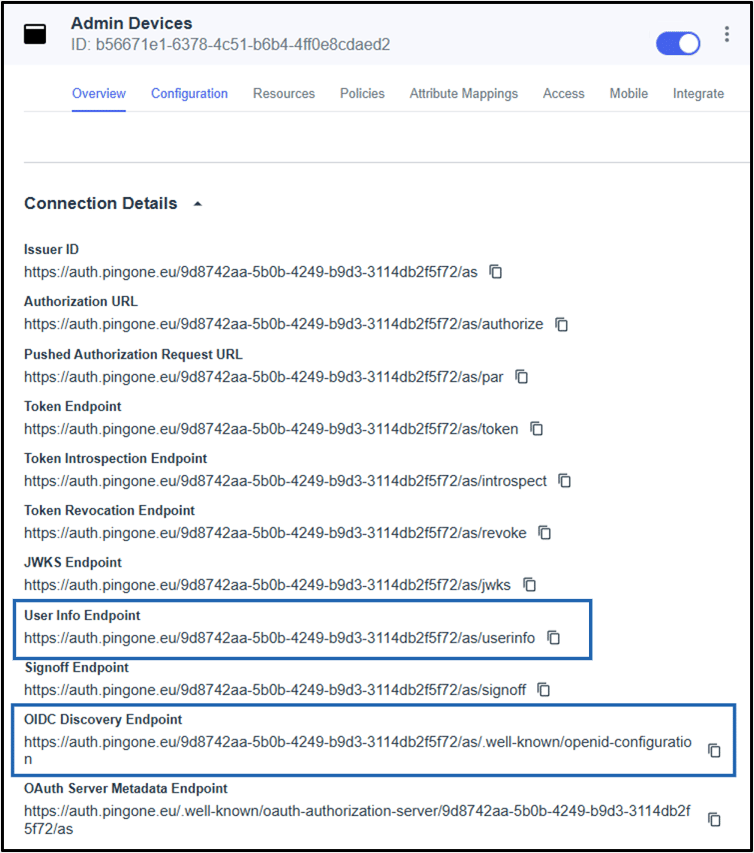
-
Enter the Environment ID (Optional).
- Click Save.