

Introduction
The Adoption Metrics tab under Insights provides administrators with visibility into user adoption and engagement across the organization. It helps measure how actively users are using the platform by tracking successful transactions, daily active users, adoption rates across connections or groups, and week-over-week usage trends.Prerequisite
You must have admin access to the Tenant Admin Portal.Steps to Access Adoption Metrics
- Log in to the Tenant Admin Portal.
- From the left navigation menu, click Insights.

- Click Adoption Metrics tab.

- You can view and download the following reports.
- Tenant level user adoption
- Daily Active Users
- Users Adoption by Connection/Groups
- Week-over-Week Usage

Tenant Level User Adoption
The Tenant Level User Adoption section displays the percentage of successful transactions out of the total transactions performed during the selected period.Note: The center of the chart displays the Successful Transactions percentage.
- Successful Transactions: The total number of transactions completed successfully.
- Total Transactions: The total number of transactions processed during the selected period.
- User Adoption Percentage: The percentage of successful transactions compared to total transactions.
- Select the required date range and click OK.

Daily Active Users
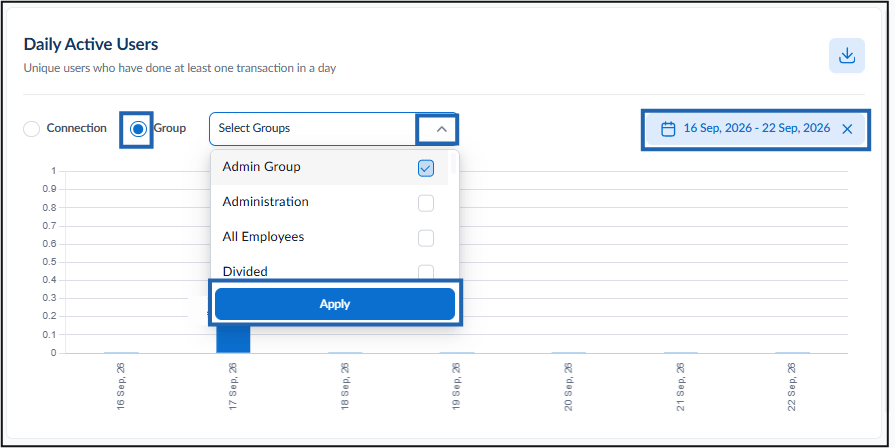
The Daily Active Users section displays the number of unique users who completed at least one transaction during the selected period.-
Do one of the following:
- Connection:
- Select Connection.
- Select preferred one or more connections from the Connections drop-down list and click Apply.
- Select the specific date and click OK.

- Group:
- Select Group.
- Select preferred one or more groups from the Groups drop-down list and click Apply.
- Select the specific date and click OK.
- Connection:
-
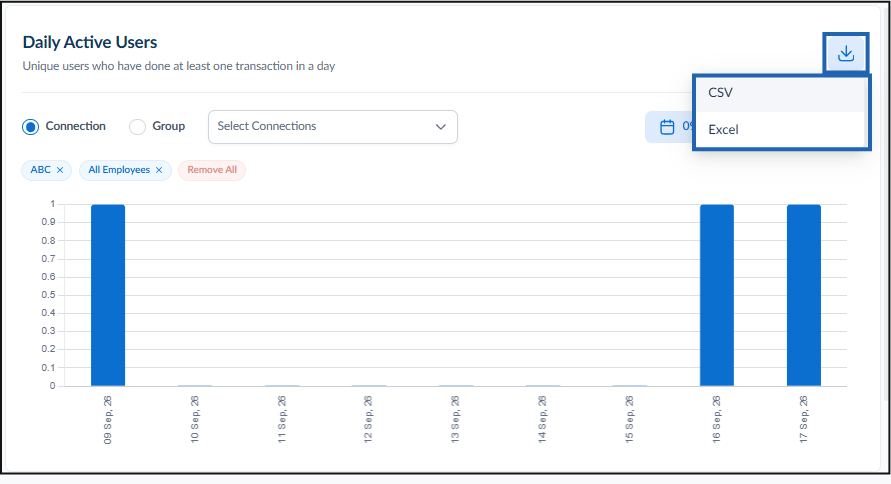
Click the Download icon and select CSV or Excel.
Note: You can download the Daily Active Users report in CSV or Excel format.

User Adoption by Connection/Groups
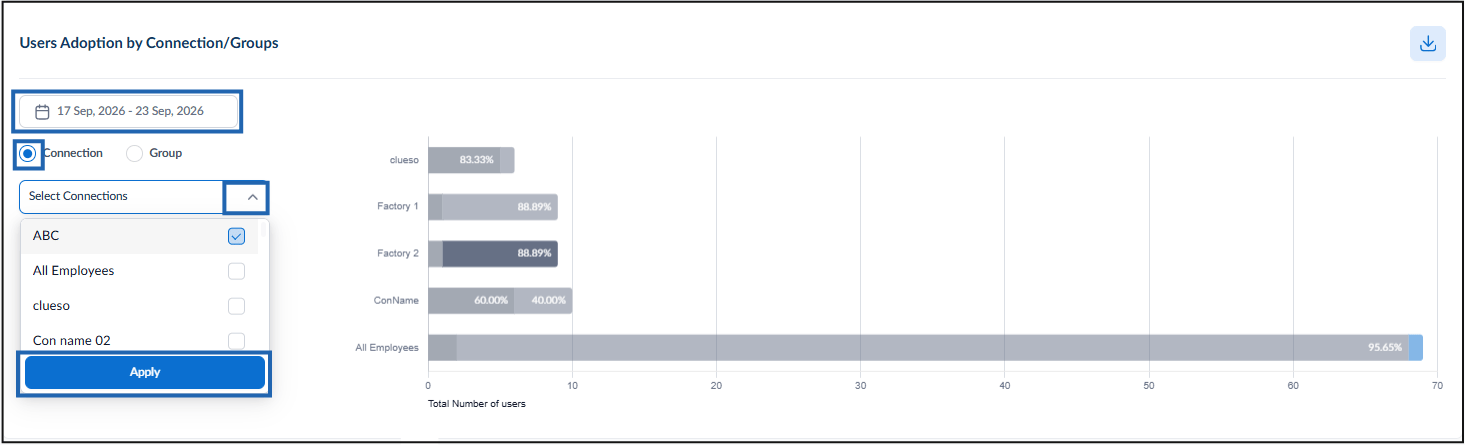
The User Adoption by Connection/Groups section displays adoption metrics for selected connections or groups during the specified period.-
Do one of the following:
- Connection:
- Select Connection.
- Select preferred one or more connections from the Connections drop-down list and click Apply.
- Select the specific date and click OK.
- Group:
- Select Group.
- Select preferred one or more groups from the Groups drop-down list and click Apply.
- Select the specific date and click OK.

- Connection:
-
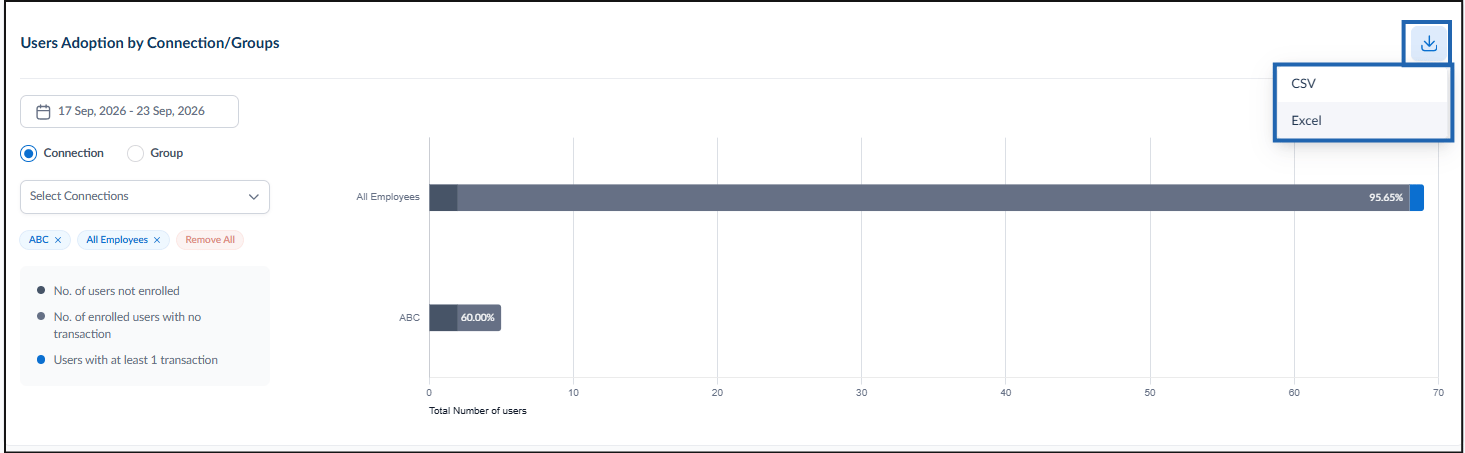
Click the Download icon and select CSV or Excel.
Note: You can download the User Adoption by Connection/Groups report in CSV or Excel format.

Week-over-Week Usage
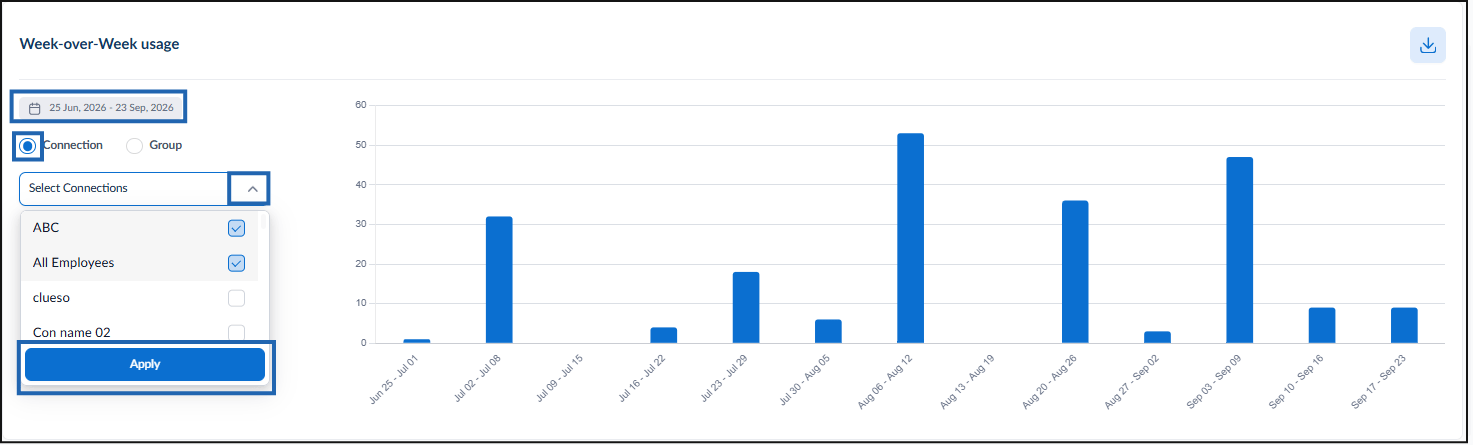
The Week-over-Week Usage section displays transaction trends by comparing usage across consecutive weeks for selected connections or groups.-
Do one of the following:
- Connection:
- Select Connection.
- Select preferred one or more connections from the Connections drop-down list and click Apply.
- Select the specific date and click OK.
- Group:
- Select Group.
- Select preferred one or more groups from the Groups drop-down list and click Apply.
- Select the specific date and click OK.

- Connection:
-
Click the Download icon and select CSV or Excel.
Note: You can download the Week-over-Week Usage report in CSV or Excel format.

