Introduction
This document describes how to configure a Data Filter Table in the Tenant Admin Portal. A Data Filter Table allows admin to define rule-based conditions that evaluate source data and automatically assign users to specific Connections and Groups during Advanced User Sync.Prerequisites
- You must have admin access to the Tenant Admin Portal.
- Data Mapper Table for Data Filter must be created. To create refer, Tenant Admin Portal - How to Create Data Mapper Table for Data Filter Inbound
Steps to Configure Data Filter Table
- Log in to Tenant Admin Portal.
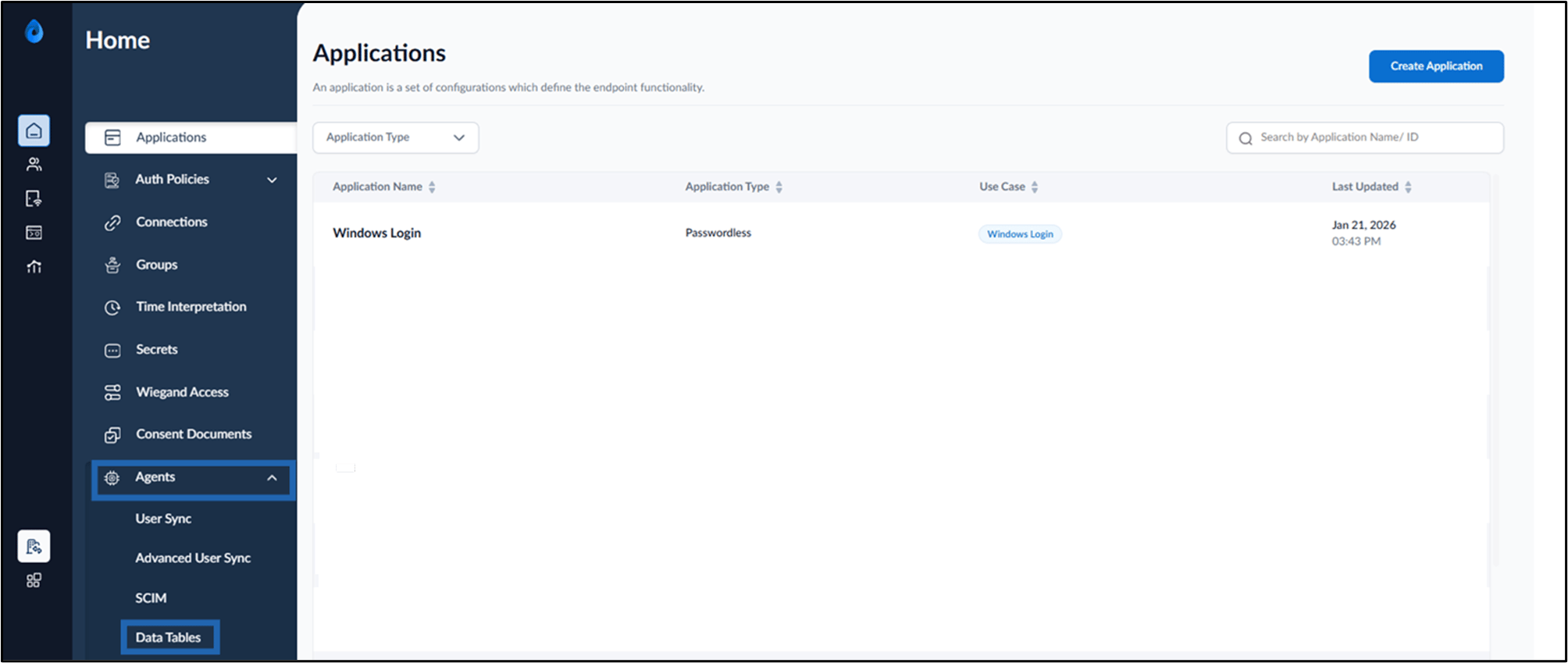
- Go to Agents tab > click Data Tables.
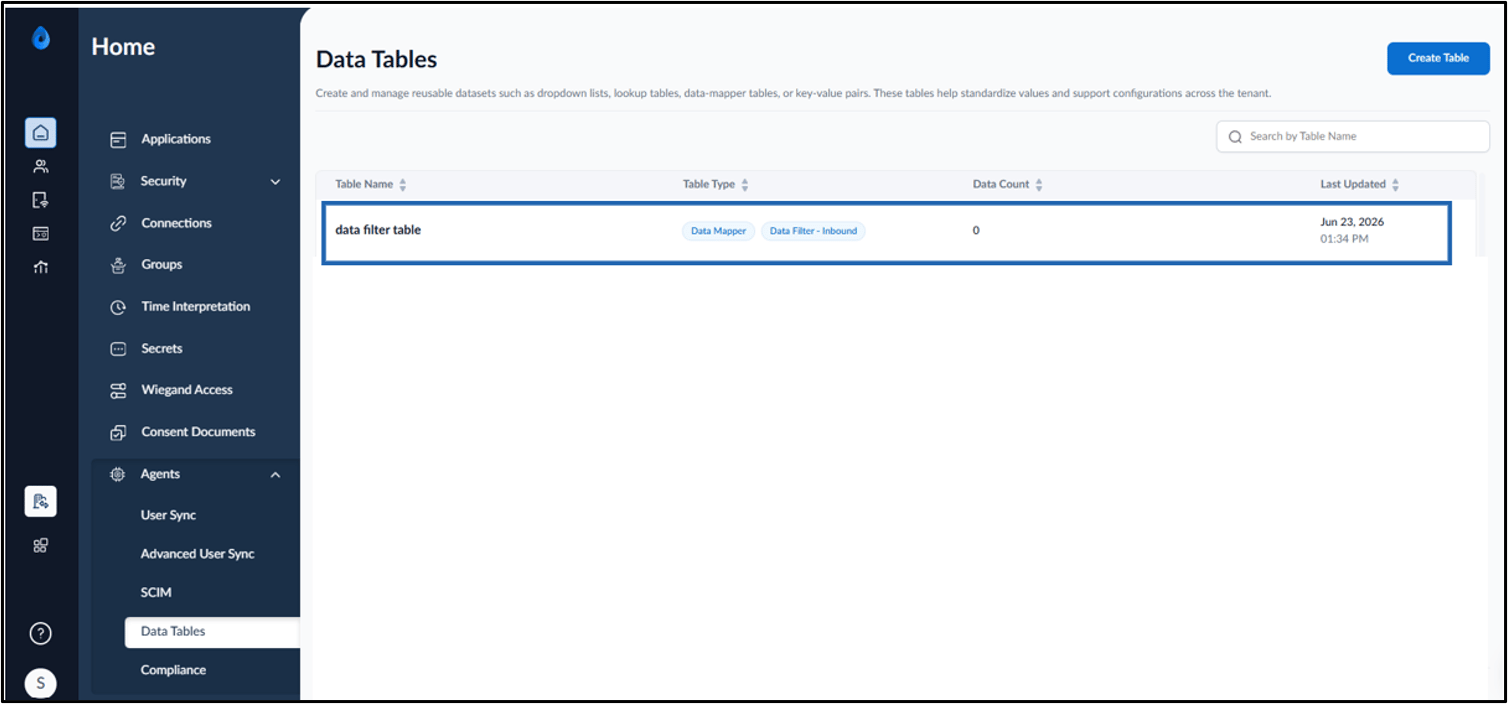
- Click preferred data filter table.
- Do the following:
- Configure Details Tab
- Setup Configure Tab

Configure Details Tab
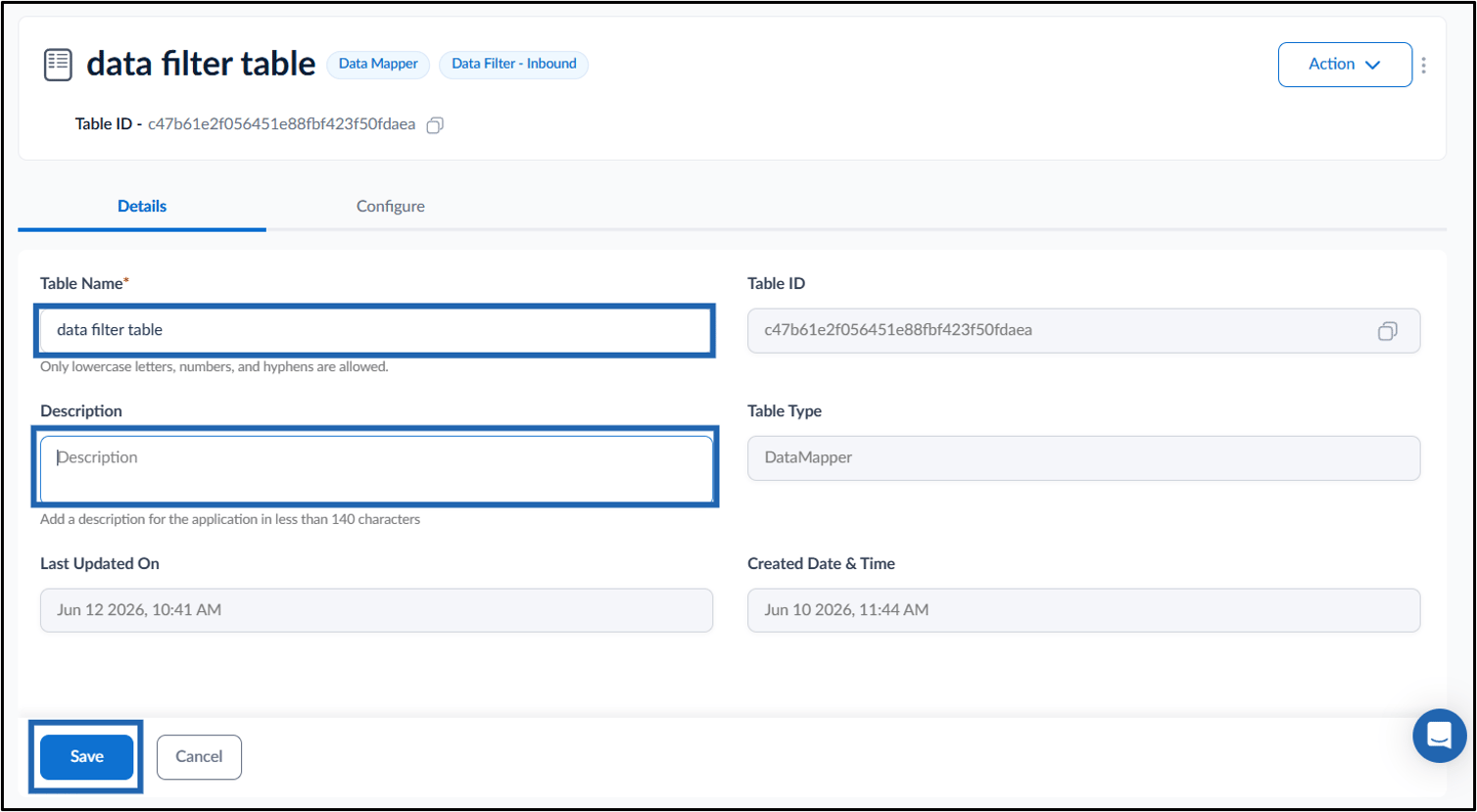
This tab is used to view and edit basic information about the data mapper table. Do the following:- Update the Table Name (Optional).
- Enter Description (Optional).
- Click Save.
Setup Configure Tab
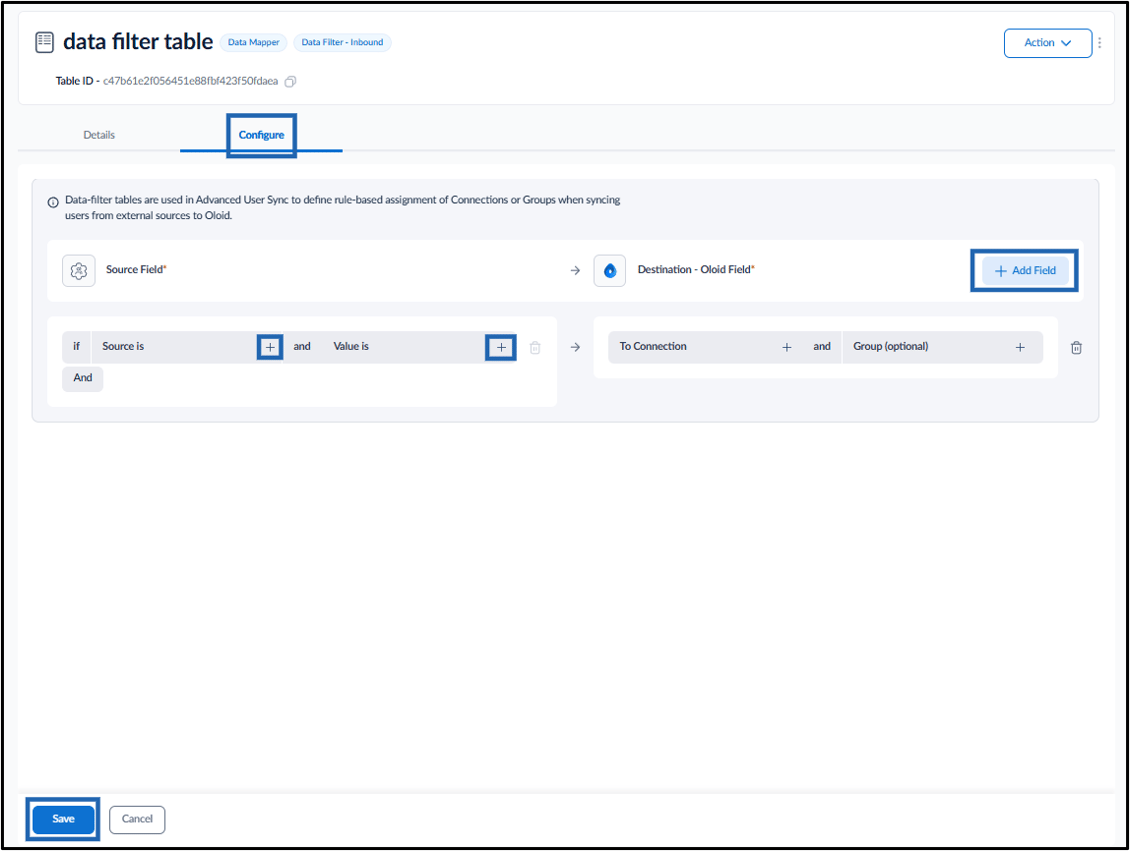
The Configure tab is used to map source fields to Oloid fields and define rule-based assignments for connections or groups during Advanced User Sync. Do the following:- Click +Add Field.
-
Under the source field section, configure the following:
- Source is: Select or enter the source attribute to evaluate. To add a source attribute, click the + icon, enter the required attribute name, and then press Enter.
-
Value is: Select or enter the value to match. To add a value, click the + icon, enter the required value, and then press Enter.
Note:
- For the Value is field, either select Any Value to match all values, or select Custom and enter the specific value to be matched.
- Click And button to add multiple source fields.
- Under the destination section, configure the following:
- To Connection: Select the connection to assign when the rule condition is met.
- Group (optional): Select a group to assign within the selected connection, if required.
Note: Use the + icon next to a field to add additional conditions or values to the rule.
-
Click Save.