

- Assign webkey app to IDP
- Un-assign webkey from IDP
- Make an IDP as default
- Log in to Tenant Admin Portal.
-
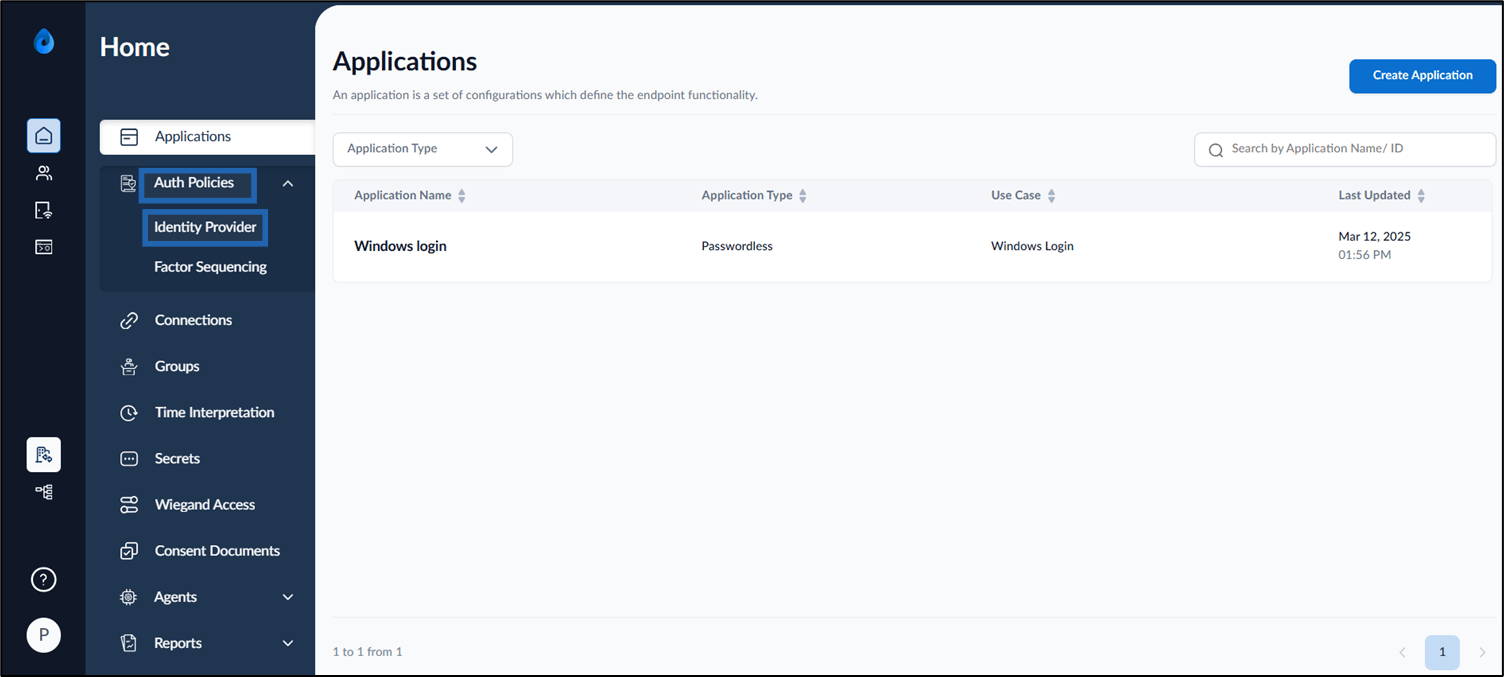
On the home page of the portal, select Auth Policies > Identity Provider.
-
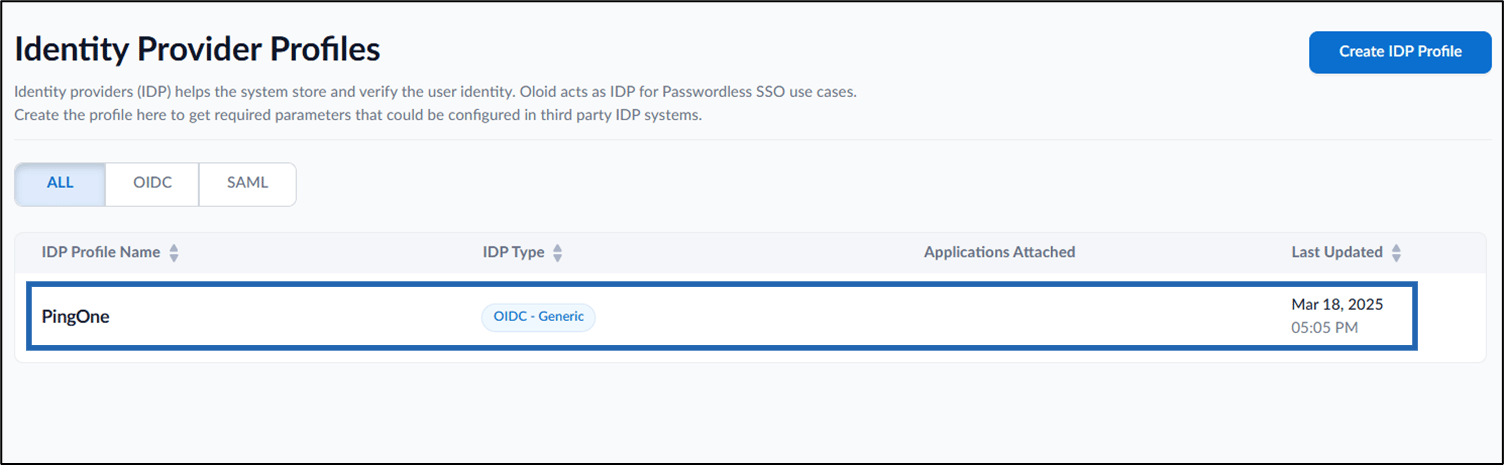
Select an IDP Profile Name to edit.
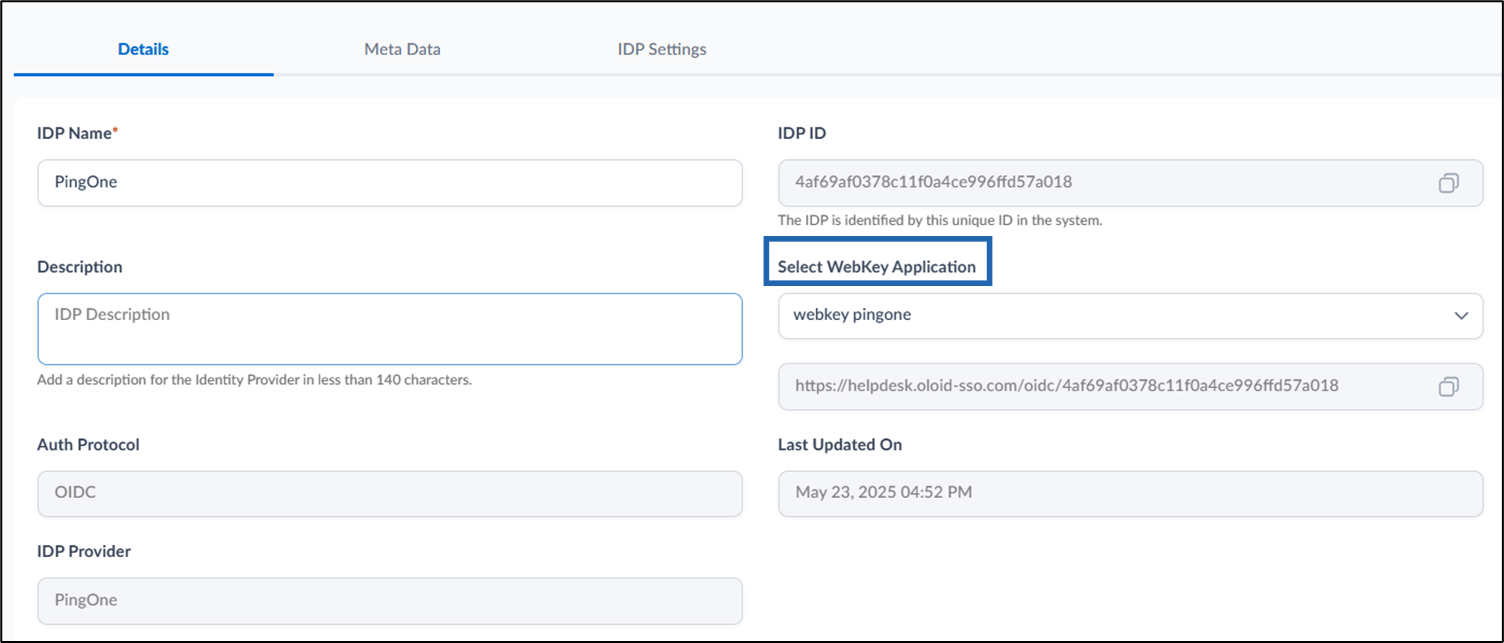
- Go to Details tab.
- Select the required WebKey application from the Select WebKey Application dropdown list.
-
Click Save.
The IDP is configured successfully.
-
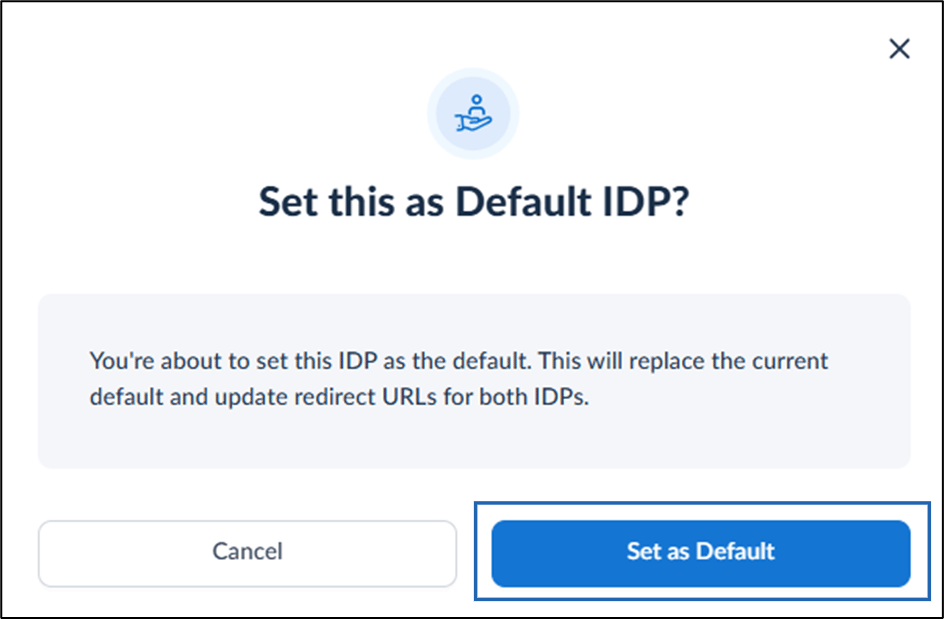
Click Make Default to set this IDP as the default. (Optional)
Note: If another IDP is currently set as default, it will be replaced upon confirmation.

-
Click Set as Default to designate the preferred IDP as default.
 Note: Each WebKey application can only be associated with one IDP profile. If you attempt to configure the same application ID with another profile, an error will be displayed.