- Login to the Oloid Portal.
- On the homepage, click Endpoints from the left menu panel.

- Click M-Tag endpoint name to edit.

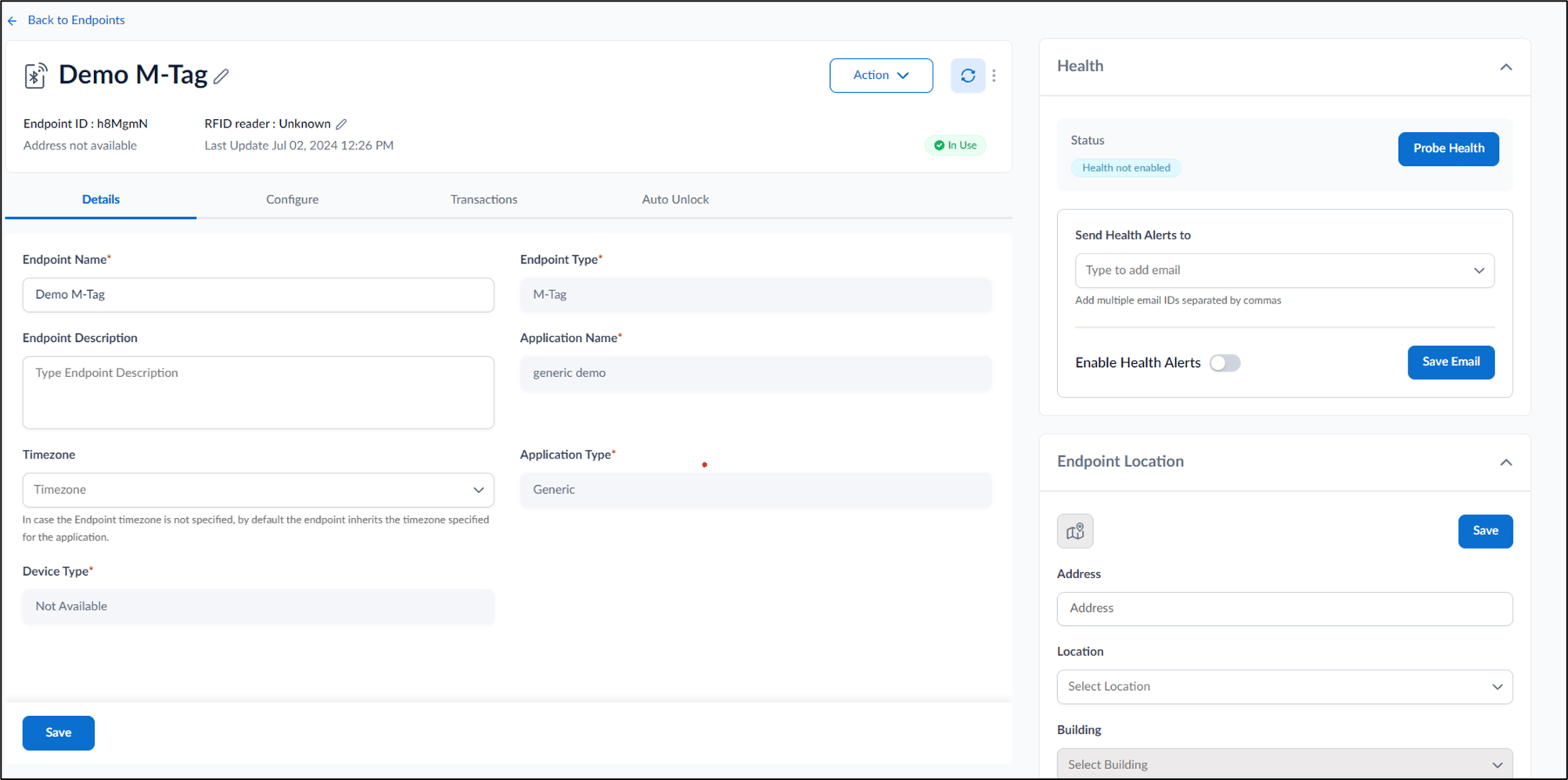
- The configuration comprises the following:
Details Tab

- Edit Endpoint Name.
- Enter Endpoint Description. (optional)
- Select Timezone from the dropdown list. (optional)
- Click Save.
Configure Tab
This Tab comprises two sub-tabs:- Device Information: The values are auto populated from the values entered while creating the Endpoint.

- Device Characteristics: The fields are related to a set of upcoming features and the values will be auto-populated.

Transactions Tab

Auto Unlock Tab
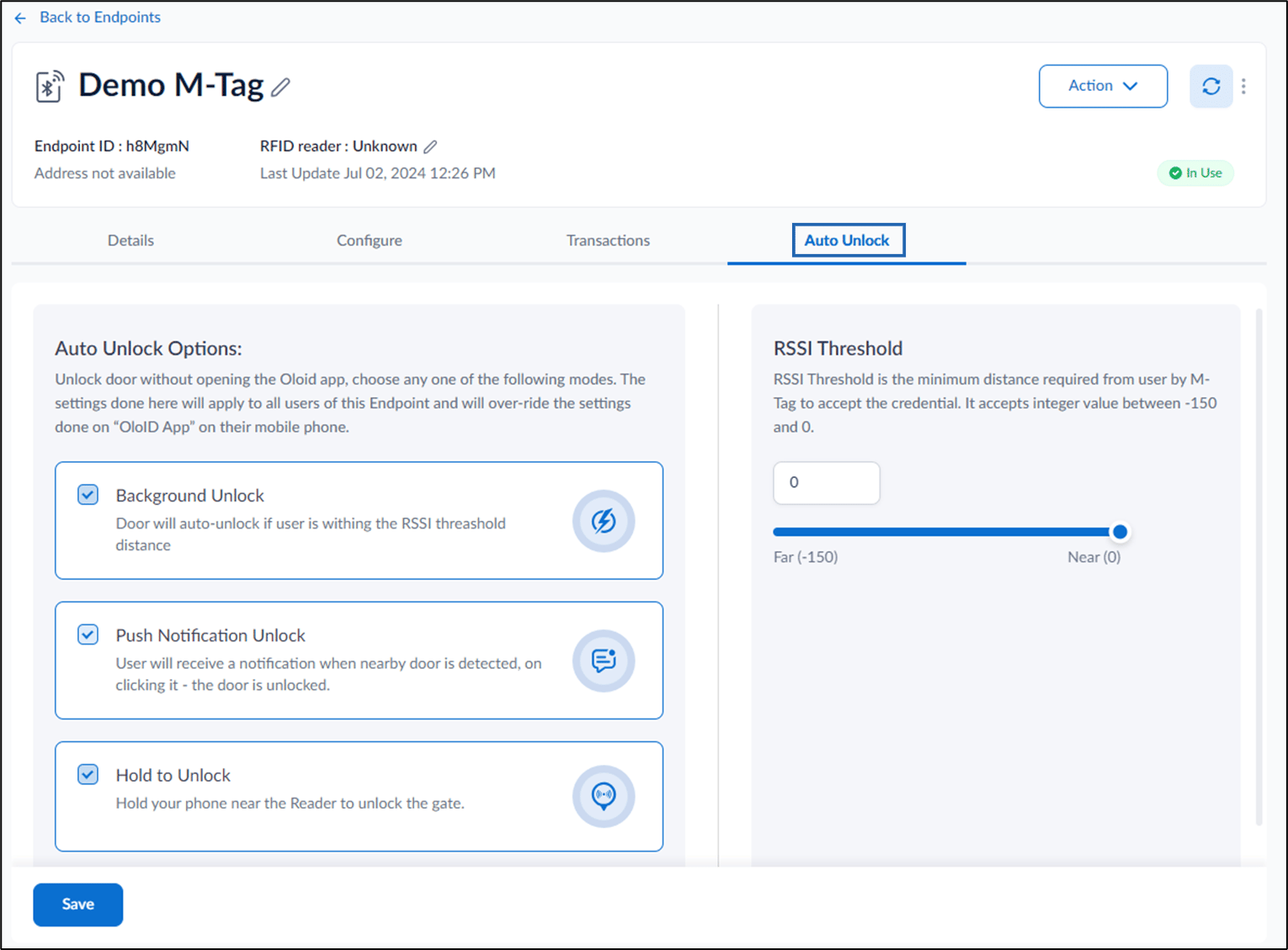
- Enable Background Unlock to auto unlock the door if the user is within RSSI threshold.
- Enable Push Notification Unlock to get notification for nearby door and unlock it.
- Enable Hold to Unlock to unlock the gate by holding the phone near the reader.
-
Select RSSI Threshold.
Note: The value is set 0 by default for RSSI Threshold.
- Click Save.
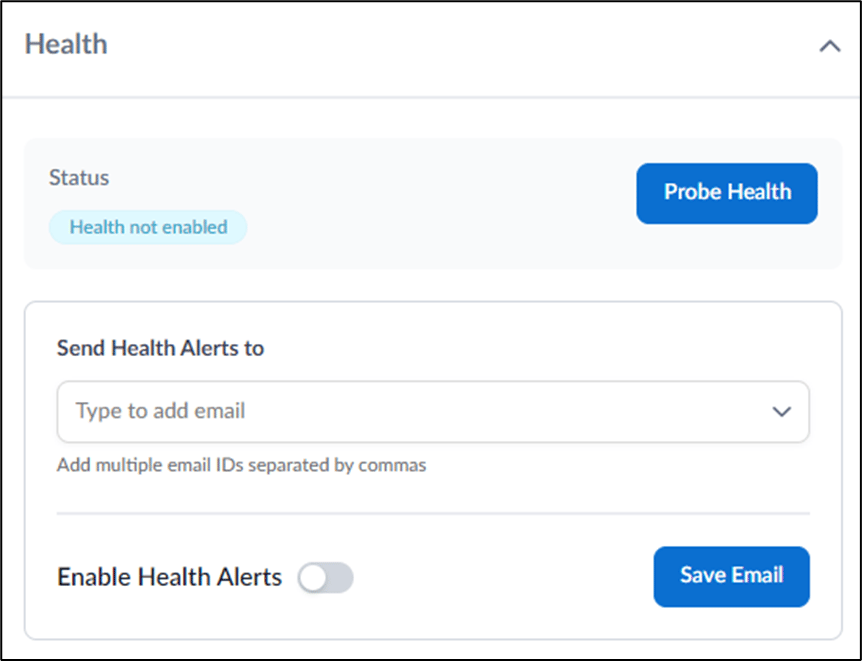
Health
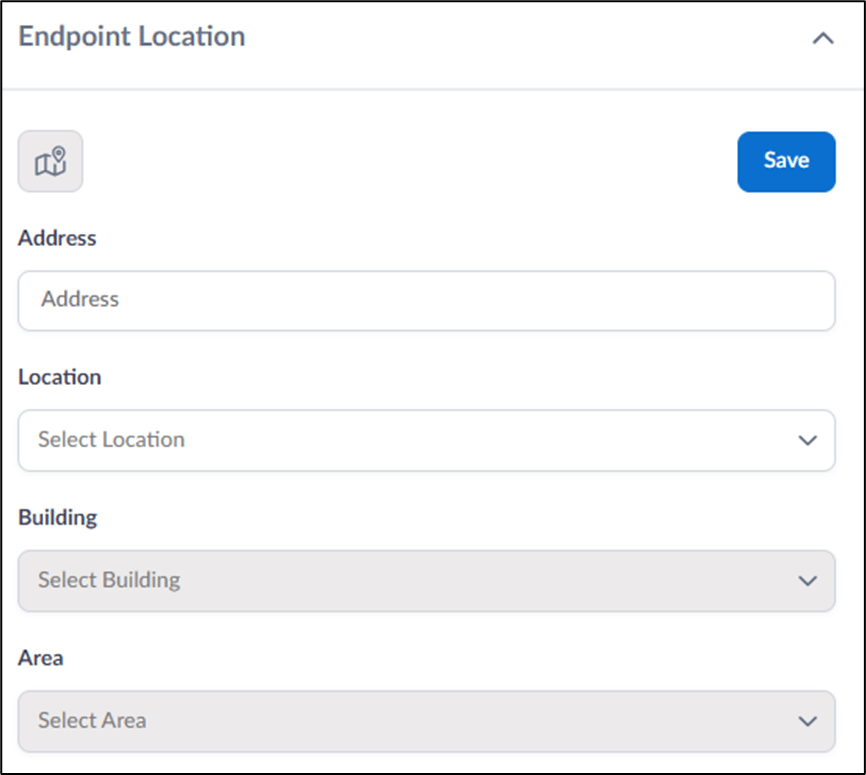
Endpoint Location
-