This document provides instruction to log into your Okta account using MFA. Devicelock supports MFA using NFC badge and pin. To set up your Oloid portal for the Multi-factor authentication, refer Credential Sequencing for Multi-factor authentication in Oloid DeviceLock.

Pre-requisite

  • You must have an Okta account.
  • You must have an NFC-enabled Android tab.

Steps to log in using multi-factor authentication

  1. Launch the DeviceLock app.
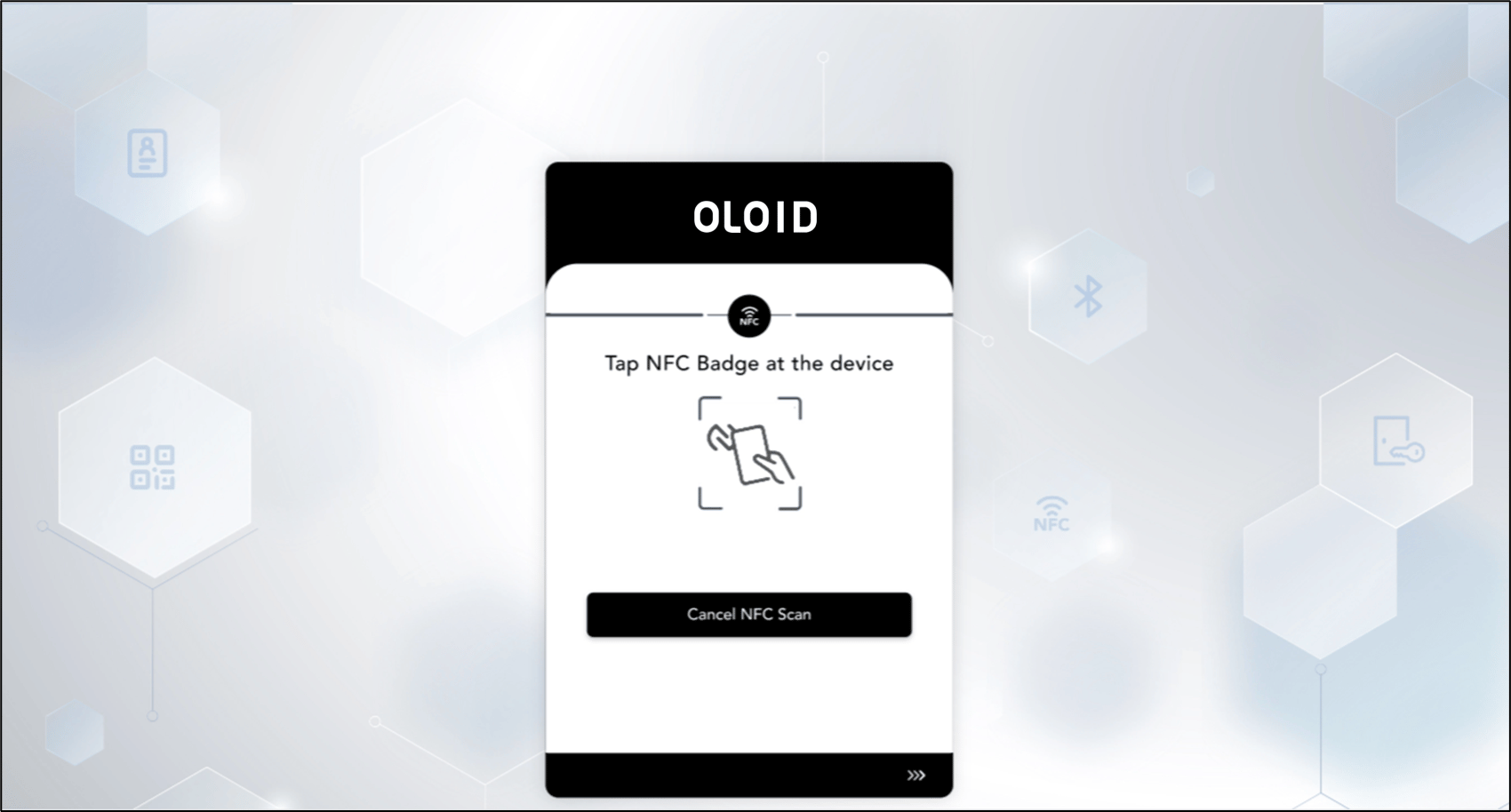
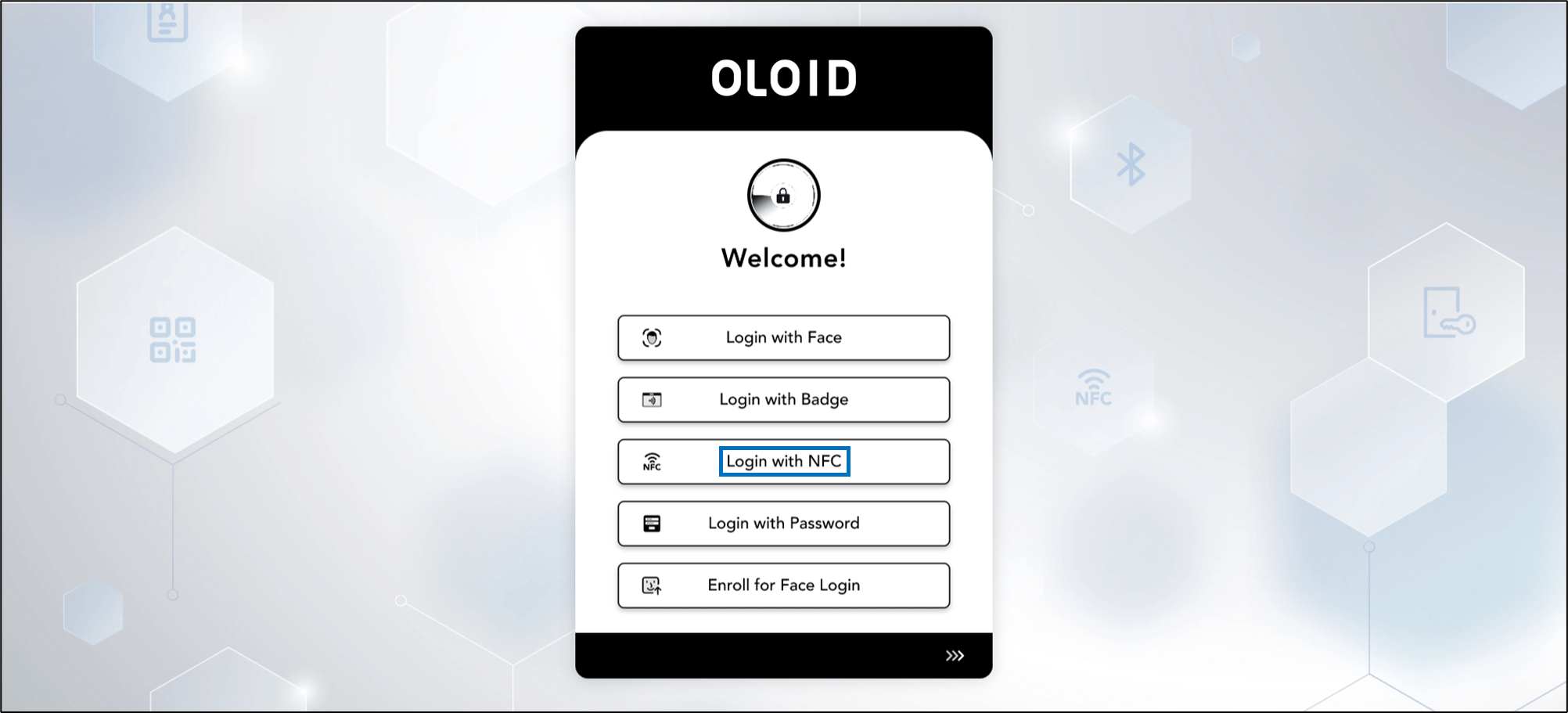
  2. On the home page of the app, tap Login with NFC. Multi-factor authentication (MFA) in... - screenshot 1 The Tap NFC Badge at the device page is displayed. Multi-factor authentication (MFA) in... - screenshot 2
  3. Tap the NFC Badge behind the device to scan it. On the NFC Badge authentication, the Enter PIN pop-up box is displayed. Multi-factor authentication (MFA) in... - screenshot 3
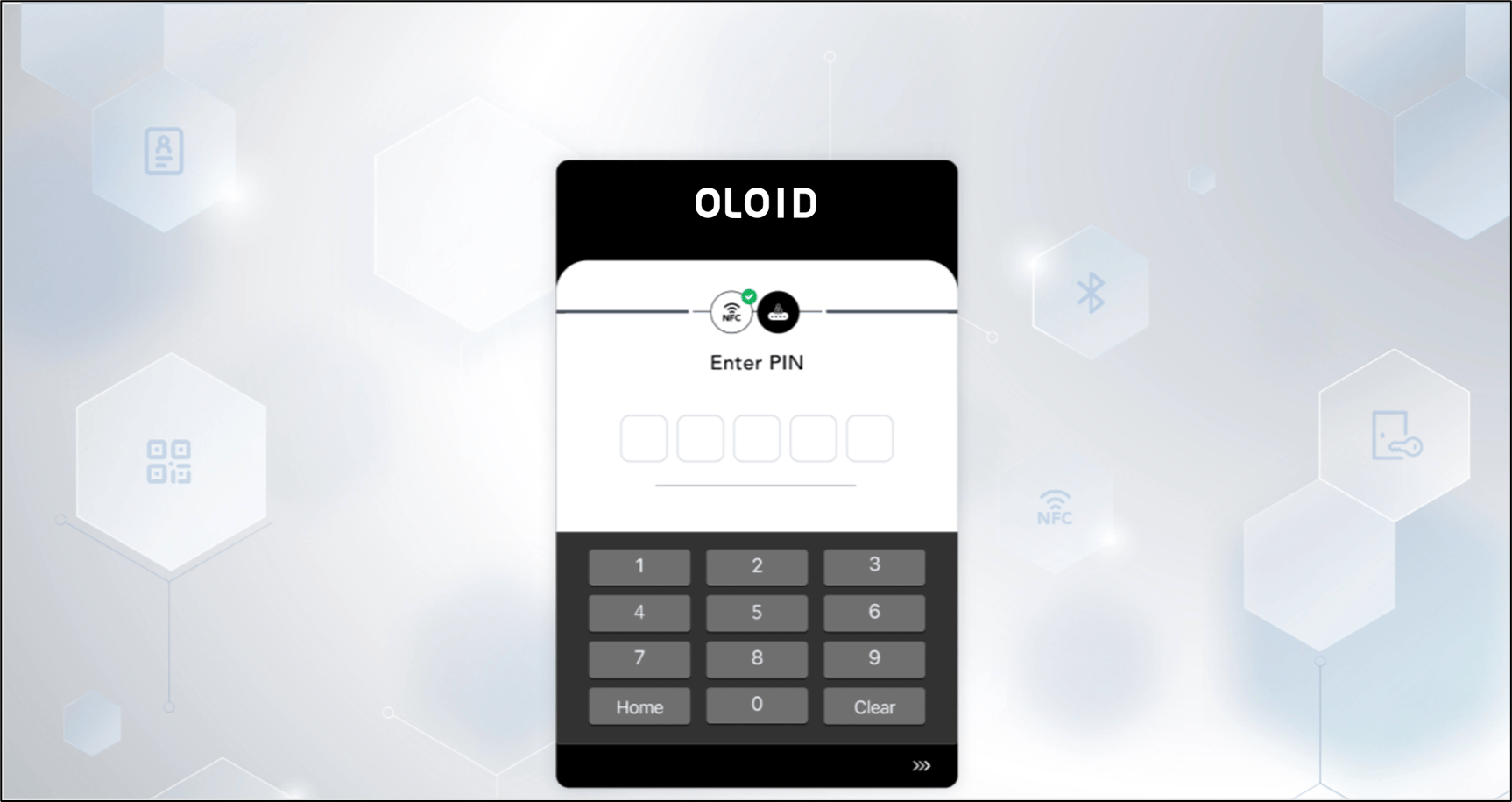
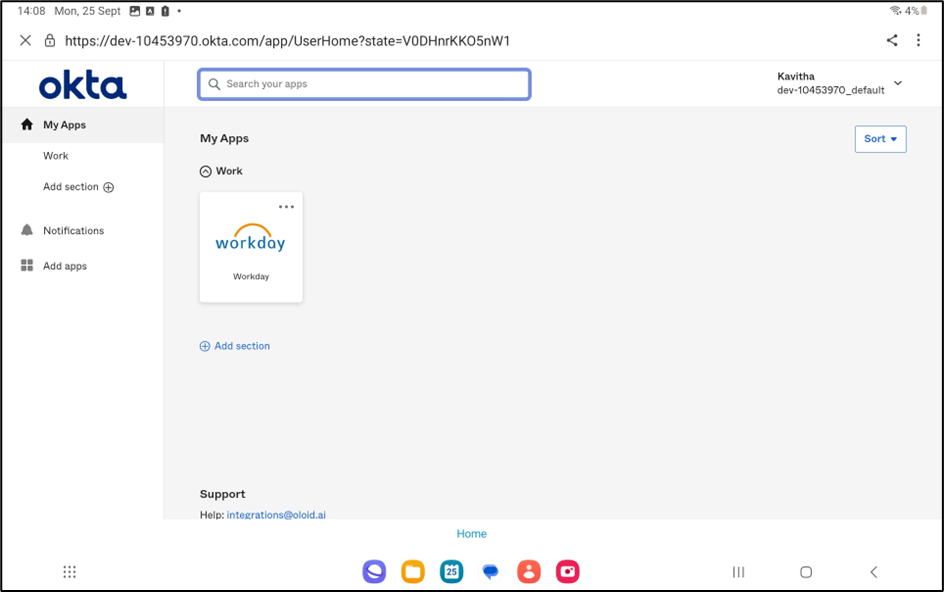
  4. Enter the Pin. On Pin authentication, you are signed in to the Okta system. Multi-factor authentication (MFA) in... - screenshot 4