

Introduction
This document provides step-by-step instructions for logging in to the Supervisor App using badge authentication. Users can authenticate by scanning their assigned badge on a compatible badge reader.Prerequisites
- Windows Login Application must be created in the Tenant Admin Portal. For more information, refer: How to create and configure Windows Login application in the Tenant Admin Portal
- Ensure the endpoint is paired with the Windows Login application. refer Windows Login - How to Manually Pair the Supervisor App
- Assign Badge ID to the user. For more details, refer How to assign Badge ID as credential to users
- Enable Badge as an authenticator in the Windows application. For more details, refer How to enable Badge in Windows application
Steps to Login using Badge
-
Double-click on the Supervisor App to start.

-
Click Continue with Oloid.

-
Click Login with Badge.
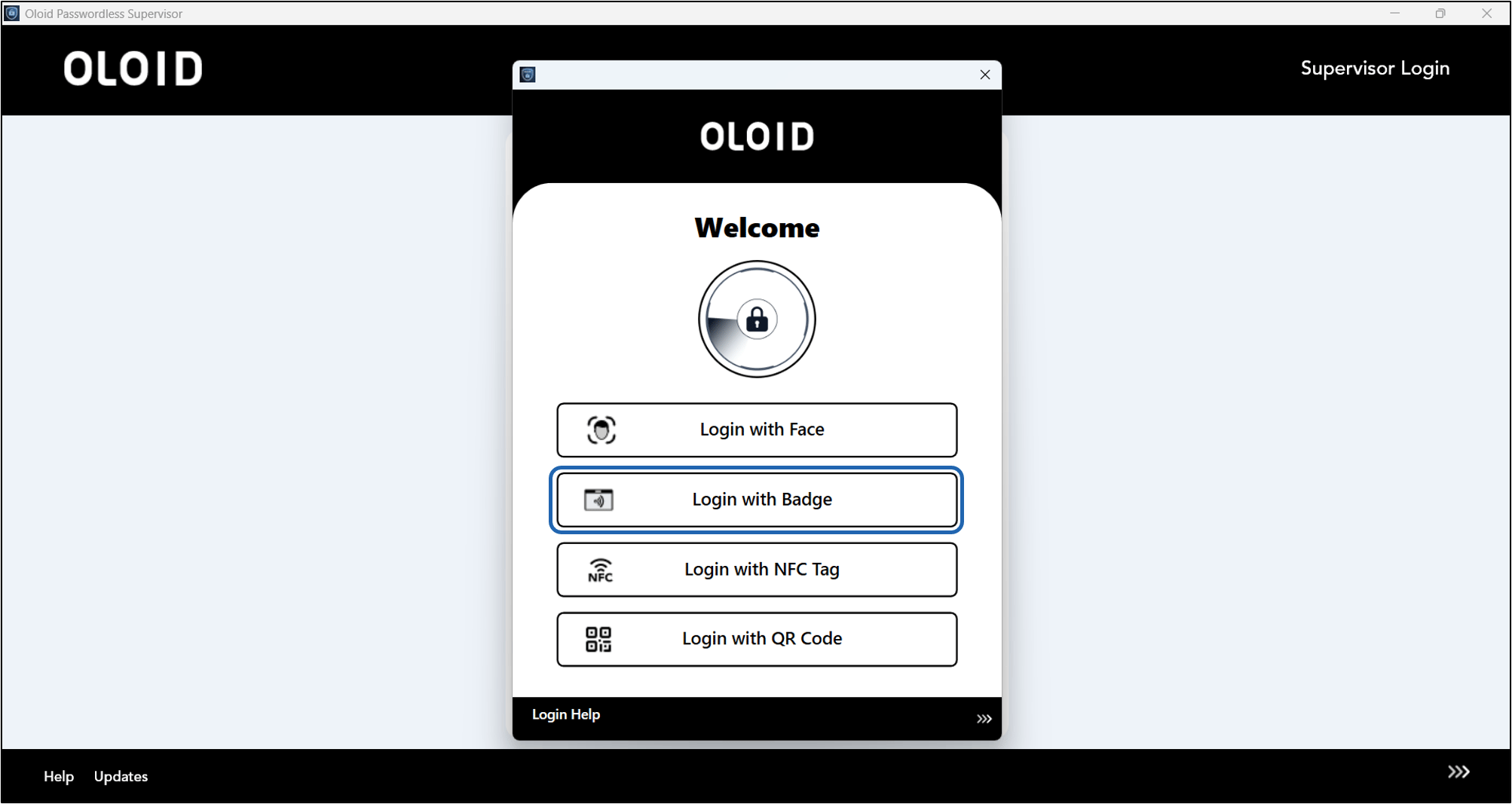
-
Tap the Badge on the Badge Reader to scan it.

