Introduction
This document provides instructions to set up user sync between Microsoft Entra ID (Azure) and Oloid using the Tenant Admin Portal. This configuration enables user data to synchronize with Oloid.Prerequisite
You must have Admin access to the Tenant Admin Portal.Steps to Configure User Sync for Azure
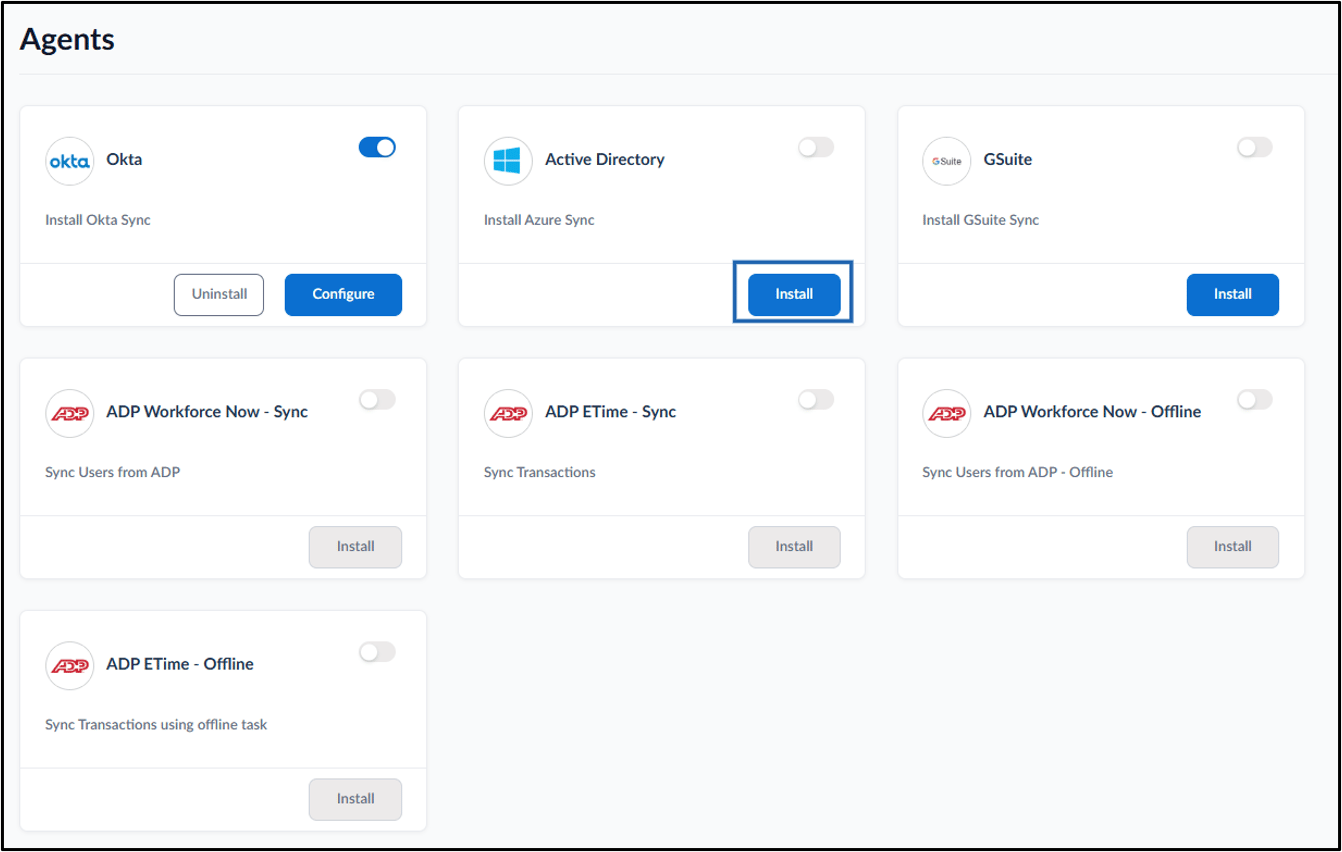
- Log in to the Tenant Admin Portal.
- Go to Agents tab > User Sync.

- Click Install on Active Directory.
- Do the following:
-
Client ID: Enter the Client ID of the Microsoft Entra application.

-
Client Secret Key: Enter the client secret for the Microsoft Entra application.
 Note: You can find this in the Entra ID Admin Console under Manage > Certificates and Secrets > Client secrets.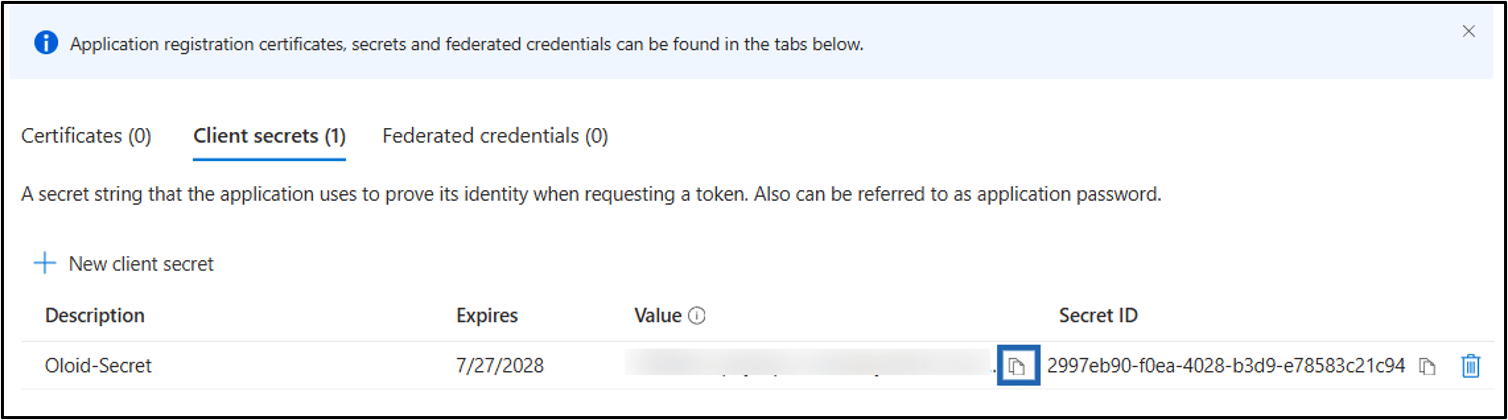
-
Unit: Select the time unit for the synchronization interval (Seconds, Minutes, or Hours).

-
Rate: Enter the synchronization frequency for the selected time unit.

-
Connection: Select the Oloid connection from the drop-down where synchronized users are added.

-
Azure Tenant ID: Enter the Tenant ID of your Microsoft Entra tenant.
 Note: You can find the Client ID and Tenant ID in the Microsoft Entra admin center on the application Overview tab.
-
Client ID: Enter the Client ID of the Microsoft Entra application.
- Click Create.