Introduction
The Online Intent Screen in the Oloid Device Lock application allows administrators to capture user actions such as clock-in, clock-out, job selection, and break management during authentication.Prerequisites
- You must have access to the Tenant Admin Portal.
- The Oloid Device Lock application must be created and configured in the Tenant Admin Portal. For more information, refer
Steps to Configure Online Intent Screen
- Log in to the Tenant Admin Portal.
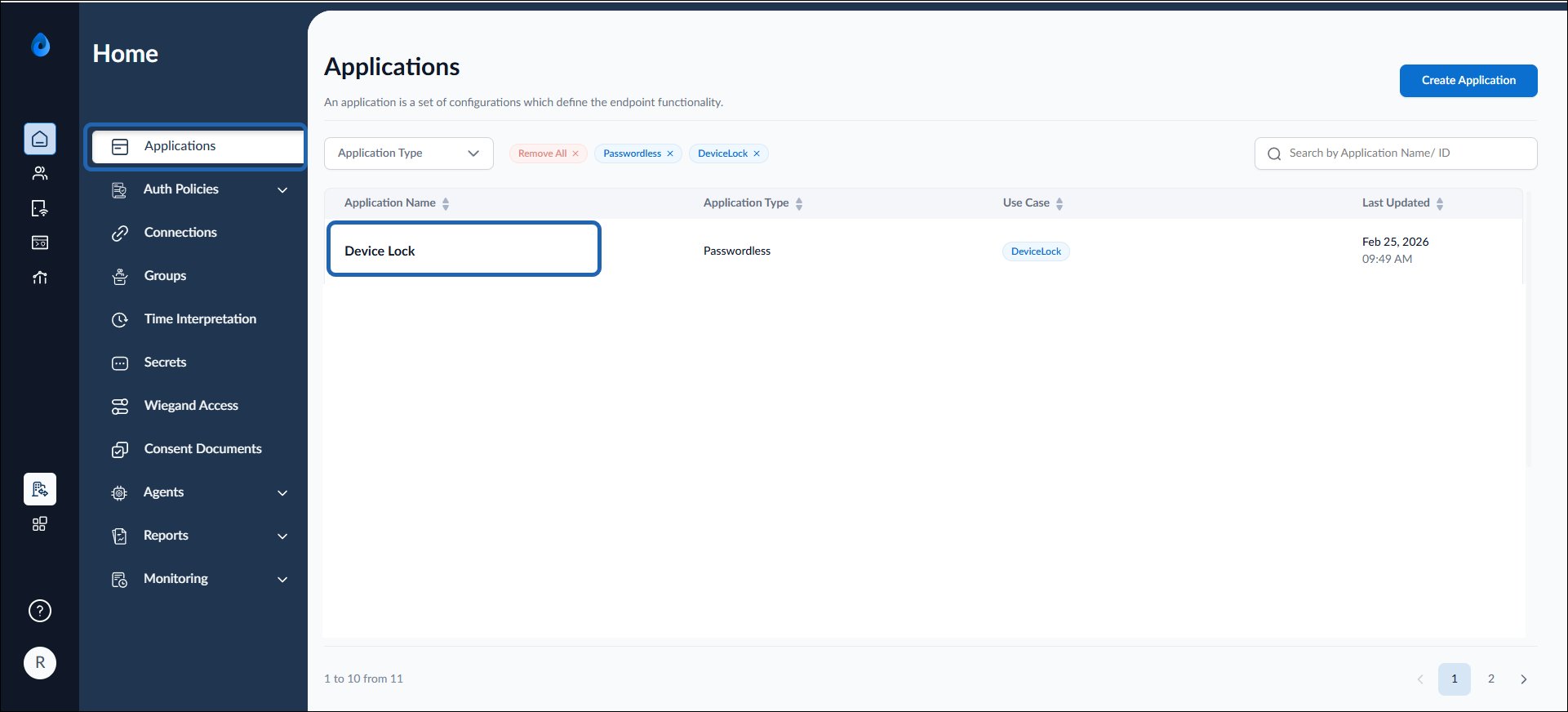
- On the Applications page, click on the preferred Oloid Device Lock application.

- Go to Configure tab > Online Intent Screen. The Online Intent Screen is displayed.
- Turn on Show Intent Screen toggle.

- Configure one of the following:
- Job-Code
-
Multi button
The Intent screen is configured successfully.
Note: You must prepare the Job and Charge Code template before configuring the Job and Charge Code. For more, refer to Oloid Connect - How to prepare Job and Charge Code Template
Configure Job Code
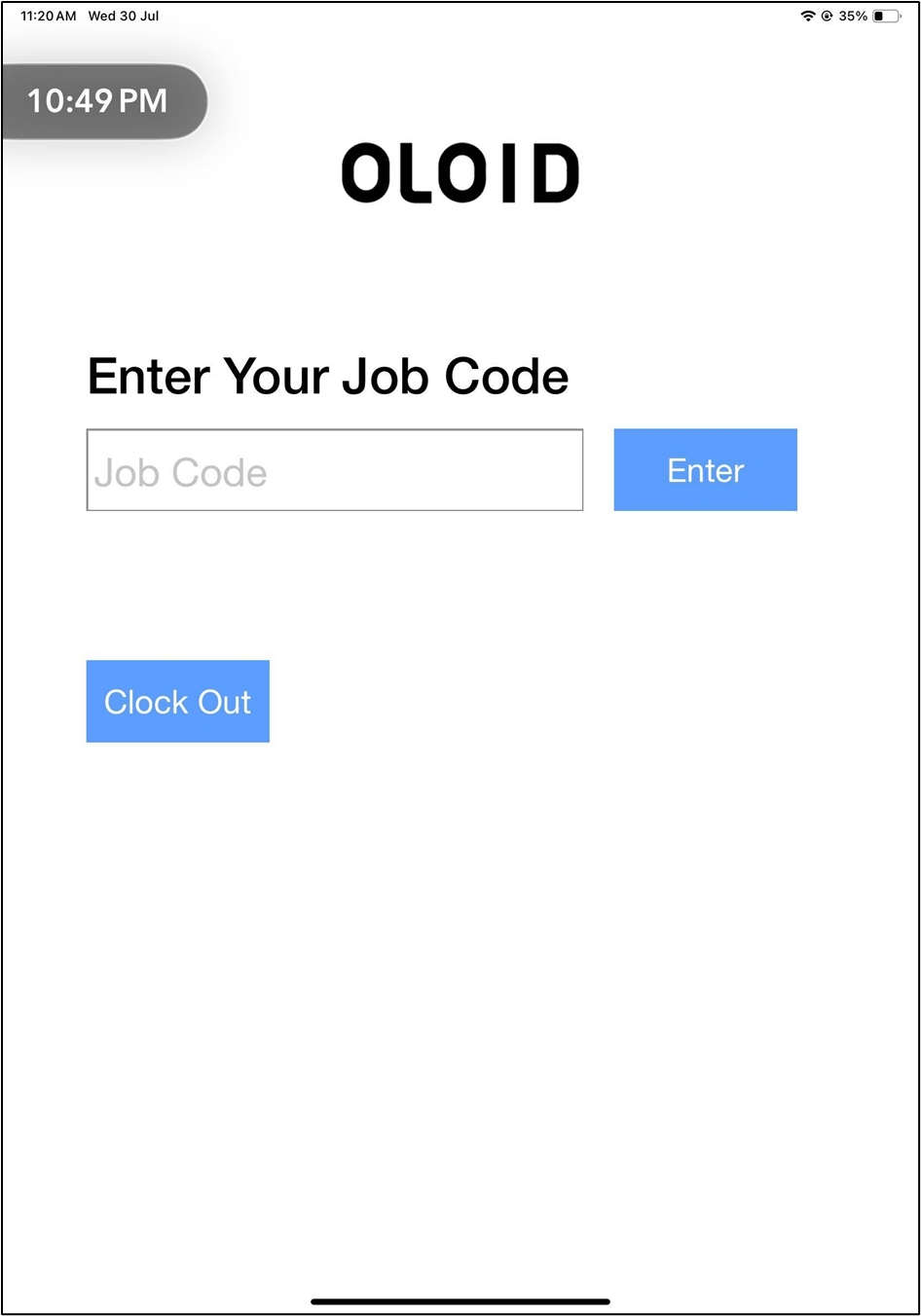
Select Job Code to allow users to enter the job code.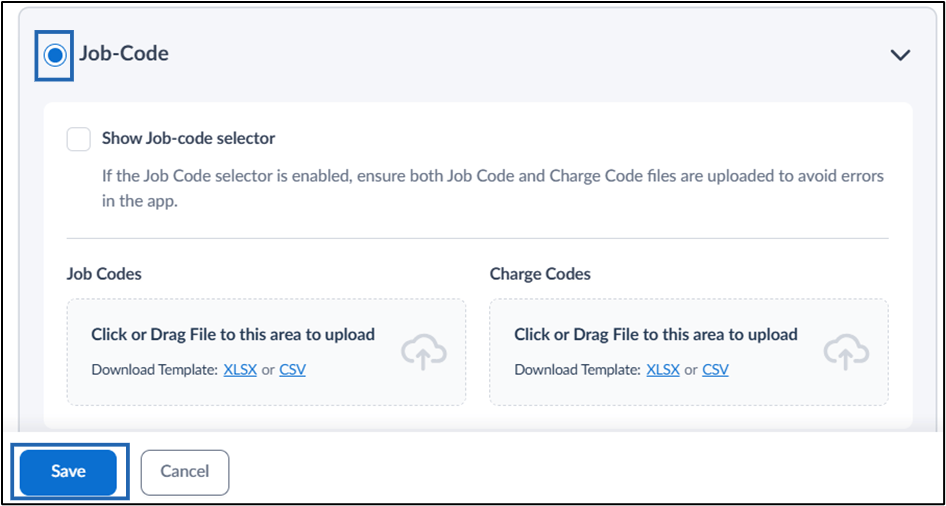
Sample intent screen for Job Code
-
Configure Multi-Button
Note: Once enabled you must add the required fields else blank intent screen will be displayed.
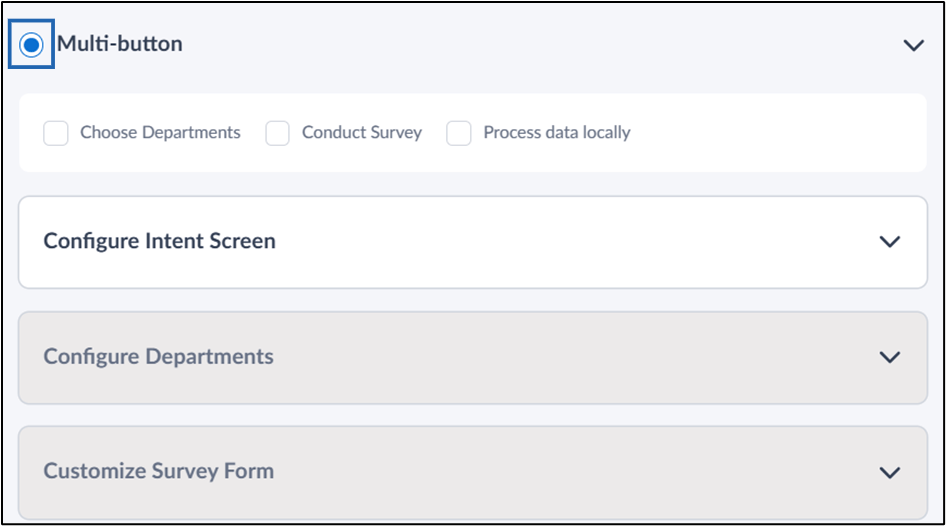
- Go to the Multi-button section on the configuration screen.
- Select Multi-button.
- Do the following:
- Configure the Intent Screen
- Configure Departments
Configure Intent Screen
- Enter the intent screen title in the Intent Screen Heading field. This title appears at the top of the intent screen.
- Enter a short and clear description in the Intent Screen Description field.

- Configure the following:
- Click Save.
Configure Intent Screen Buttons
Note: You can configure at least one and up to six intent buttons.
- Do the following:
-
Click +Add Button to add an intent button.
The button section is displayed.
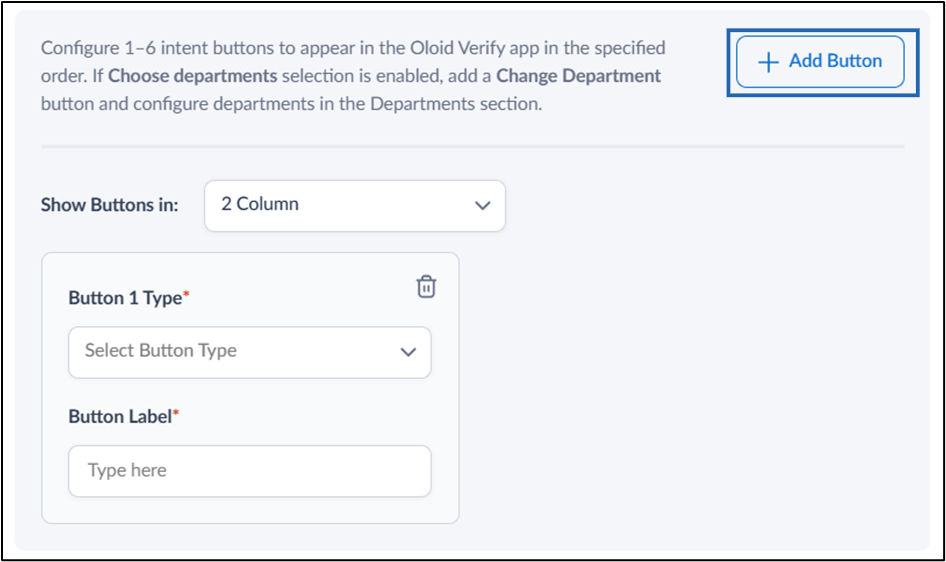
- Select Button Type from the Button Type dropdown menu.
-
Enter Button Label for different user intents.
Note: The label is displayed on the intent screen. (See Sample intent screen)
-
Click Save to apply your changes.

-
Click +Add Button to add an intent button.
The button section is displayed.

Design Minimum Lunch Break Config
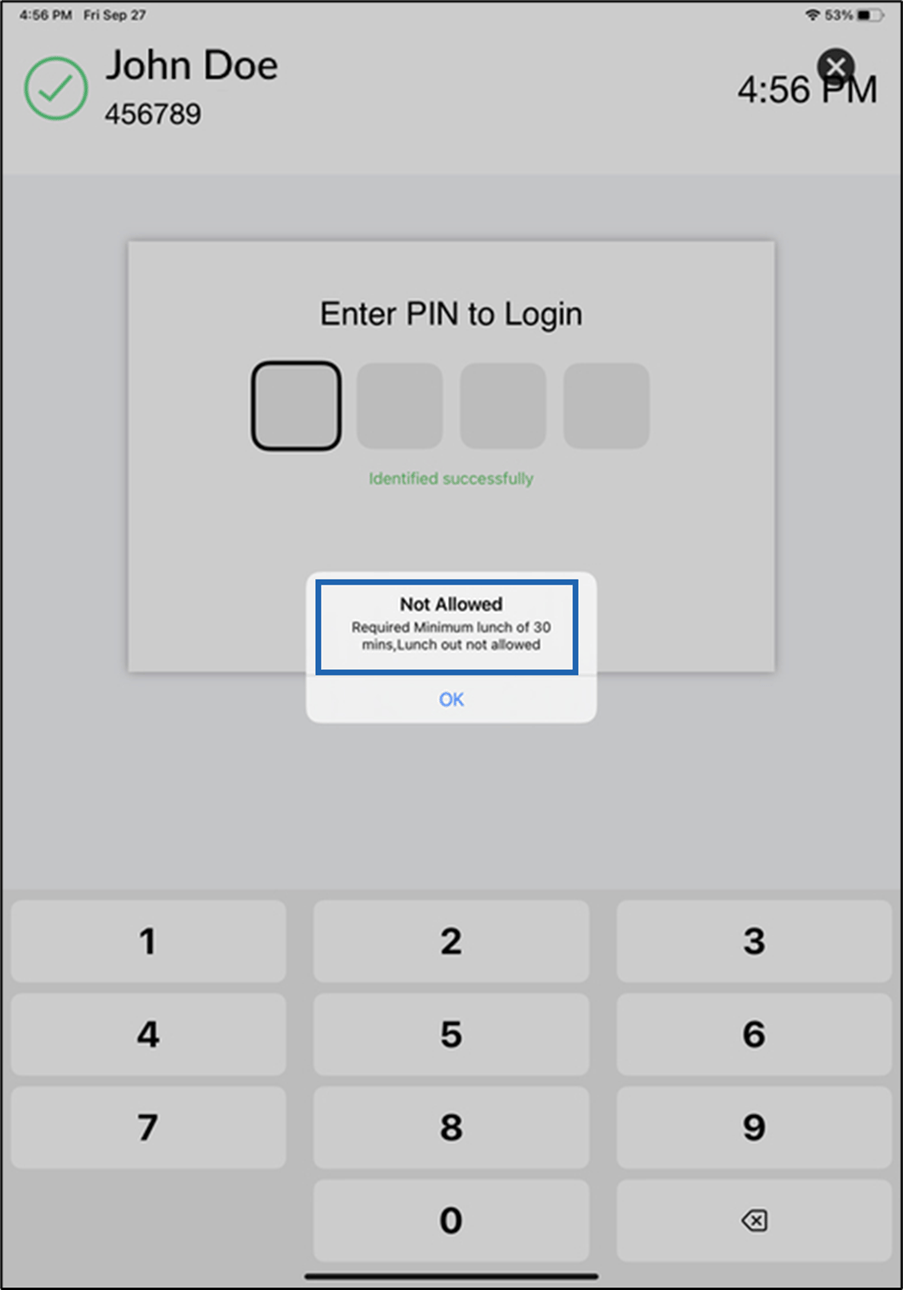
You can configure the minimum lunch break requirements for the user.Note: You must add Start Lunch and End Lunch button type in your intent screen before you configure minimum lunch break.
- Lunch Break Validation Message: Enter the message that will be displayed if the minimum lunch break requirement is not met. (See Sample Screen below)
- Minimum Lunch Break: Set the minimum time for a lunch break, specifying hours and minutes. (See Sample Screen below)
- Click Save to apply your changes.

Setup Departments
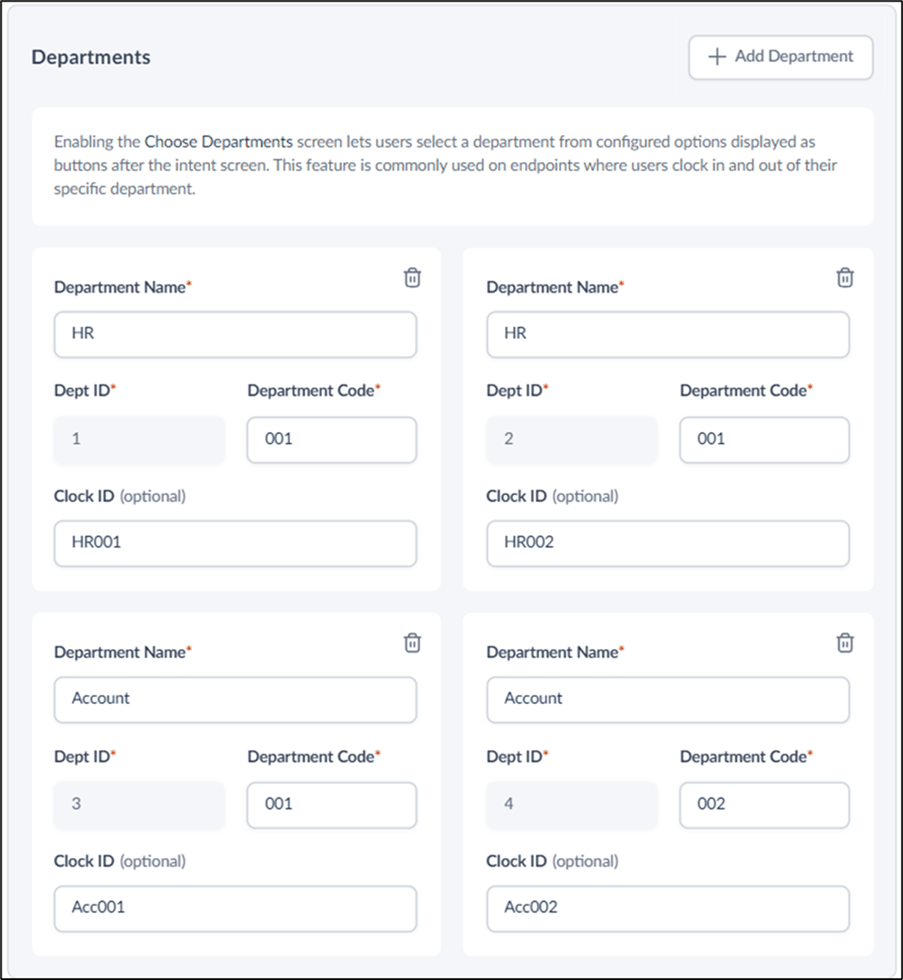
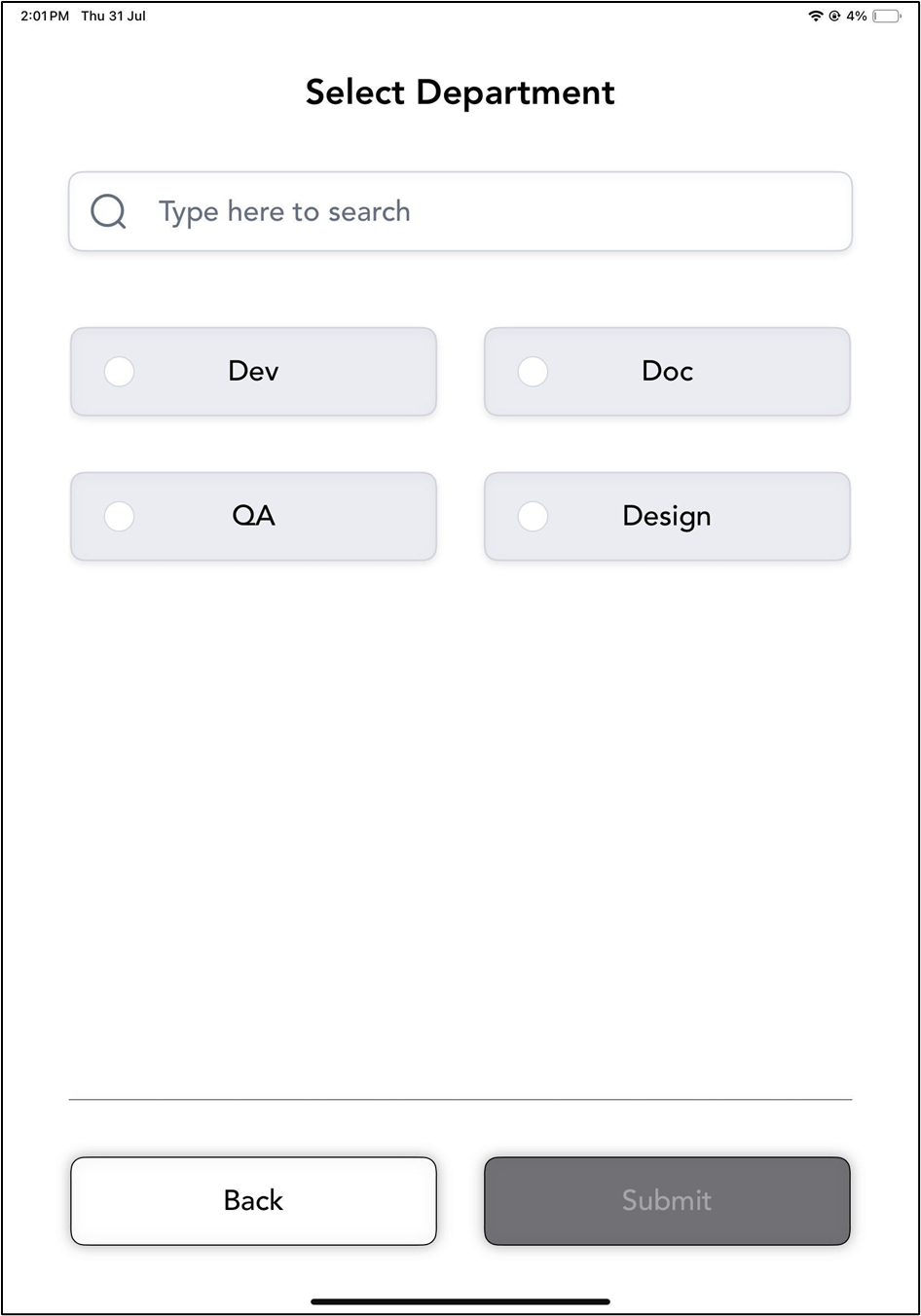
You can configure a department section for users during the clock-in and clock-out process.Note: Ensure that the Choose Departments is selected in the Multi-button section.
- Click +Add Department.

- Configure the following details:
- Department Name: Enter the department name.
- Department Code: Enter a department code.
- Clock ID: Enter the unique clock ID for the sub-department. (Optional)
- Click Save to apply your changes.
Note: Repeat steps 1–2 for each department you want to add.