

Introduction
In Oloid Portal, Set Time-out for Login Screen feature allows the Tenant Admin to set how long the Windows Login screen remains visible when there is no user response in the Windows Login app.Steps to set Time-out for Login Screen
- Log in to the Oloid Portal.
-
On the Applications page, select the application paired in the Supervisor App (Windows Authenticator App).


-
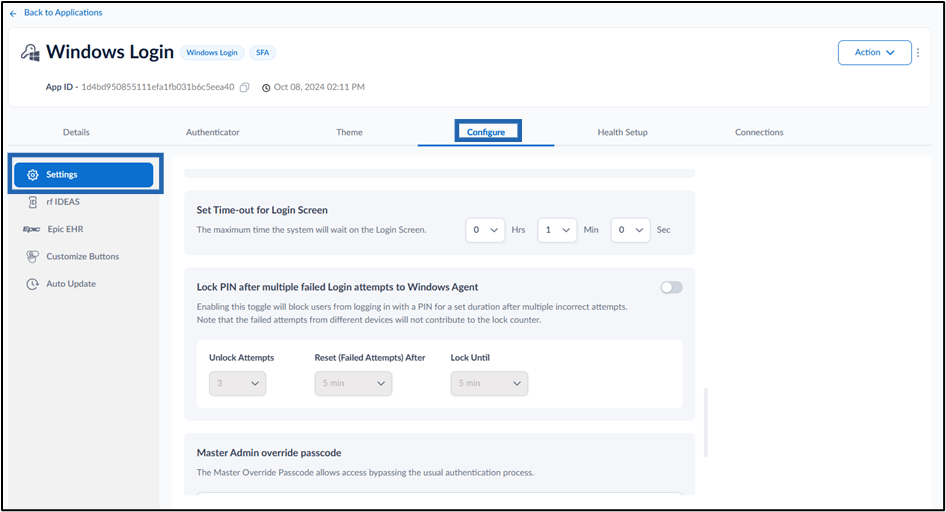
Go to Configure > Settings tab.
-
Set Time-out for login screen in Hours, Mins, and sec for the Windows Login app. If there is no user activity, the login screen in the Windows Login application will time out and close automatically after the set time.

-
Click Save.
 Note: In Windows Authenticator app, you must sync the configuration to enable Set Time-out for Login Screen. For more details, refer How to sync configuration in Supervisor App