

Introduction
The intent screen is used in Endpoint Kiosk mode to allow users to define their actions, such as entering a job code or selecting from various options. This helps organizations guide employees through the correct steps when clocking in or clocking out.Steps to customize Job Code screen
- Log in to Tenant Admin Portal.
-
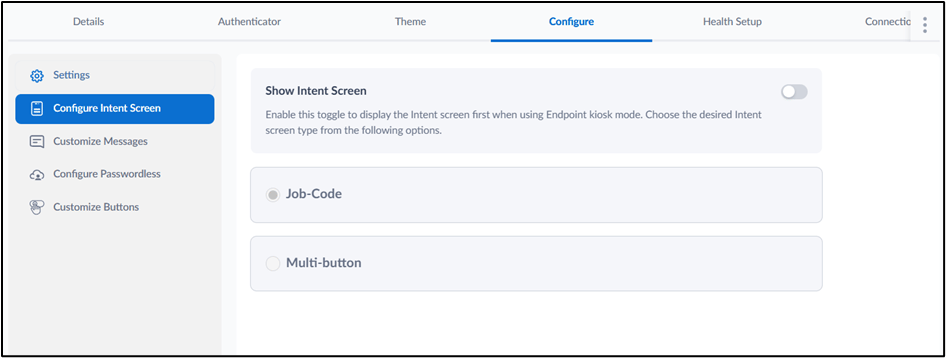
Go to Application > Configure tab > Configure Intent Screen.
Note: You must configure the application with which your endpoint is paired.
-
Turn on Show Intent Screen toggle.

-
Select Job Code to allow users to enter the job code.
Note: You can Select the show Job Code selector option if you want to customize the Job Code screen.

- Click Save. The intent screen is configured and displays the Job Code in the preview screen.
Sample intent screen for Job Code

Configure Job Code and Charge Code
Prerequisite You must prepare the Job Code and Charge Code templates before uploading. For more, refer to How to prepare Job and Charge Code Template- Go to the Job-Code section.
- Select the Show Job-code selector checkbox to enable the fields for uploading Job Codes and Charge Codes.

Upload Job Code File
-
In the Job Codes section, click or drag your file to the upload area.
Note: The file must be in XLSX or CSV format.
-
If needed, download the file template:
- Click XLSX to download the Excel template.
-
Click CSV to download the CSV template.
Note: Fill out the template with valid job codes before uploading.

Upload Charge Code file
-
In the Charge Codes section, click or drag your file to the upload area.
Note: The file must be in XLSX or CSV format.
-
If needed, download the file template:
- Click XLSX to download the Excel template.
-
Click CSV to download the CSV template.
Note: Fill out the template with valid Charge codes before uploading.
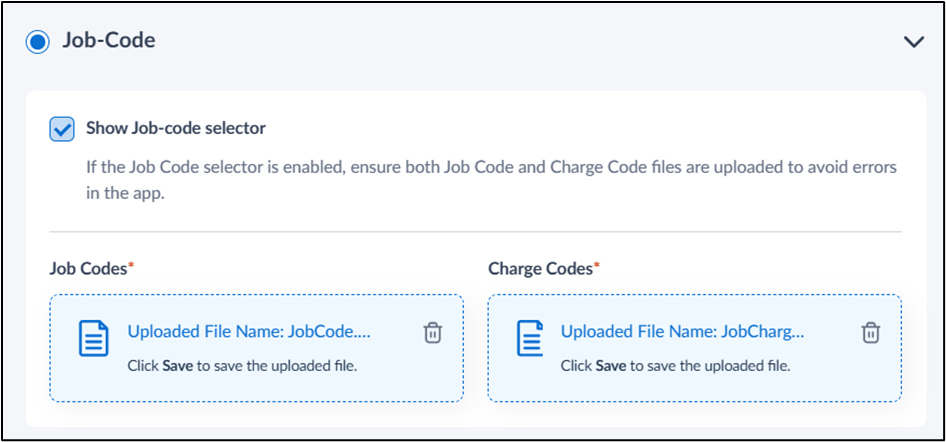
Sample intent screen for Job-code selector
