

Introduction
This guide explains how to deploy Windows Login 2.0 across Windows devices using ManageEngine Endpoint Central. The deployment process includes:- Creating a software package
- Configuring installation and uninstallation commands
- Deploying the package to target machines using Computer Configuration
Prerequisites
Before you begin, ensure the following:- You have access to the Endpoint Central console with administrator privileges.
- You have downloaded the Oloid Passwordless installer (.exe). For more information, refer: Windows Login v 2.0 - How to download Windows Login v 2.0 installer file from Tenant Admin Portal
-
You have downloaded the
AutoPairConfig.txtfile from the Tenant Admin Portal. For more information, refer: Windows Login - How to generate Auto-Pair config file for Windows Login in Tenant Admin PortalNote: Download the AutoPairConfig file in.txtformat only. -
You have the
install-w-autopair.ps1installation script file. To obtain the script file, contact Oloid Support.
Steps to Deploy Windows Login 2.0 via ManageEngine
- Create the Package
- Deploy the Package The Windows 2.0 is deployed successfully.
Steps to Configure the Package Details
- Log in to the Manage Engine Admin Console. The Manage Engine home screen is displayed.
- Click Software Deployment.

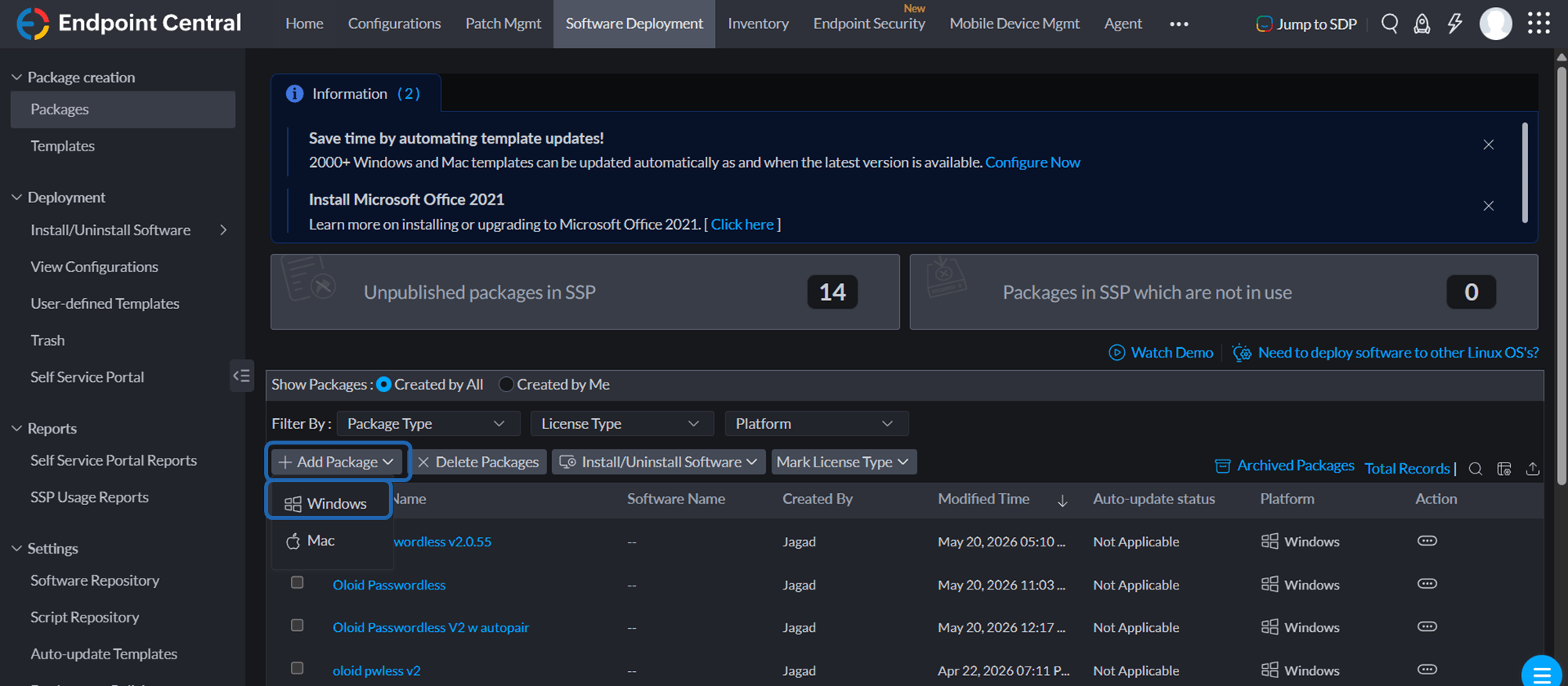
- Click + Add Package > Windows.
- Do the following:
- Enter Package Name.
- Select EXE / APPX / MSIEXEC / MSU / MSIX / MSIX Bundle as the Package Type.
- Select Commercial as the License Type.
- Select From Local Computer as Locate Installable.

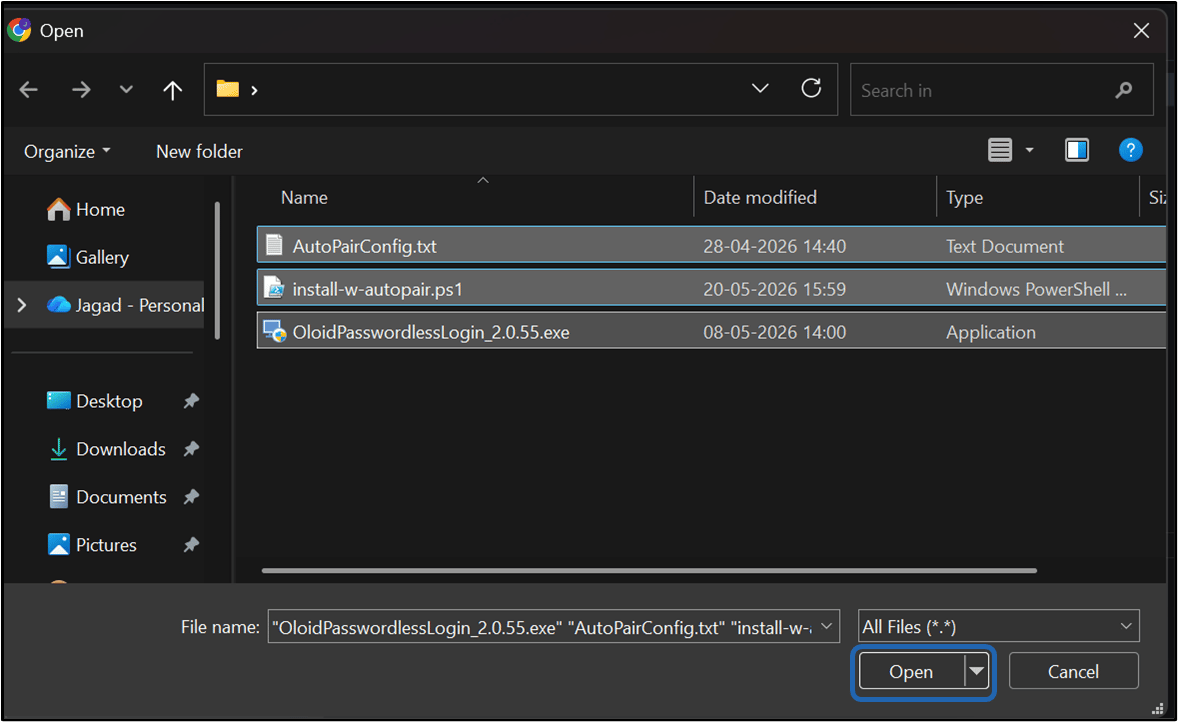
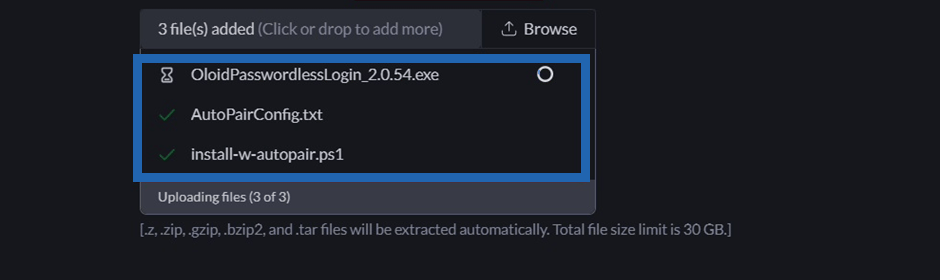
- Click Browse and upload the following files:
-
Oloid Passwordless installer (
.exe). -
AutoPairConfig.txt (Optional)
Note: If the AutoPair configuration file is added, the app is installed and paired automatically. If not, manual pairing is required after installation.
- Installation script file.
-
Oloid Passwordless installer (
- Click Open.
- Go to Installation tab and do the following:
Note: Use the following command.
- Note: Replace the <installation script file name> text with actual installation script file name.
- Enable Mask sensitive data to hide sensitive information from users who can modify the package (Optional).

- Click Uninstallation tab and do the following:
Note: It is recommended to use the below command.
-
Enable Mask sensitive data to hide sensitive information from users who can modify the package (Optional).

-
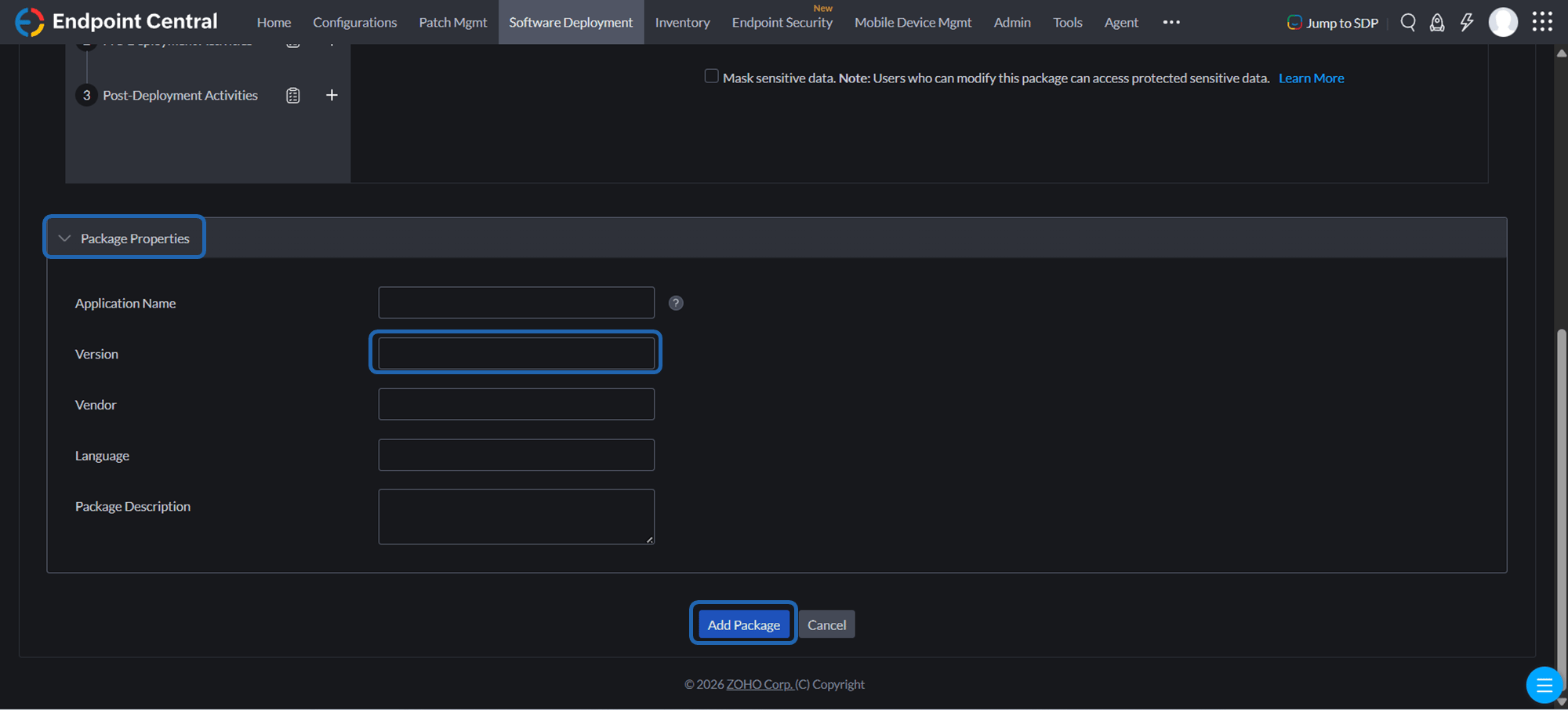
Go to the Set Package Properties section, expand Package Properties, and enter the version number of the Passwordless installer file.
Note: The version number helps identify and track a specific package release and ensures that the correct package version is deployed.
-
Click Add Package.
Steps to Deploy the Package
-
Go to Software Deployment home page, select the checkbox next to Oloid Passwordless.
Note: Select the Oloid Passwordless package created in the previous step.
-
Click Install/Uninstall Software > Computer Configuration (Windows).

-
Do the following:
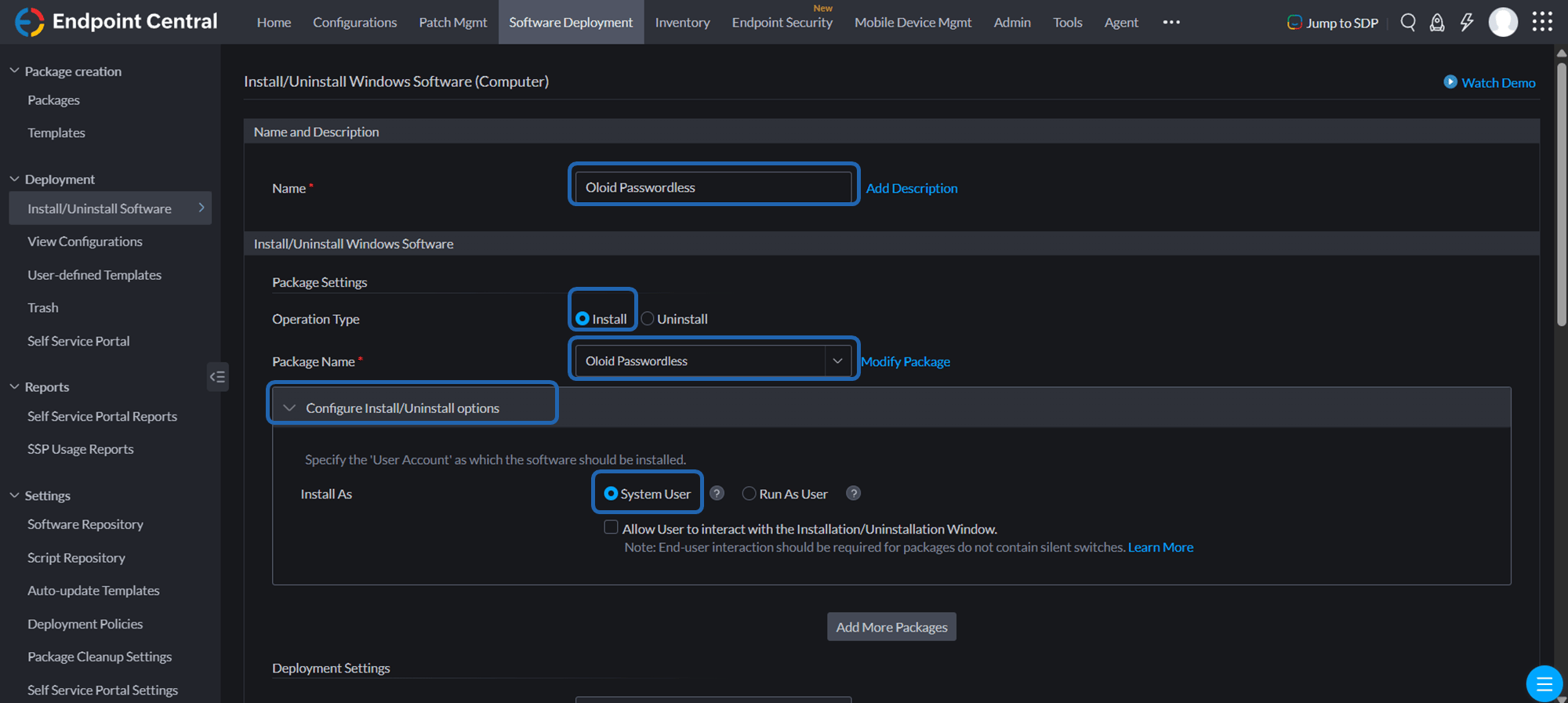
- Enter the Name.
- Click Add Description and then enter the description in the displayed text box. (Optional)
- Select Install as the Operation Type.
- Select Oloid Passwordless as the Package Name. (Default)
- Expand Configure Install/Uninstall options and do the following.
- Select System User for Install As.
- Ensure Allow user interaction is unchecked.
-
Scroll down to the Deployment Settings section and select Policy from the Apply Deployment Policy drop-down list.

-
Under Define Target, configure Target 1:
- Select the required Target Type from the drop-down.
- Configure the Target settings.

-
Click Deploy.
 Note: Changes may take a few minutes to apply. To deploy the changes immediately, click Deploy Immediately.