

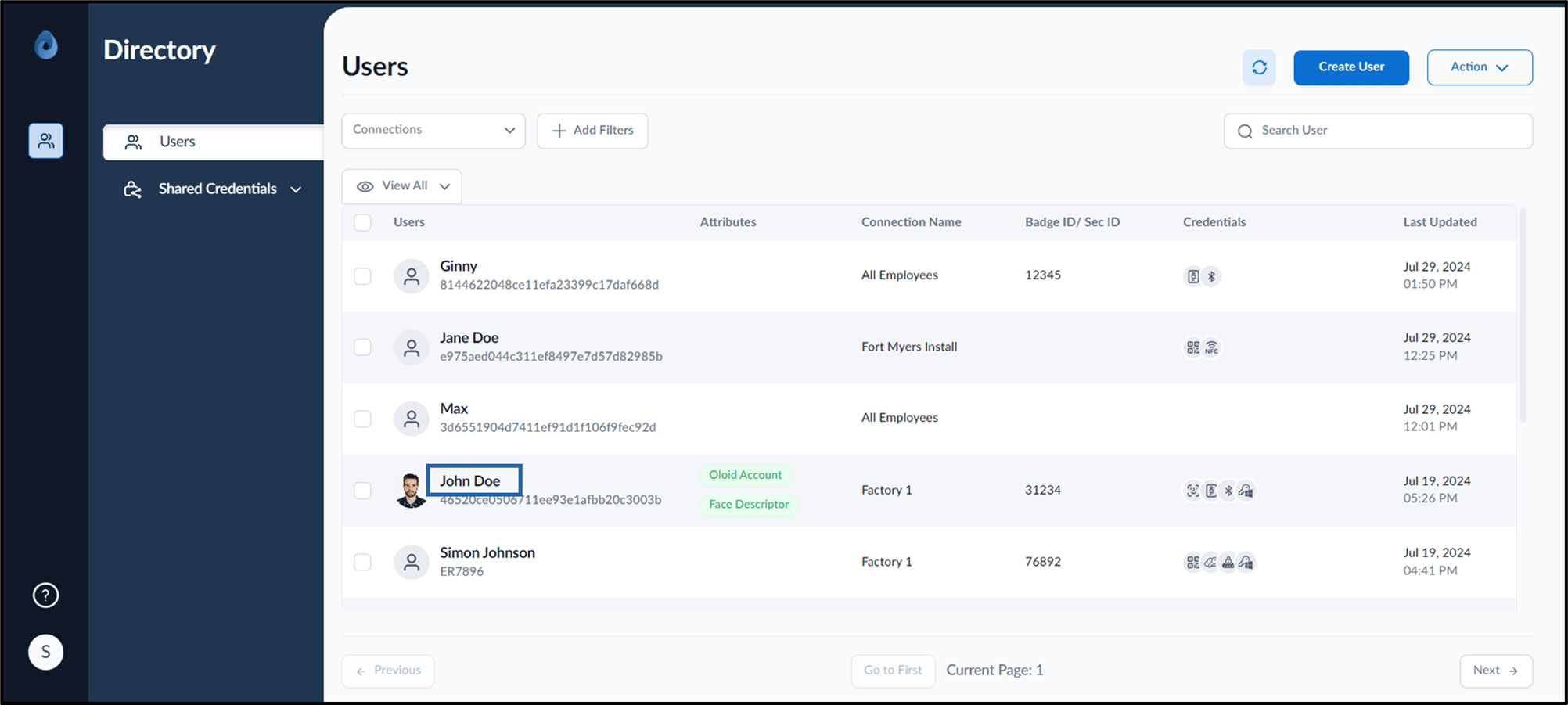
- Log in to the Supervisor Portal. The Users page is displayed.
- Click username to edit.
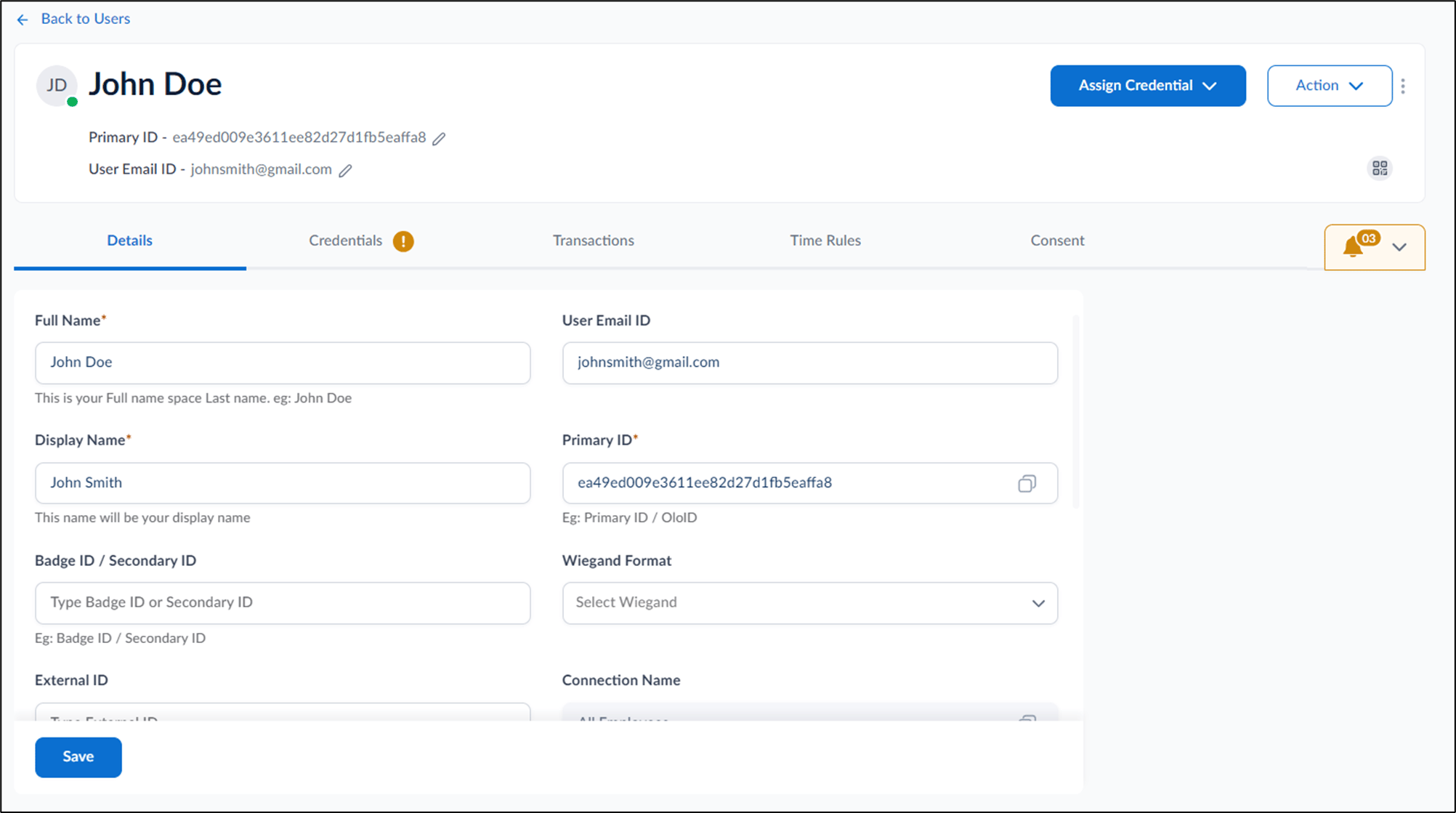
- Do the following:
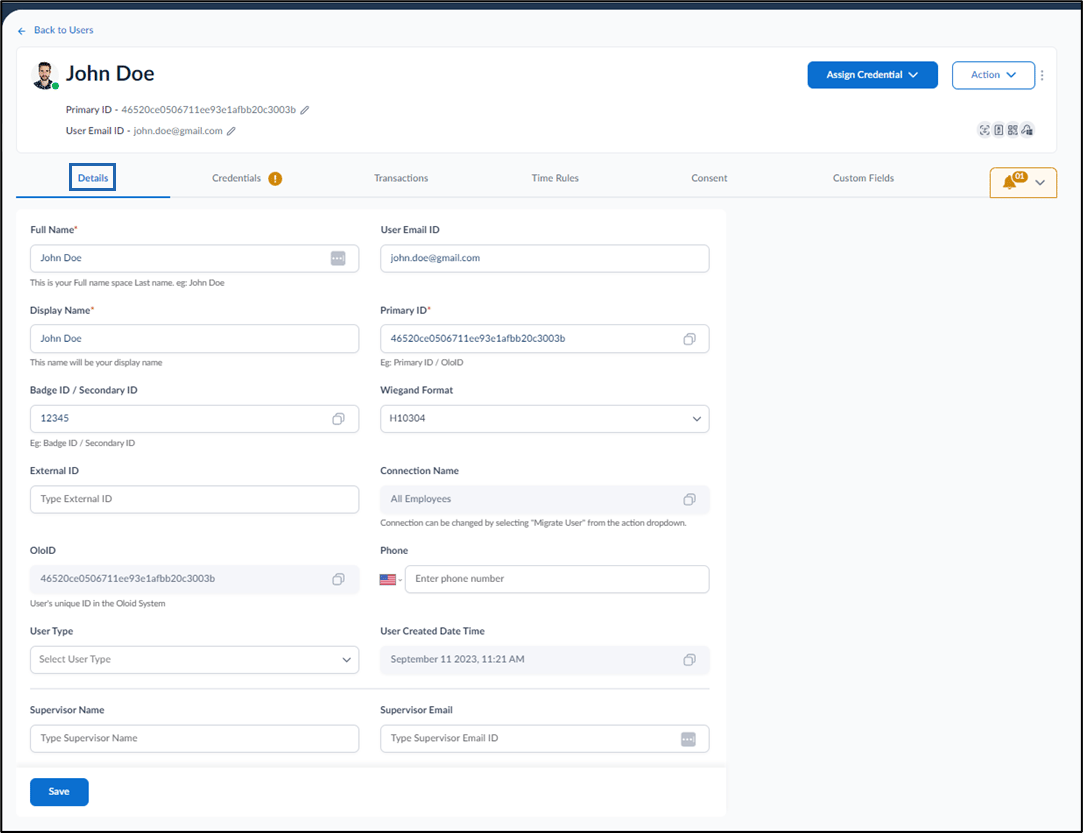
- Details tab: Enter user details and click Save.
- Credentials tab: Add Face, Set QR code, Assign Badge, Configure Bluetooth settings, Add Windows Password, Vault Passwords, Add PIN, Assign NFC/ID, and Add CloudKey in the respective tabs.

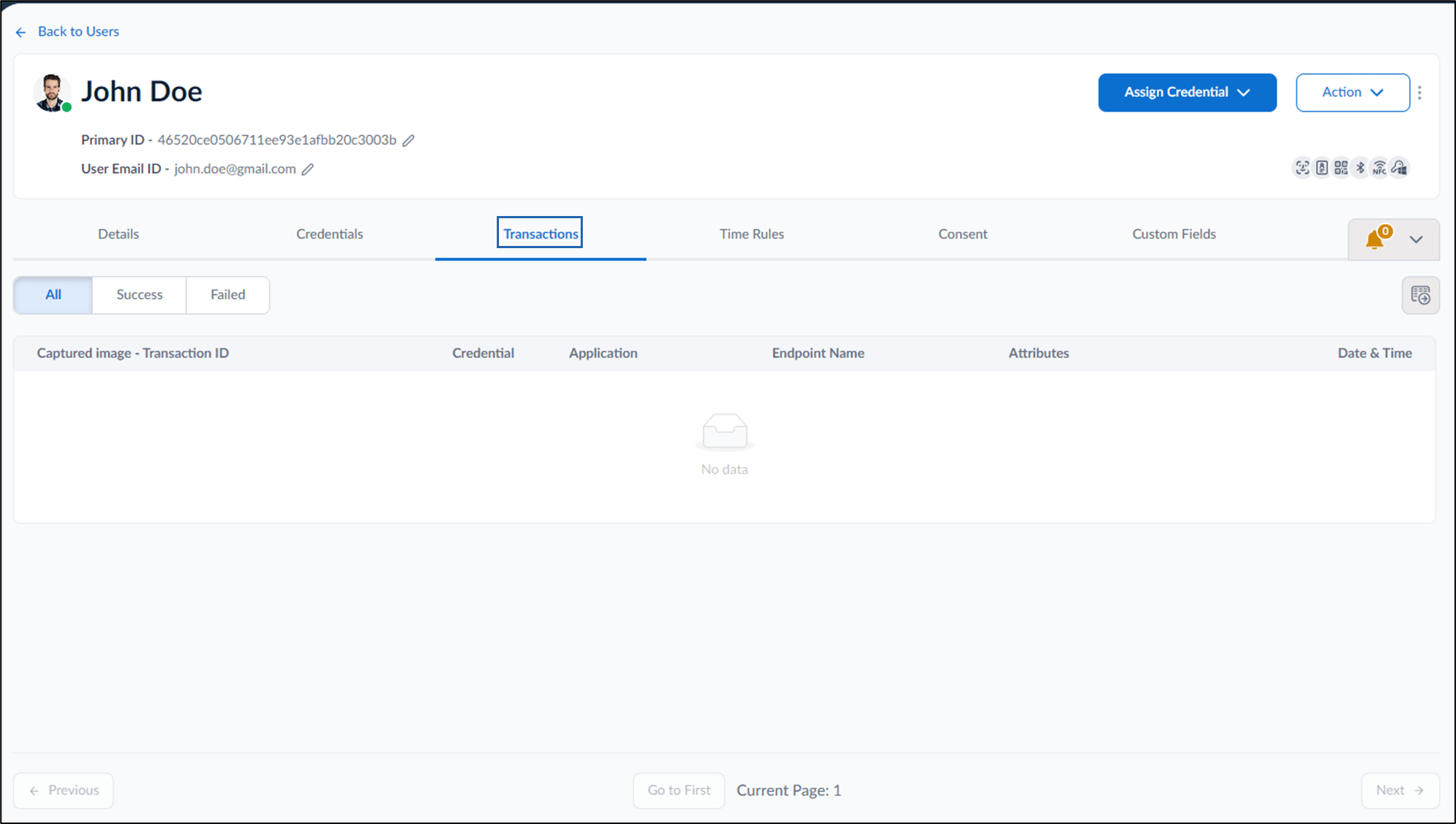
- Transactions tab: View transactions.
- Time Rules tab: View time rules.
- Consent tab: View user consent.

- Custom fields tab: Edit badge binary (Optional). The User details are configured.
- Details tab: Enter user details and click Save.
Supervisor Portal - How to configure user details
This document provides step-by-step instructions to configure user details in the Supervisor Portal.
Steps to configure user details:
⌘I