

Introduction
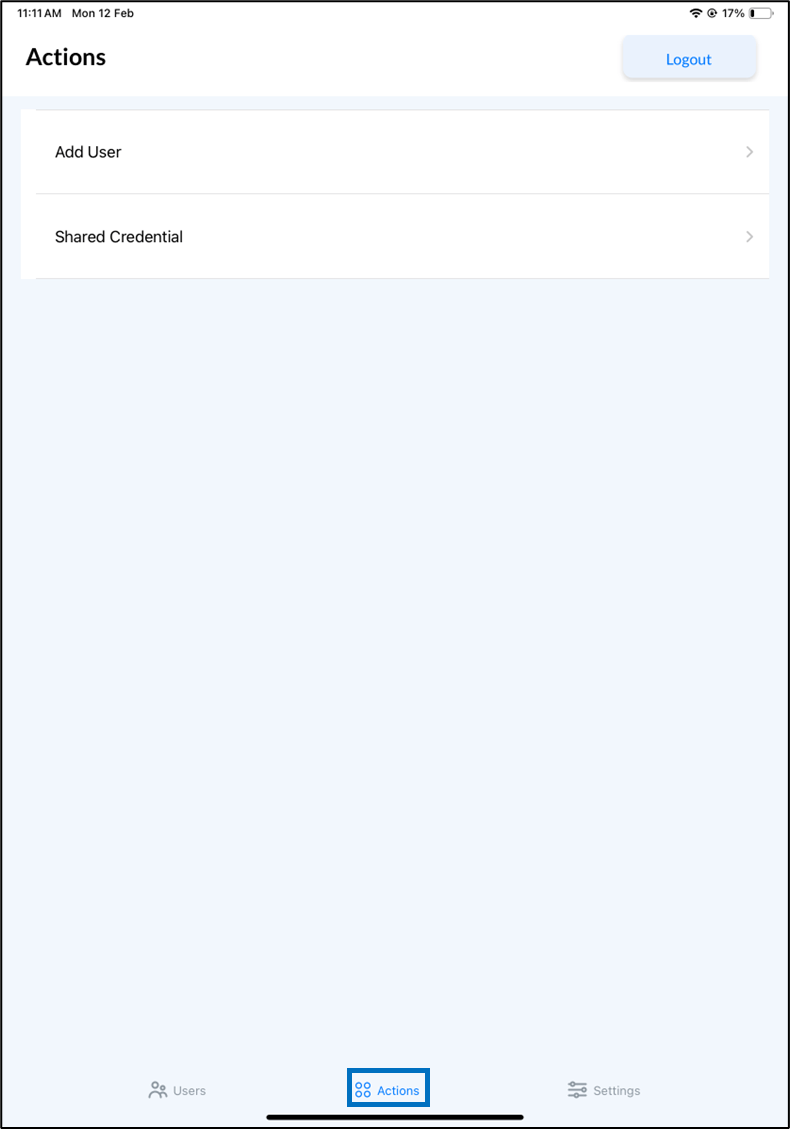
This feature of Oloid Verify app allows the supervisor in admin mode to create shared credential for users using the app. This document comprises of the following: To create shared credential:- Tap Actions on the menu at the bottom of the screen.
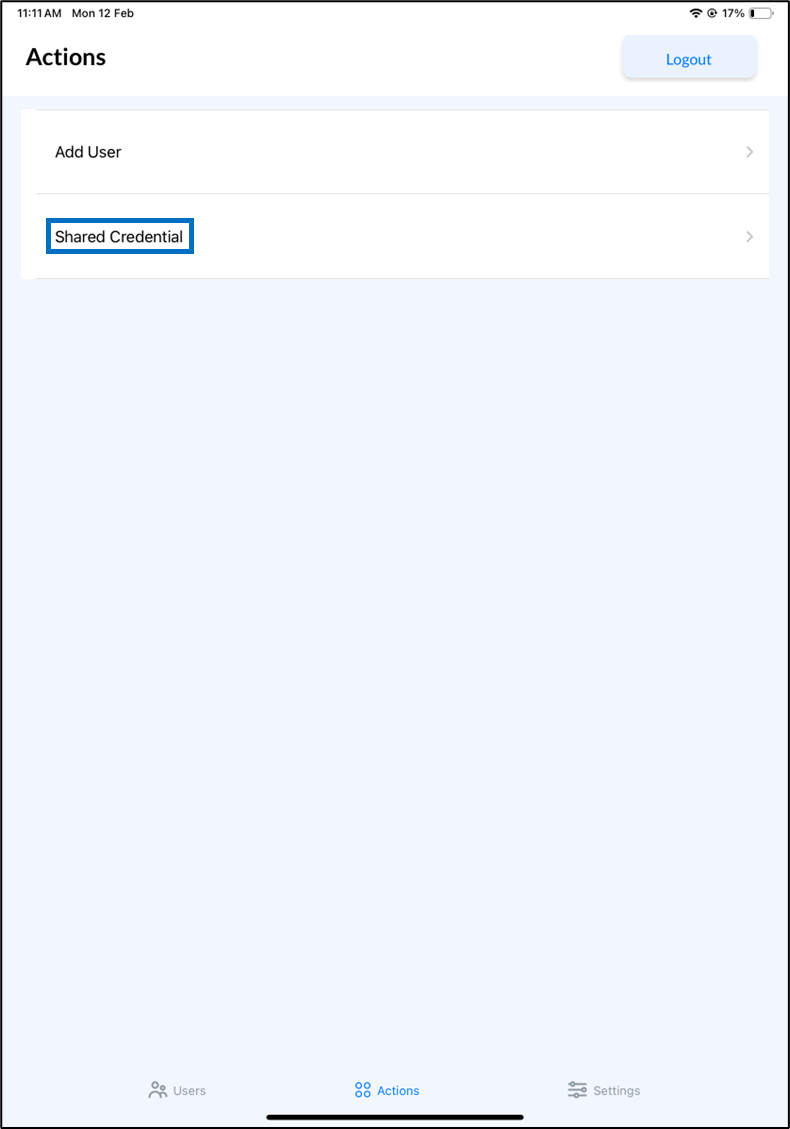
- Select Shared Credential.
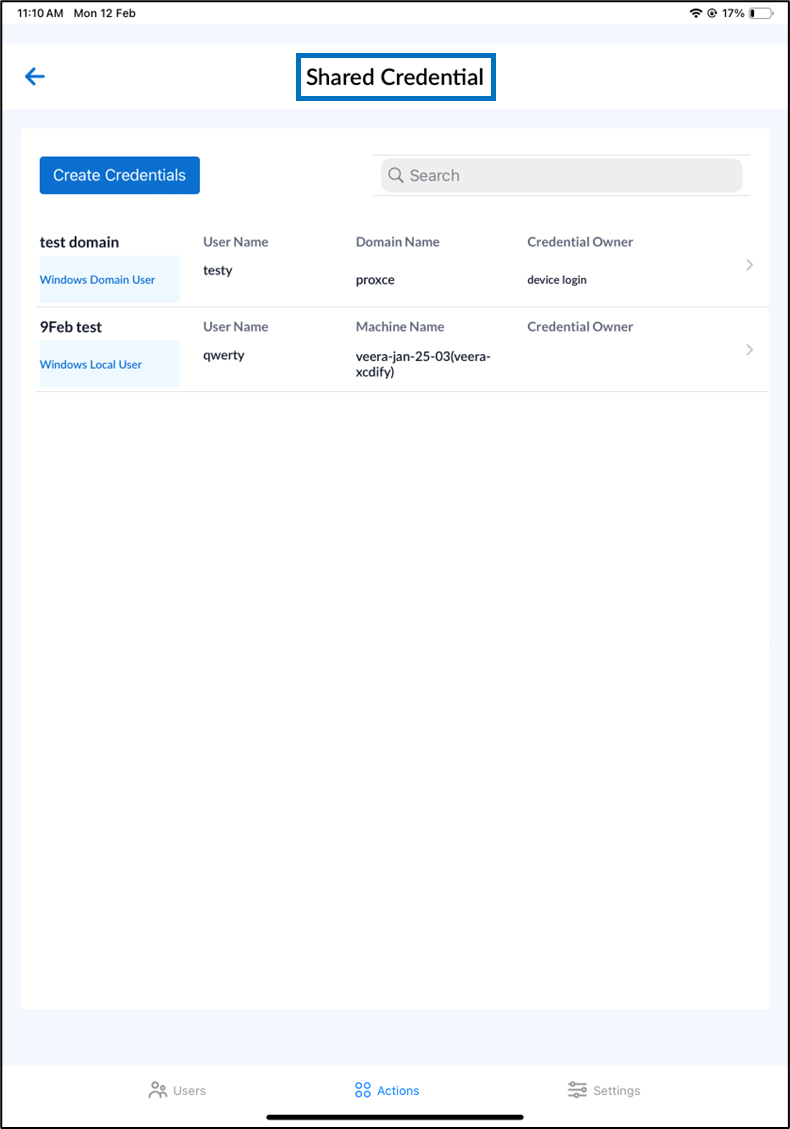
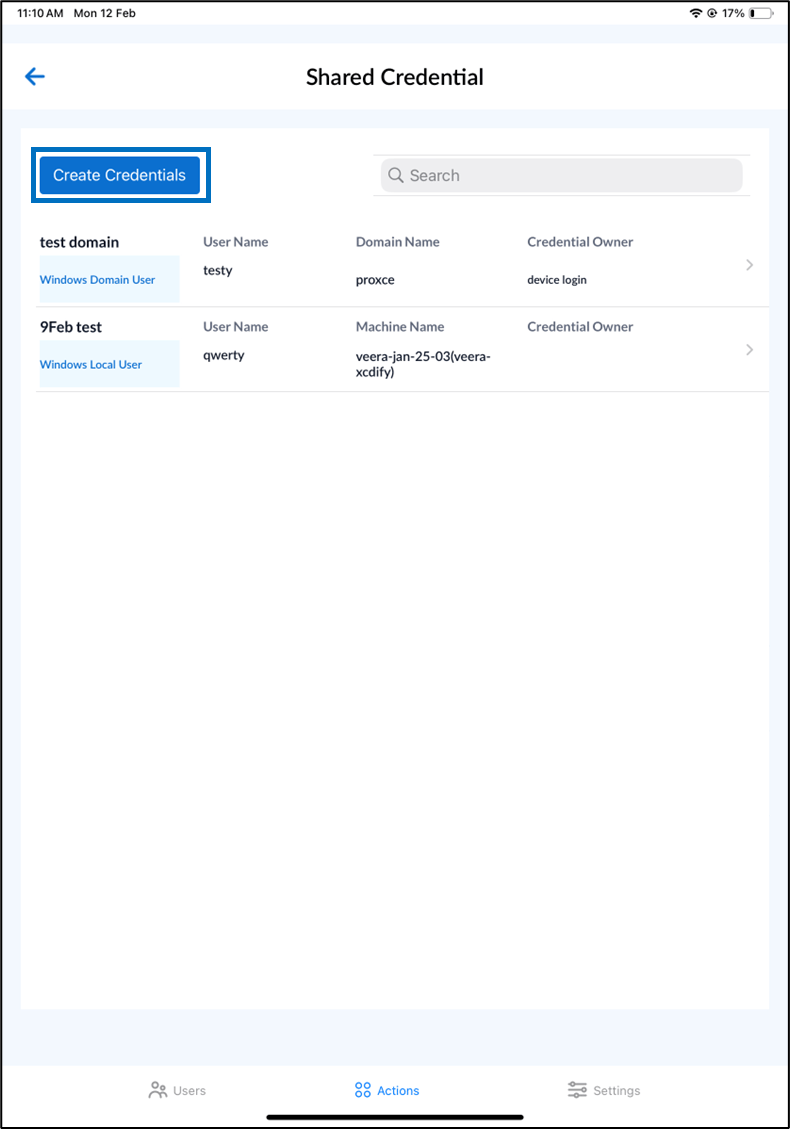
- Tap Create Credentials.
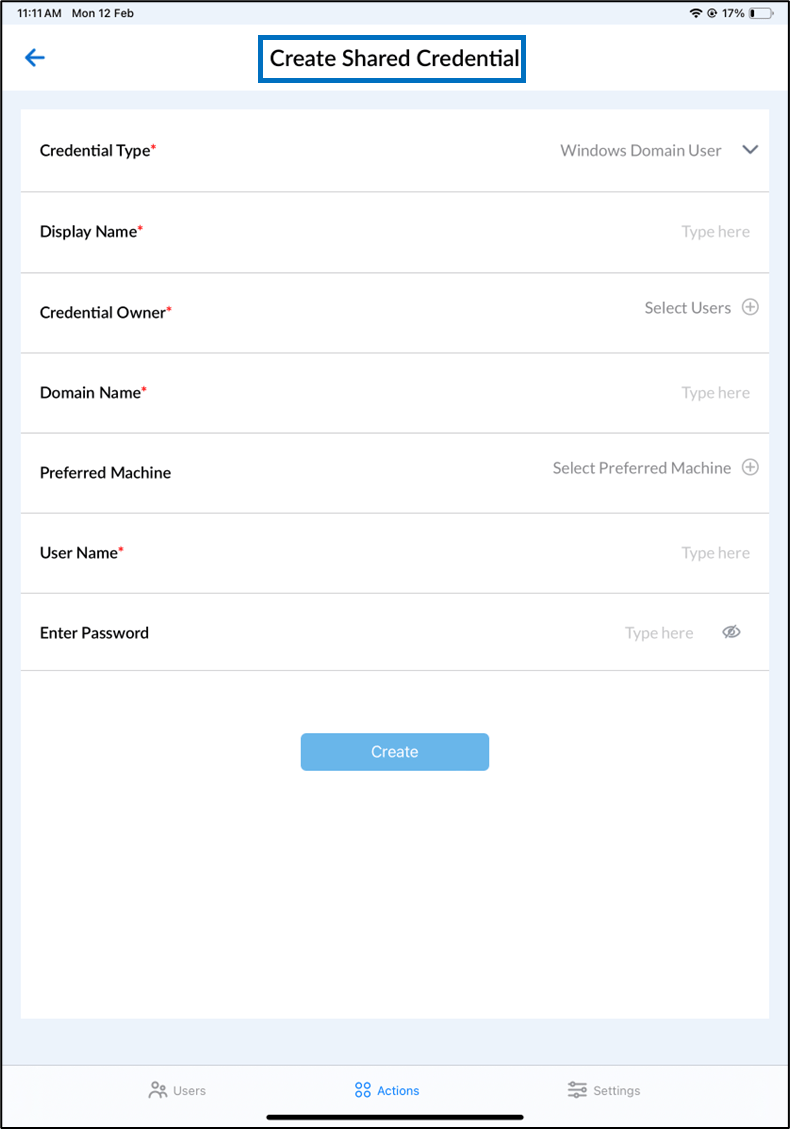
Create shared credential for domain
- Select Credential Type as Windows Domain User.
- Enter Display Name.
- Select user(s) for Credential Owner. The user list is displayed on the pop-up box.
- Select Add.
- Enter Domain Name.
- Select Preferred Machine. The preferred machine list is displayed on the pop-up box.
- Select Add.
- Enter User Name.
- Enter Password(Optional).
- Click Create.
Create shared credential for local
- Select Credential Type as Windows Local User.
- Enter Display Name.
- Select user(s) for Credential Owner. The user list is displayed on the pop-up box.
- Select Add.
- Select Machine . The preferred machine list is displayed on the pop-up box.
- Select Add.
- Enter User Name.
- Enter Password(Optional).
- Click Create. The shared credential of type Windows Local User is created and listed on the Shared Credential page.