

Introduction
The Online Intent Screen in Device Lock allows users to select predefined actions during authentication. It supports multi-button configuration, enabling organizations to capture user inputs such as department selection and activity type based on business requirements.Prerequisites
- You must have access to the Tenant Admin account.
- The Device Lock application must be created and configured in the Tenant Admin Portal. For more information, refer How to Create and Configure DeviceLock Application in the Tenant Admin Portal
Steps to Configure Online Intent Screen
- Log in to the Tenant Admin Portal.
- On the Applications page, select the DeviceLock application.

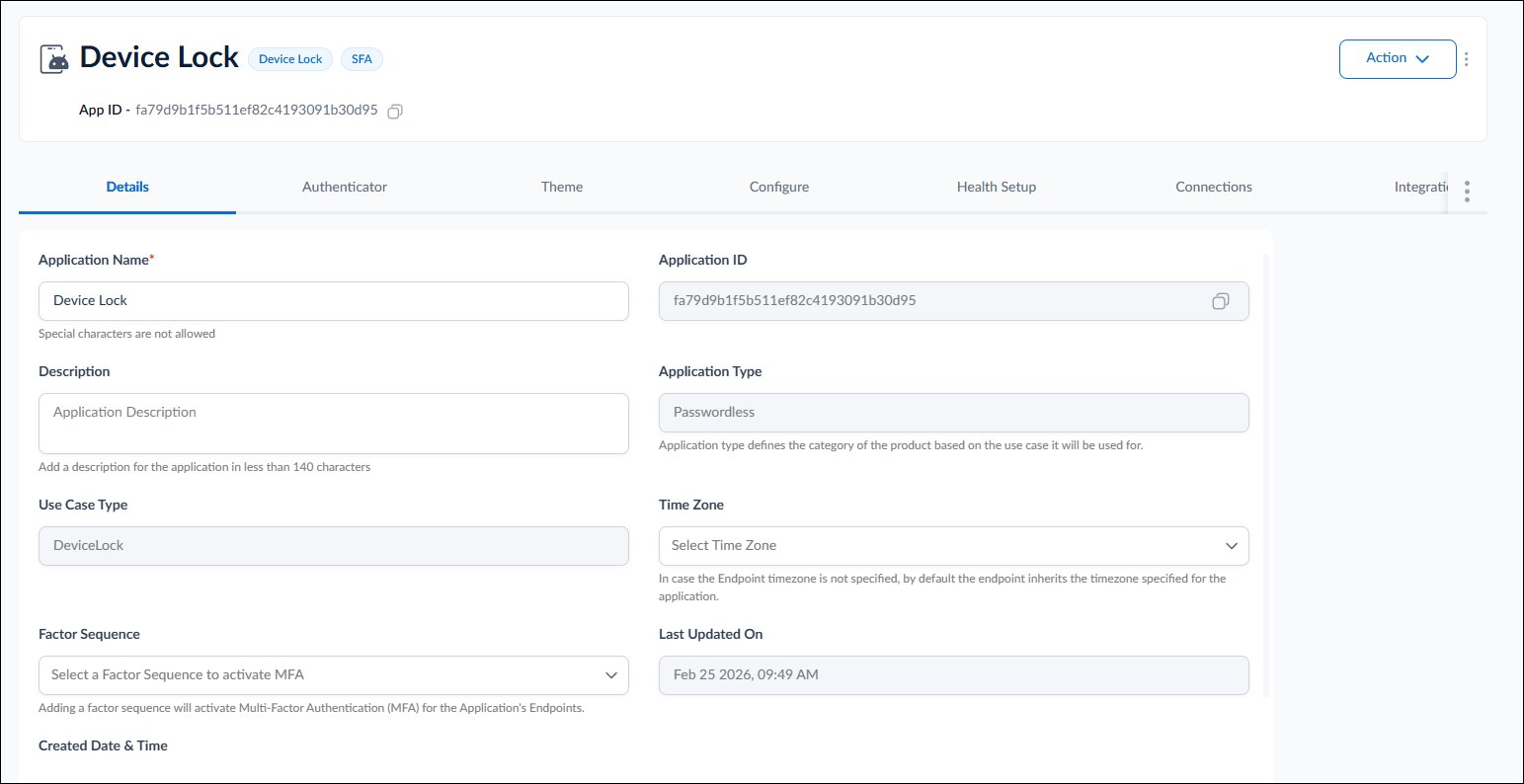
- Go to Configure tab > select Online Intent Screen from the left panel menu.
- Turn on Show Intent Screen toggle.

- Select Multi-button option and do the following:
- Select Choose Departments to enable users to select a department.
- Select Process data locally to handle data processing locally.
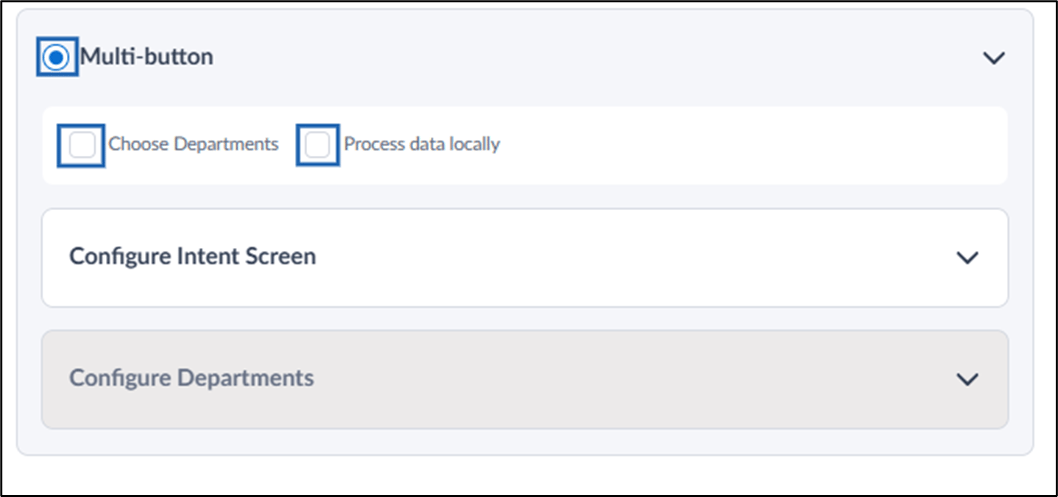
- Do the following:
- Configure Intent Screen
- Setup Departments
- Click Save. The intent screen is configured successfully.
Configure Intent Screen
- Enter the intent screen title in the Intent Screen Heading field. This title appears at the top of the intent screen.
- Enter a short and clear description in the Intent Screen Description field.
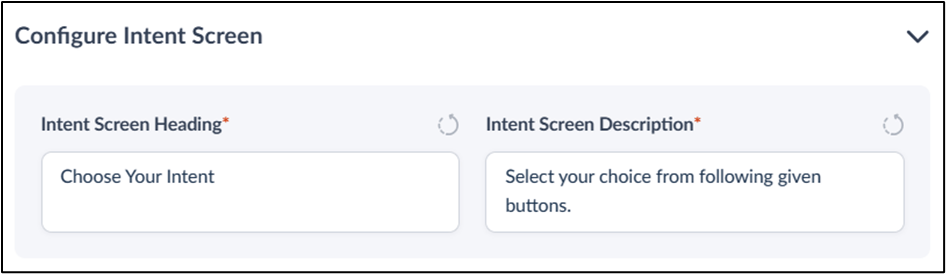

- Do the following.
- Configure Intent Screen Buttons
- Configure Minimum Lunch Break Config The Online Intent screen is successfully configured.
Configure Intent Screen Buttons
Note: You can configure at least one and up to six intent buttons.
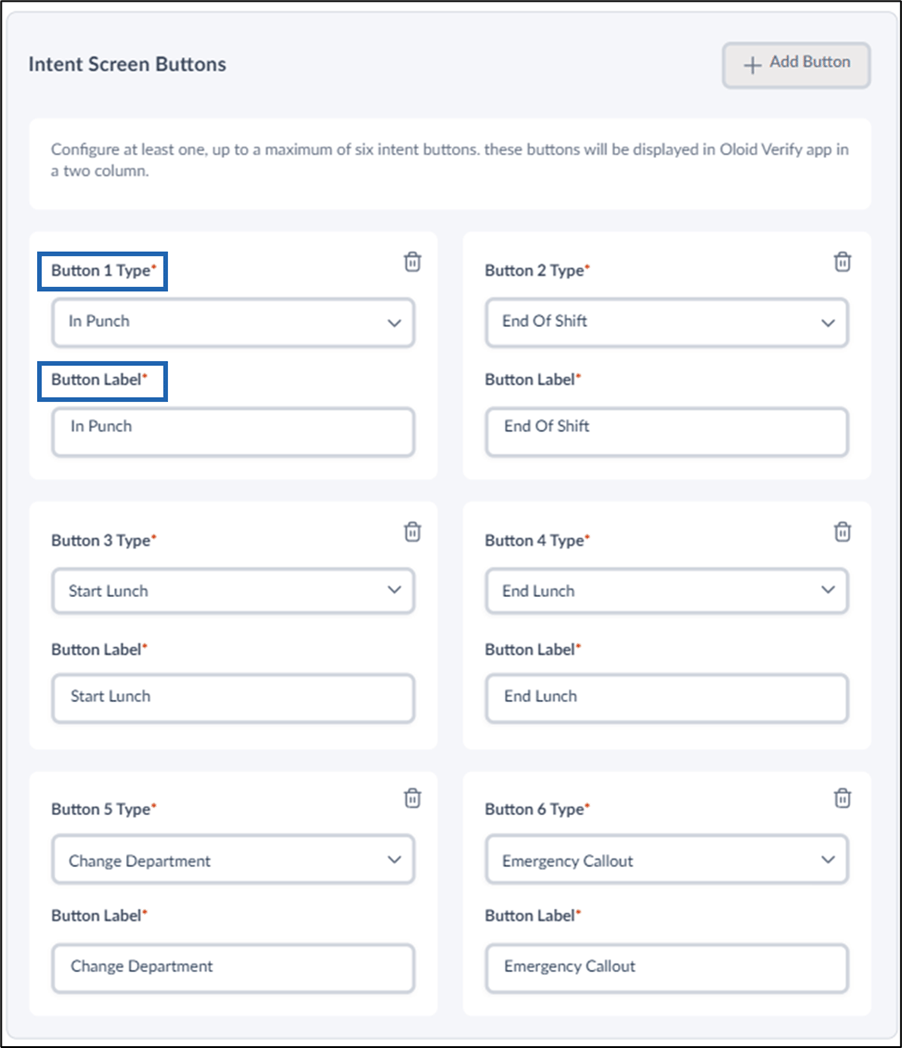
- To configure intent screen button, do the following:
- Do the following:
-
Click +Add Button to add an intent button.
The button section is displayed.
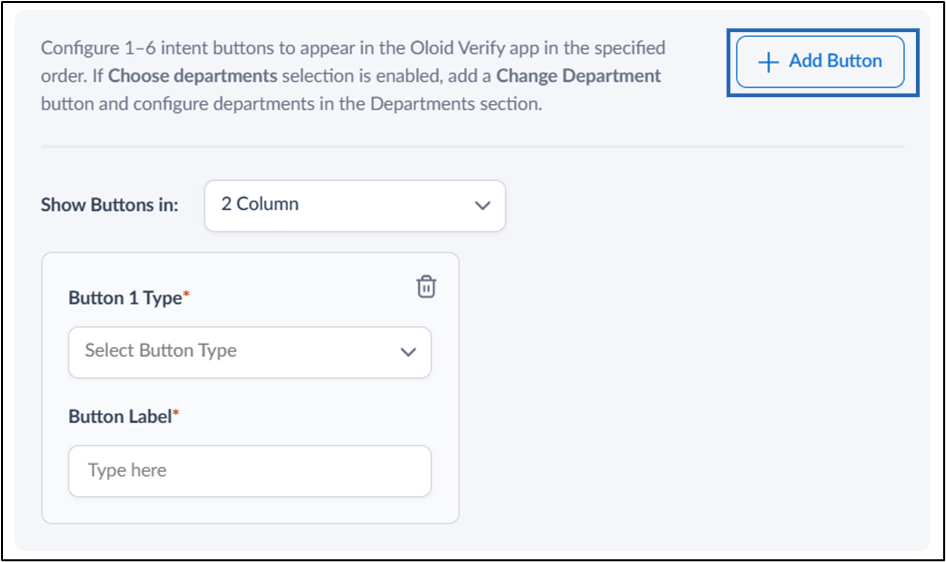
- Select Button Type from the Button Type dropdown menu.
-
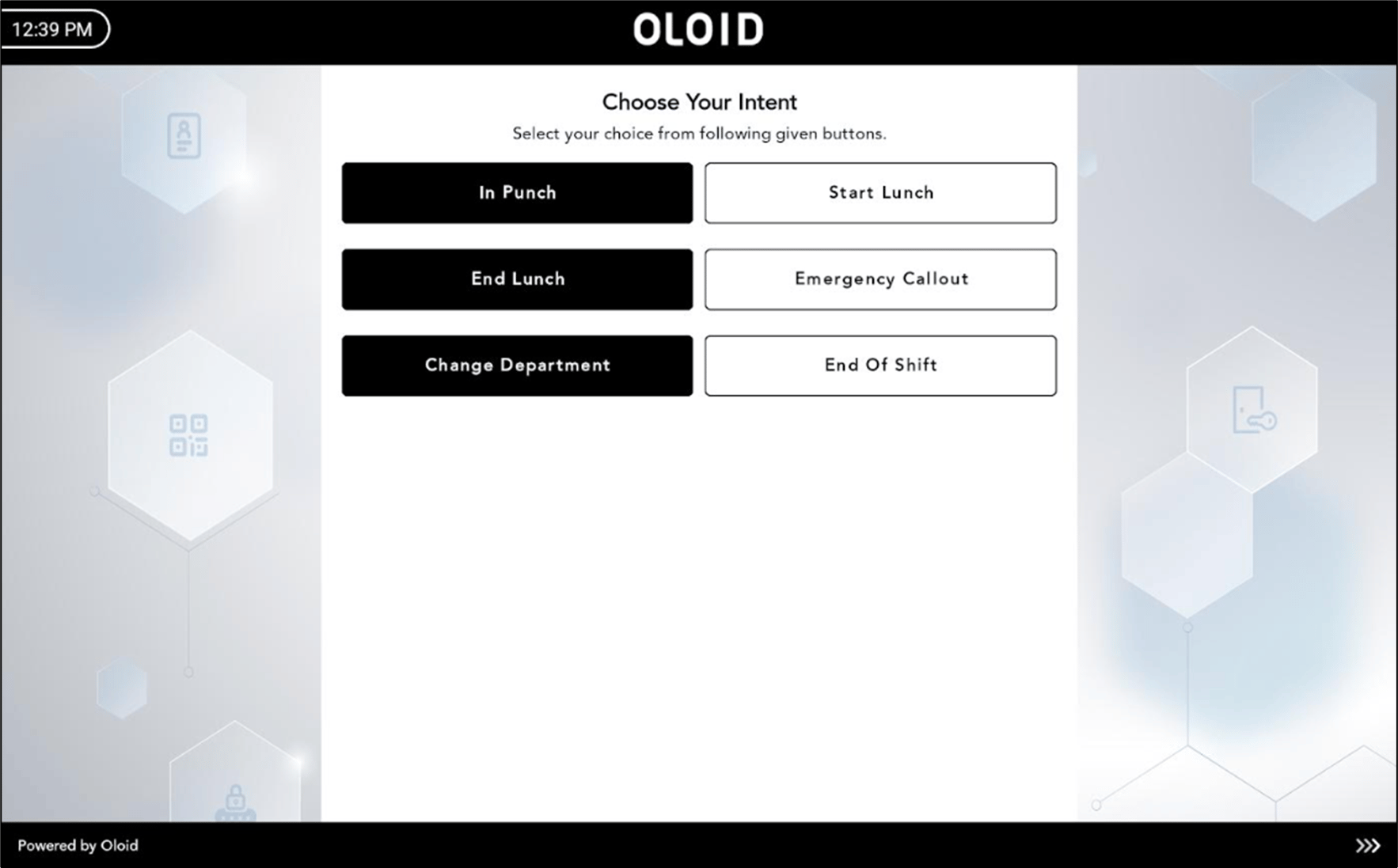
Enter Button Label for different user intents.
Note: The label is displayed on the intent screen. (See Sample intent screen)
-
Click Save to apply your changes.
-
Click +Add Button to add an intent button.
The button section is displayed.
Configure Minimum Lunch Break Config
You can configure the minimum lunch break requirements for the user.Note: You must add Start Lunch and End Lunch button type in Intent Screen Buttons section before you configure minimum lunch break.
- Lunch Break Validation Message: Enter the message that will be displayed if the minimum lunch break requirement is not met. (See Sample Screen below)
- Minimum Lunch Break: Set the minimum time for a lunch break, specifying hours and minutes. (See Sample Screen below)
- Click Save to apply your changes.
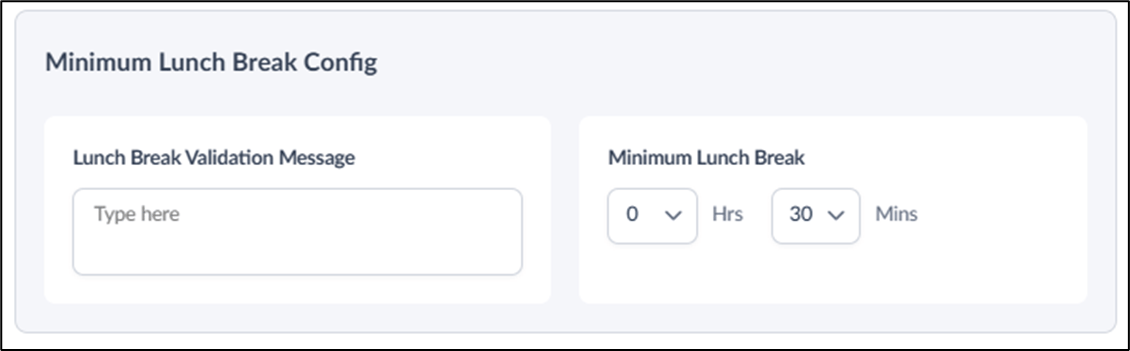
Sample lunch break screen for reference
Add screenshot.Configure Departments
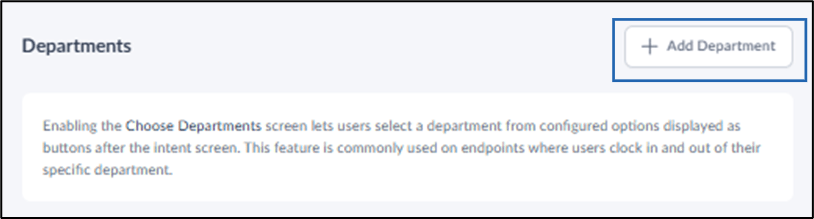
You can configure a department section for users during the clock-in and clock-out process.Note: Ensure that the Choose Departments is selected in the Multi-button section.
- Click +Add Department to create a new department.
- Configure the following details:
- Department Name: Enter the department name.
- Department Code: Enter a department code.
- Clock ID: Enter the unique clock ID for the sub-department. (Optional)
-
Click Save to apply your changes.
Note: Repeat steps 1–2 for each department you want to add.
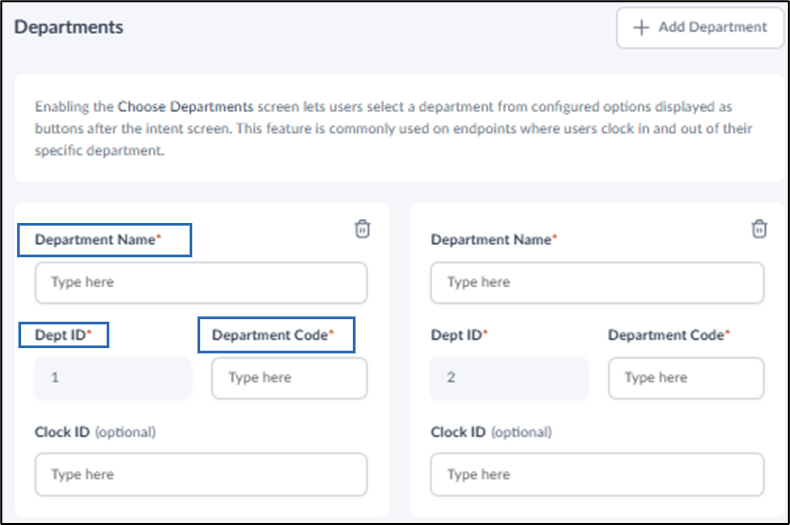
Sample department screen for reference
