

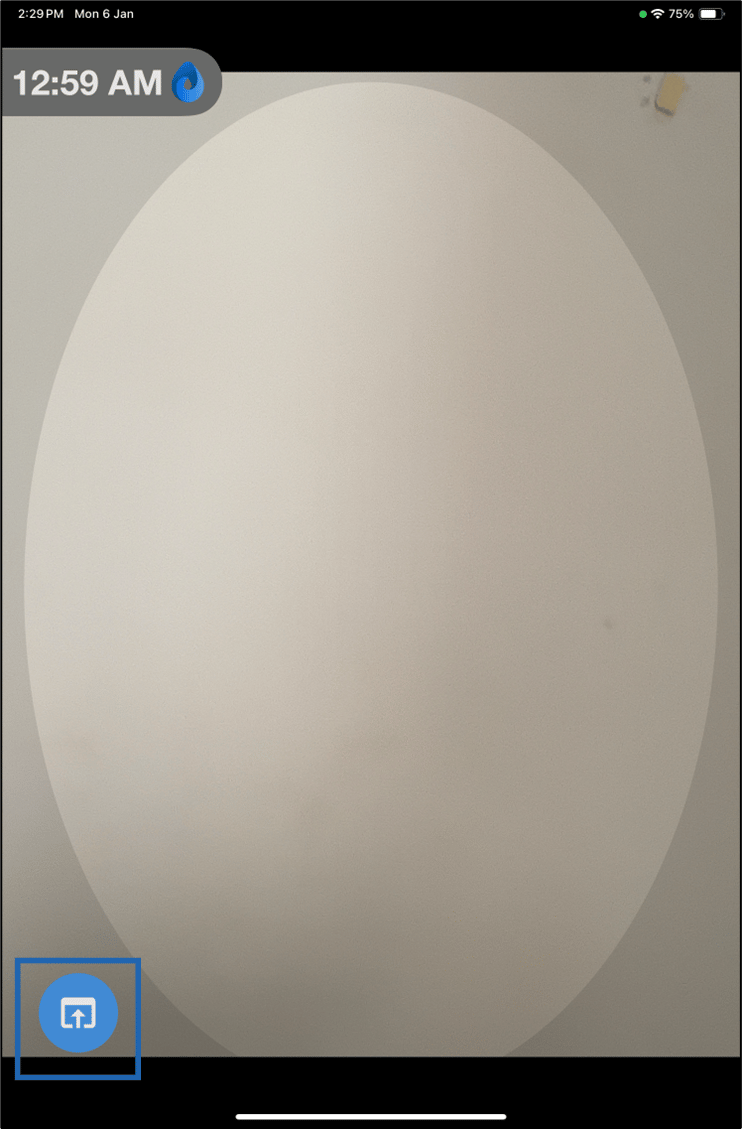
- Open Oloid Verify App. The camera opens as a preview screen.
-
Tap on the Web Button from the bottom left corner of the screen.
Note: If Intent screen is displayed then you have to follow the Intent screen process to reach Welcome screen. To know more see, Oloid Connect- How to use Intent screen.
-
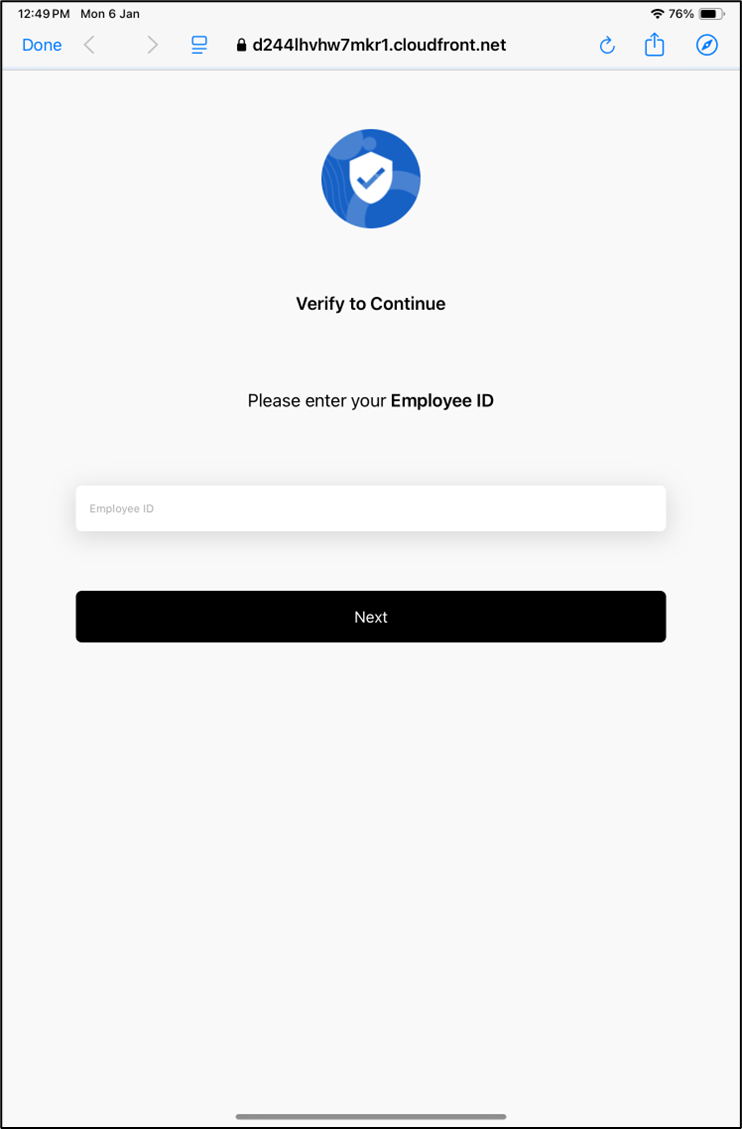
Enter you Employee ID > and tap on Next.
-
Do one of the following:
Note: The authentication screen opens based on the configuration.
- Authenticate using Face or QR Code.
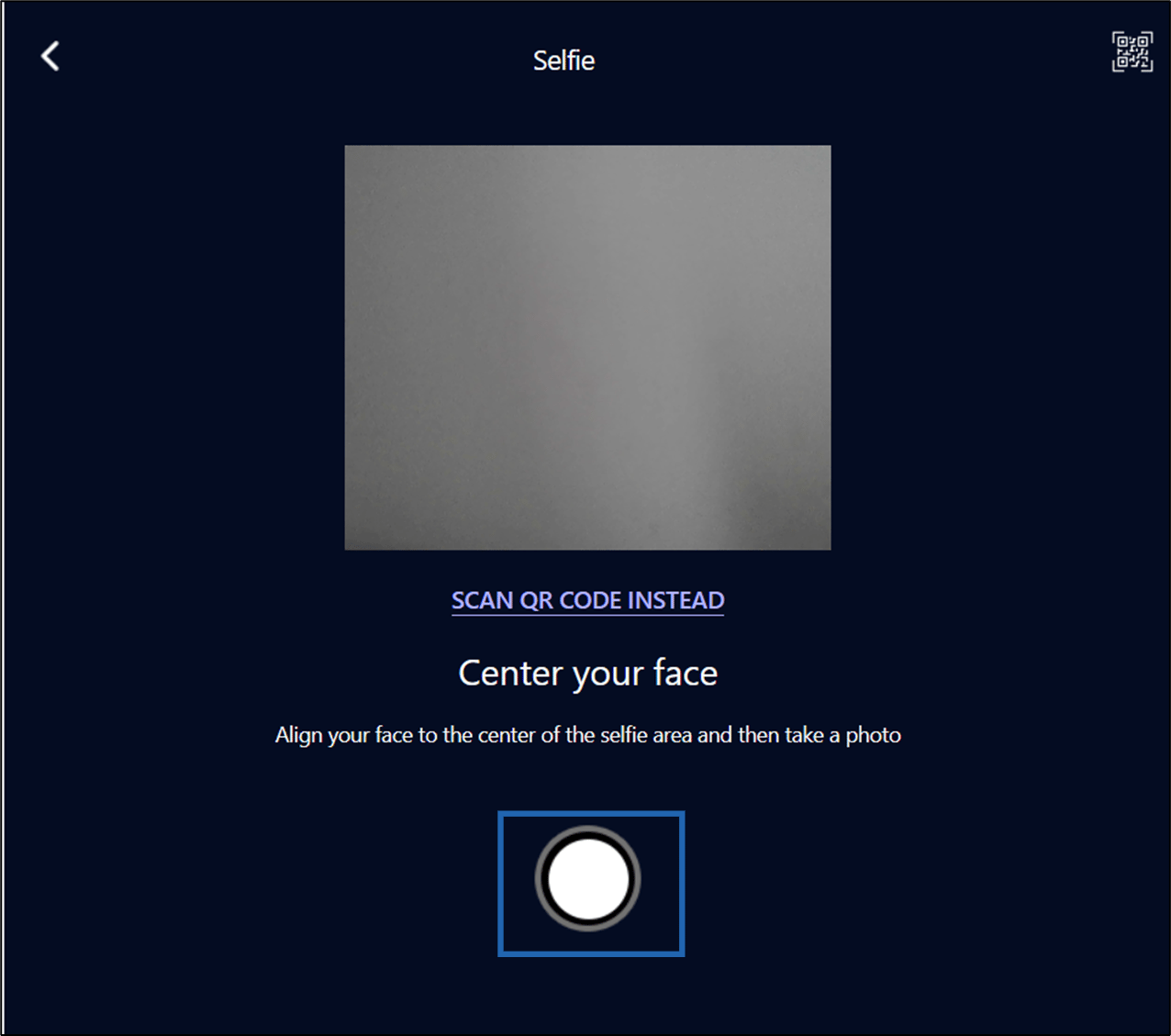
The Selfie screen is displayed to capture Face or QR Code.
- Place your face or QR Code in front of the camera and tap on camera button to capture.
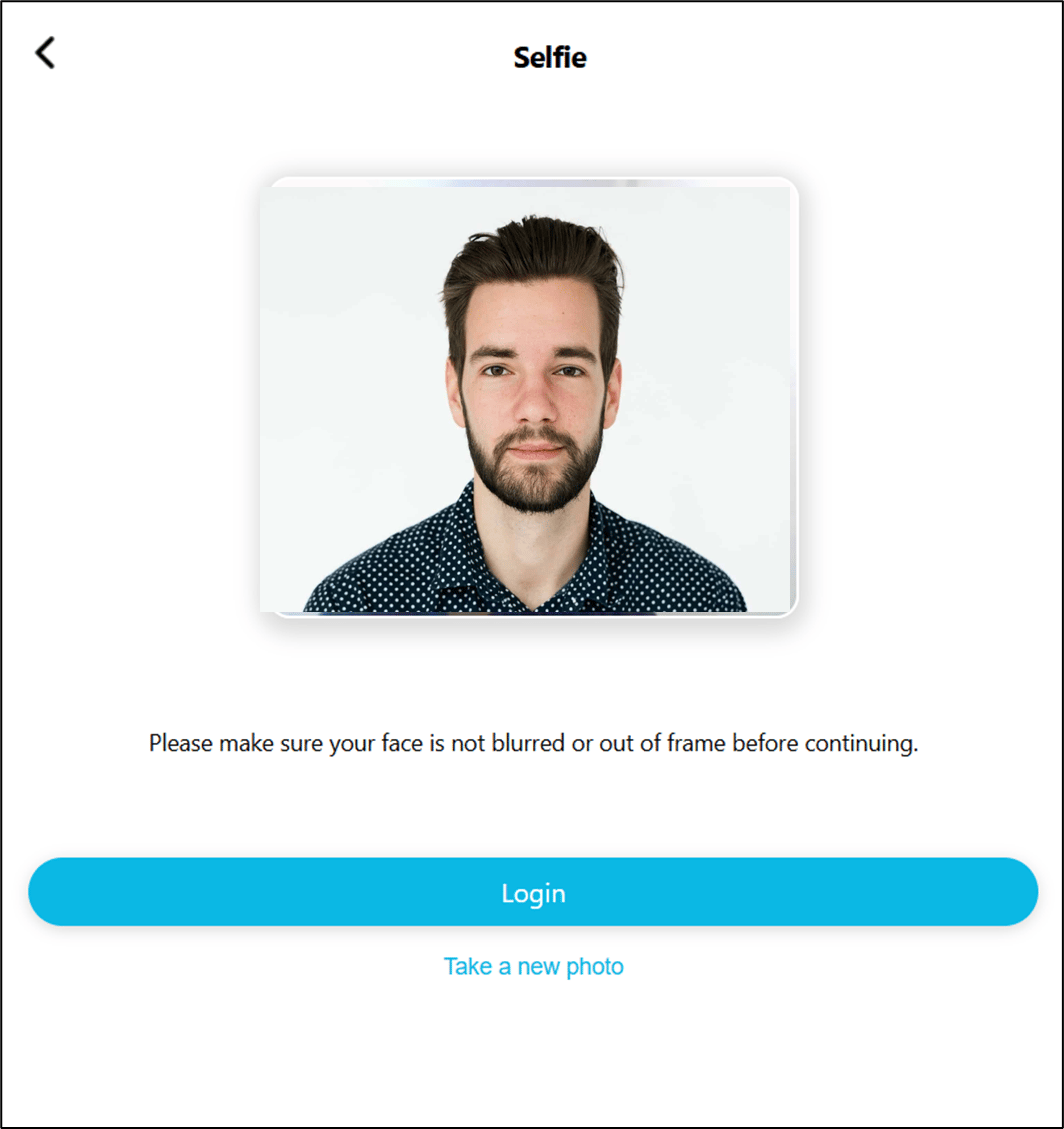
- Do one of the following:
- Tap on Login to continue.
- Tap on Take a new photo to recapture the face/QR Code.
- Place your face or QR Code in front of the camera and tap on camera button to capture.
- Authenticate using Badge.
-
Scan the Badge on the reader.
 The processing is started to authenticate.Note: Make sure the Badge reader is connected with the device.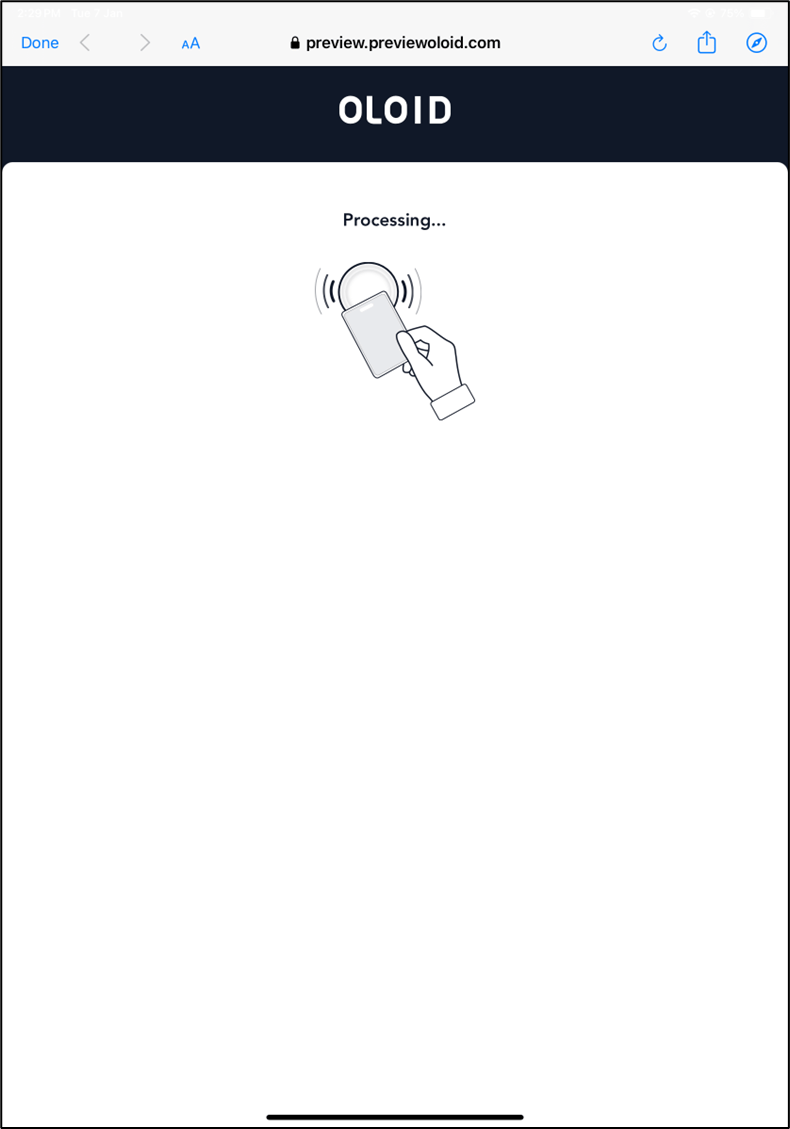
-
Scan the Badge on the reader.
- Authenticate using Face or QR Code.
The Selfie screen is displayed to capture Face or QR Code.
-
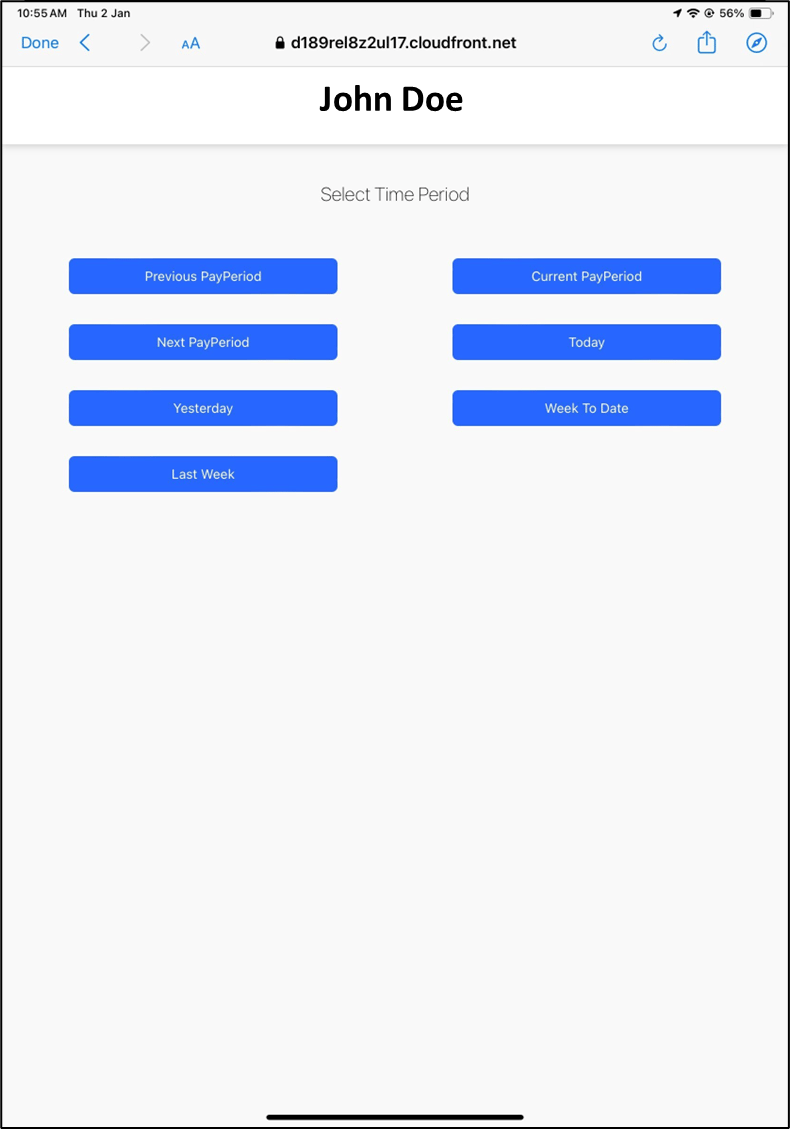
Tap on a button of any time period you want to view the transactions of.
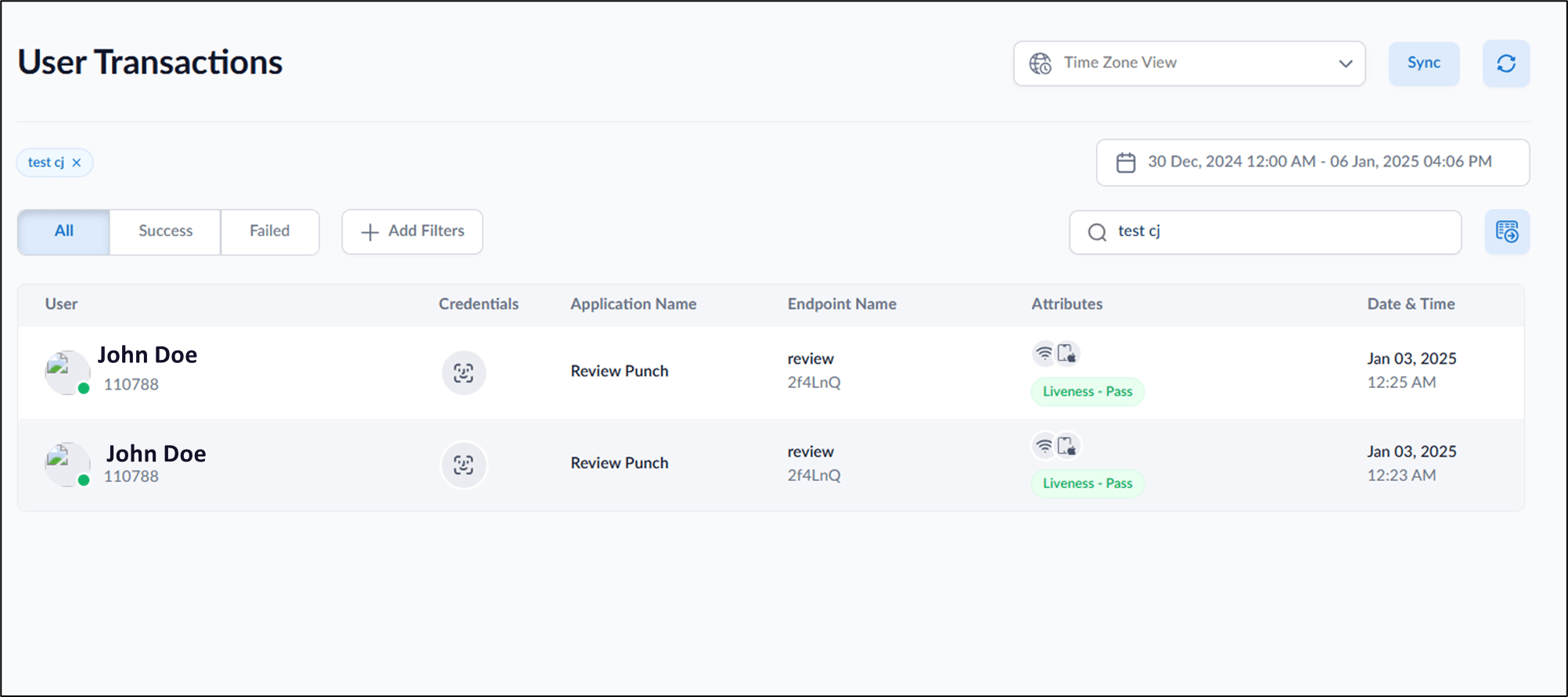
How to review transactions in Oloid Connect
This document provides step-by-step instructions to review transactions in Oloid Connect.
Steps to review transactions in Oloid Connect:
⌘I