Introduction
Oloid Verify app allows the supervisor to create password and perform the required action. This document comprises of the following:Pre-requisite
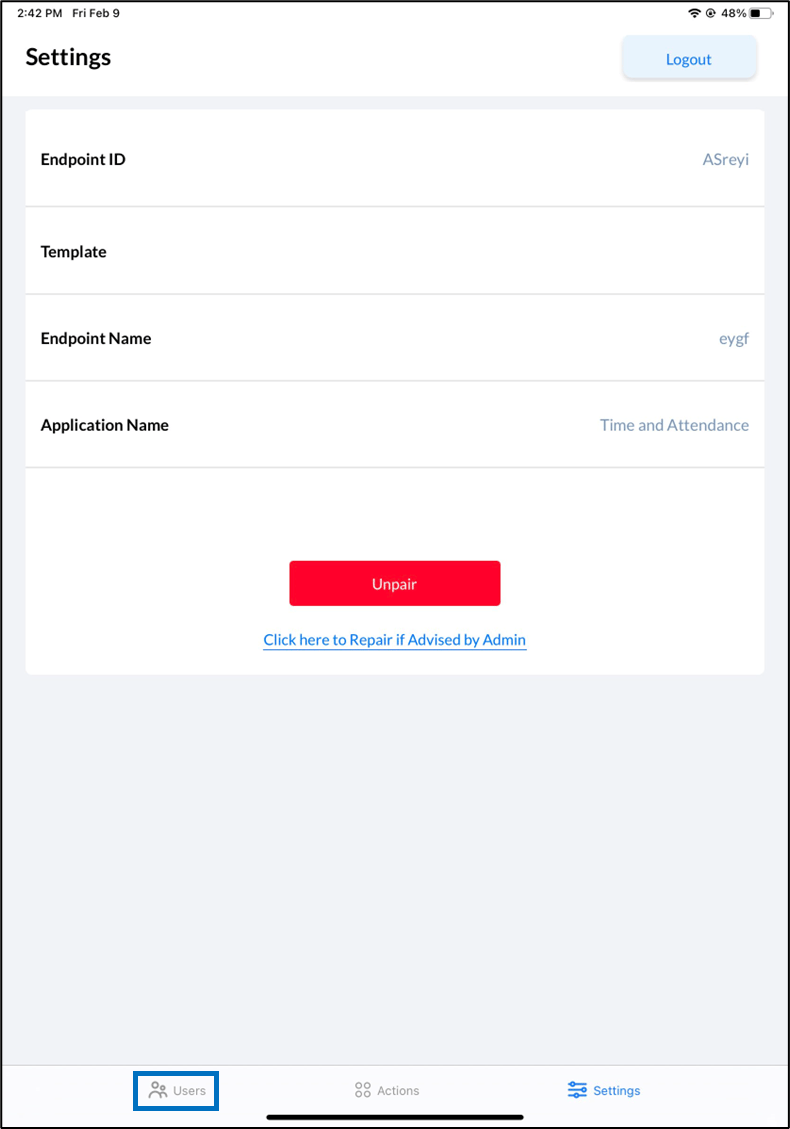
User should be added to the connection. To add Password:- Tap Users on the menu at the bottom of the screen.
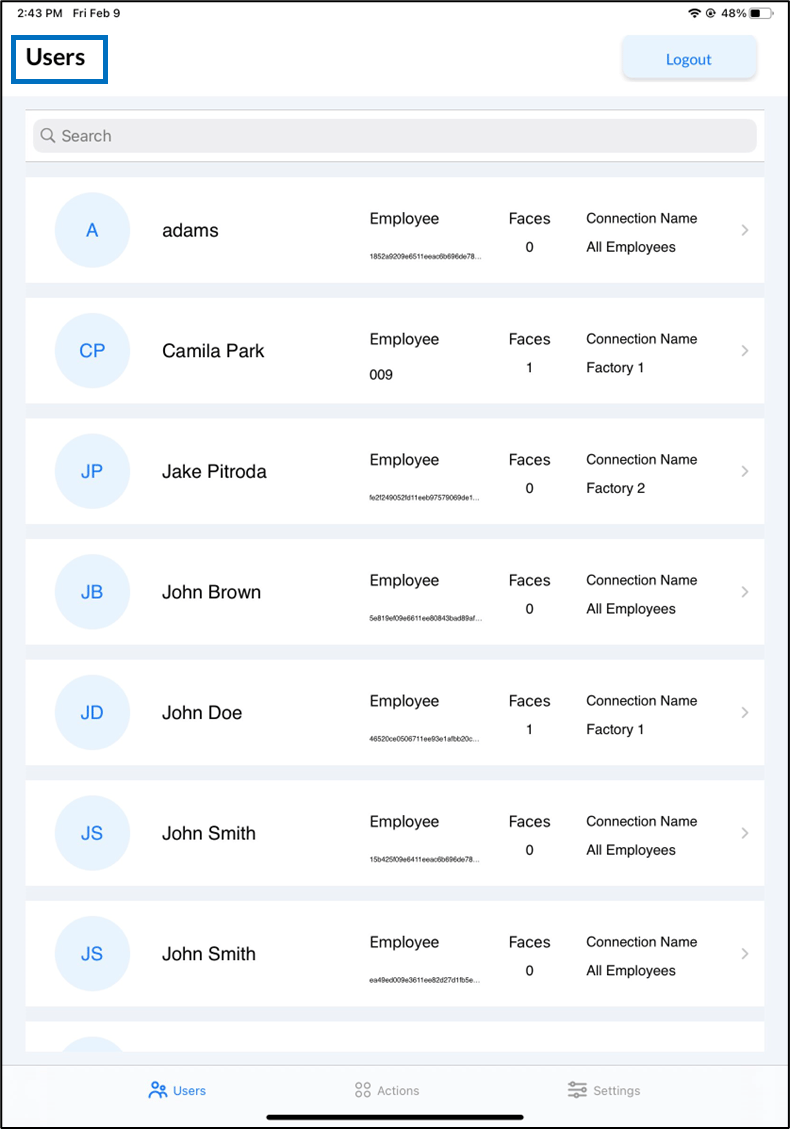
- Select a user to add Password from Users list.
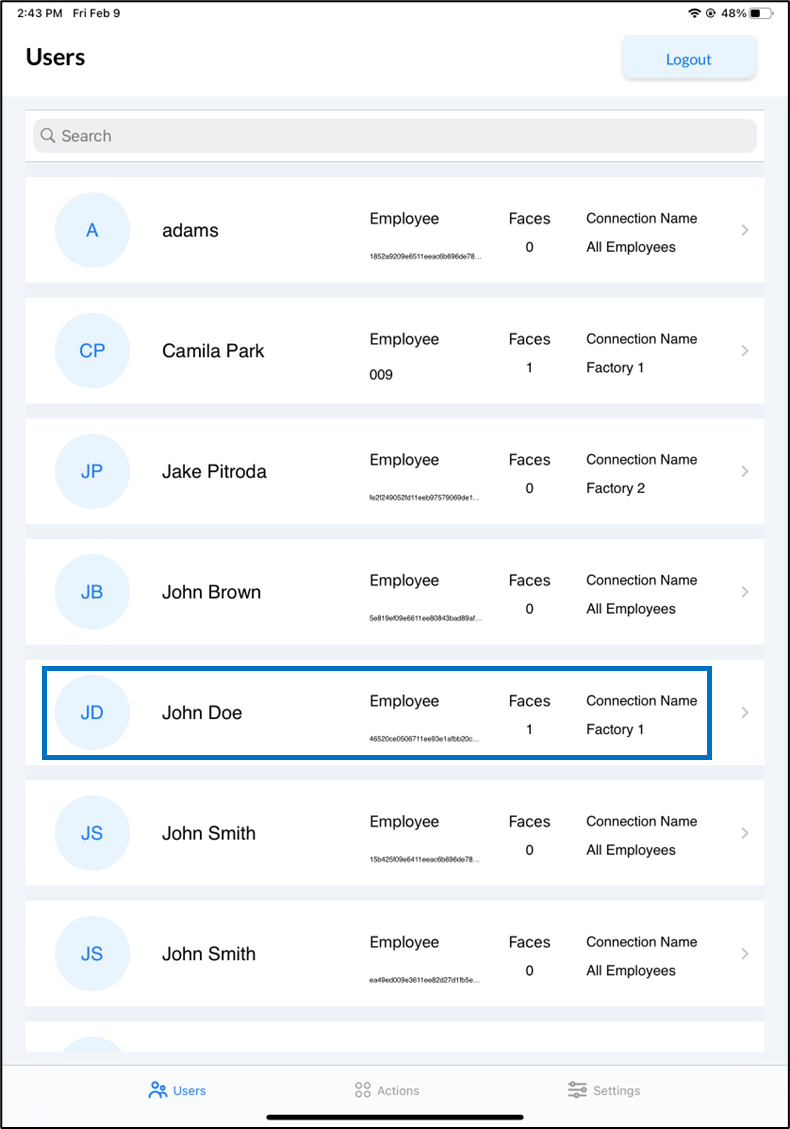
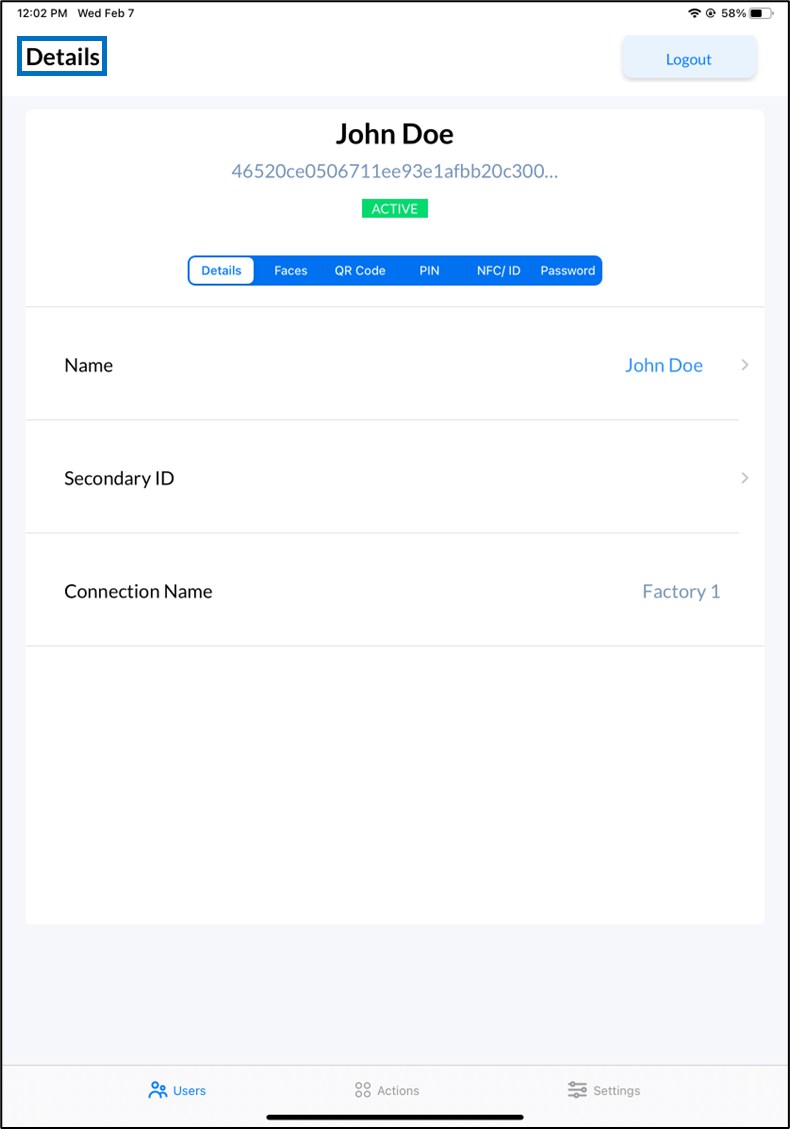
- Tap Password tab .
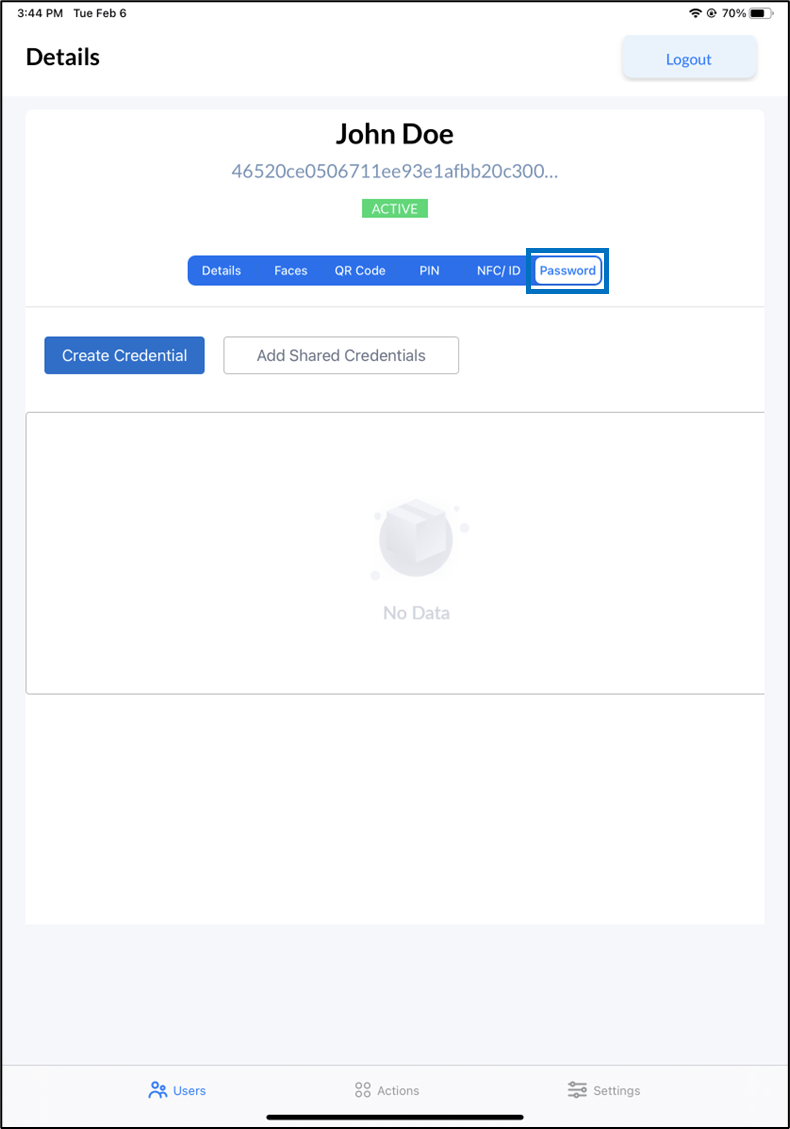

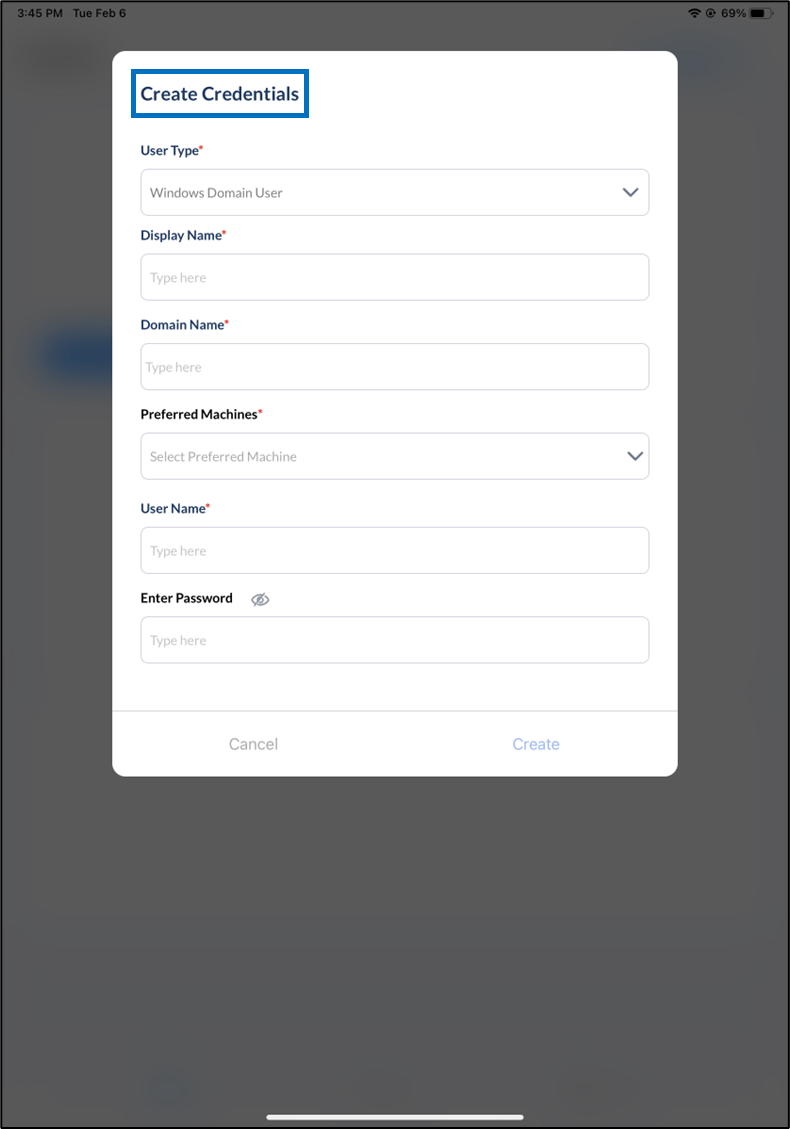
Create credential for domain
- Select user type as Domain User from User Type dropdown.
- Enter Display Name.
- Enter Domain Name.
-
Select Preferred Machine(s).
Note: You can select multiple machine name
- Enter User Name of your Windows account.
- Enter Password of your Windows account.
-
Click Create.
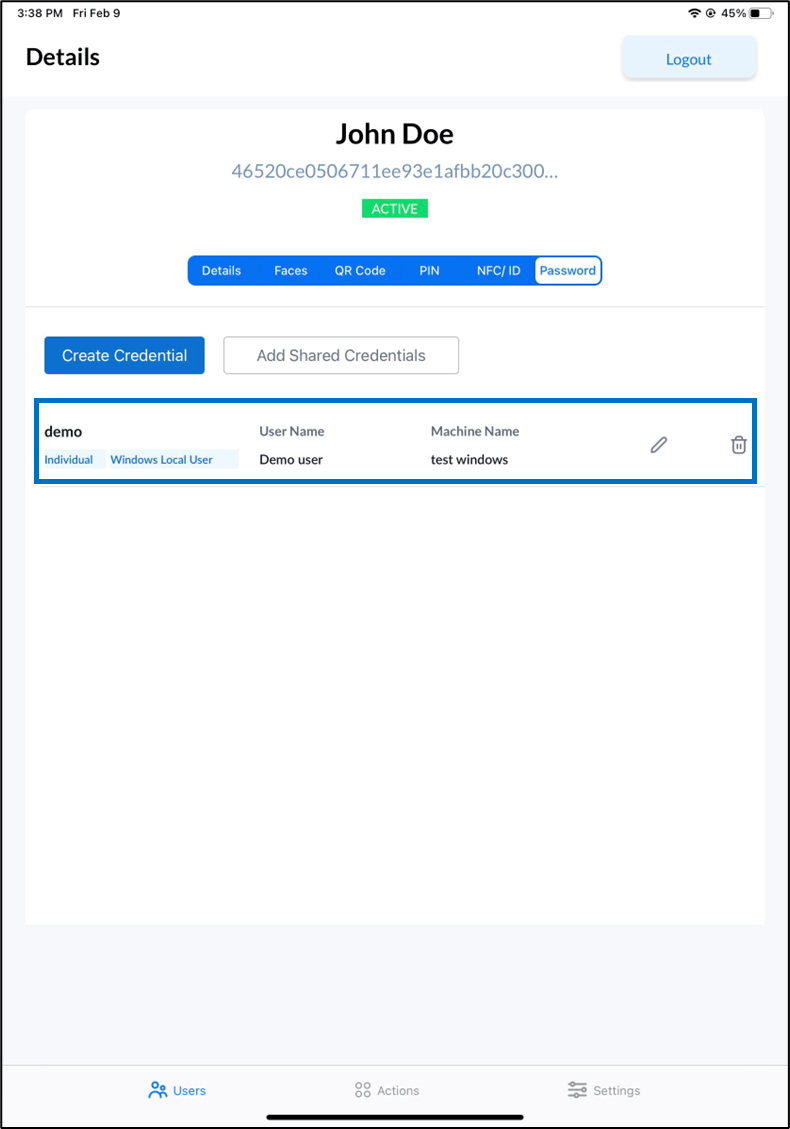
The credential is created and displayed under the Password tab.

Create credential for local Windows machine
- Select user type as Local User from User Type dropdown.
- Enter Display Name.
-
Select Machine Name.
Note: You can select only single machine name.
- Enter User Name.
- Enter Password.
-
Click Create.
The credential is created and displayed under the Password tab.