

Introduction
The Time Rule feature allows the Admin to create custom work schedule for the user. Once the Time Rule is added to a user, it overrides the regular time clocking logic set in the backend.Steps to create Time Rule
- Log in to the Oloid Portal.
- On the homepage, select Time Interpretation from the left menu panel.
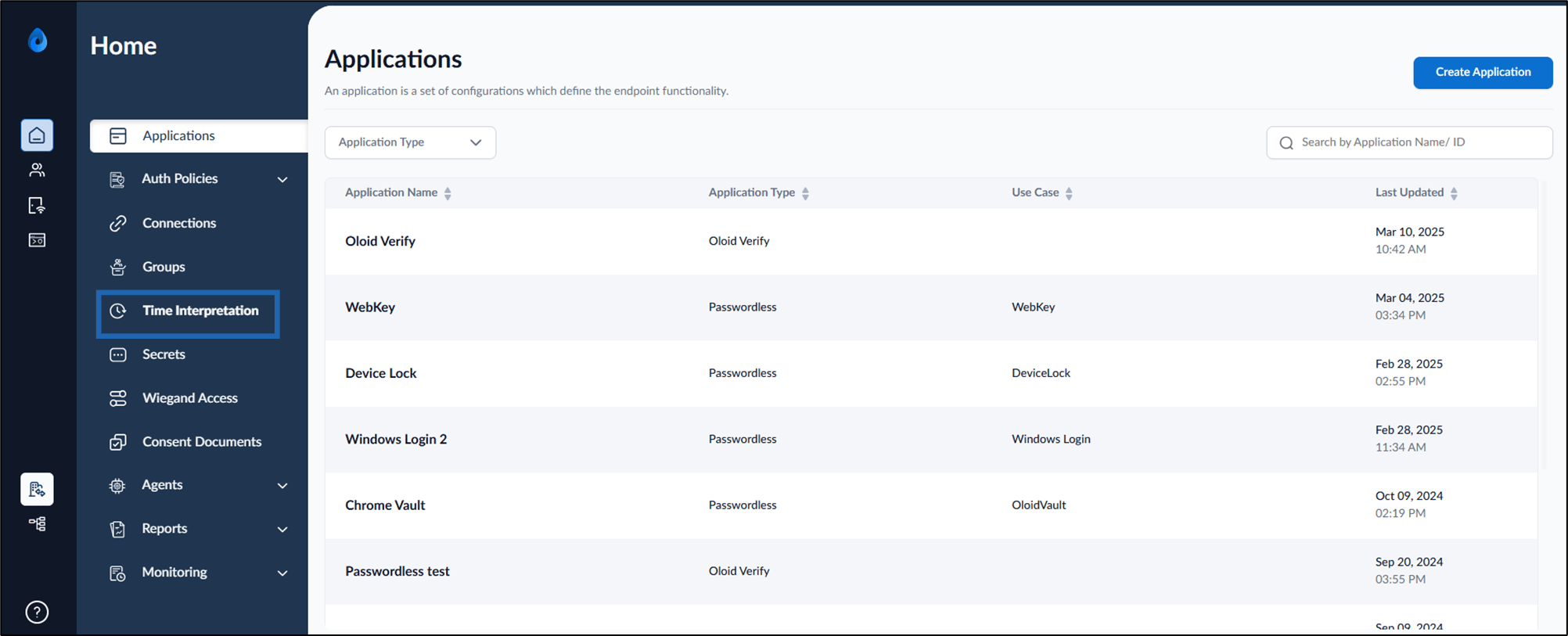
- Click Create Time Rule from the top right.

- Do the following:
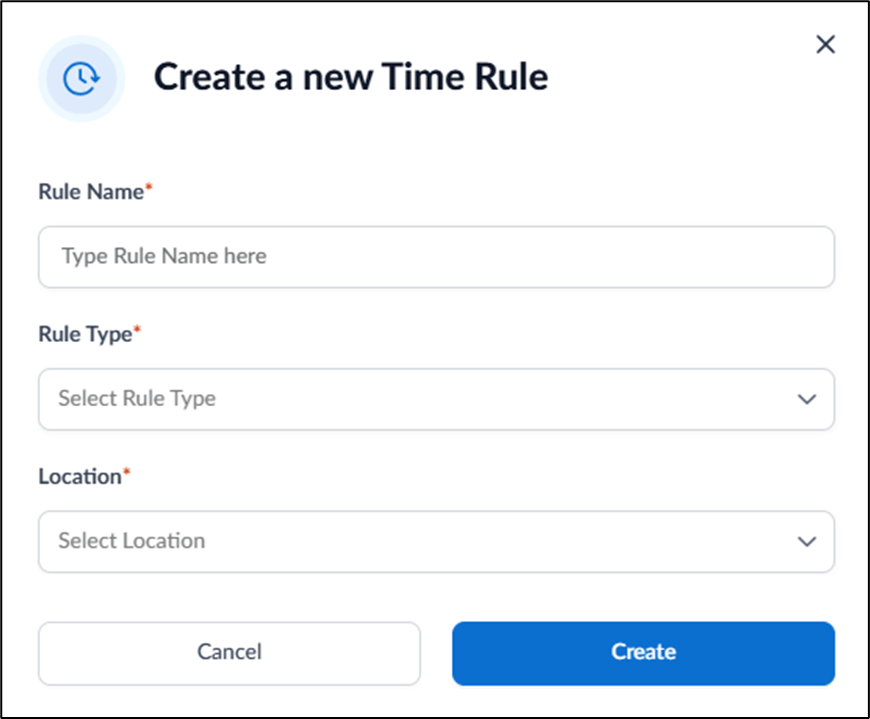
- Enter name in Rule Name field.
- Select type from the Rule Type dropdown list.
-
Select location from the Location dropdown list.
Note: To add location in the list, see How to add Location for the Time Rule. (Link to be added)
-
Click Create.
The Time Rule is created and listed in Time Interpretation page.
 To know more about configuring time rule, see How to configure Time Rule.Note: All punches must be within the time frame set in the Time Rule to work as per the condition applied in the backend. If the user tries to punch for any activity (Punch in, Lunch in, Lunch out, Punch out etc) outside the timeline, in that case the punches will not be registered and an error transaction will be lodged.