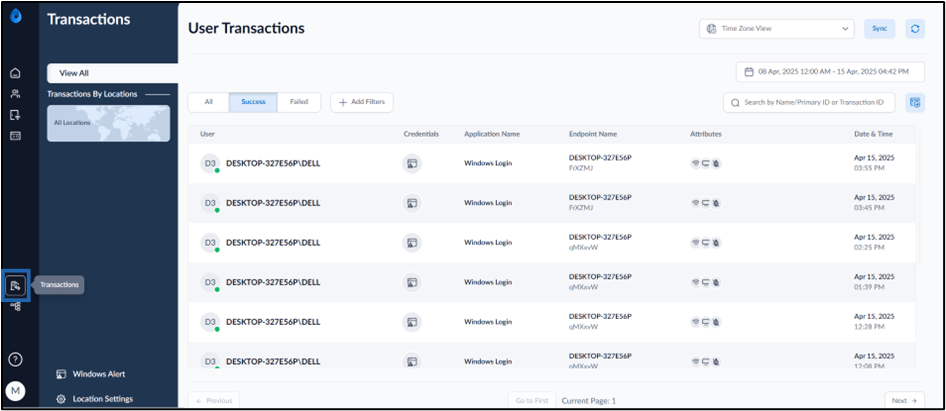
Introduction
In Oloid Portal, enabling the Capture Windows User Events feature in the Windows Login application track user activity, including log-in and out, and when the device is locked or unlocked. The feature also captures the authentication method used, such as face recognition, badge, NFC, or PIN.Steps to enable Capture Windows User Events
- Log in to the Oloid Portal.
-
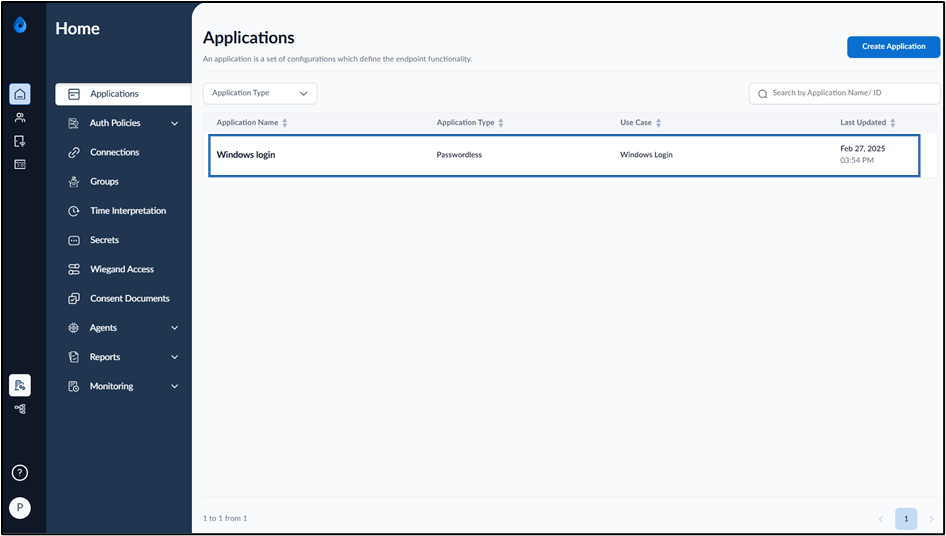
On the Applications page, select the application paired in the Supervisor App (Windows Authenticator App).

-
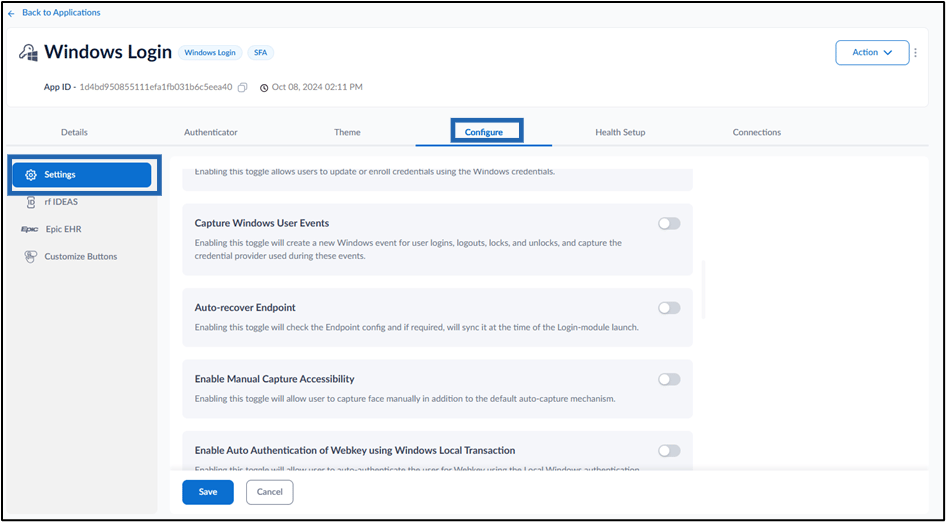
Go to Configure > Settings tab.
-
Turn on Capture Windows User Events toggle button to create events that track when an endpoint logs in and out.

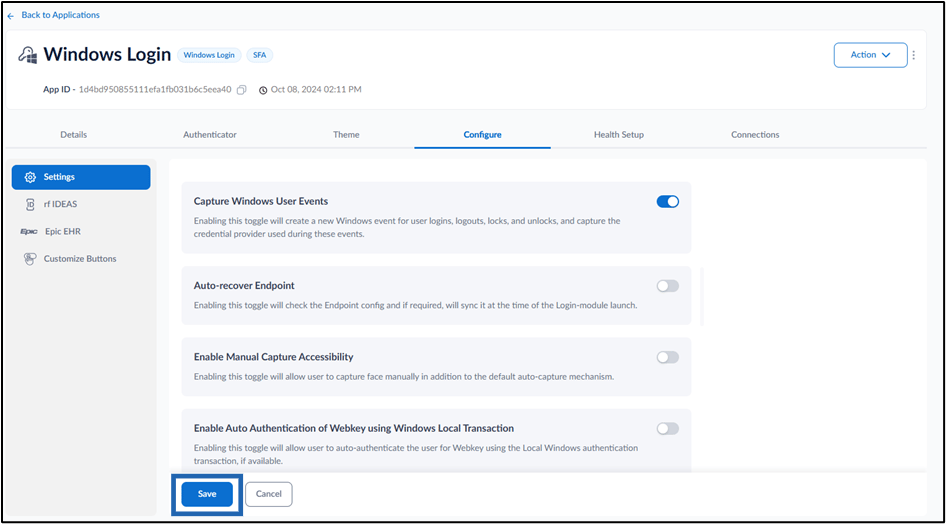
Note: In Windows Authenticator app, you must sync the configuration to Capture Windows User Events. For more details, refer How to sync configuration in Supervisor App