

- Log in to Oloid Portal.
- On the homepage, select WebKey application.
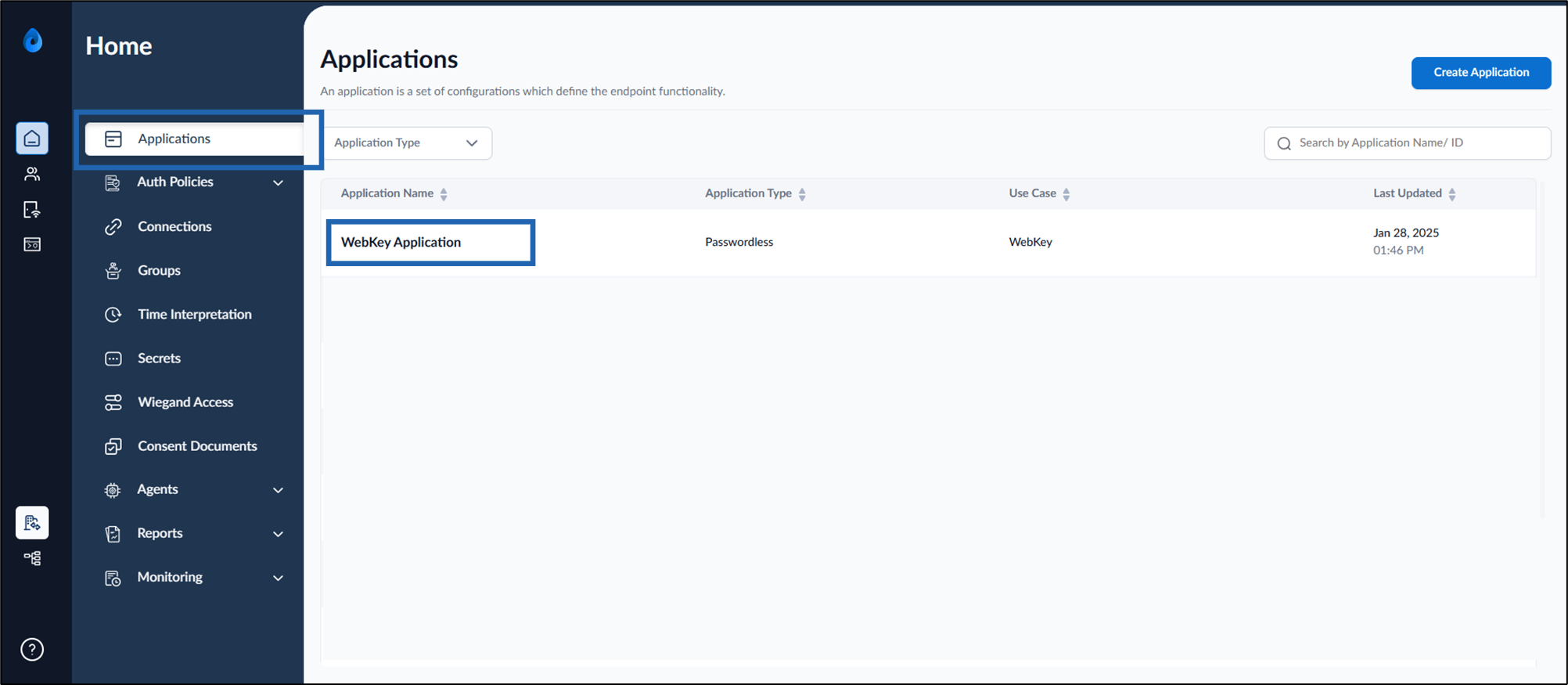
- Go to Configure > select Settings tab.
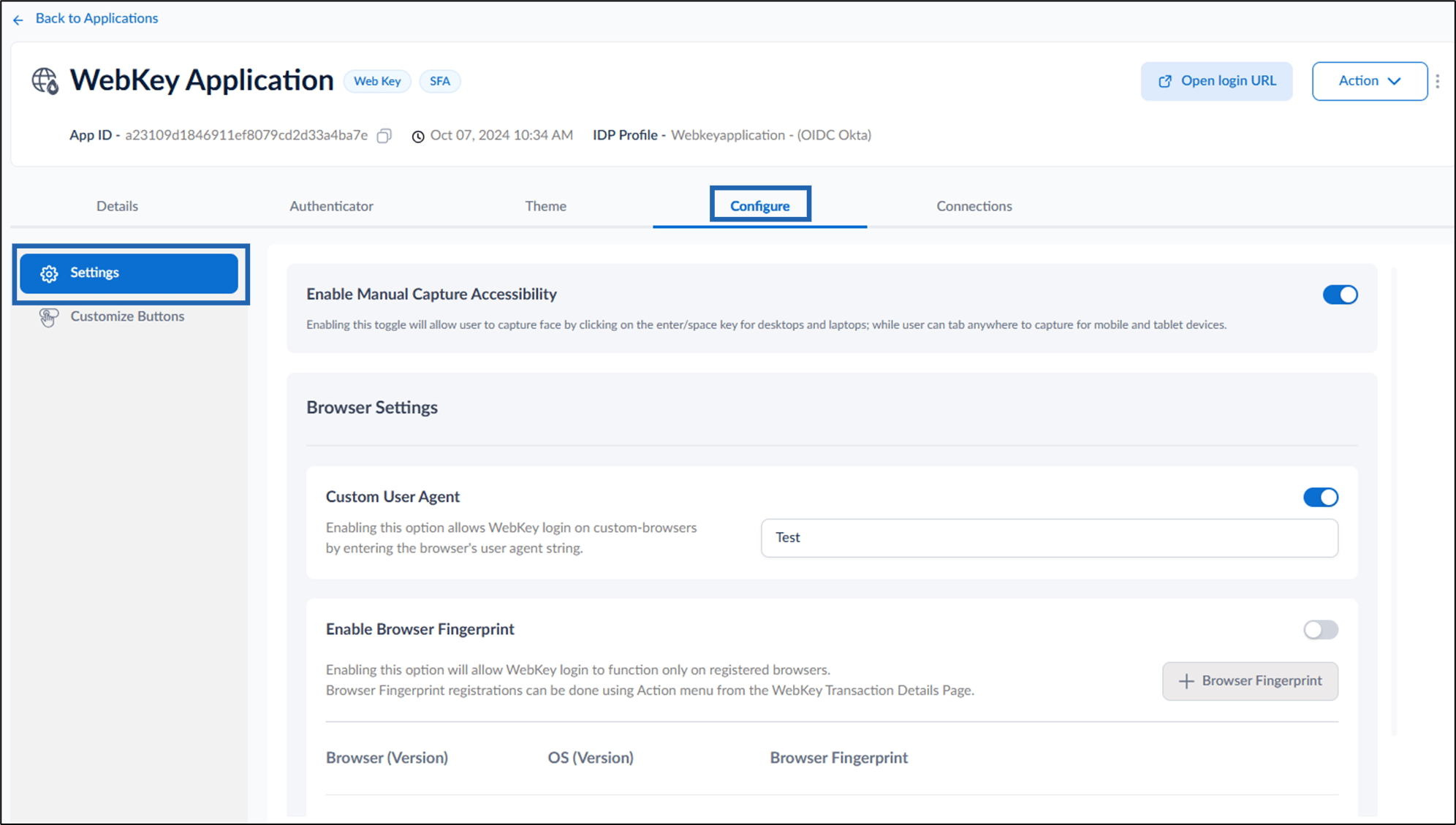
- Do the following:
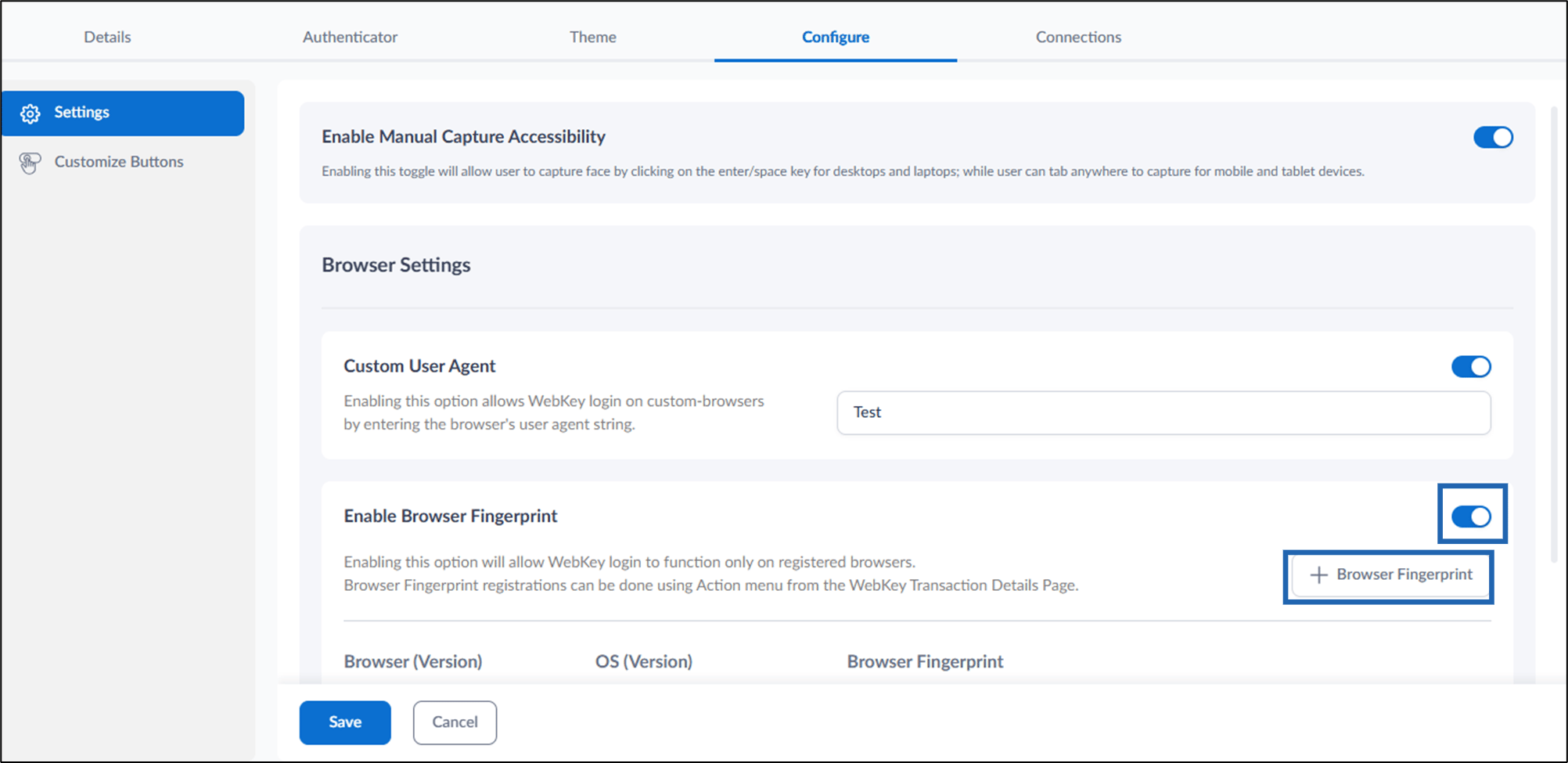
- Turn on Enable Browser Fingerprint.
- Click + Browser Fingerprint. The Add Browser Fingerprint pop-box is displayed.
- Do the following:
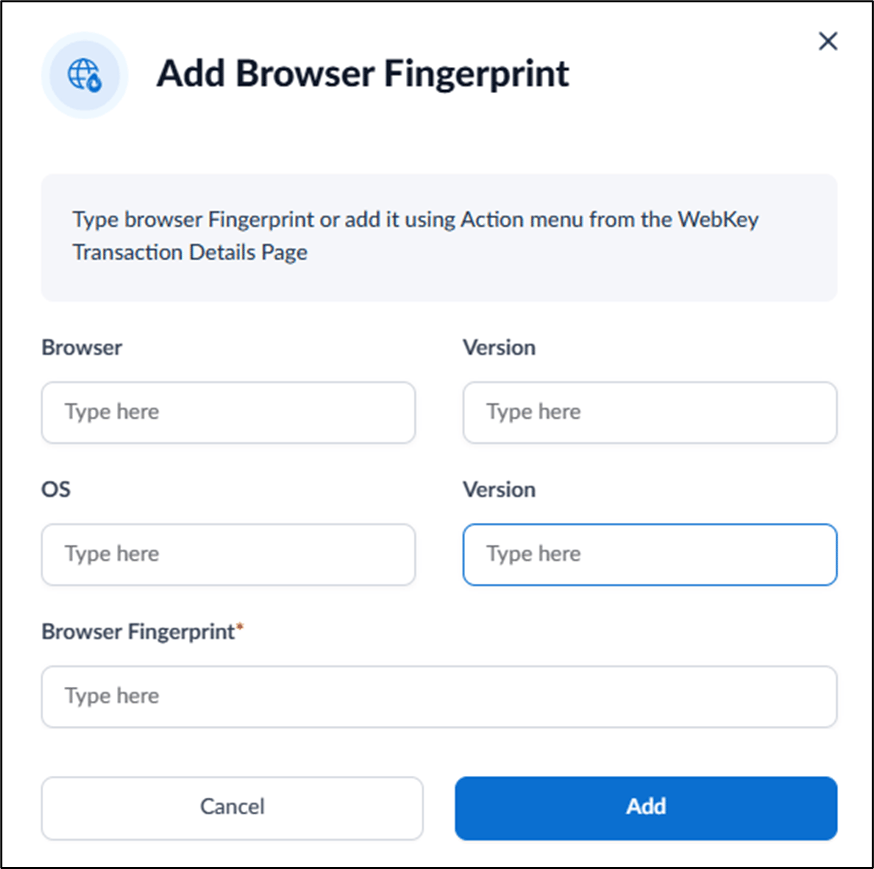
- Enter Browser.
- Enter bowser Version.
- Enter OS.
- Enter Version of the OS.
- Enter Browser Fingerprint.
- Click Add.
- Click Save.
How to configure Browser Fingerprint manually in WebKey
Steps to configure browser fingerprint manually:
Steps to configure browser fingerprint manually:
⌘I