

Introduction
This document provides detailed instructions to install, configure, and enroll Android devices with the Oloid DeviceLock and Oloid Vault applications using SOTI MobiControl. Additionally, this document outlines essential steps for enabling accessibility services, autofill configurations, and restricted settings required for full app functionality. It also includes a set of basic regression test cases with expected outcomes to ensure that, with every new build release, all core use cases function as intended and no regressions occur.Prerequisites
- The device is enrolled in SOTI MobiControl.
- The device has a stable internet connection.
- A valid Microsoft account is available for the user.
- User(s) have access to Admin or Supervisor credentials for the DeviceLock app.
Steps to Configure
- Installation Setup
- Install Oloid DeviceLock and Oloid Vault
- Setup Oloid DeviceLock app
- Allow Accessibility for DeviceLock app
- Allow Restricted Setting
- Configuration and Enrollment
- Set Up Oloid Vault on Android
- Authentication Flow
- Summary
Installation Setup
Install Oloid DeviceLock and Oloid Vault
- Launch the SOTI MobiControl app on the device.

- Tap the Menu icon on the top-left side of the screen.

- Tap App Catalog.
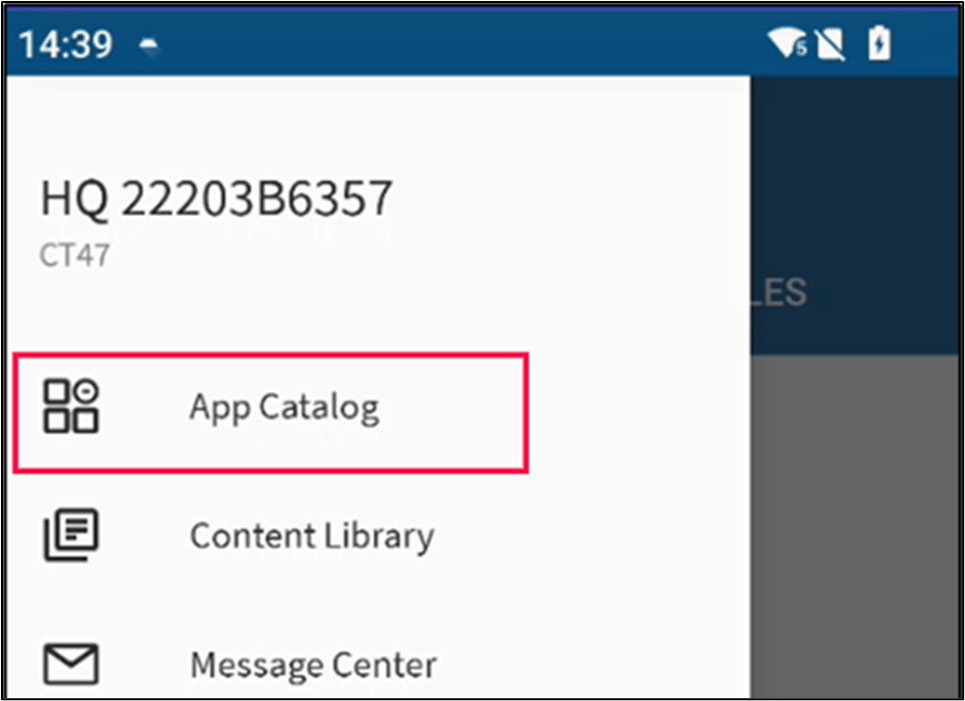
- Tap IN-HOUSE tab, the IN-HOUSE app(s) is(are) displayed.
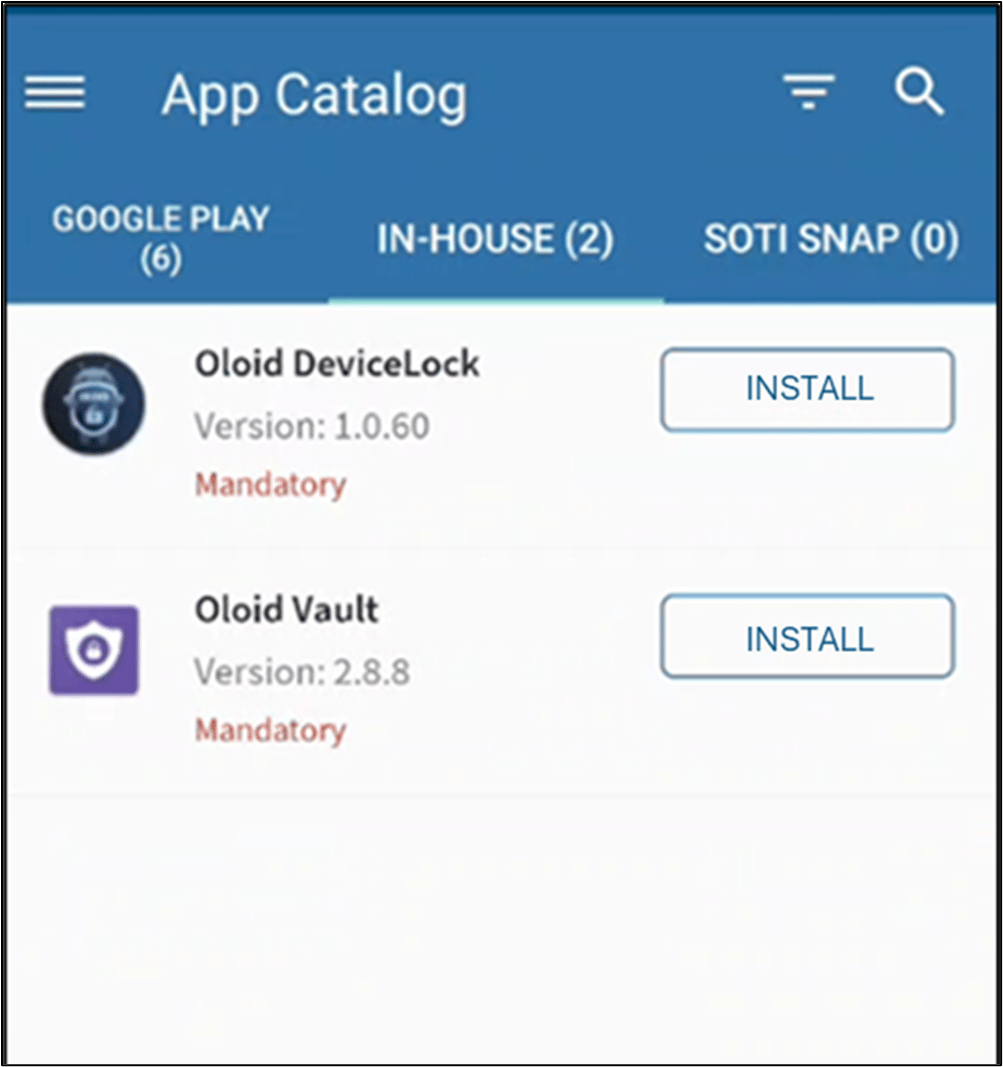
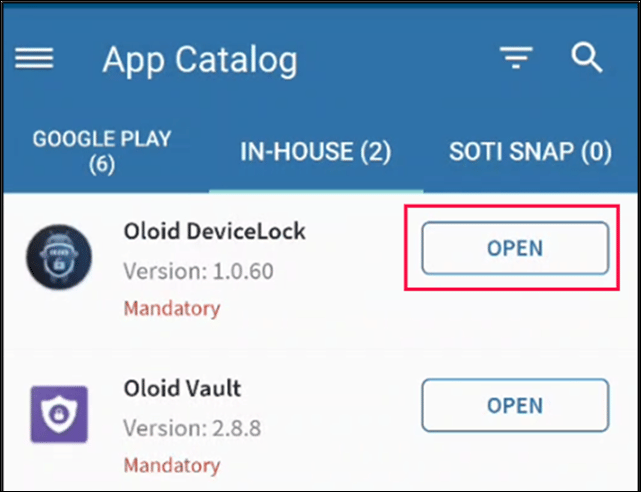
- Tap INSTALL to install the Oloid DeviceLock and Oloid Vault applications.
- Both the applications are installed successfully.

Set up Oloid DeviceLock App
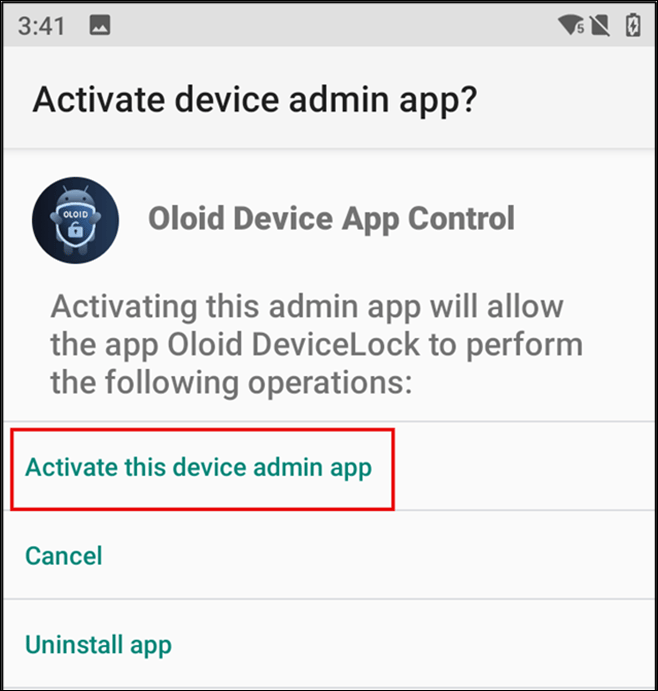
- Open the Oloid DeviceLock app.
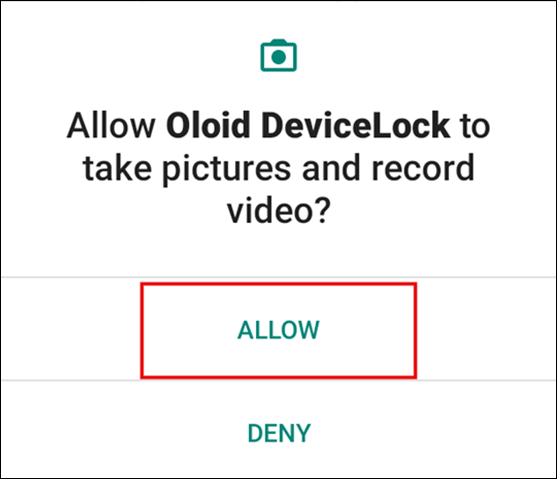
- Tap Allow.
- Tap Activate this device admin app.
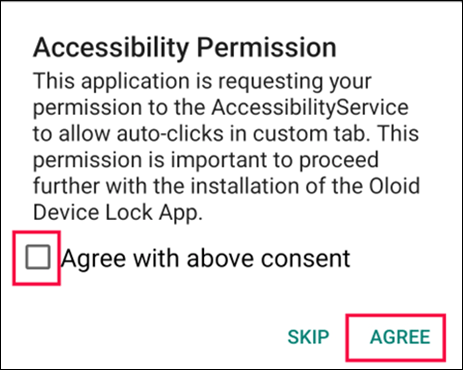
Allow Accessibility for DeviceLock App
- First tap on check box and then tap Agree.
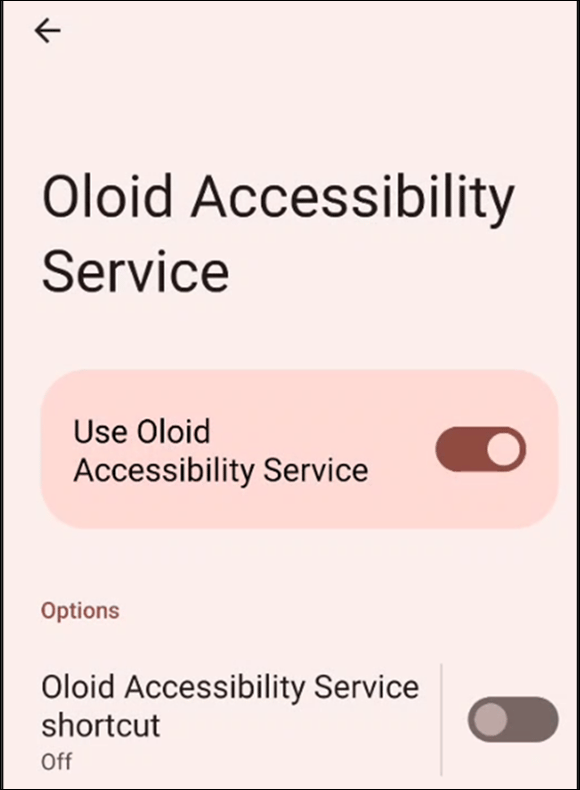
- Tap Oloid Accessibility Service.

- Enable Use Oloid Accessibility Service toggle.

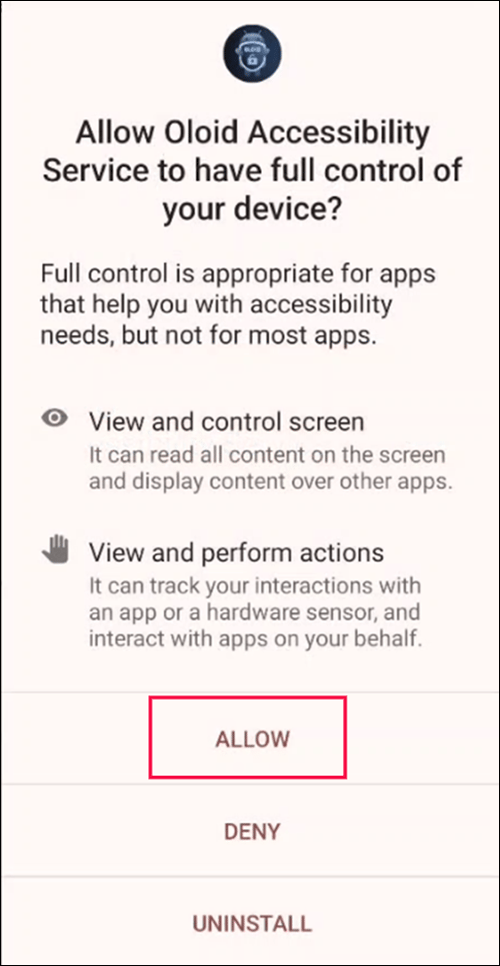
- Tap Allow.
Note: While enabling the accessibility, if you get the restricted settings, then you can enable restricted setting. For more details refer this section Allow Restricted Setting.
Allow Restricted Setting
- Go to the Android device Home Screen.
- Long tap the Oloid DeviceLock app and tap App Info.

- Tap the three-dot menu on the right-top side of the screen.

- Tap Allow restricted settings.
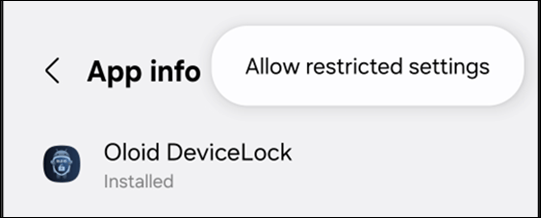
- Launch Oloid DeviceLock App and allow accessibility service for DeviceLock App. For more details refer this section Allow Accessibility service for DeviceLock App.
Configuration and Enrollment
Pair Endpoint
- To pair your device, follow the Auto Pair instructionsHow to Pair Oloid DeviceLock App using “Auto-Pair” option.
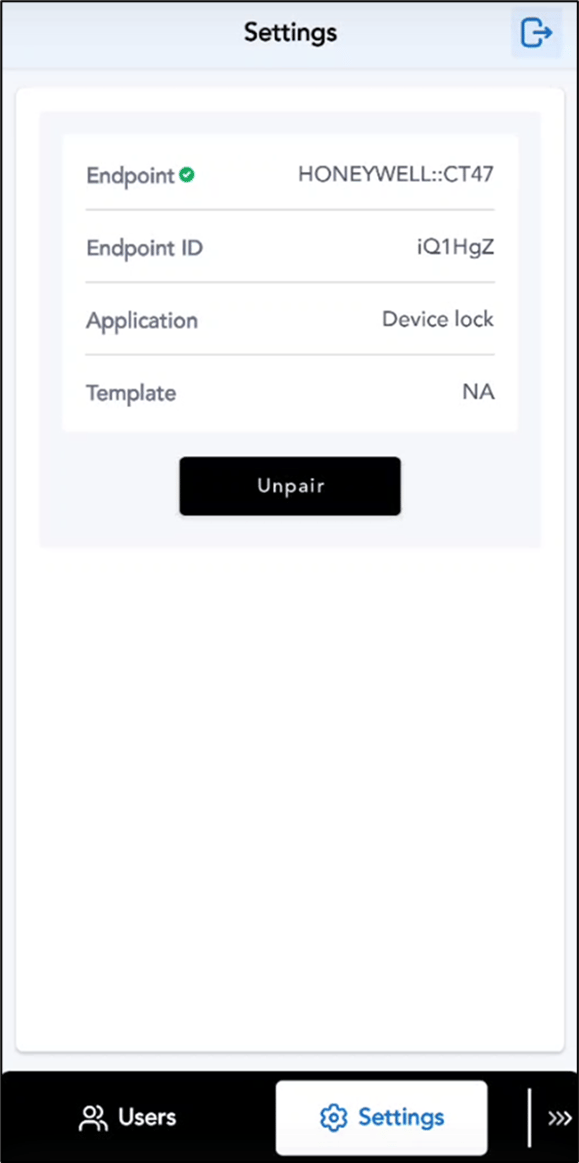
- After pairing, tap Continue with Admin Mode.
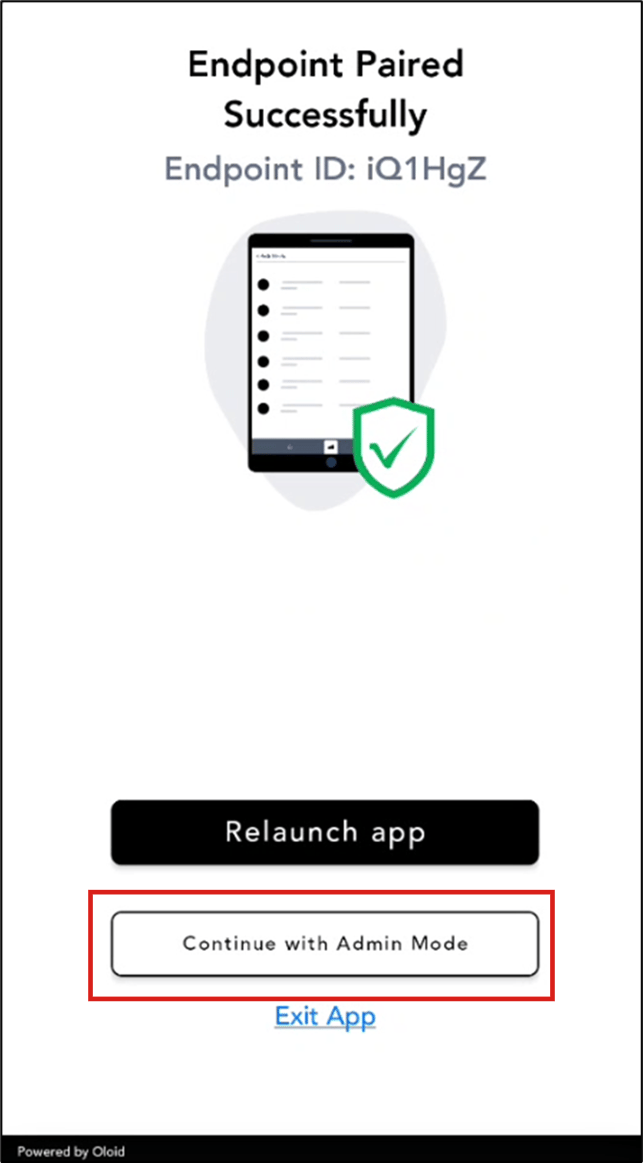
Note: Admin/Supervisor can either manually login via Login with supervisor option or can proceed with Login with SSO.
- To manually login refer How to log in to admin mode in DeviceLock App.
- To login with SSO refer Login with SSO.
Login with SSO
- On Oloid Login screen, tap on Login with SSO.
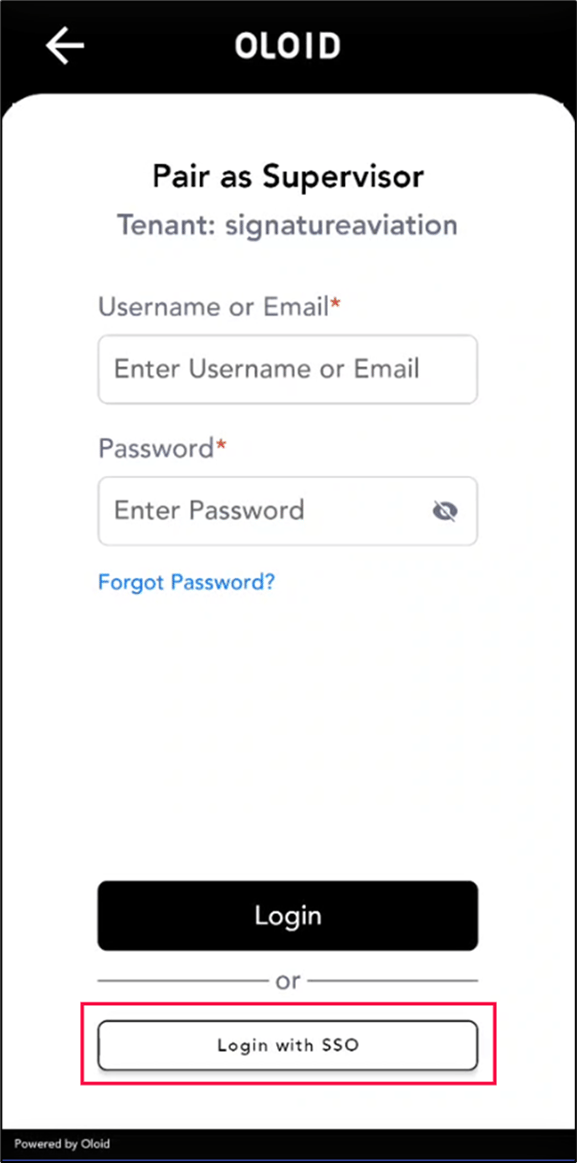
- Tap Continue with Microsoft.

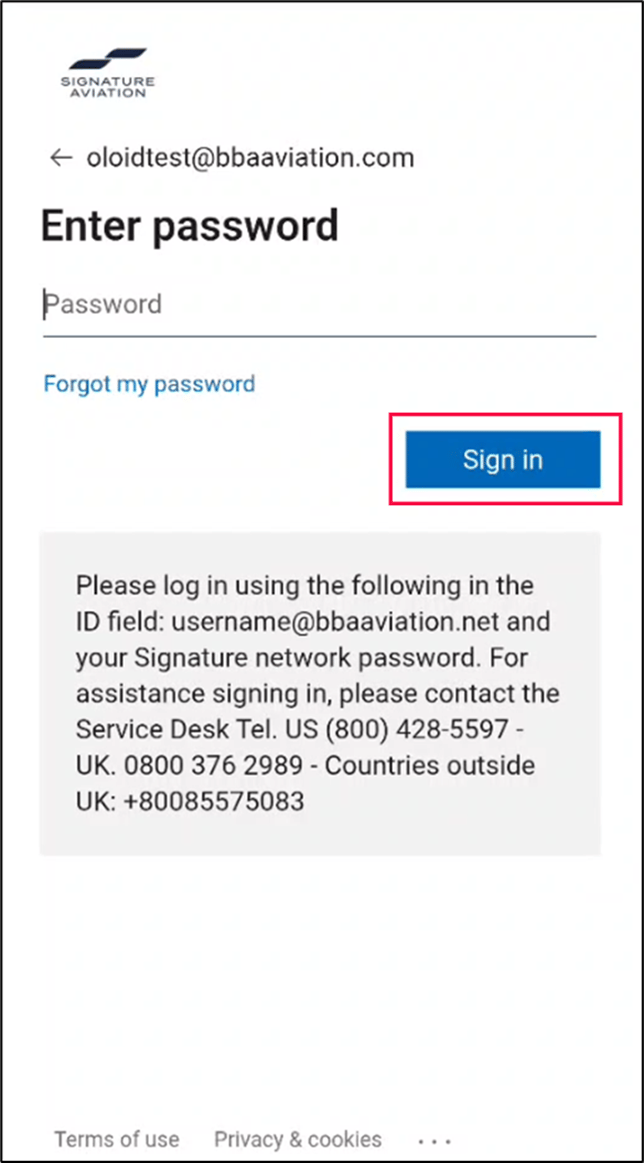
- Enter your Microsoft Email ID and tap on Next.
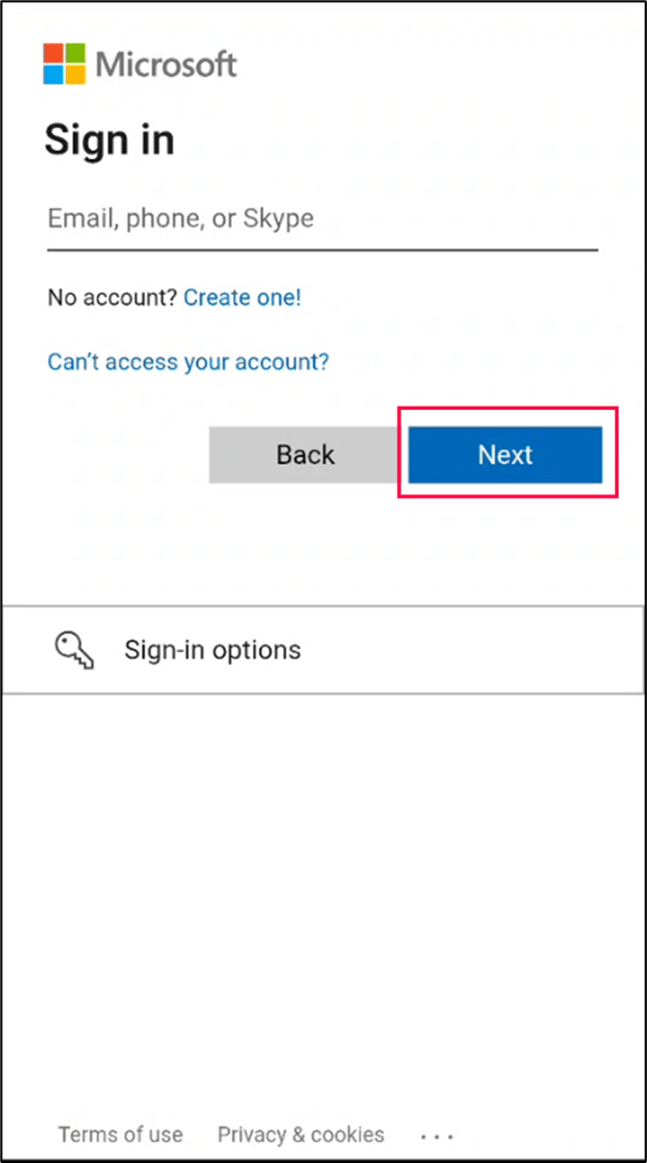
- Enter password and tap Sign in.
Enroll User credentials
- Enroll Face. To enroll face refer How to enroll face for users in the DeviceLock App.
- Enroll PIN. To enroll PIN refer How to enroll PIN for users in the DeviceLock App.
- Enroll NFC/ID. To enroll NFC/ID refer How to enroll NFC/ID for users in the DeviceLock App.
Note: Once the Credentials are enrolled for the user, Log out of Admin Mode and Initial Screen of devicelock with configured Auth methods will be displayed.
Set Up Oloid Vault on Android
Enable Oloid Vault Accessibility
- Tap Open on Oloid Vaultapp.

- Tap Oloid Vault.
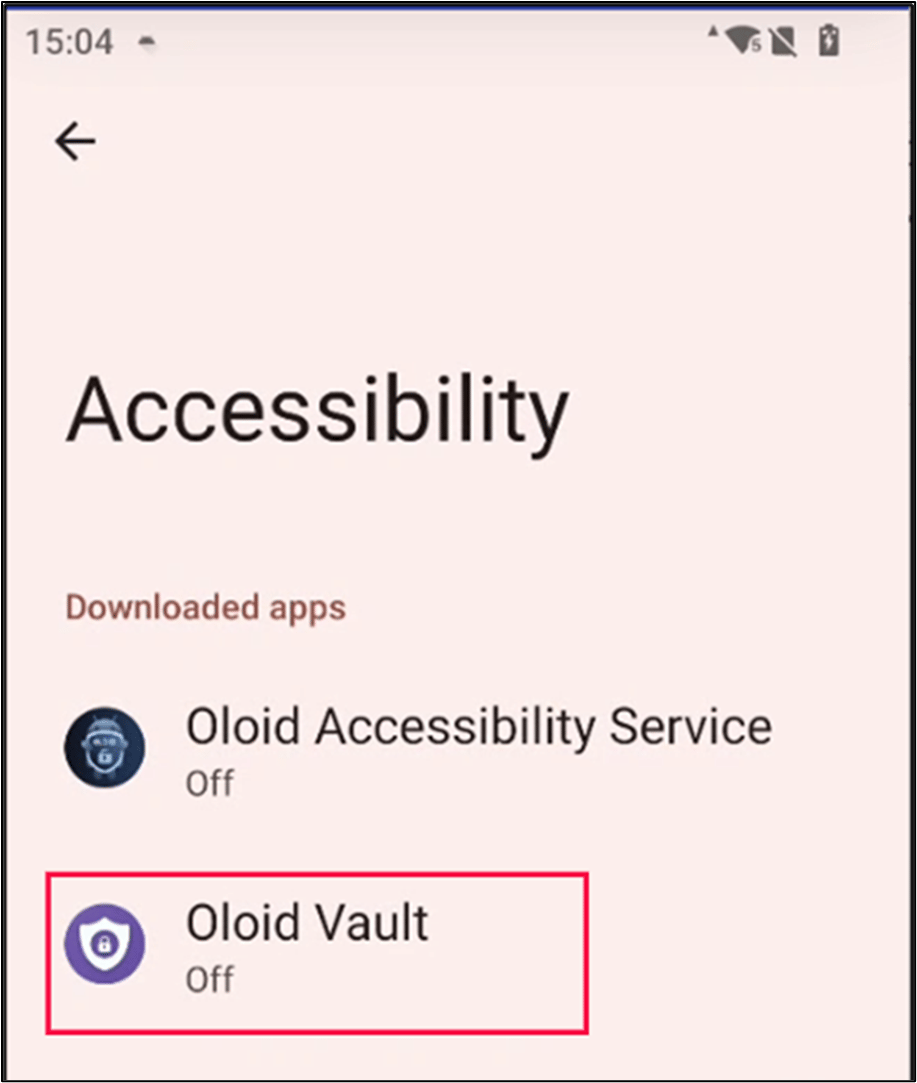
- Enable Use Oloid Vault toggle.
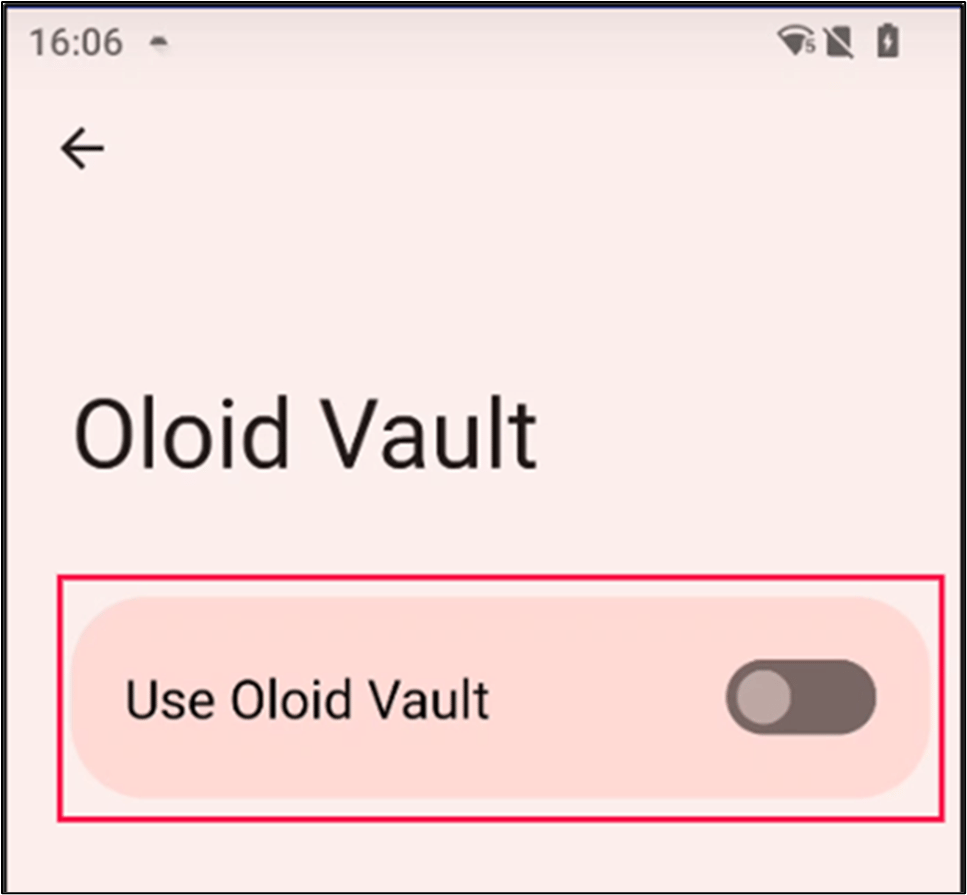
- Tap Allow.

Enable Autofill for Oloid Vault
- Open settings on your Android Device.

- Enter Autofill in the search bar text field.
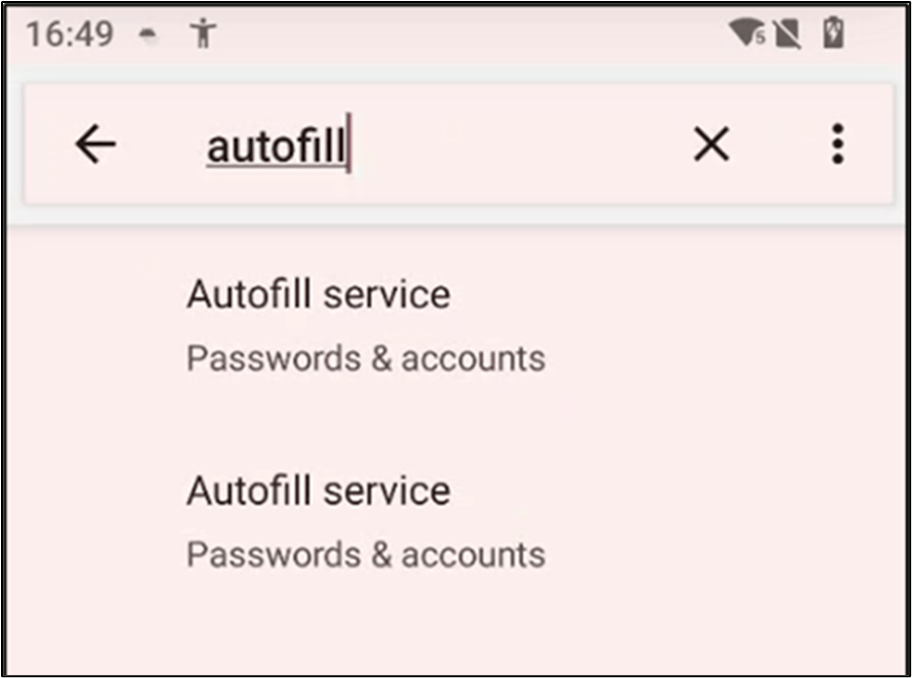
- Tap the option under Autofill.

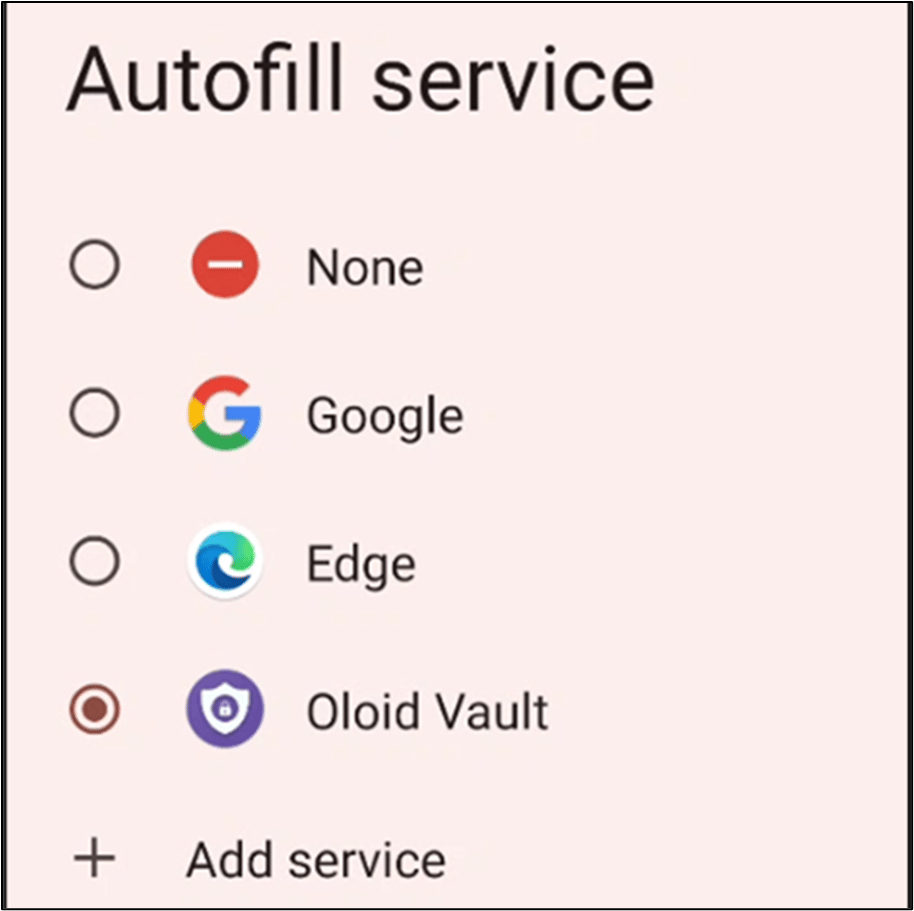
- Tap Oloid Vault option under Autofill service.
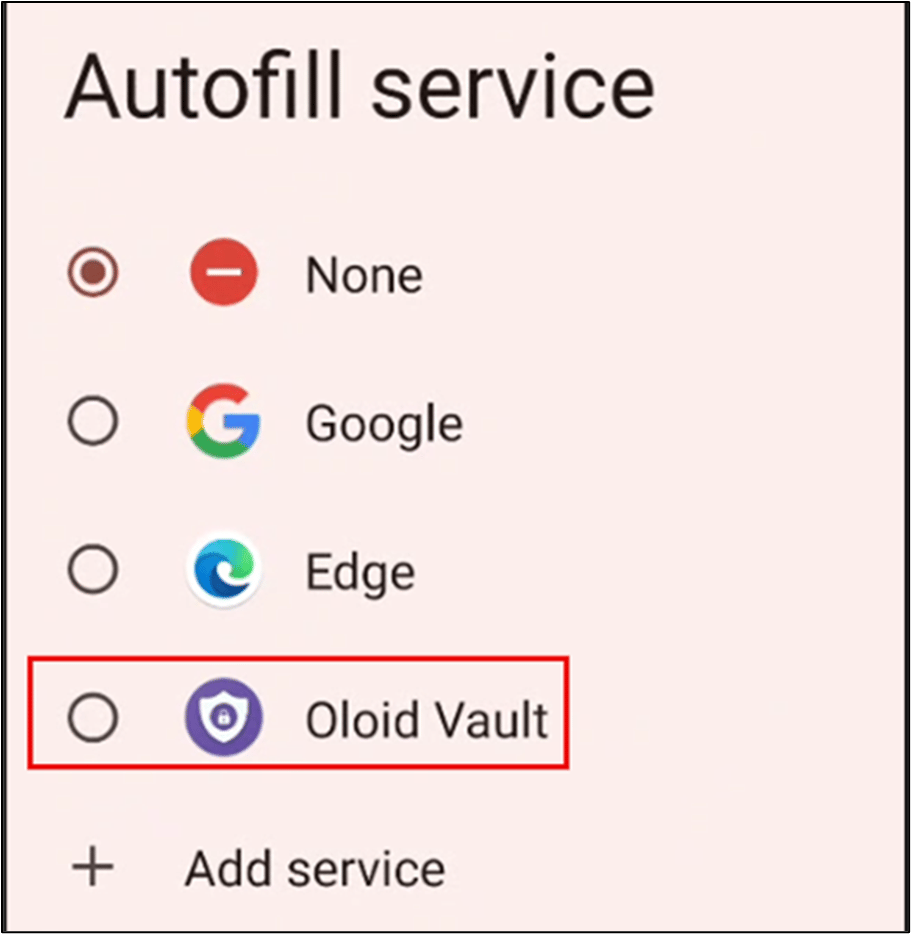
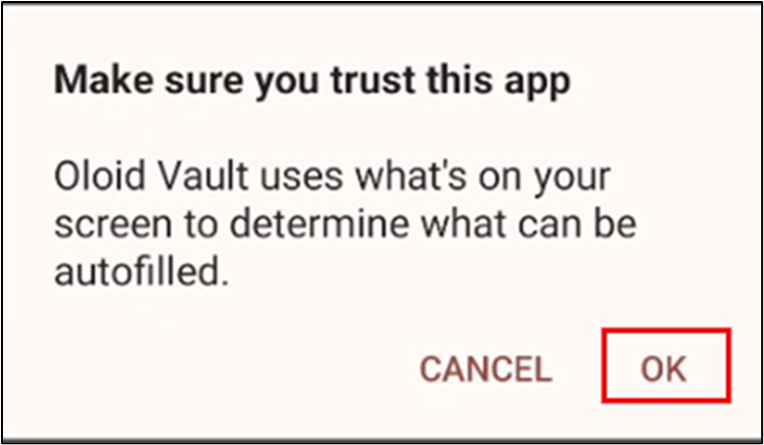
- Tap OK.
Authentication Flow
-
Authenticate using DeviceLock (Face + PIN or NFC + PIN).

-
Enter your Microsoft account password and tap Sign in.
 The Username and Password prompt box is displayed.Note: If it is first-time login, you need to manually enter your credentials.
 -
Tap Save.

 Note: Using Accessibility Service, auto-login is attempted into SOTI.
 -
If auto-login does not occur, tap Login.
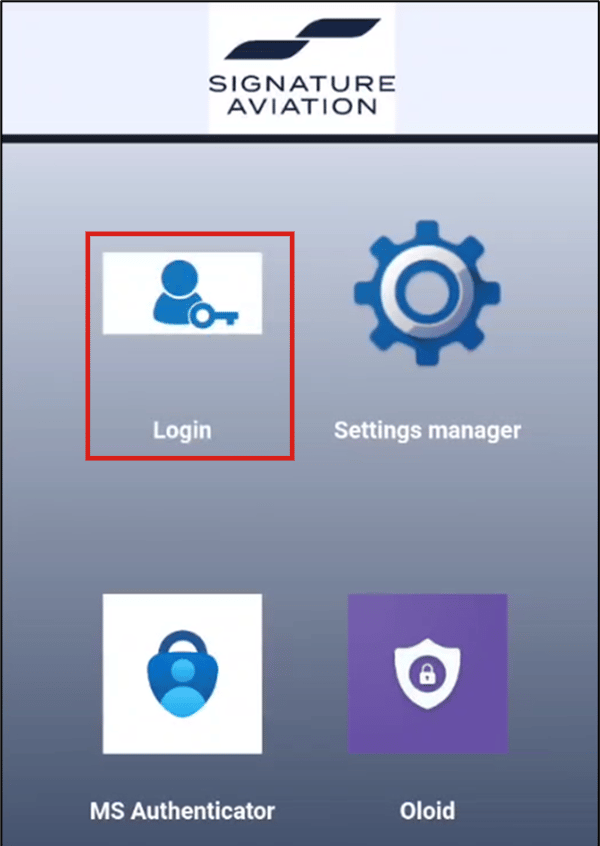
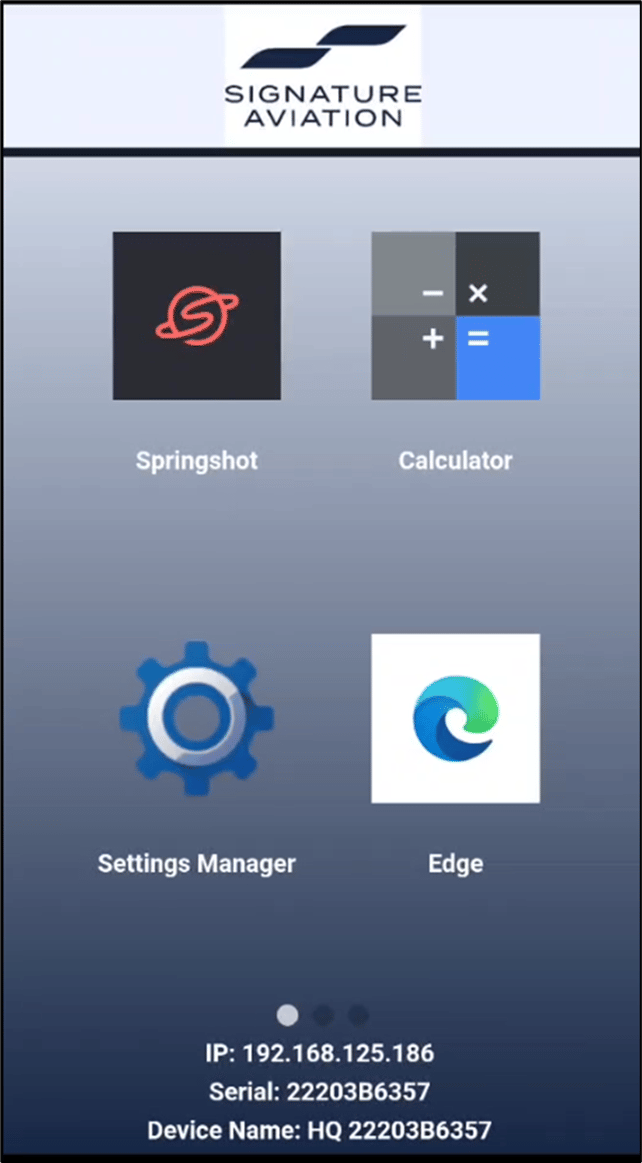
- Once logged in, you can access the customer apps like - Blank slate, Spring shot, Aero, etc.
- For all future app logins, auto-login will occur automatically.
Summary
By following the above steps, the Oloid DeviceLock and Oloid Vault applications will be fully installed, configured, and ready for use.- Administrators can log in using Microsoft SSO for enrolling with Face, NFC, and PIN credentials
- Oloid Vault enables Autofill, allowing seamless access and auto-login to Microsoft and non-Microsoft applications.