

Introduction
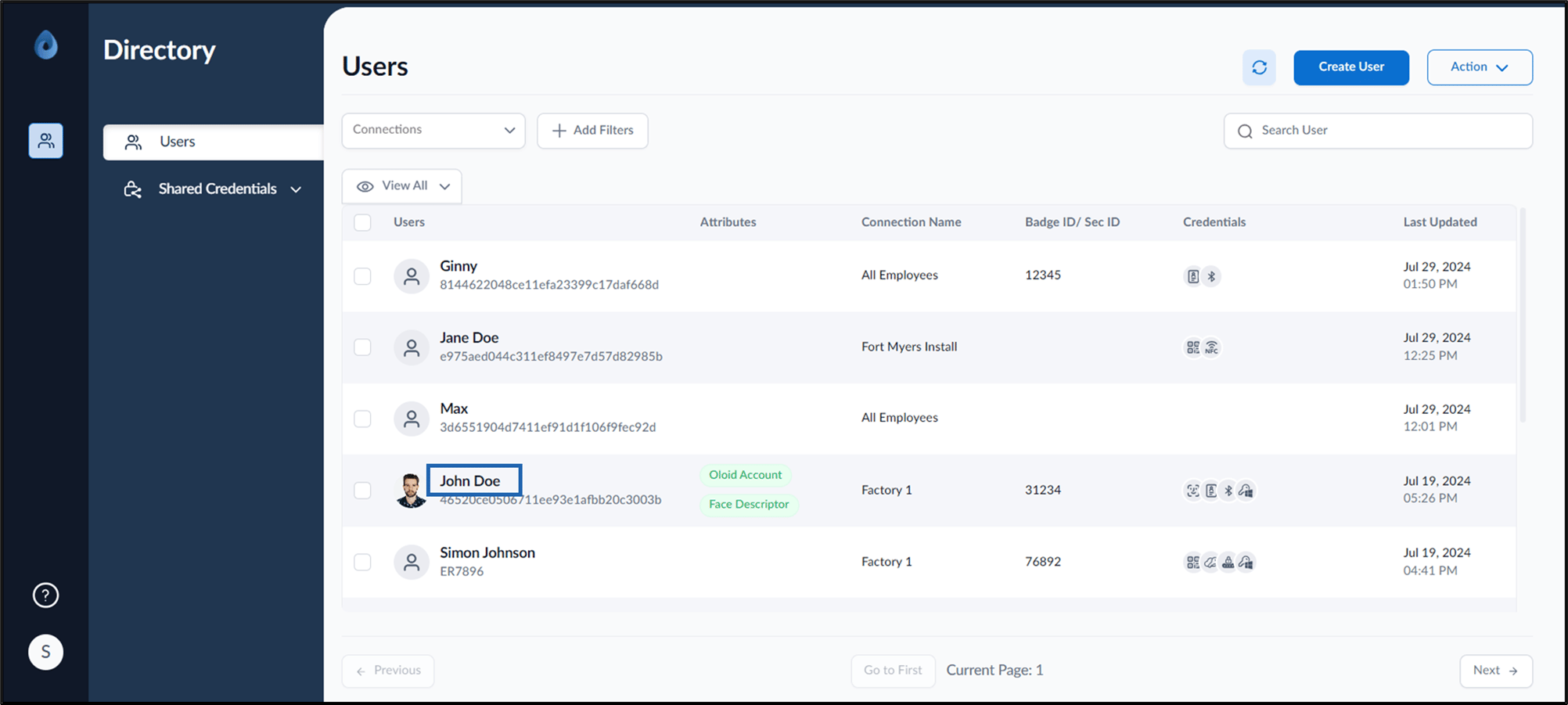
Bluetooth ID is generated for the M-Tag application to function. Pre-requisite Badge ID should be assigned to the User. If a Badge ID is not assigned to the User, see How to assign Badge ID and create Bluetooth credentials. Steps to add Bluetooth as credential:- Log in to the Supervisor Portal. The Users page is displayed.
- Click the username to edit.
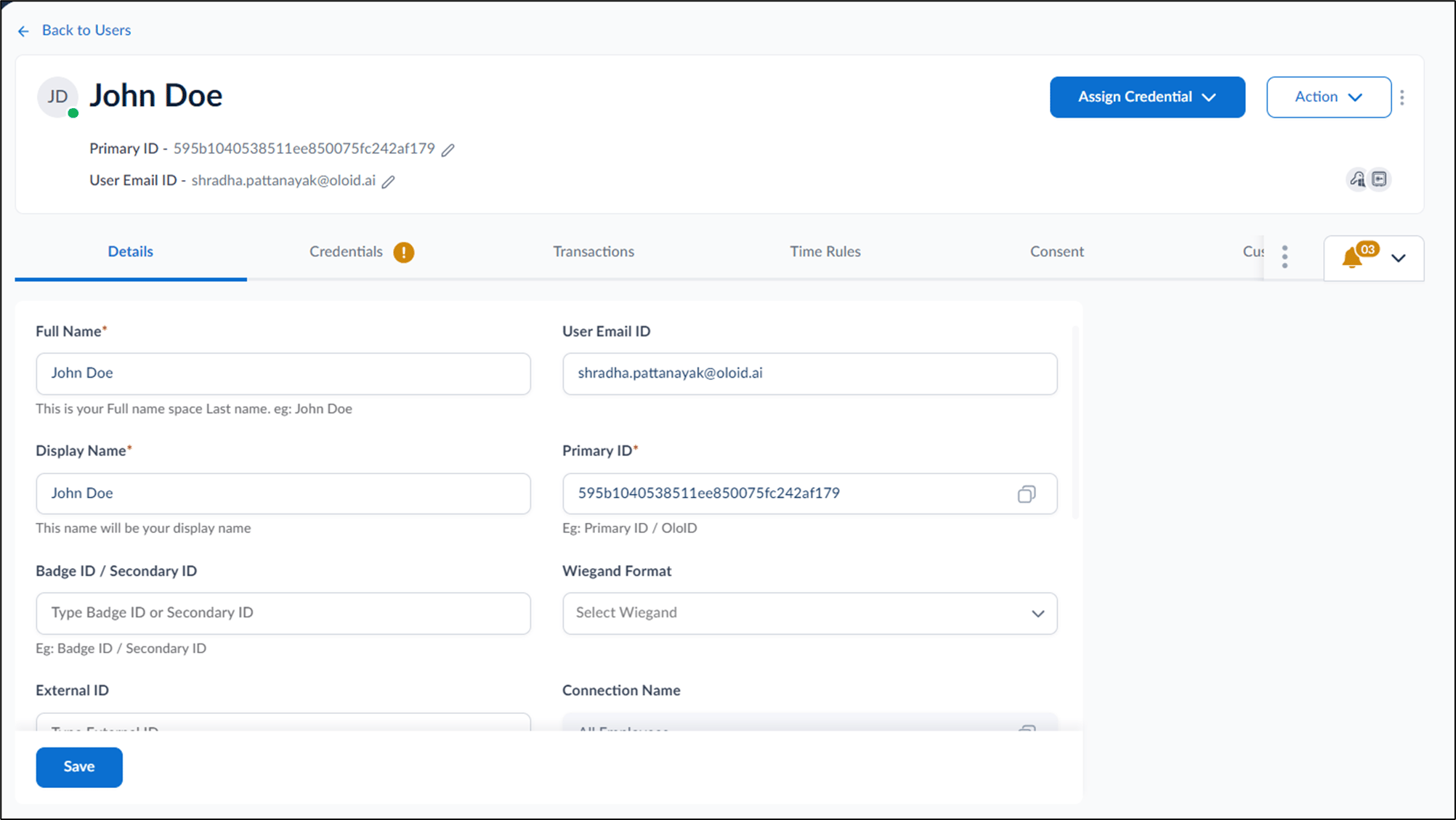
- Do one of the following:
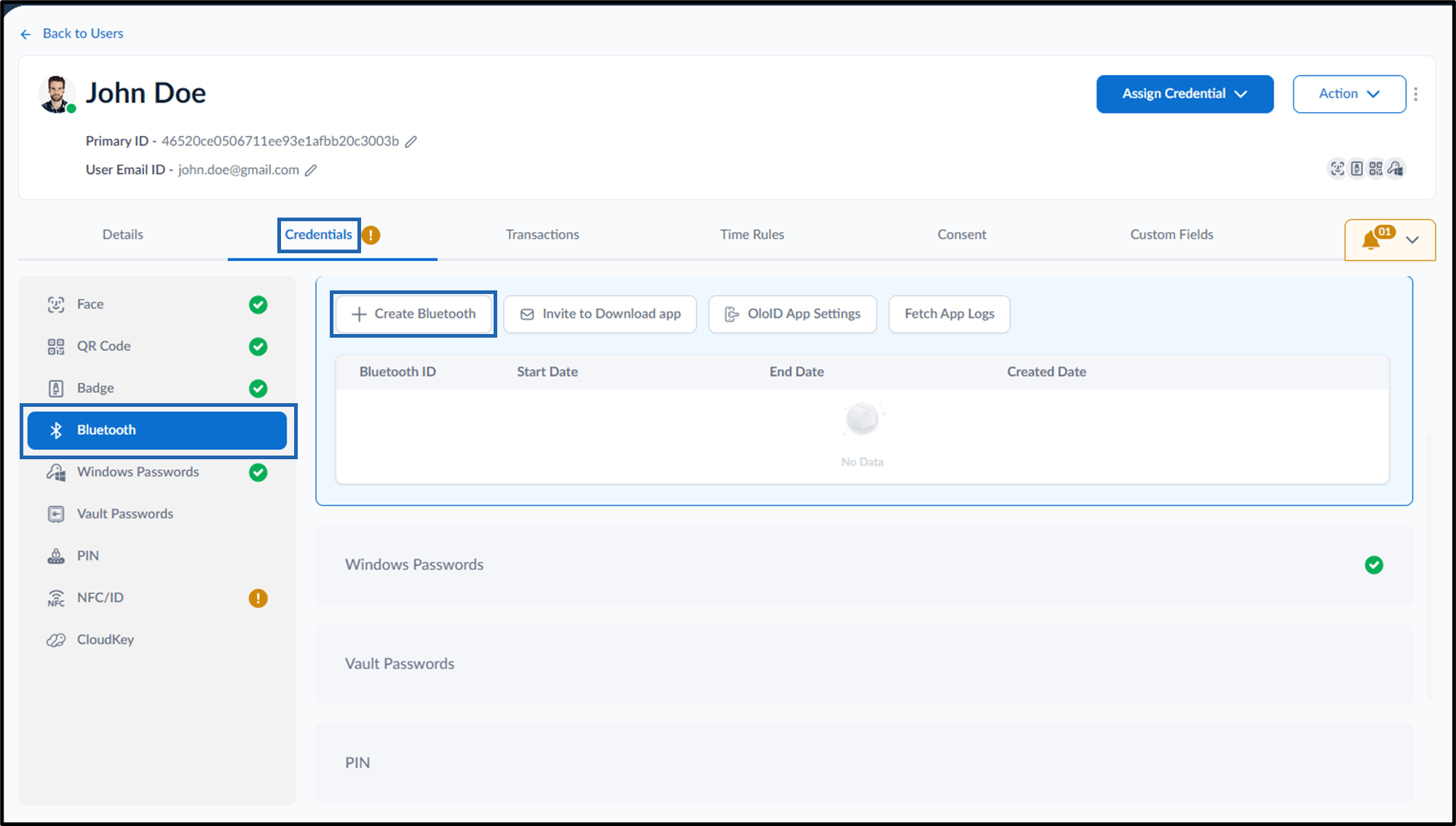
- Go to Credentials > Bluetooth tab> + Create Bluetooth.
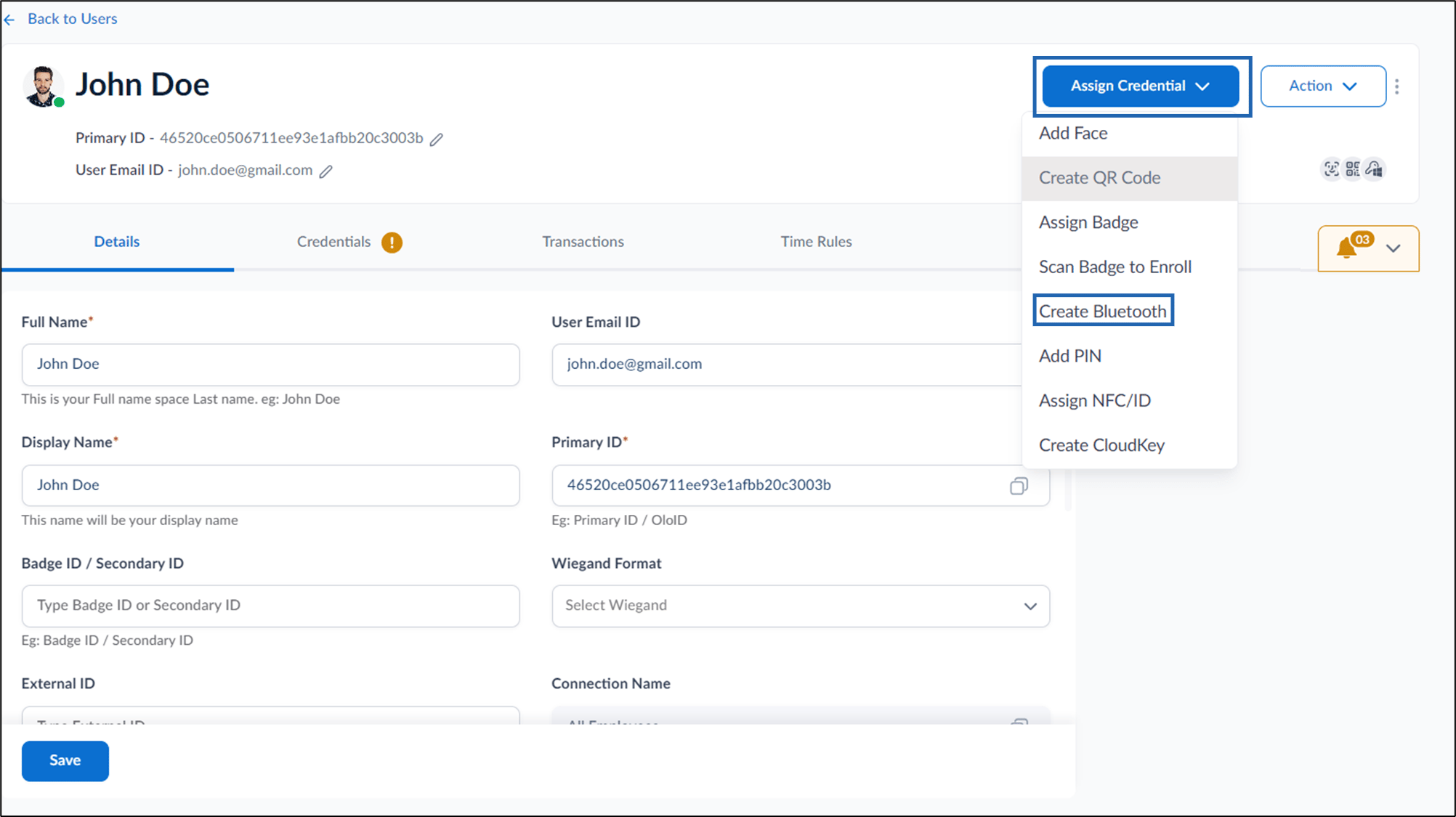
- Go to Assign Credential > Create Bluetooth.

- Go to Credentials > Bluetooth tab> + Create Bluetooth.
- Do the following:
-
Select Start Date / Time and End Date/Time from the calendar.
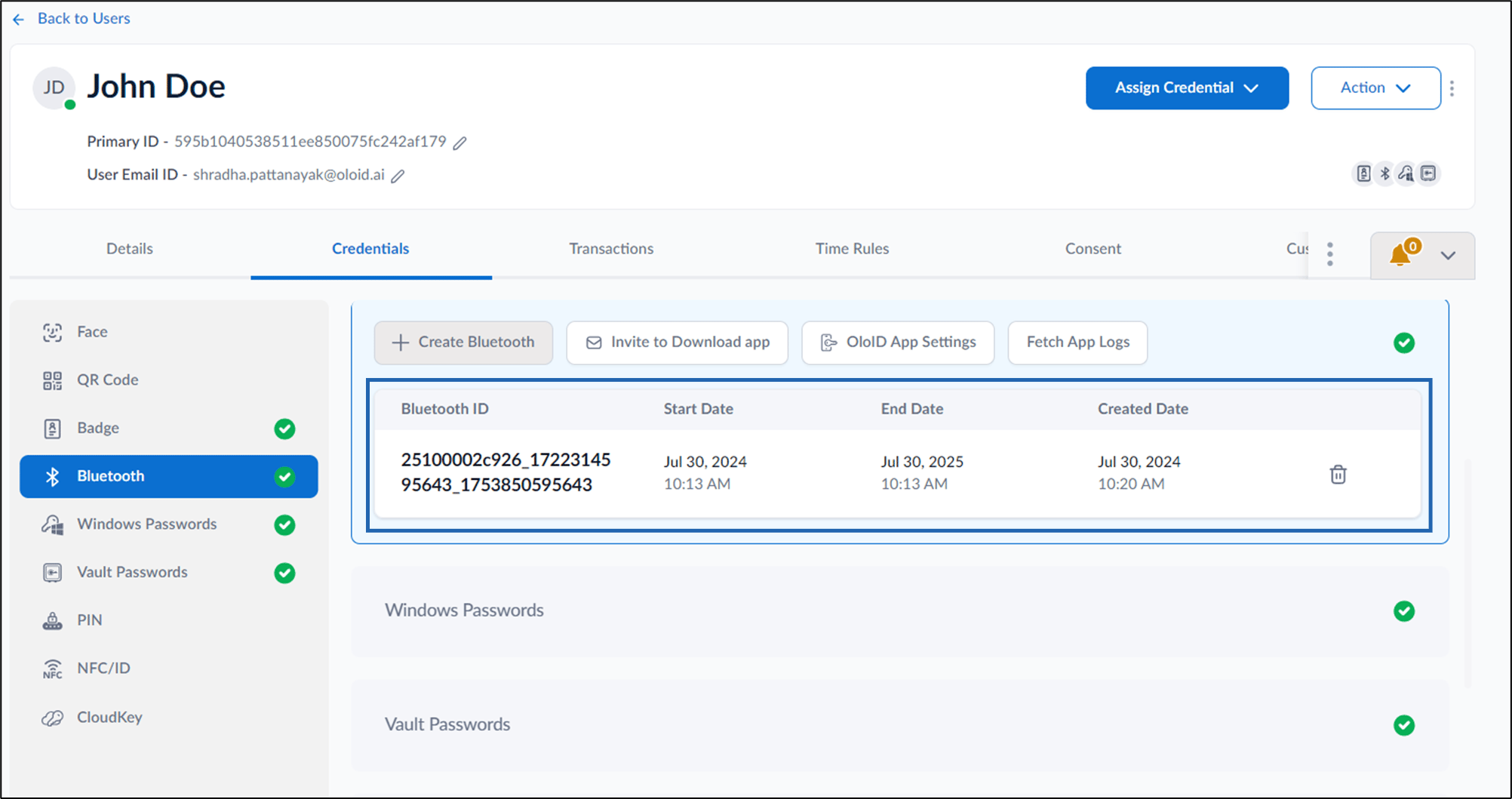
Note:You can click Now to set the current date and time. The end date is automatically set to 1 year from the current date. You can click 10 years from Now to set the End Date/Time to 10 years from the current date/time. 2. Click Save. The Bluetooth ID is created and listed on the Bluetooth tab.
-
Select Start Date / Time and End Date/Time from the calendar.