

- Log in to Oloid Portal.
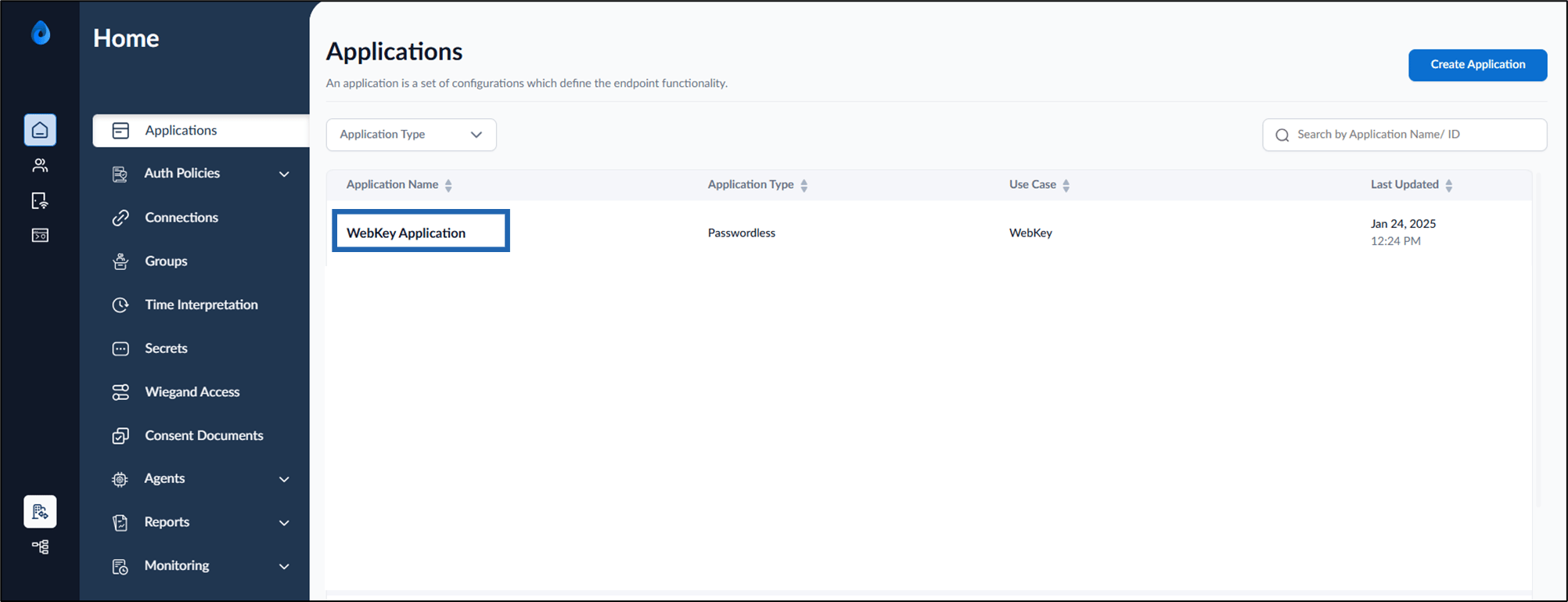
- On the homepage, select WebKey application.
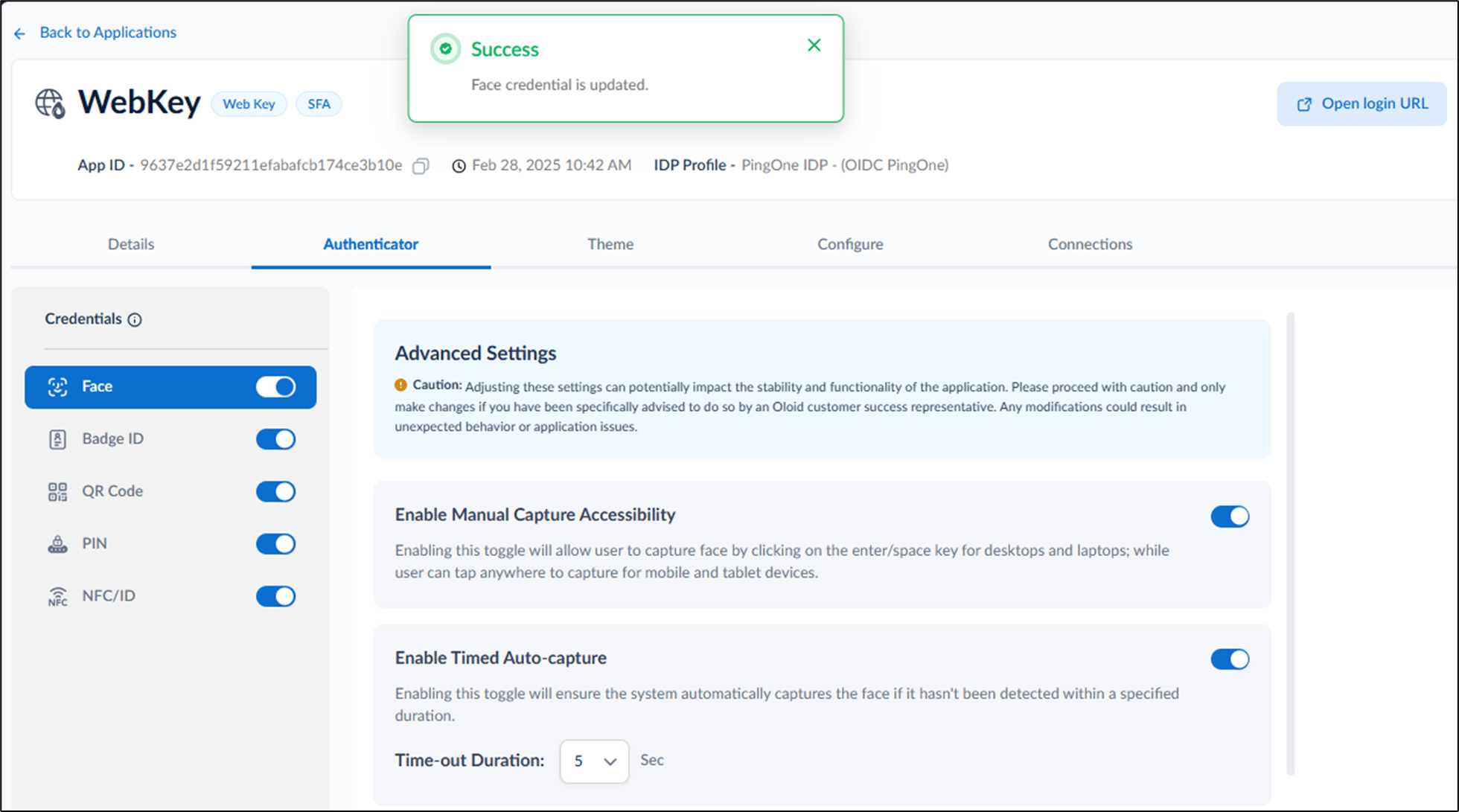
- Go to Authenticator tab > Face tab.
- Turn on Enable Timed Auto-capture toggle button to allow the WebKey application to automatically capture the user’s face if it is not detected within a specified duration. Time out duration: Specify the number of seconds after which the system should auto-capture the face if manual input is not detected.
- Click Save.
The face credential is saved successfully.
How to enable timed auto capture in WebKey application
Enabling the Timed Auto-capture feature in the Tenant Admin Portal allows the WebKey application to automatically capture the user’s face during facial…
Introduction
Enabling the Timed Auto-capture feature in the Tenant Admin Portal allows the WebKey application to automatically capture the user’s face during facial authentication if it is not manually captured within the configured time-out duration.
Steps to enable Timed Auto Capture:
⌘I