

- Log in to the Oloid Portal.
- On the home page of the portal, click Endpoints on the left menu panel.
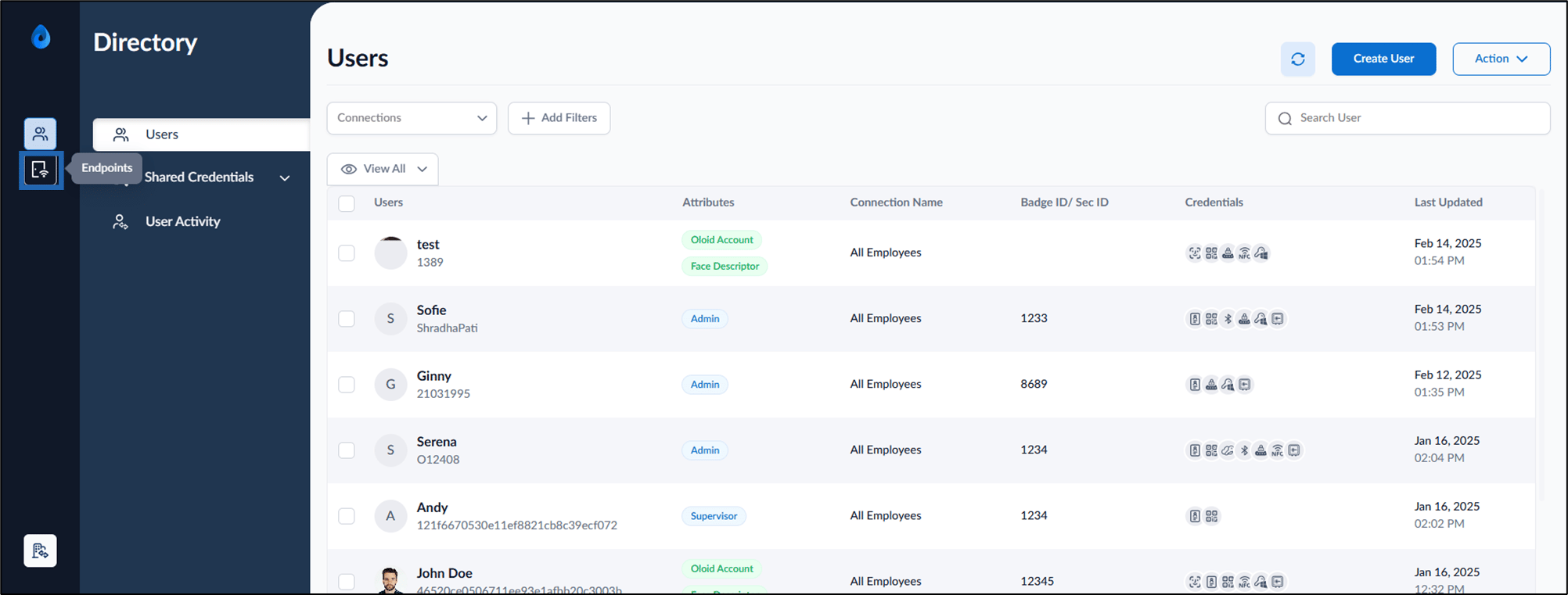
- Click on an endpoint name (Verify endpoint/ Connect endpoint) to edit from the listed endpoints.

- Go to Settings tab > Web Button.
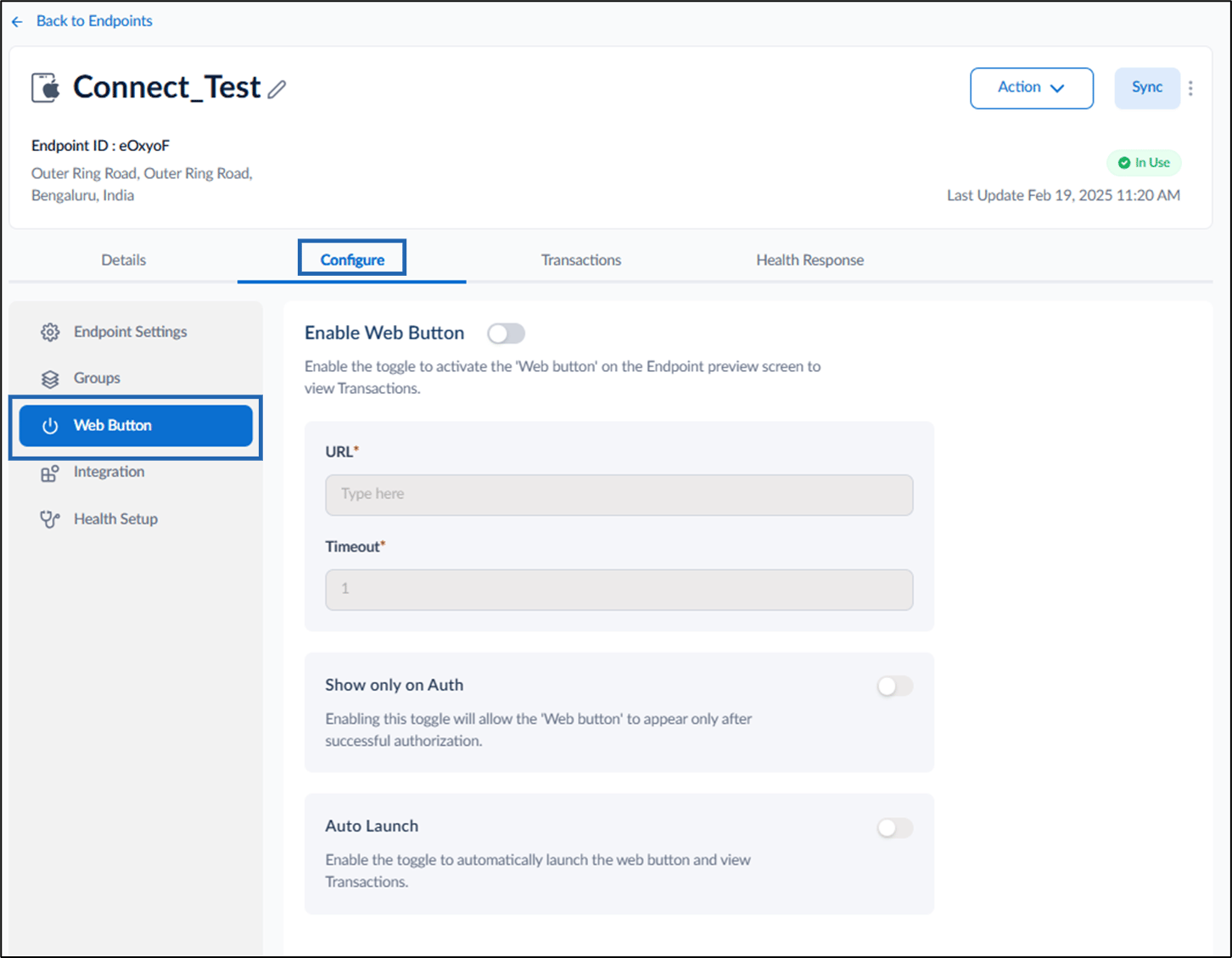
- On the Web Button tab, do the following:
- Turn on the Enable Web Button.
-
Enter URL in the URL text field.
Note: The URL leads you to the website where you can review the punches.
- Enter Timeout.
- Show only on Auth- Coming soon.
- Enable Auto Launch to automatically launch the web button and view transaction.
- Click Save.
Sample screen for Web Button
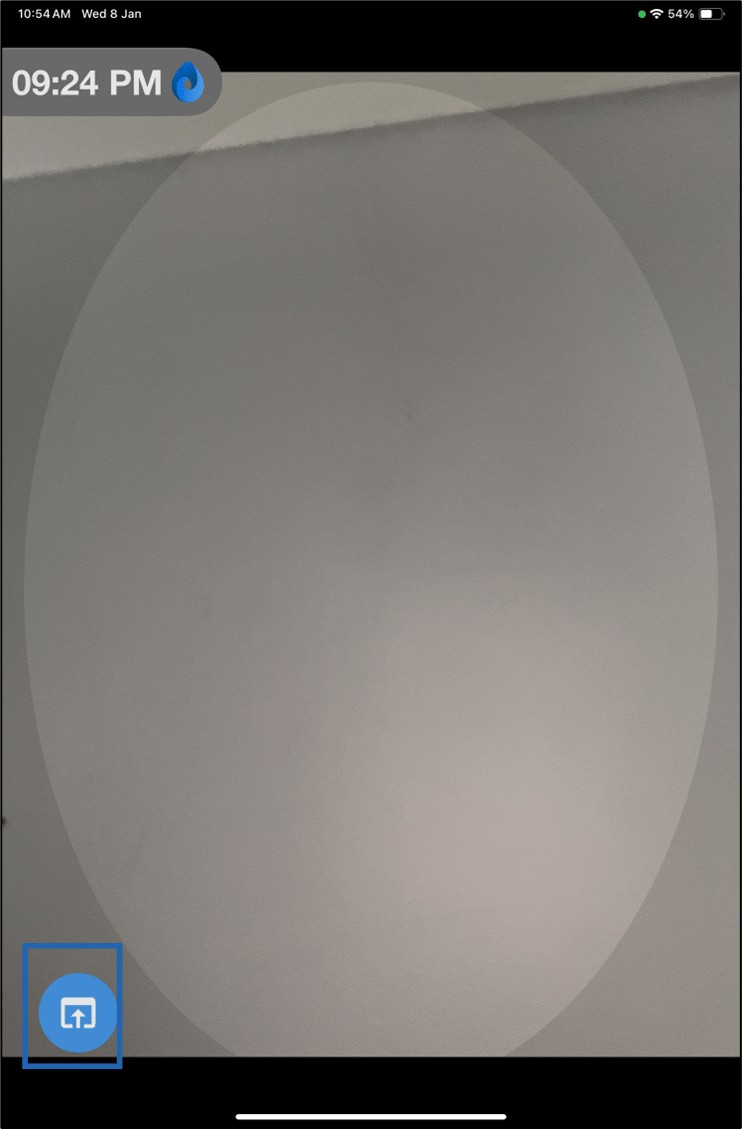
Supervisor Portal- How to configure Web Button
This document provides step-by-step instructions to configure Web Button.
Introduction
The Web Button is used to review punches in Oloid Verify and Oloid Connect.
Steps to configure Web Button:
⌘I