Introduction
This document provides instructions to configure PingOne Single Sign-On (SSO) for the DeviceLock App in the PingOne Admin Console.Prerequisite
You must have administrator access to the PingOne Admin Console.Steps to Configure PingOne SSO
Create Environment Create and Configure ApplicationsSteps to Create an Environment
Note: If an environment already exists, skip this section.
- Sign in to the Ping Identity Administrator Console with your PingOne account credentials.
- Click Create Environment

- Select Customer Solution and then click Next.

- Click Next.

- Do the following:
- Enter Trial Environment Name.
- Enter Description (Optional)
- Select Environment ID.
- Select a Region.
- Select a Licence.
- Click Finish.

Steps to Create and Configure Application
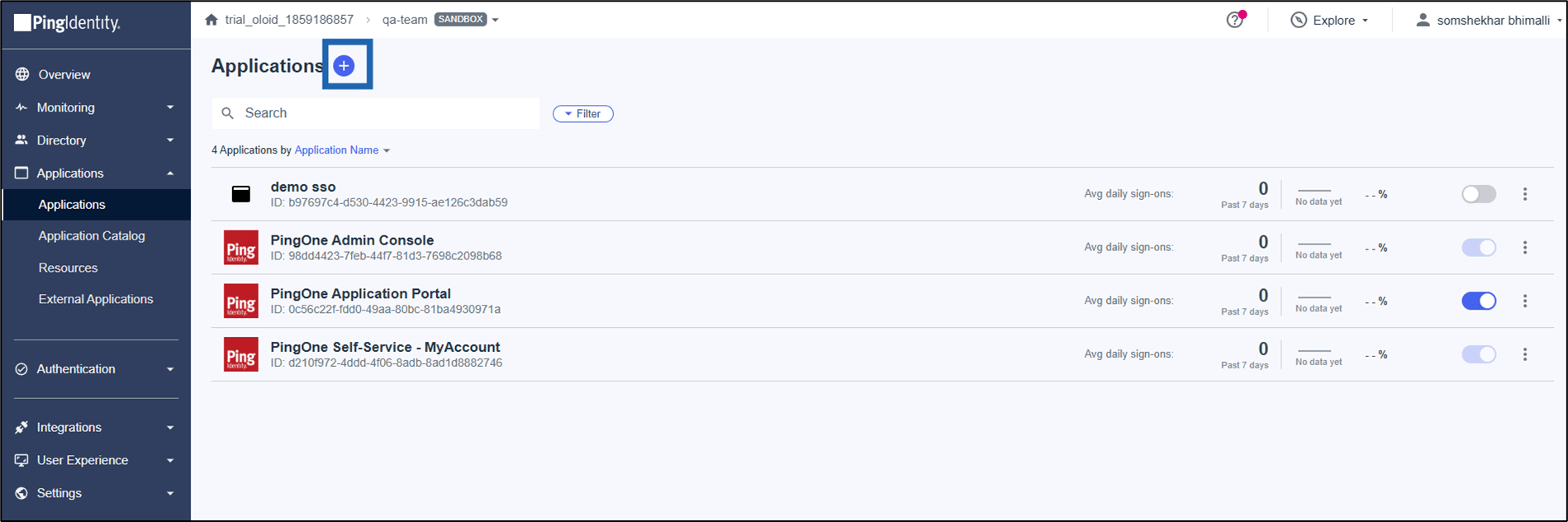
- Go to the newly created environment, select Applications > Applications.

- Click Add icon (
 ).
).
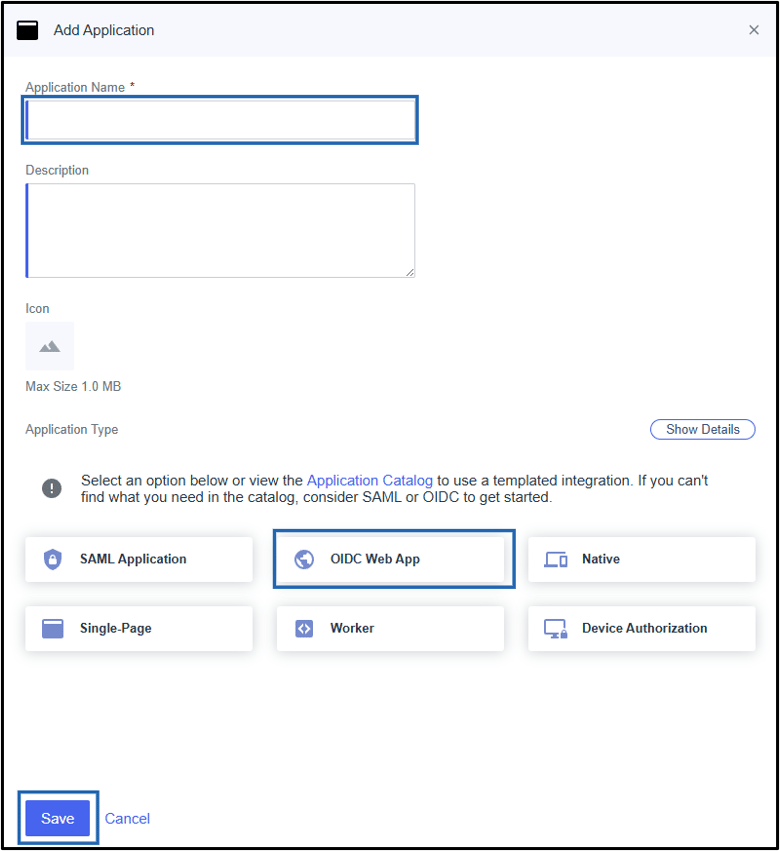
- Do the following:
- Enter Application Name.
- Enter Description (Optional).
- Select OIDC Web App as the Application Type.
- Click Save.
- Select the newly created application.
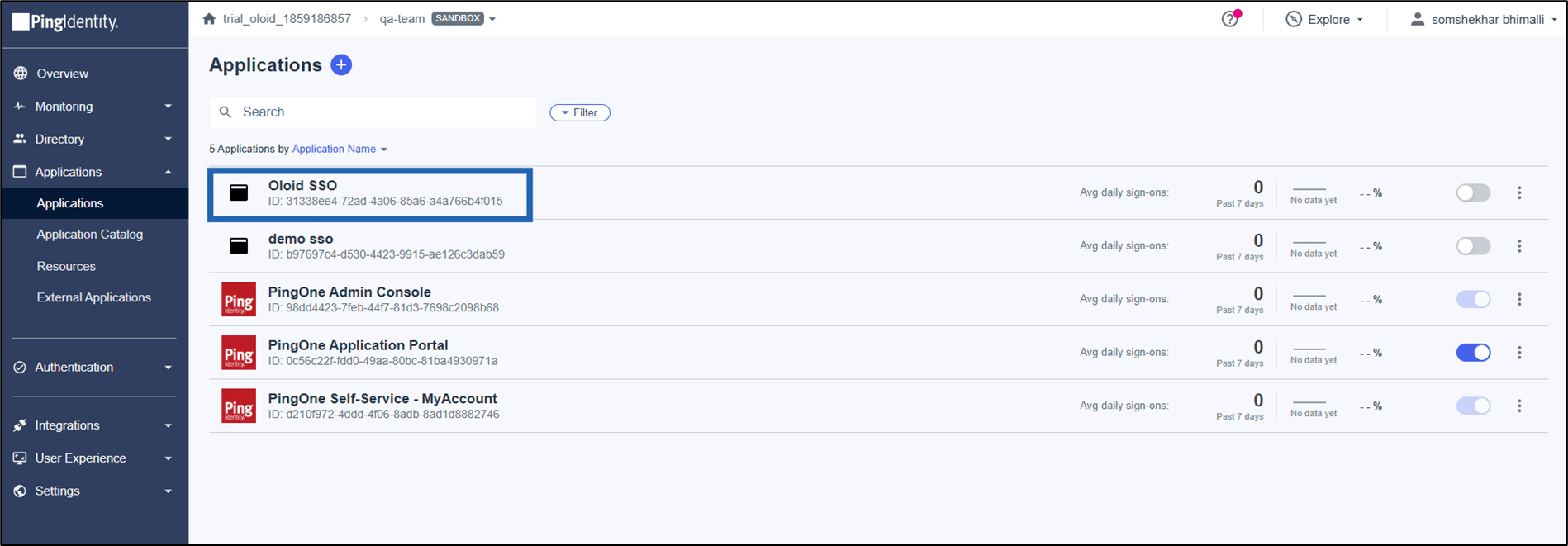
- On the application profile page, enable the app using the toggle button next to the application name.

- Select Overview > OpenID Connect.
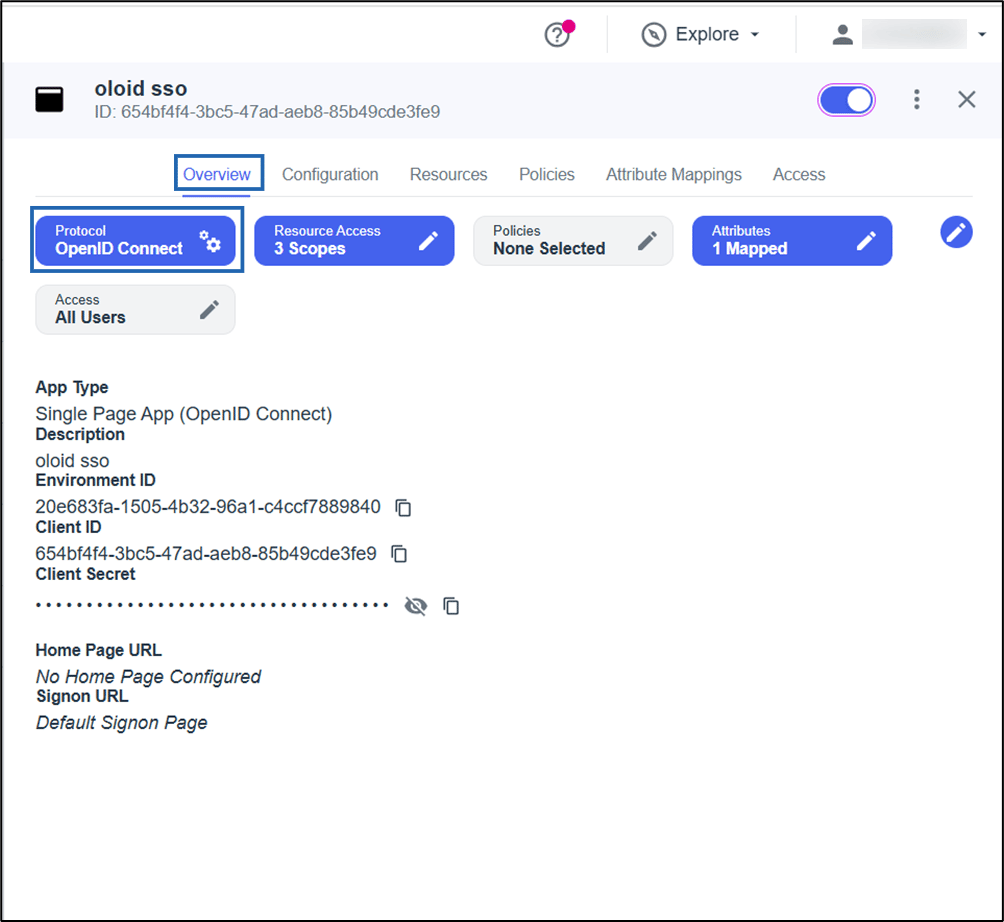
- Do the following:
-
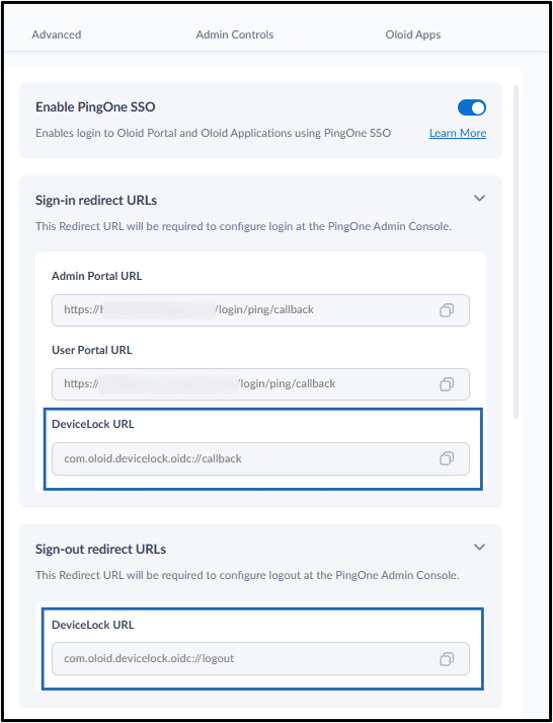
Enter the Redirect URIs.
Note: Click + Add to add additional redirect URIs, if required (Optional).
- Ensure that Client Secret Basic is selected as the Token Endpoint Authentication Method.
-
Enter the Signoff URL.
Note: To get the Redirect URI and Signoff URL, go to your Oloid Portal, select Tenant Settings > Security > SSO > PingOne, and copy the DeviceLock URLs and enter the URLs in the respective field.
-
Click Save.

-
Enter the Redirect URIs.
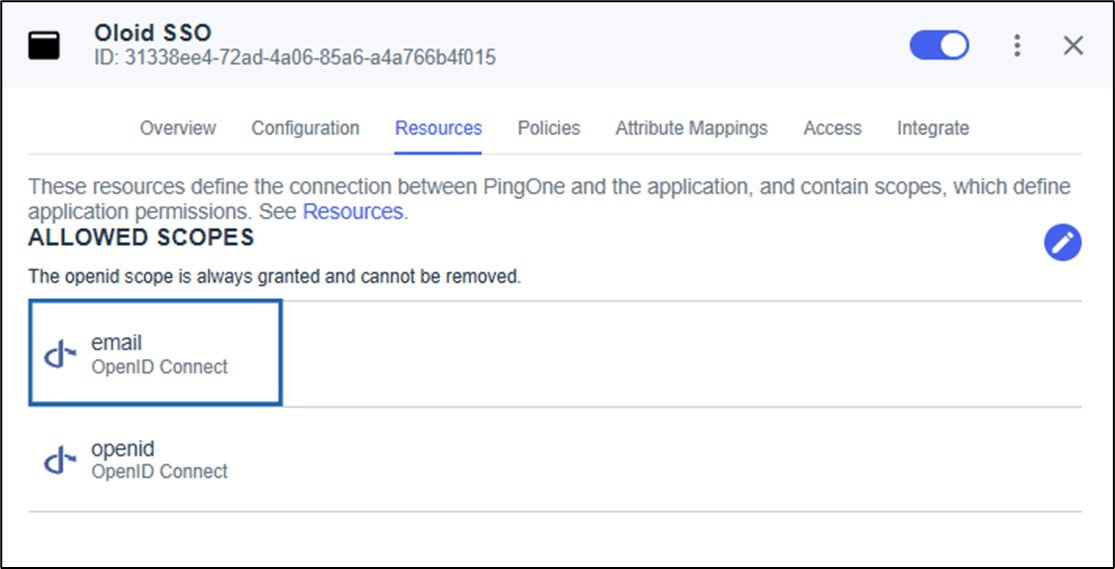
- In the application overview, click Resources > Allowed Scopes Edit icon.
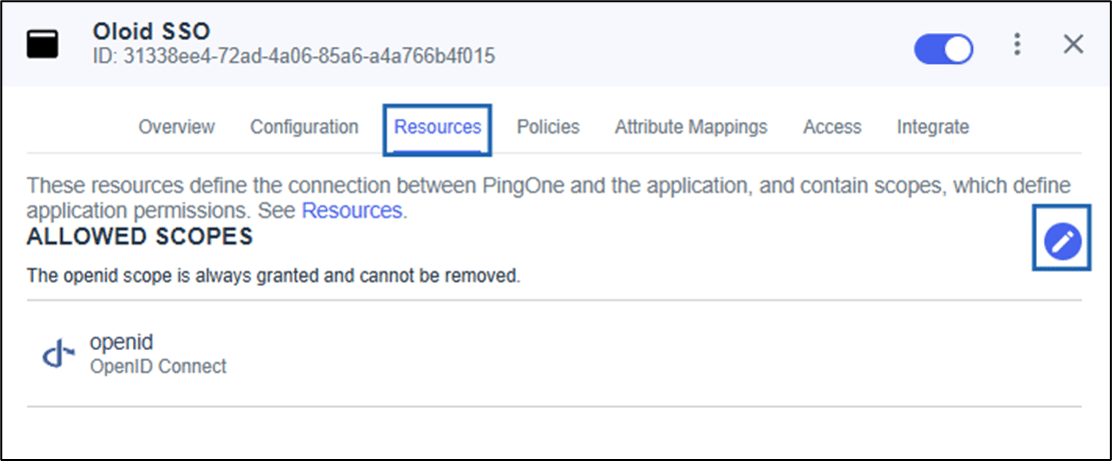
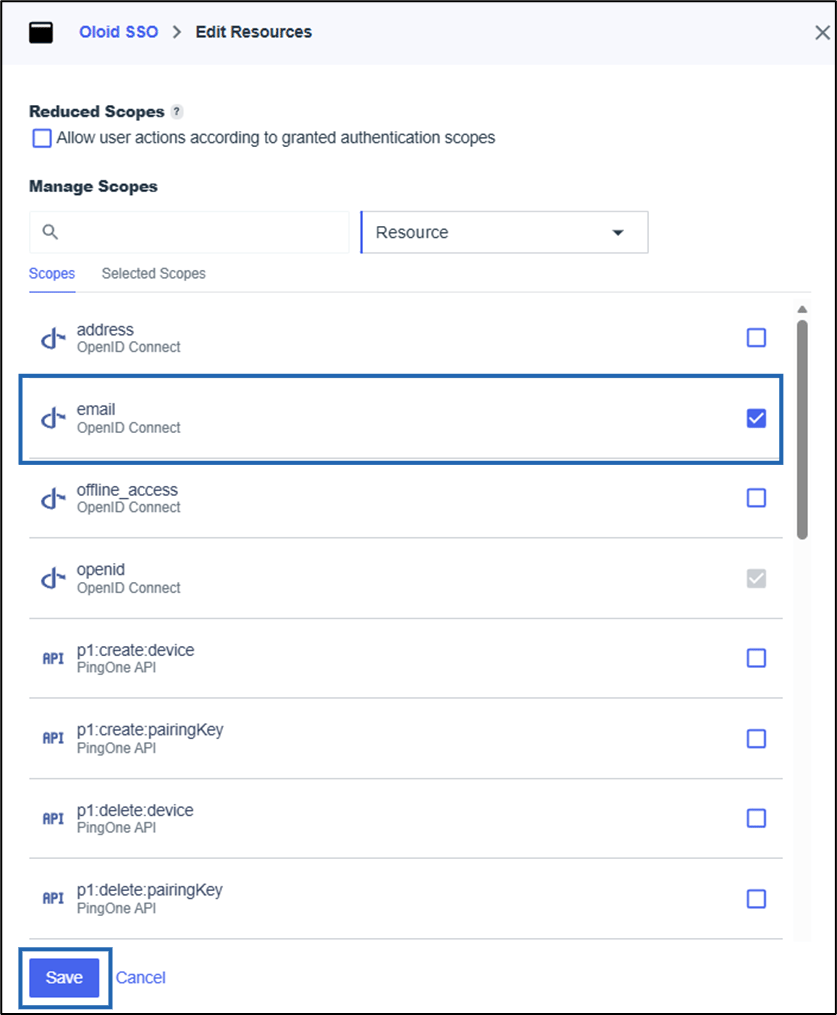
- Select email > click Save.