

Introduction
Prerequisite
- Ensure the endpoint is paired with the Windows Login application. For more information, refer: Windows Login - How to manually pair the Supervisor App
- Log in to the Supervisor App using an Admin or Supervisor account. For more, refer How to log in to Supervisor App
- Ensure at least one connection is configured for the selected application in the Tenant Admin Portal. For more information, refer: How to Configure a Connection in the Tenant Admin Portal
Steps to Add Face
- Log in to Supervisor App. For more, refer to How to log in to Supervisor App The Admin Home screen is displayed.
-
On the Admin Home screen, select User Management.

-
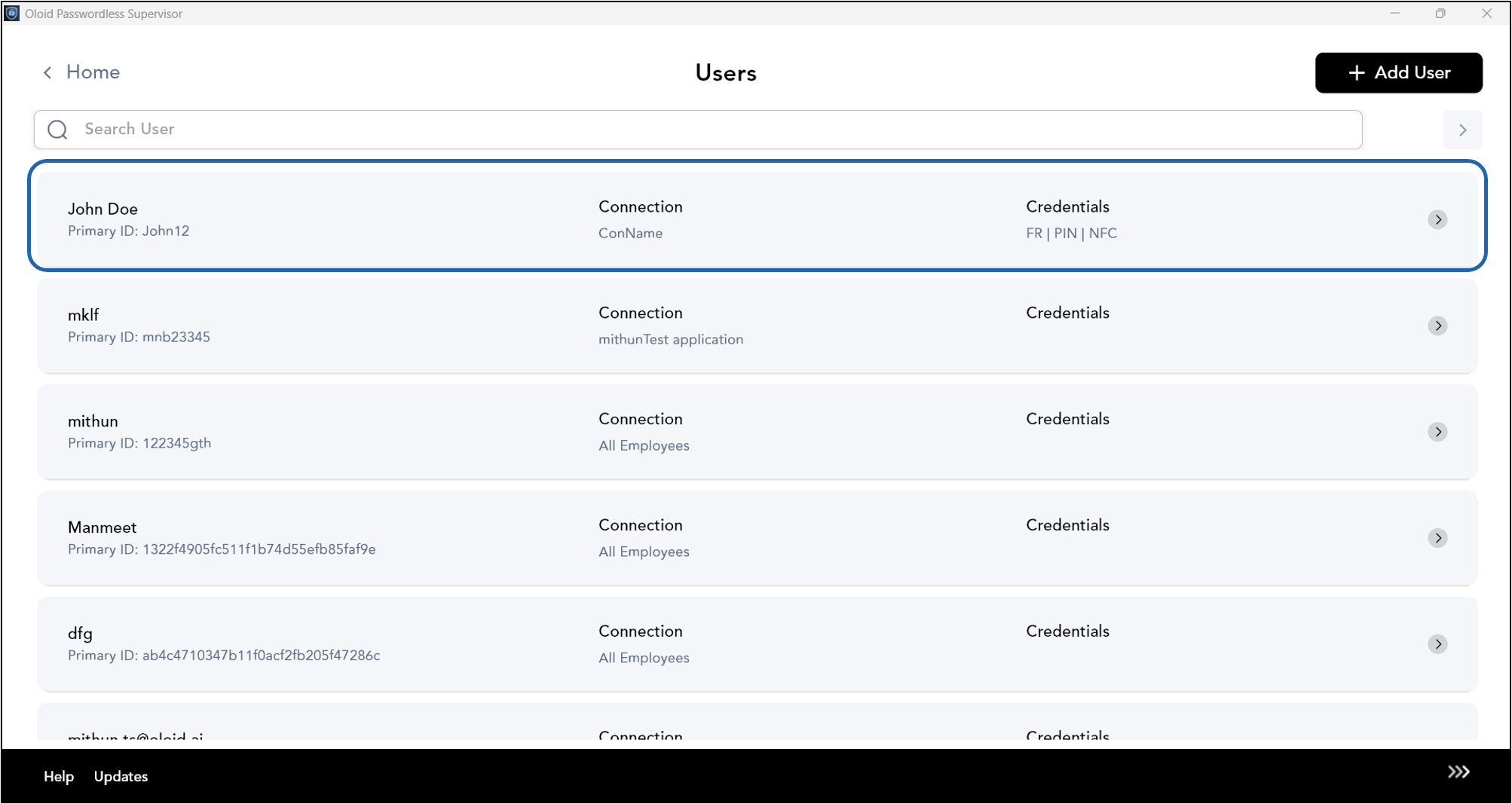
Select user from the list, or search for a user using the search bar at the top.
-
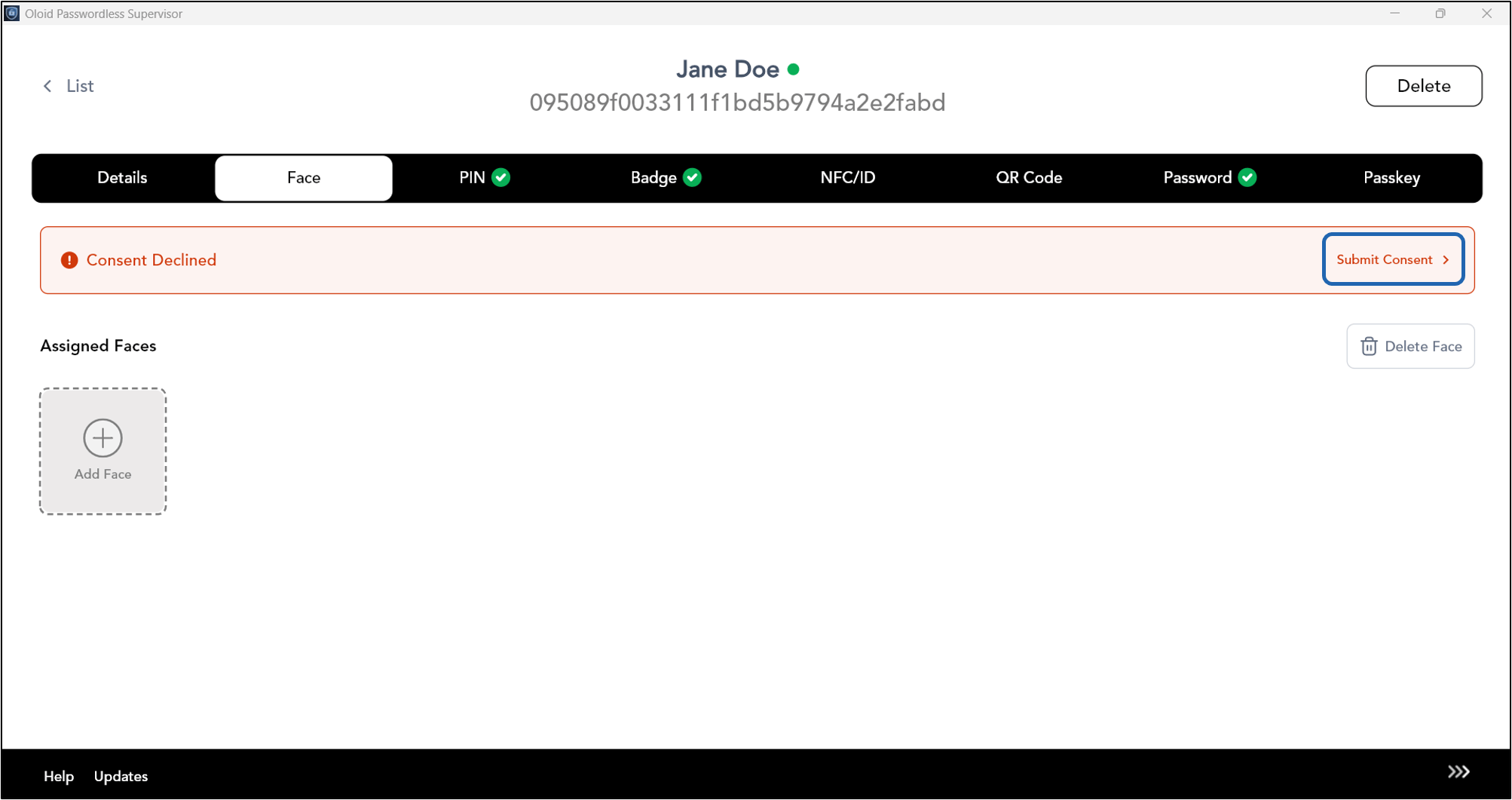
Click Submit Consent.
-
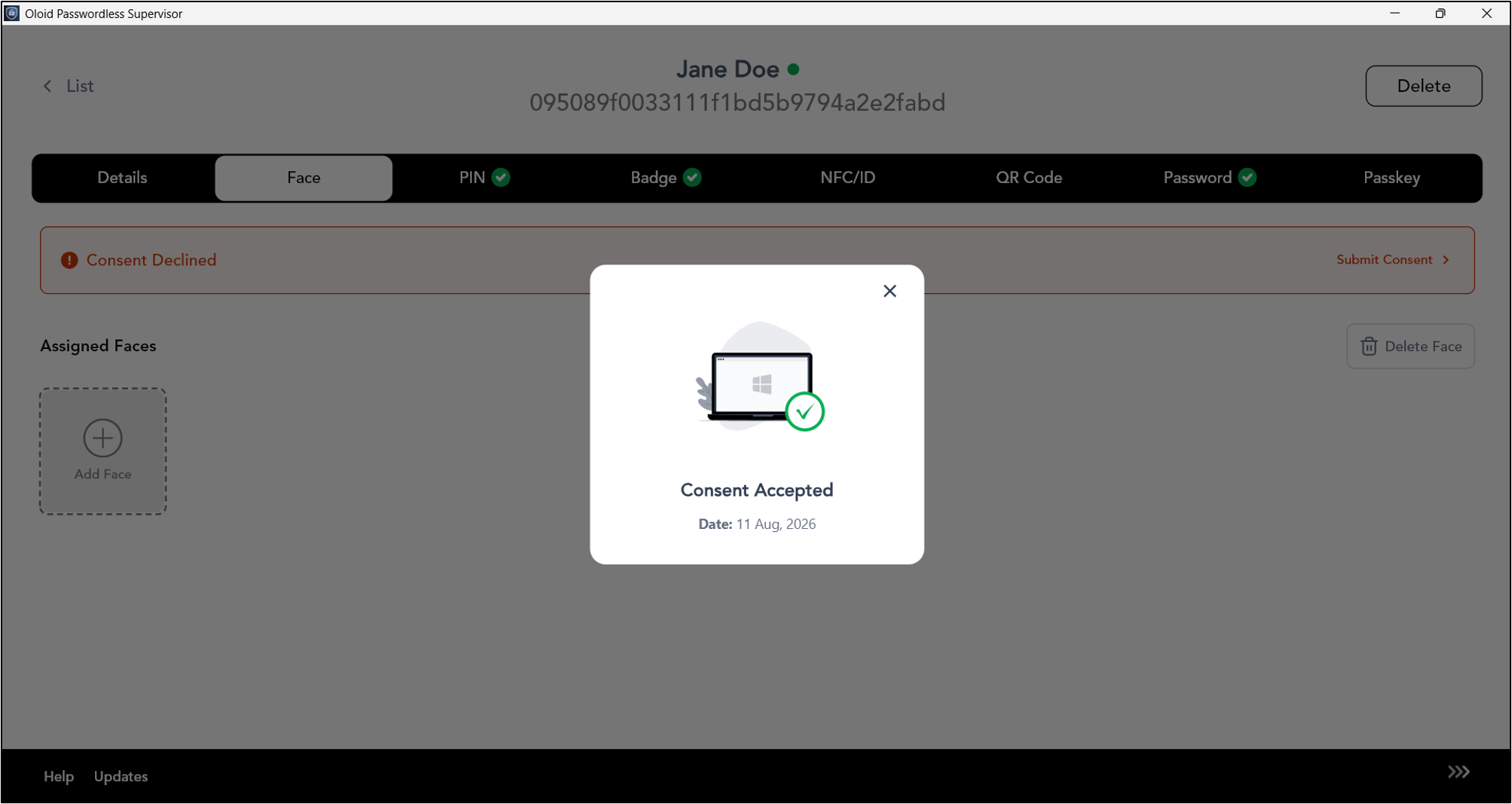
Click Agree.

-
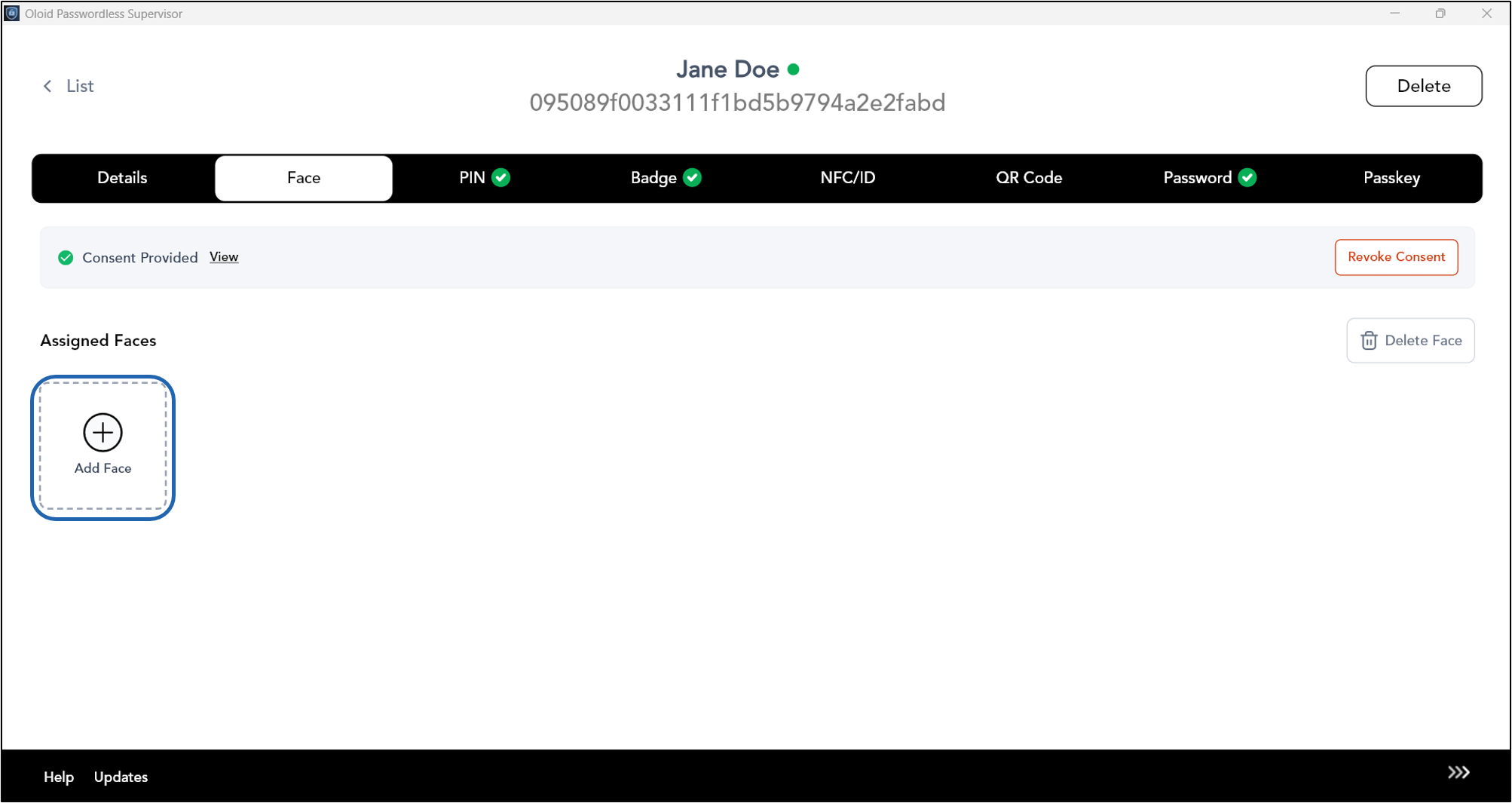
Select Face tab > Tap ADD +.
-
Position your face in front of the camera and tap the Capture button to enroll your face.
Note: If you do not tap the Capture button, the app automatically captures your face after a few seconds.
-
Do one of the following:
- Tap Yes- Submit to submit the image. The face is submitted successfully and is displayed on the details screen.
- Tap No- Retake to take the photo again. The camera turns on to retake the photo.