

Introduction
Prerequisite
- You must have access to the Tenant Admin Portal.
- Ensure Windows Post-login Module is enabled.
- Ensure the ‘Enable Badge Out’ feature (Tap to Lock/Logout) is not active in the linked Application’s Configure tab.
Steps to Configure Post Oloid Login
- Log in to the Tenant Admin Portal.
- On the home page of the portal, click Endpoints on the left menu panel.
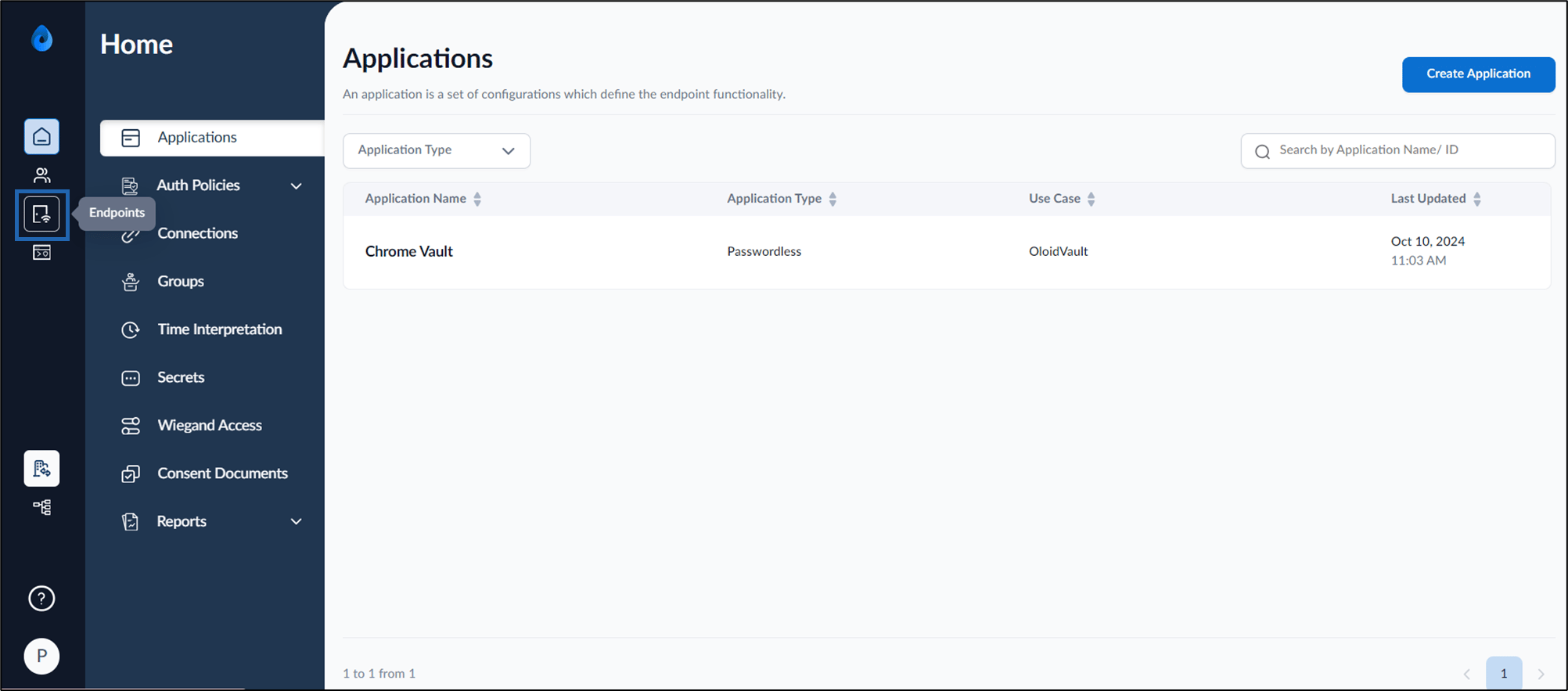
- Click an endpoint name to edit from the listed endpoints. The Endpoint details page is displayed.
- Select Post-Login tab > Click Post Oloid Login.
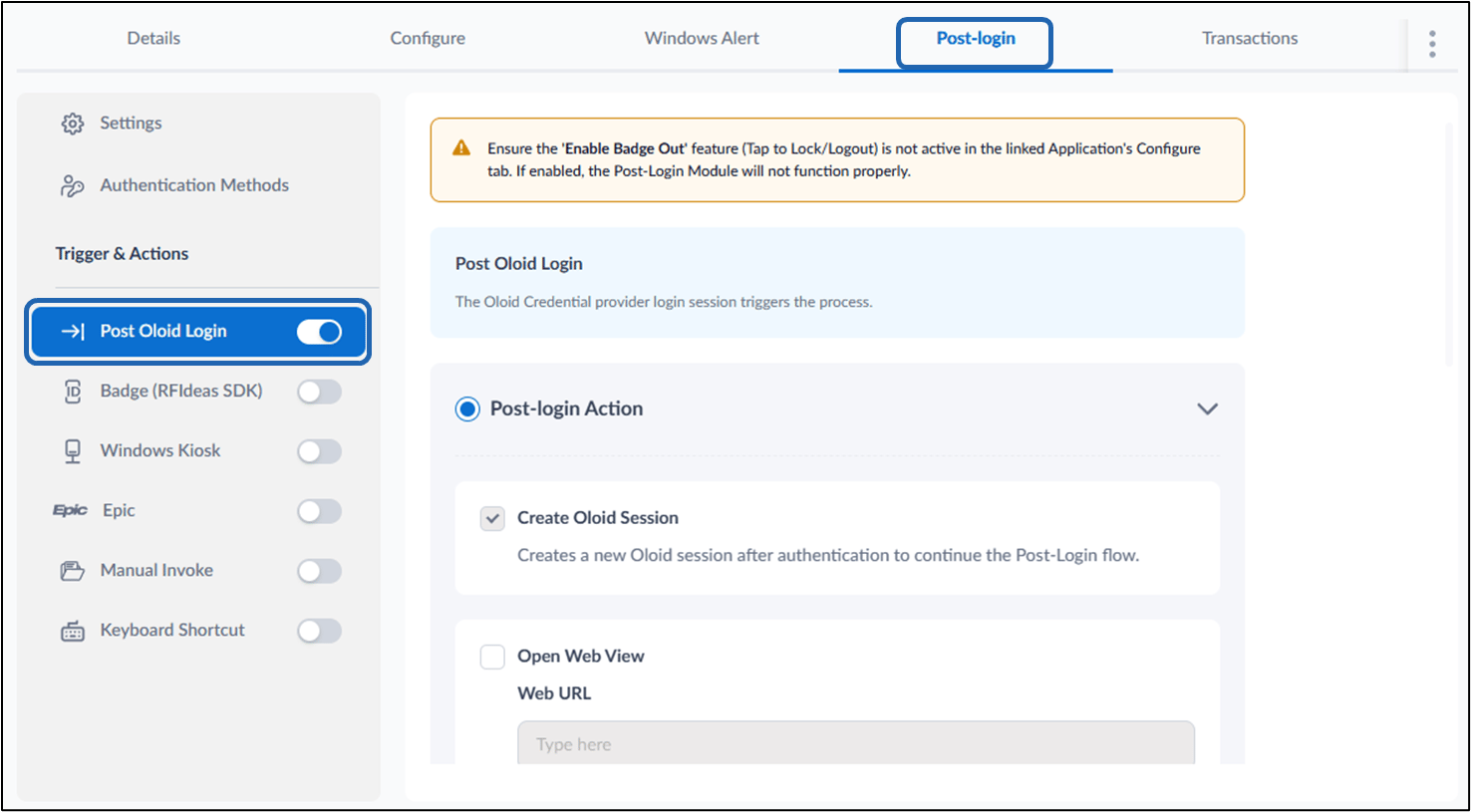
- Do the following:
- Open Web View: Select the Open Web View checkbox.
- Enter the Oloid User Portal URL as recommended by your Oloid representative.
- Invoke a .SH script file: Select the Invoke a .SH script file checkbox.
- Enter the local path to the .SH script file.
- Open Browser with configured URL: Select the Open Browser with configured URL checkbox.
- Enter the Auto-SSO URL provided by your Oloid representative.
- Redirect to Epic SAML SDK: Select the Redirect to Epic SAML SDK checkbox.
- Enter the static client ID. Refer to documentation for configuration details.
- Click Save.