

Application to be installed
- .Net SDK (prerequisite)
- C++ Redistributable (prerequisite)
- Oloid Windows Device Login
Installation Procedure
Steps to install .Net SDK
- Download the dotnet-sdk-6.0.416-win-x64 file on your system.
- Click dotnet-sdk-6.0.416-win-x64 file to open.
- Click Install.

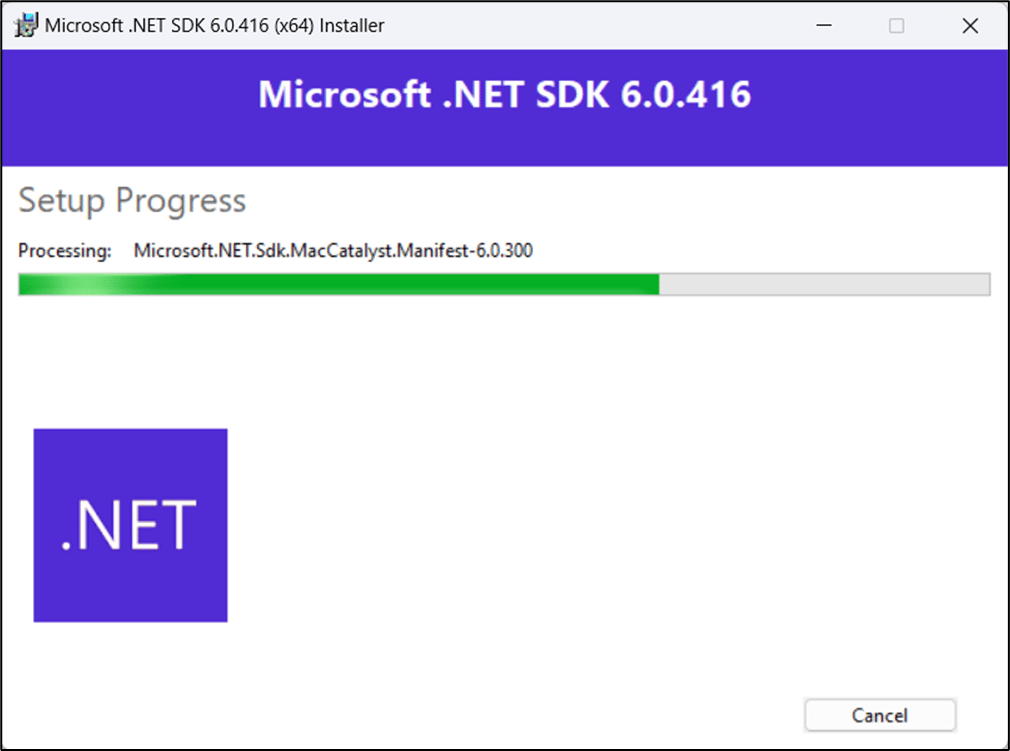
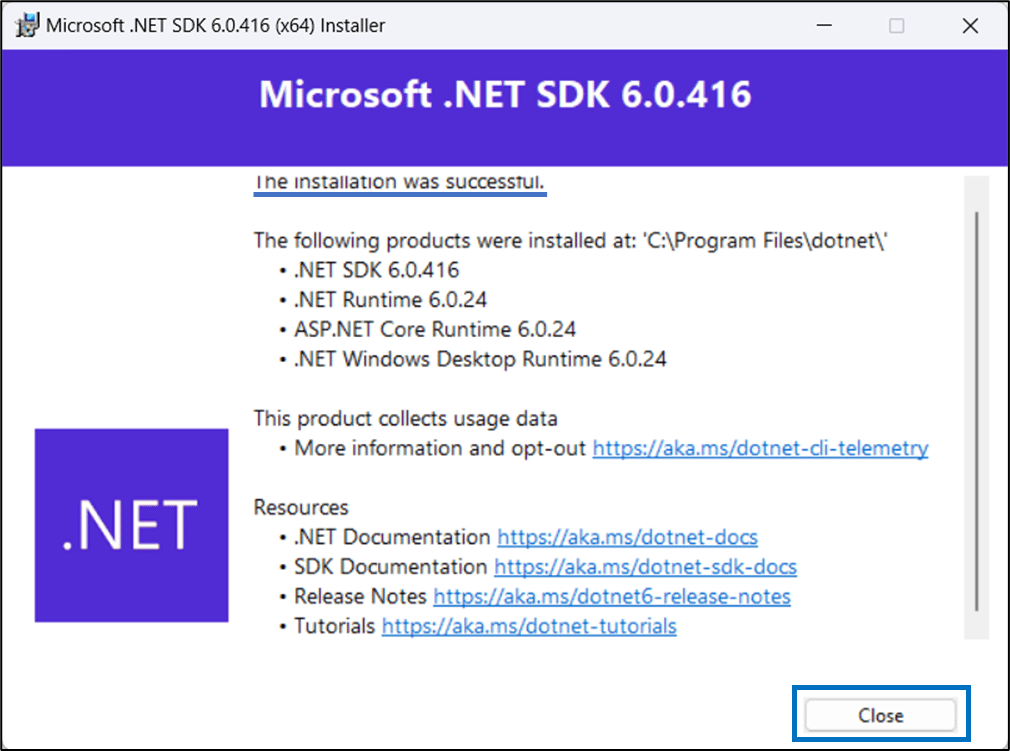
- On successful installation, click Close.
Steps to install Microsoft Visual C++ Redistributable
- Download the VC_redist.x64 file on your system.
- Click VC_redist.x64 file to open.
-
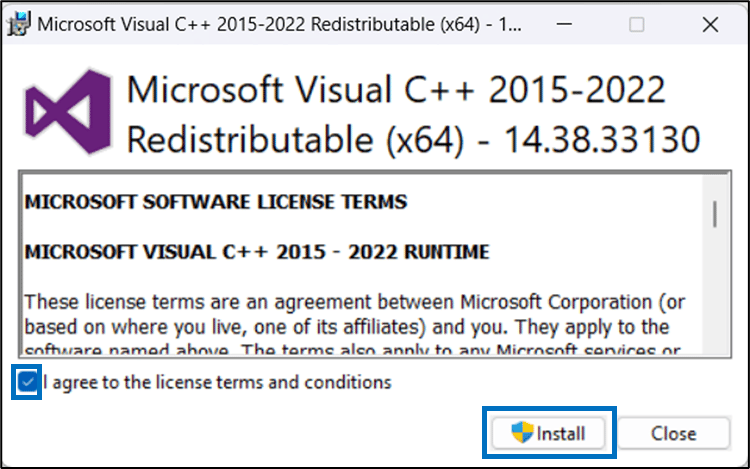
Select the license agreement checkbox and click Install.
The installation begins.
-
On successful installation, restart your system.
 Note: You must install the Windows installer file before restarting your system.
Steps to install Windows Installer file
- Download the WindowsDeviceLogin.zip file on your system.
- After the download is complete, unzip the WindowsDeviceLogin folder, and right-click to select Extract All.
- Select OloidPasswordlessAdmin.Setup and run it to install the application.
- On the OloidPasswordlessAdmin Setup wizard, click Next.
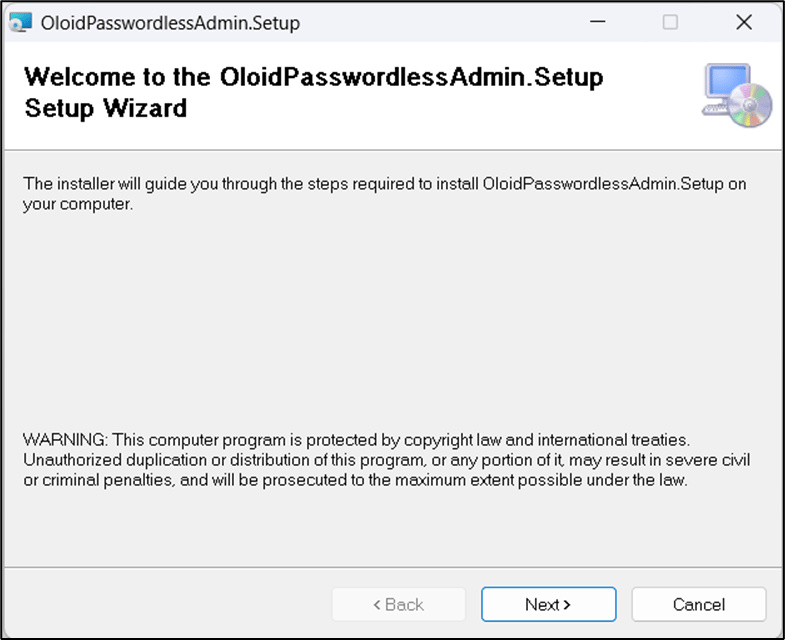
- Use the default path to install the application and click Next.
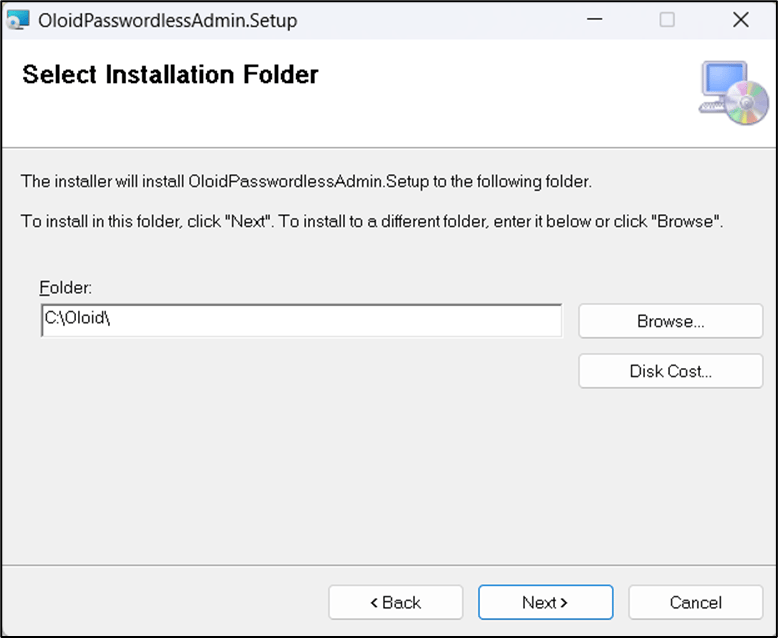
- Click Next to confirm the installation.

- Click Close after the installation is complete.
