

Introduction
The Chrome Vault application in the Tenant Admin Portal enables secure passwordless access to stored credentials. Admins can configure authentication methods such as Face, Badge ID, NFC/ID, and Oloid Session.Prerequisites
- You must have access to the Tenant Admin Portal.
- You must create a connection in the Tenant Admin Portal. To create connection, refer How to create Connections in the Tenant Admin Portal.
Steps to Create and Configure Chrome Vault Application
- Log in to the Tenant Admin Portal.
- On the Applications page, click Create Application on the top right corner.

- Do the following:
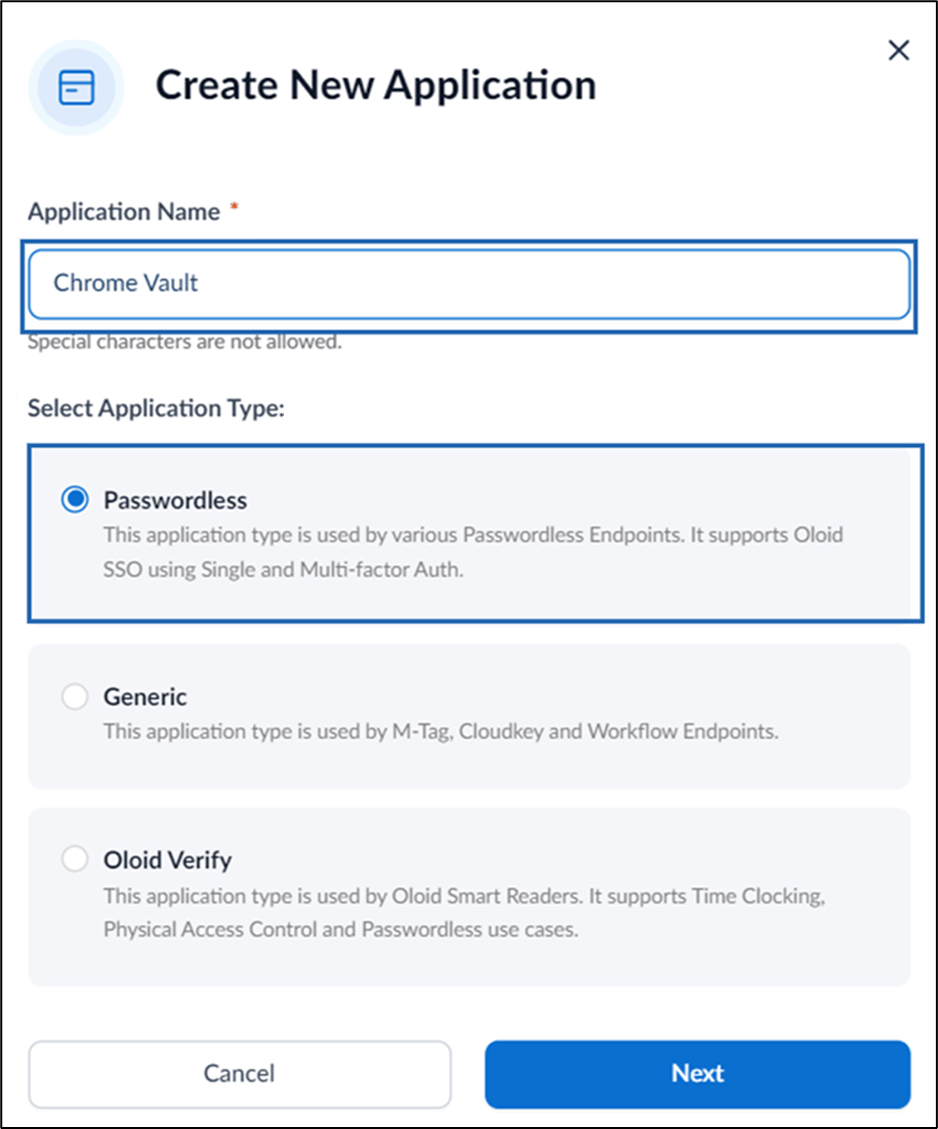
- Enter Application Name.
- Select Application Type as Passwordless.
- Click Next.
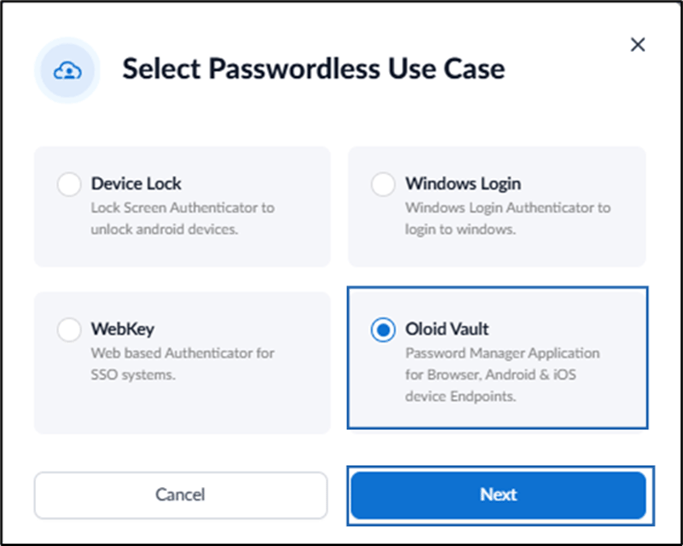
- Select Oloid Vault.
- Click Next.
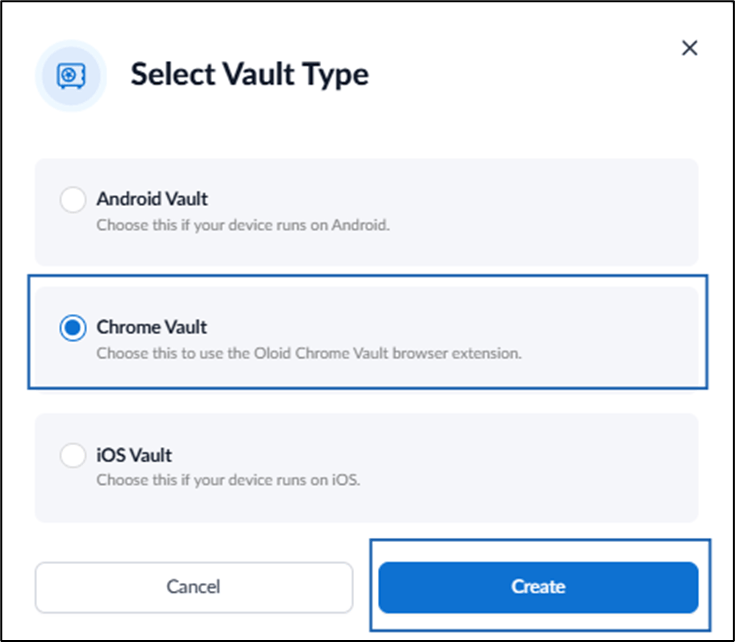
- Select Chrome Vault.
- Click Create
- Configure the following tabs:
Note: These settings need to be configured only once, and it is recommended to keep the default values.
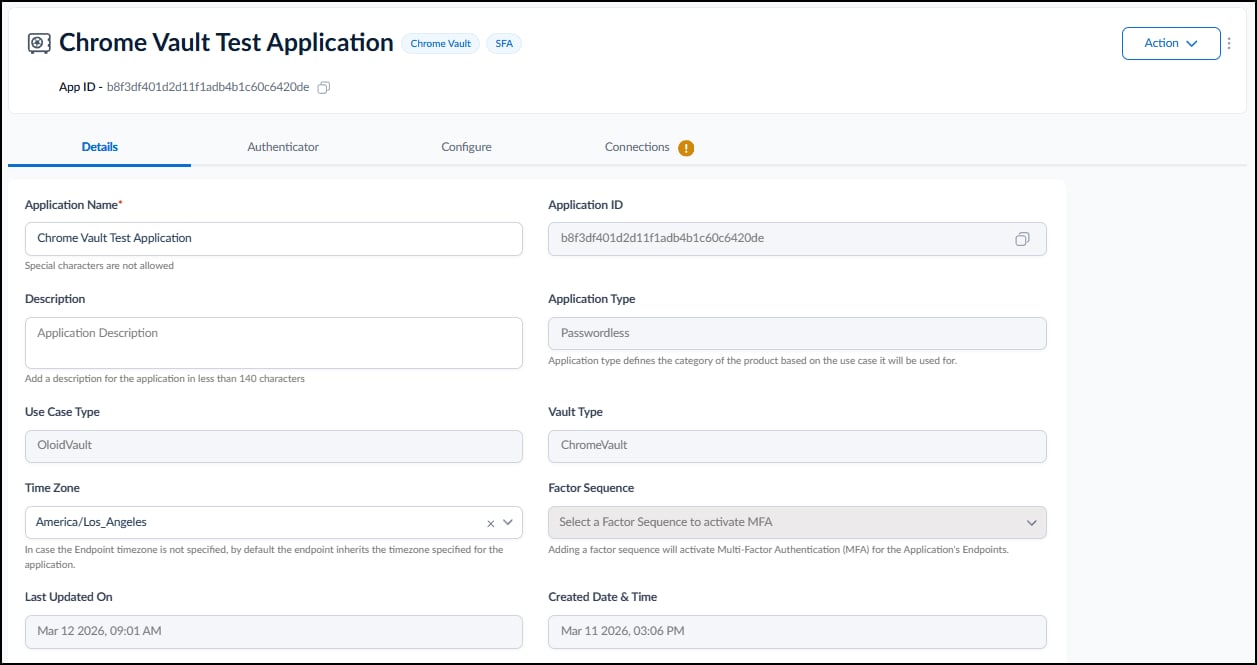
Configure Details Tab
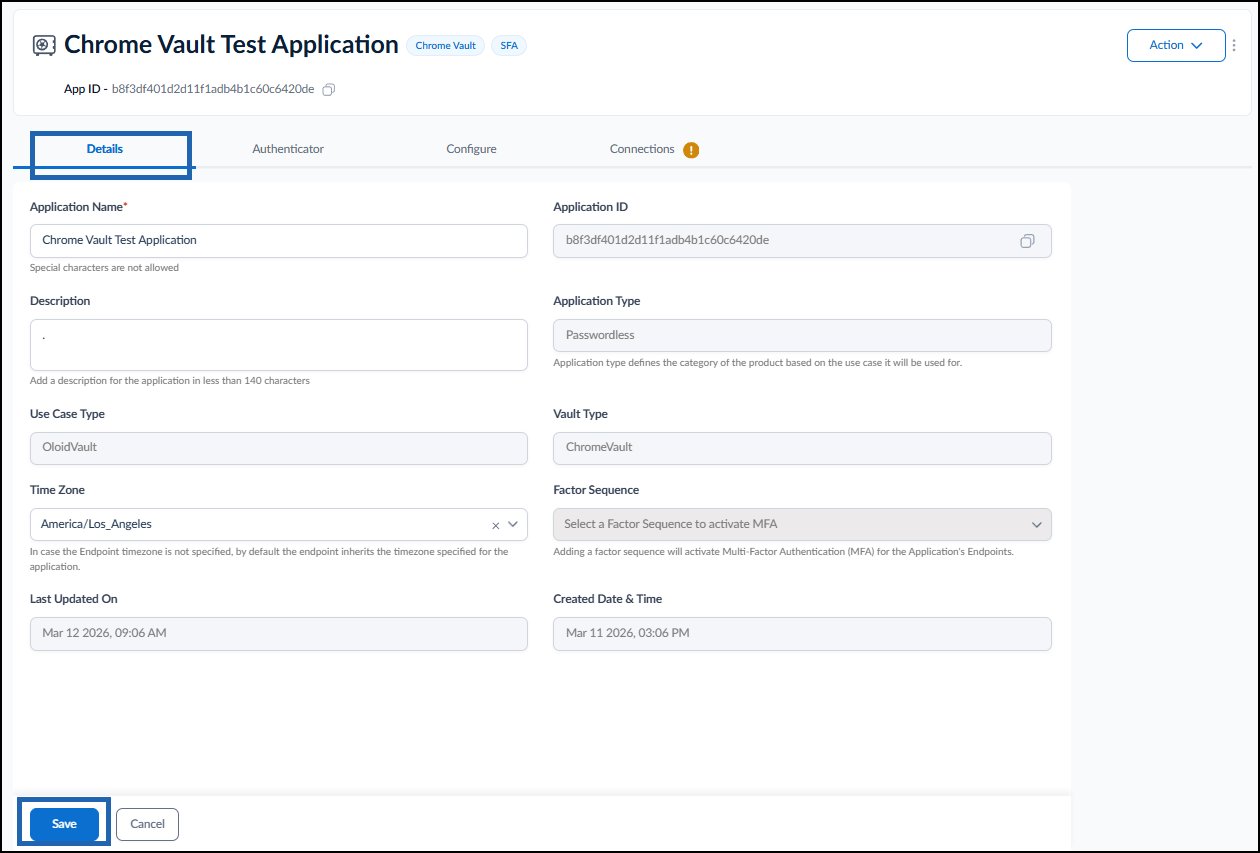
The Details tab is used to configure the basic application information, such as the application name, description, and time zone. Do the following:- Update the Application Name (if needed).
- Add the Description (Optional).
- Select the Time Zone from the drop-down menu.
- Click Save.
Configure Authenticator Tab
This tab is used to enable the login methods you want to support such as Face, Badge ID, NFC/ID and Oloid Session.Note: You can enable one or more credential options based on your requirements.
Face
The Face authenticator enables users to authenticate using facial recognition for secure passwordless access. Do the following:-
Enable Face toggle.

-
Configure the Face Match Parameters and Liveness Check Parameters on the Advanced Settings page.
Note: The parameters are pre-configured. This is done by Oloid admin.
- Click Save.
Additional Settings
-
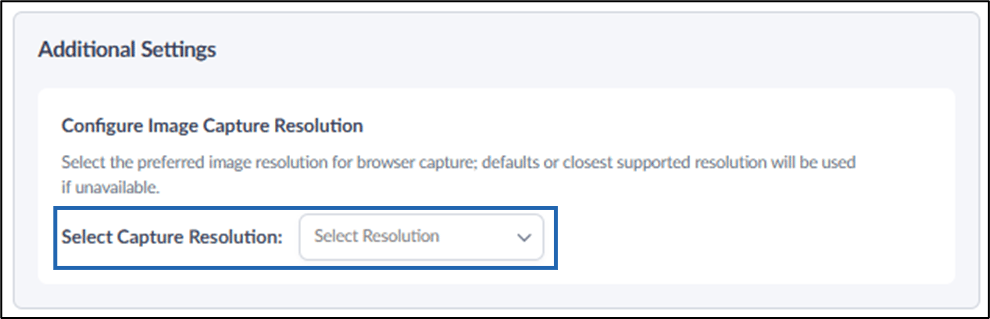
Configure Image Capture Resolution: Select the preferred resolution from the Select Resolution drop-down.
Note: If the selected resolution is not available, the browser will default to the closest supported resolution.
-
Click Save.
Badge ID
The Badge ID authenticator allows users to authenticate using a badge for quick and secure access. Do the following:- Enable Badge ID Toggle.
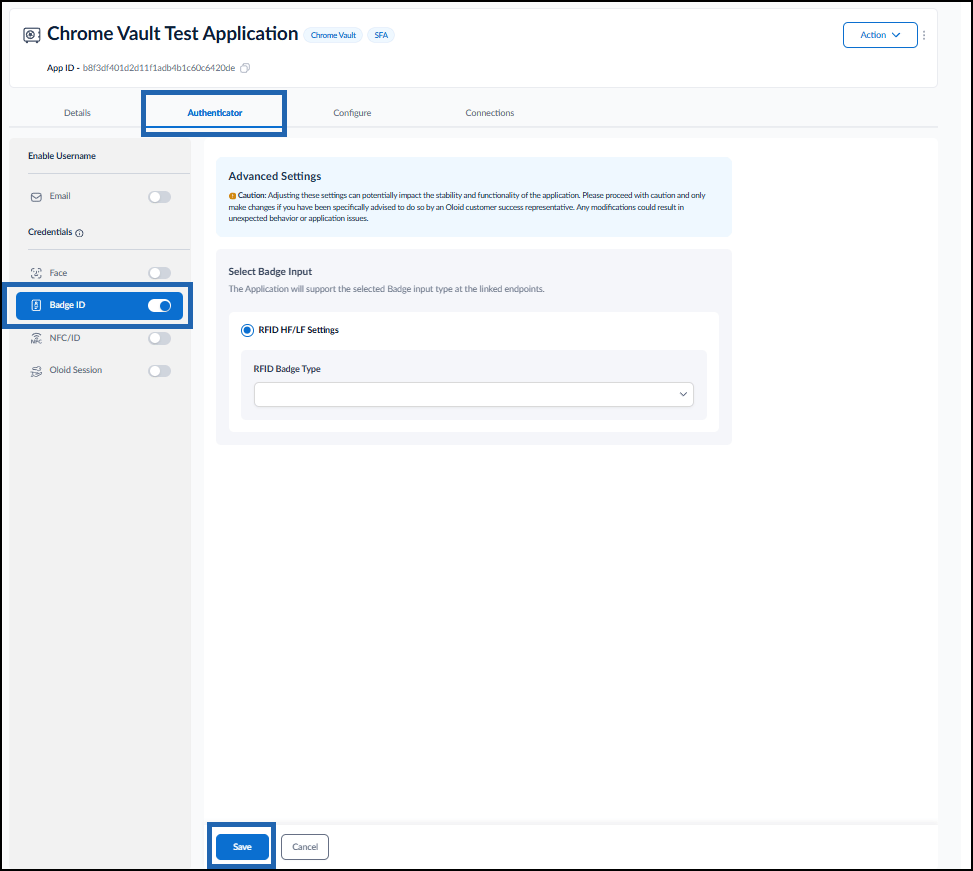
- Select RFID Badge Type from the drop-down.
- Click Save. The Badge ID is configured successfully.
NFC/ID
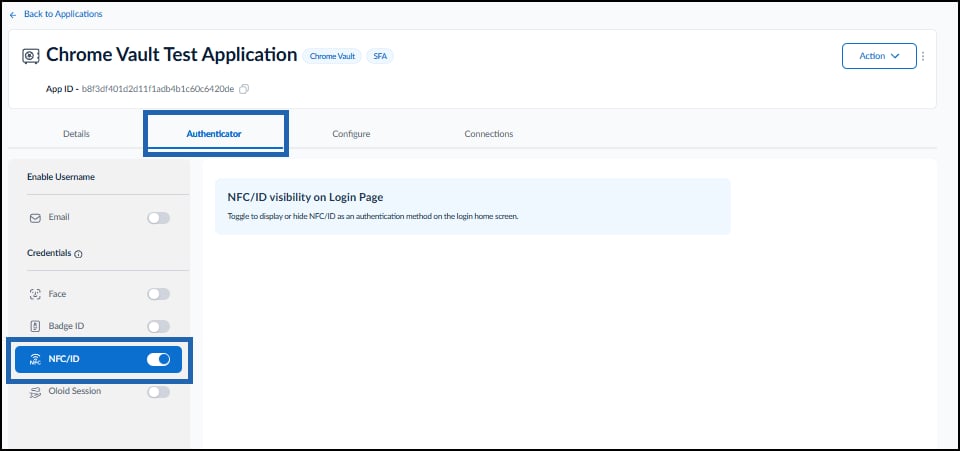
The NFC/ID authenticator allows users to authenticate by tapping an NFC card or ID badge on a supported reader, enabling quick and secure passwordless access.- Enable the NFC/ID toggle.
The NFC/ID toggle is enabled successfully.
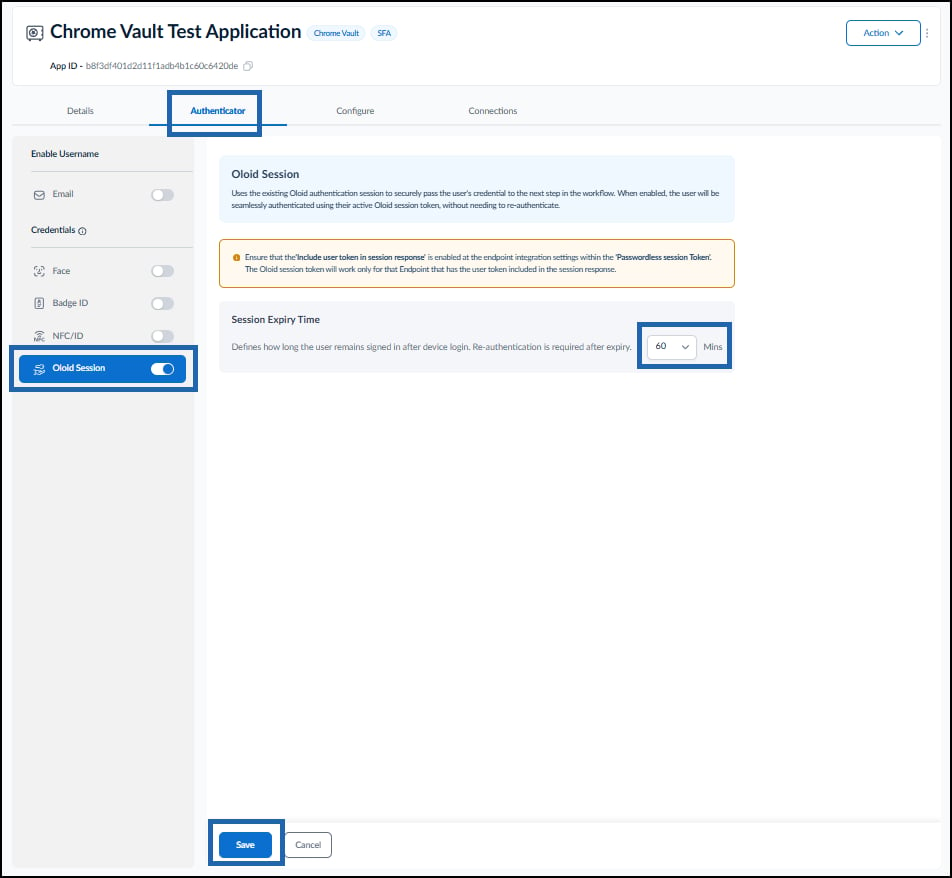
Oloid Session
The Oloid Session feature uses the existing Oloid authentication session to securely authenticate users without requiring re-authentication.Note: Ensure Include user token in session response is enabled in Endpoint Integration Settings under Passwordless Session Token, as the Oloid session token works only for endpoints that include the user token in the session response.
- Enable the Oloid Session toggle.
-
Select the Session Expiry Time with the help of drop-down.
Note: The maximum expiry time is 60 minutes.
-
Click Save.
Setup Configure Tab
Do the following:Configure Settings Tab
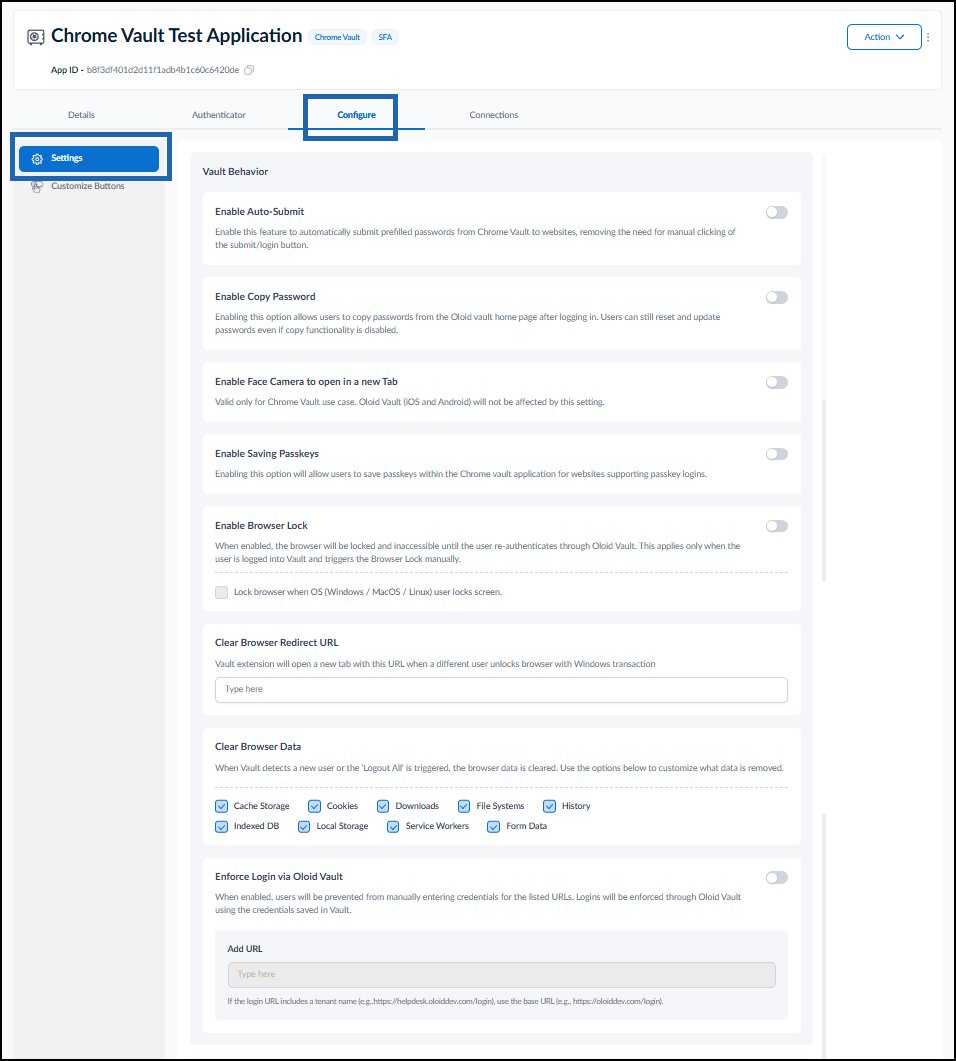
Vault Behaviour The Vault Behavior section is used to control how Oloid Vault behaves during login, browser interaction, password handling, passkey usage, and session-based actions. Do the following:- Enable Auto-Submit: Enable the toggle toautomatically submits prefilled passwords from Chrome Vault to websites.
- Enable Copy Password: Enable the toggle to allow users to copy passwords from the Oloid Vault home page after logging in.
- Enable Face Camera to open in a new Tab: Enable the toggle to open the face camera in a new tab for Chrome Vault users.
- Enable Saving Passkeys: Enable the toggle to allow users to securely store and use passkeys within the Chrome Vault application for websites that support passkey authentication.
-
Enable Browser Lock: Enable the toggle to lock the browser when the user signs out of Oloid Vault or triggers Browser Lock manually.
Note: Select Lock browser when OS (Windows / MacOS / Linux) user locks screen to automatically lock the browser when the system screen is locked.
- Clear Browser Redirect URL: Enter the URL that opens in a new tab when a different user unlocks the browser using a Windows transaction.
- Clear Browser data: Select the applicable data to clear browser data when a new user unlocks the browser or when Logout All is triggered.
-
Enforce Login via Vault: Enable the toggle to require authentication to specified URLs using Oloid Vault instead of manually entering credentials.
Do the following:
- Enable the Enforce Login via Oloid Vault toggle.
- In the Add URL field, enter the login URL where Vault-based authentication must be enforced.
-
Click Save.
-
Session Limit: Set the maximum duration a user can remain signed into the Chrome Vault per session.
Note: The maximum session limit is 24 hours.
-
Inactivity Timer: Enable the toggle and set the time duration to protect user sessions from unauthorized access.
Note: Set the timer to automatically log off the user after a specified period of inactivity.
-
Click Save.

- Select the Endpoint Template from the drop-down.
- Click Save.

Customize Buttons Tab
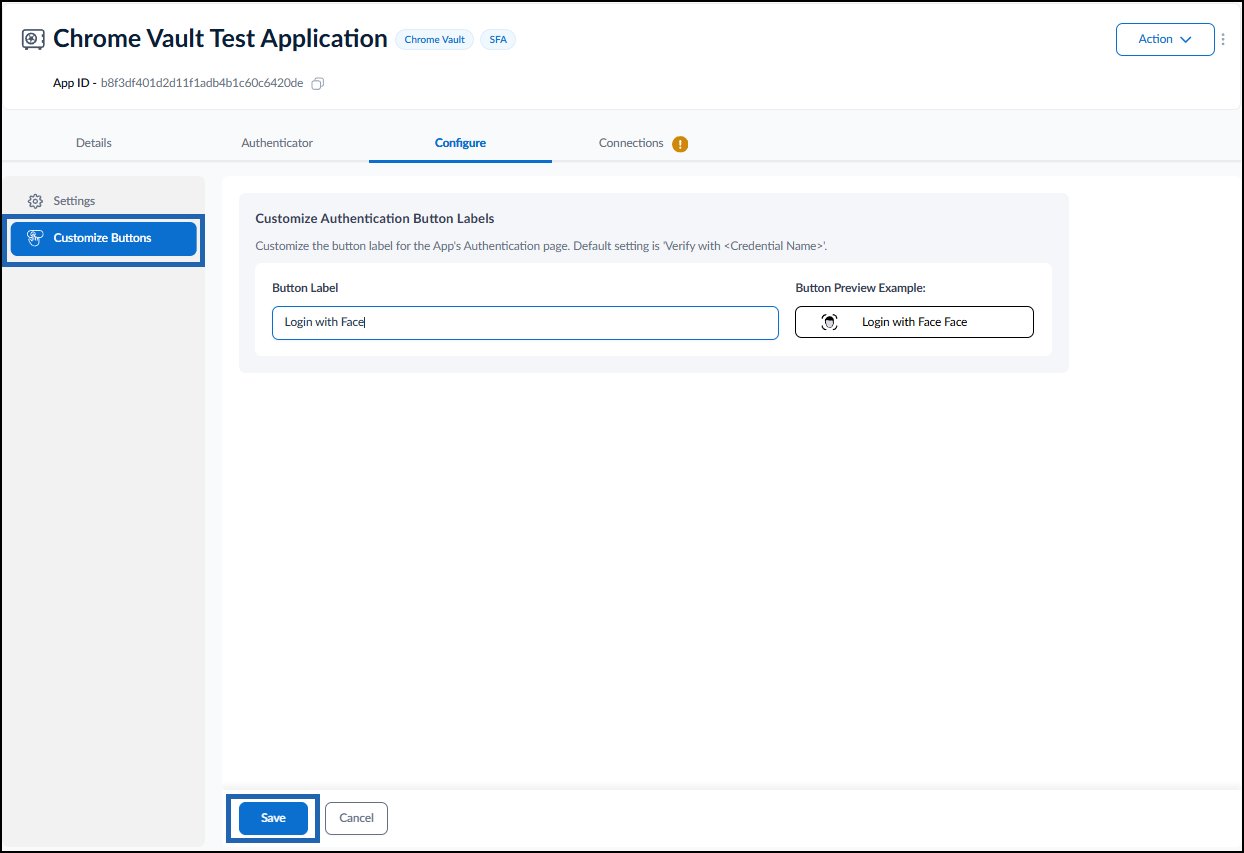
This section is used to customize the button label of your application’s authentication page by following the on-screen instructions. Do the following:- Enter the Button Label.
- Click Save.
Configure Connections Tab
This tab is used to select the connections that provide the set of users allowed to authenticate via chrome vault application. Do the following:- Select + Add Connections.

- Select connection from the drop-down list and click Add.
