

Steps to add QR code
- Log in to admin mode in Oloid verify App. See How to log into the admin mode of Oloid Verify App as a Supervisor/Admin too know more The Users page is displayed.
- Select a user.


- Go to QR Code > click + Add QR Code.
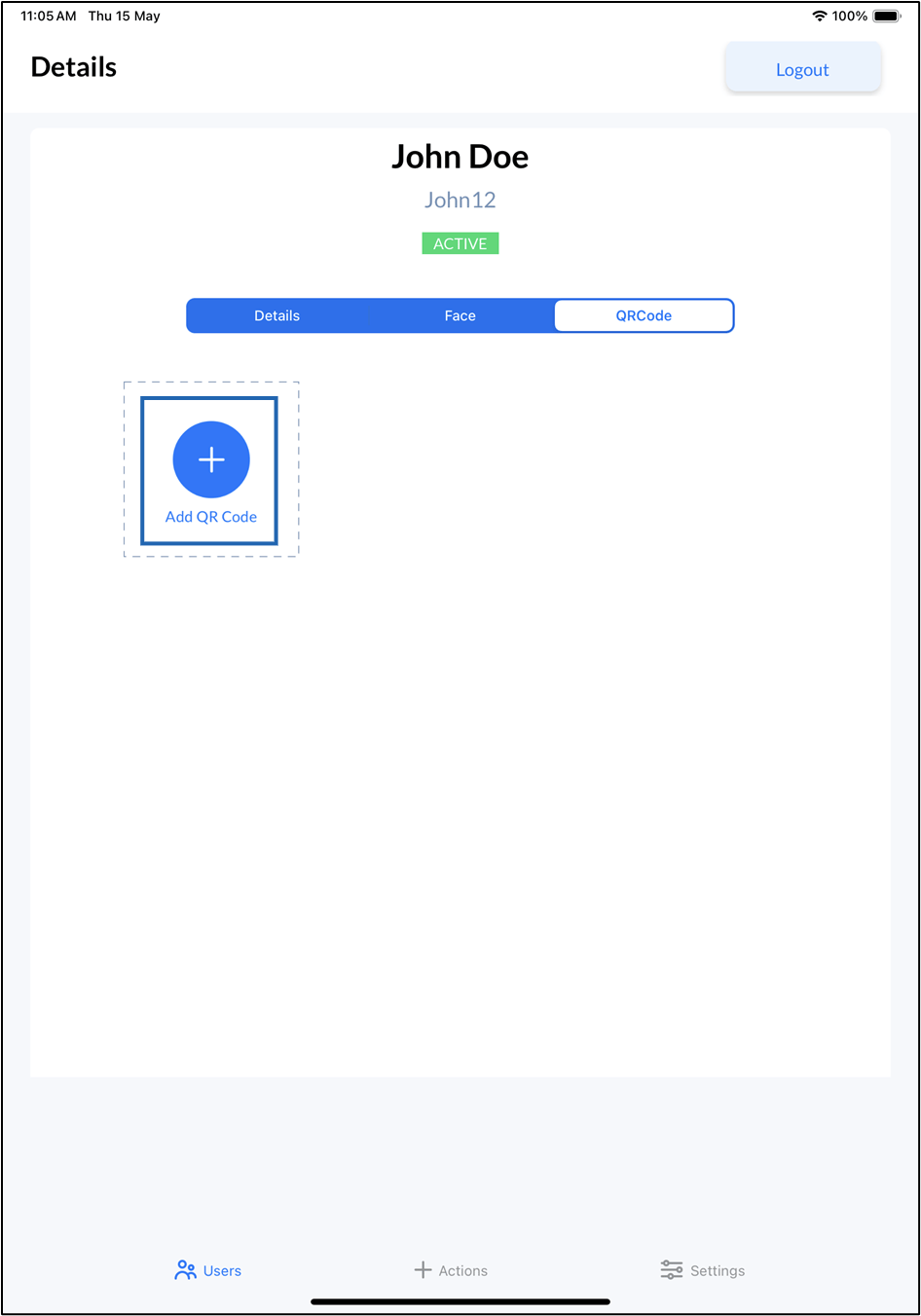
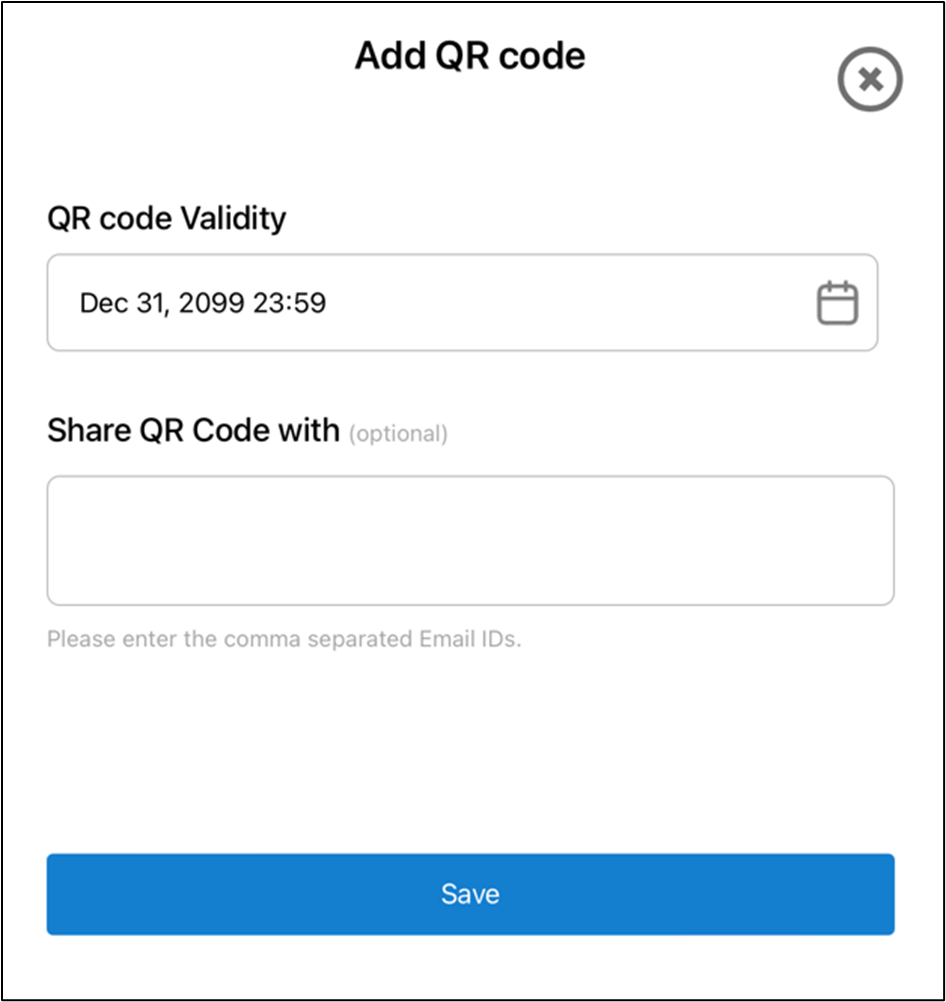
- On the pop-up, do the following.
-
Select QR Code Validity.
Note: The default value for QR Code validity is Dec 31, 2099 23:59.
-
Enter Email ID(s) in Share QR Code with. (Optional)
Note: Separate the Email IDs with a comma.
-
Click Save.
The QR Code is generated successfully.

-
Select QR Code Validity.