

- Log in to the Oloid Portal.
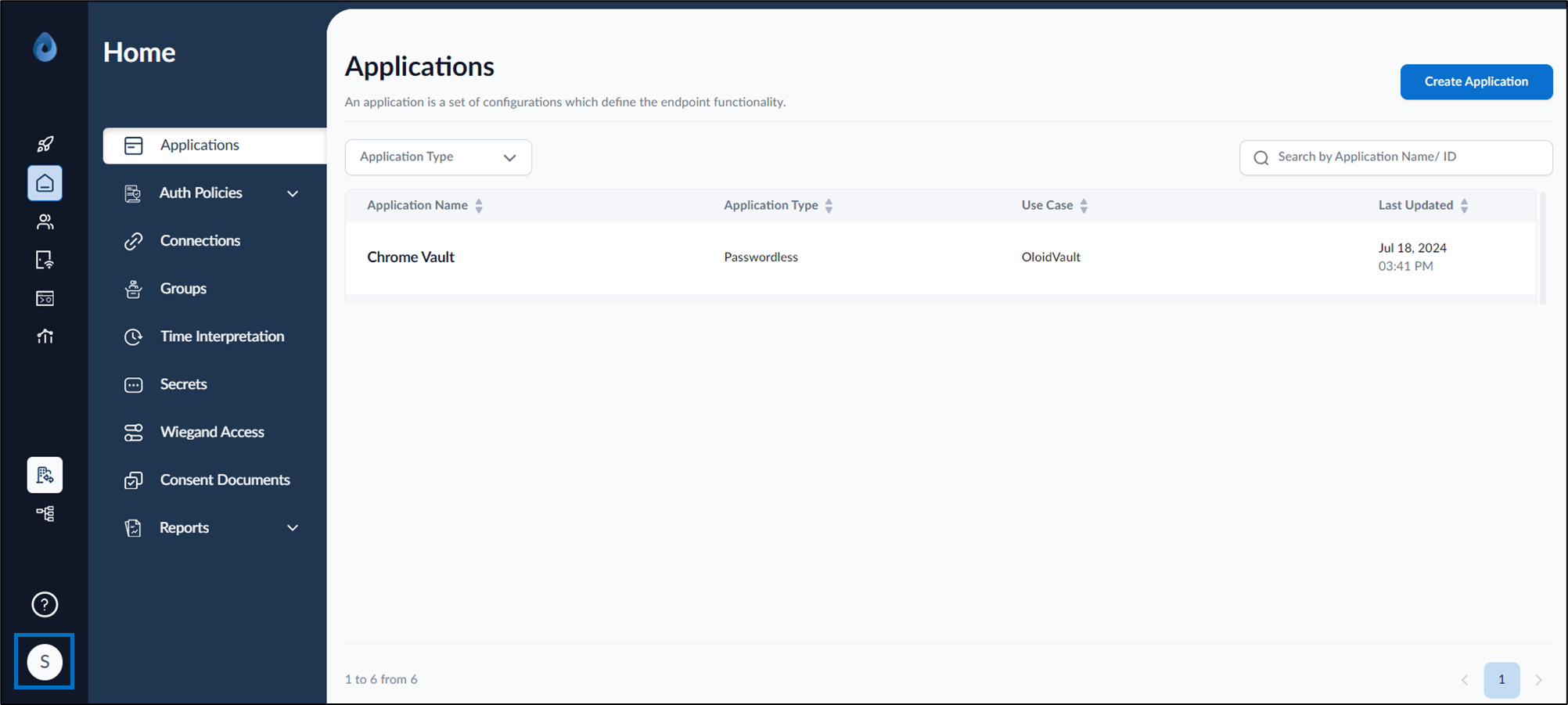
- On the homepage of the portal, click user profile icon on the bottom left corner of the menu panel.
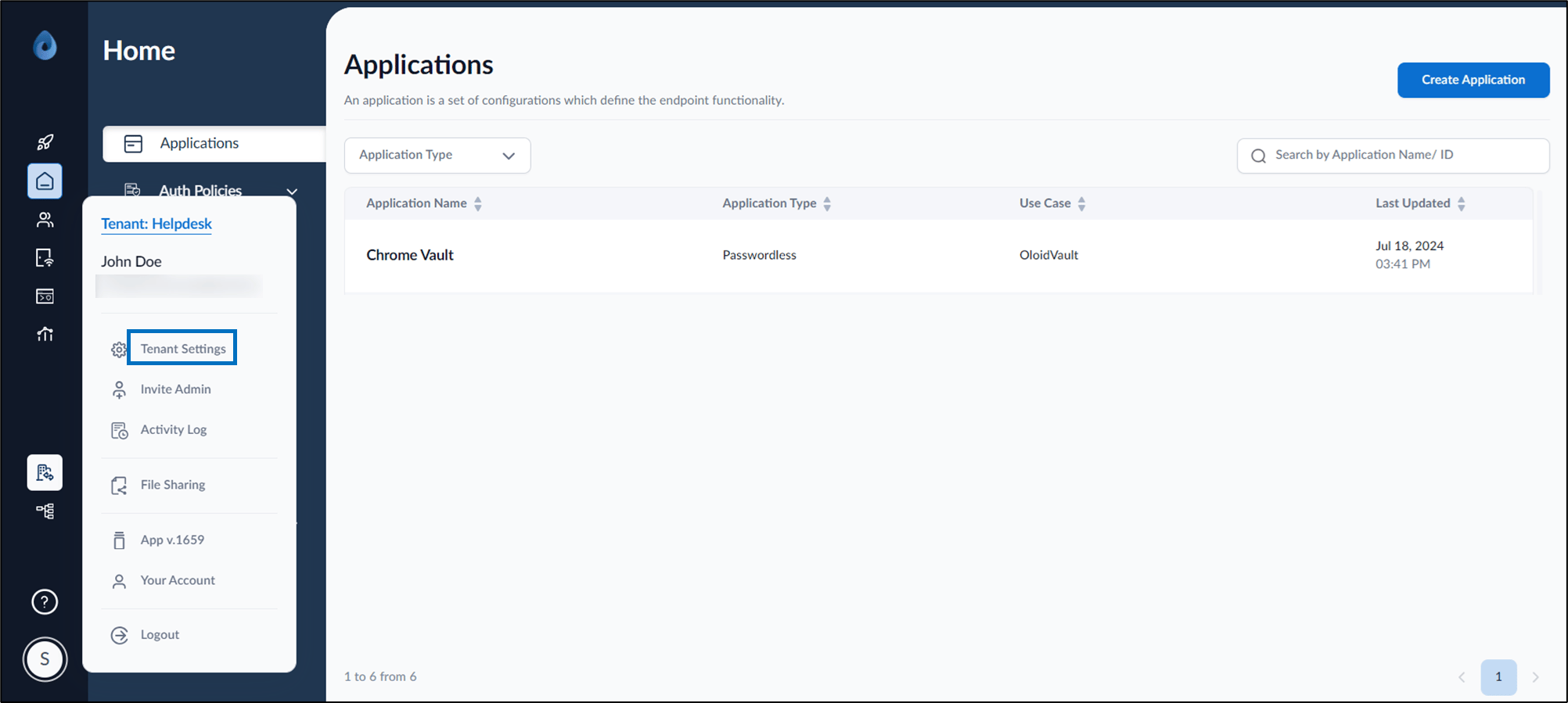
- Select Tenant Settings.
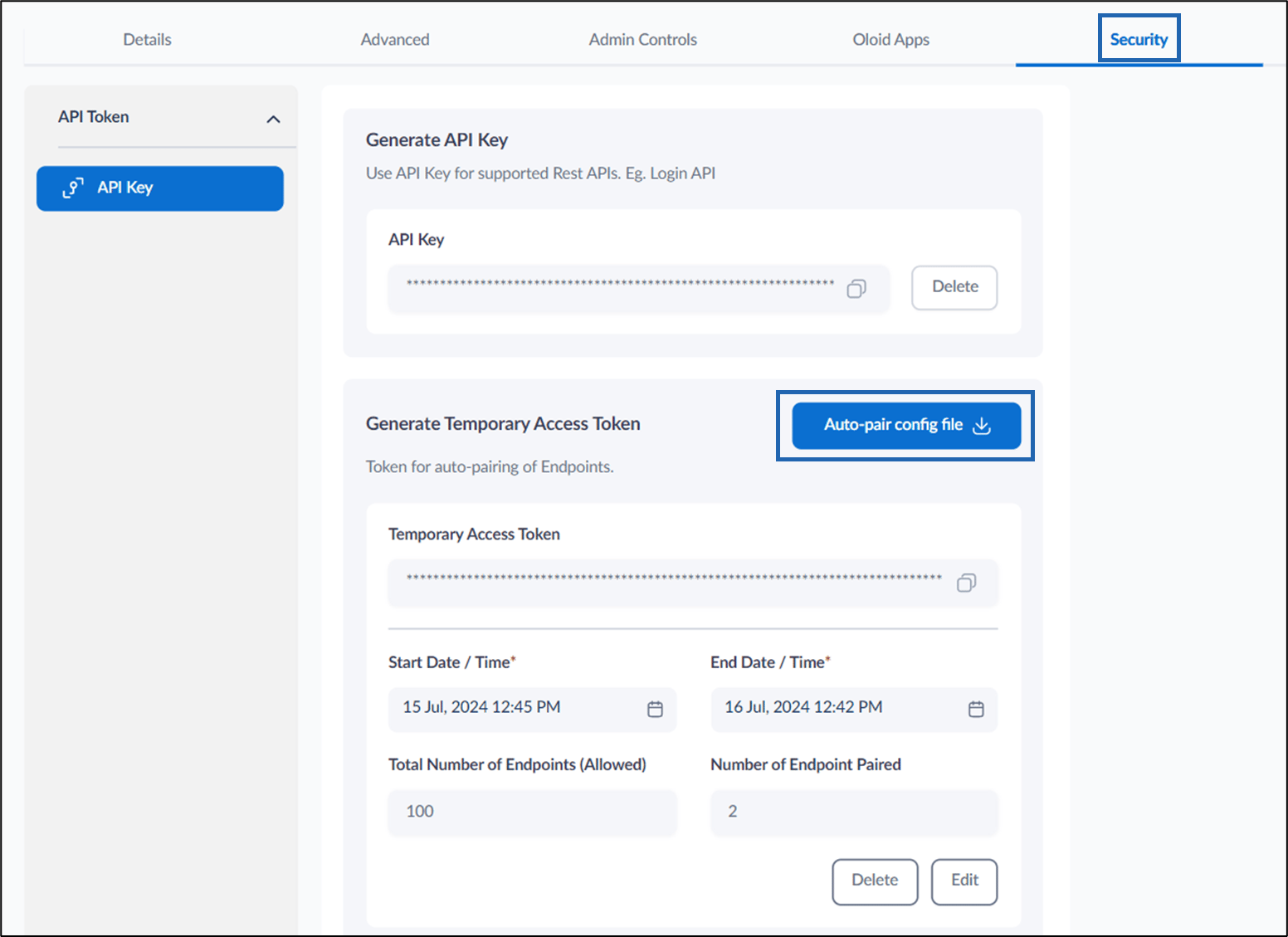
- Go to Security > API Key > Auto-pair config file.
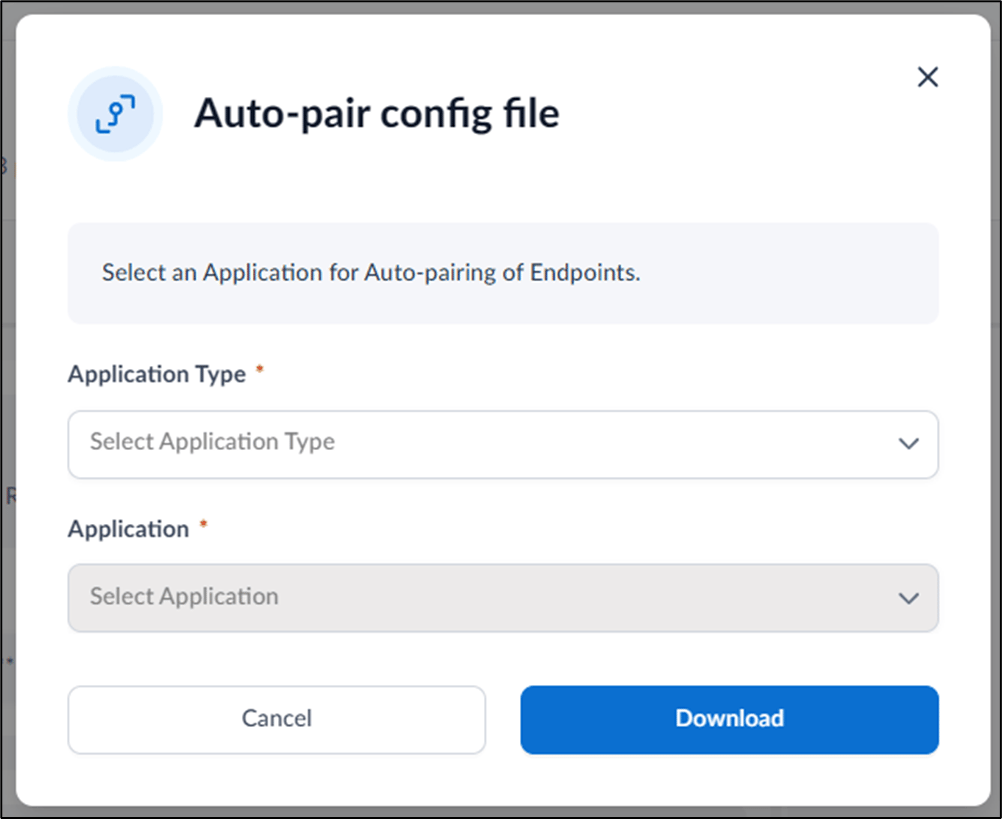
- Do the following:
- Select application type from the Application Type dropdown field.
- Select application from Application dropdown field.
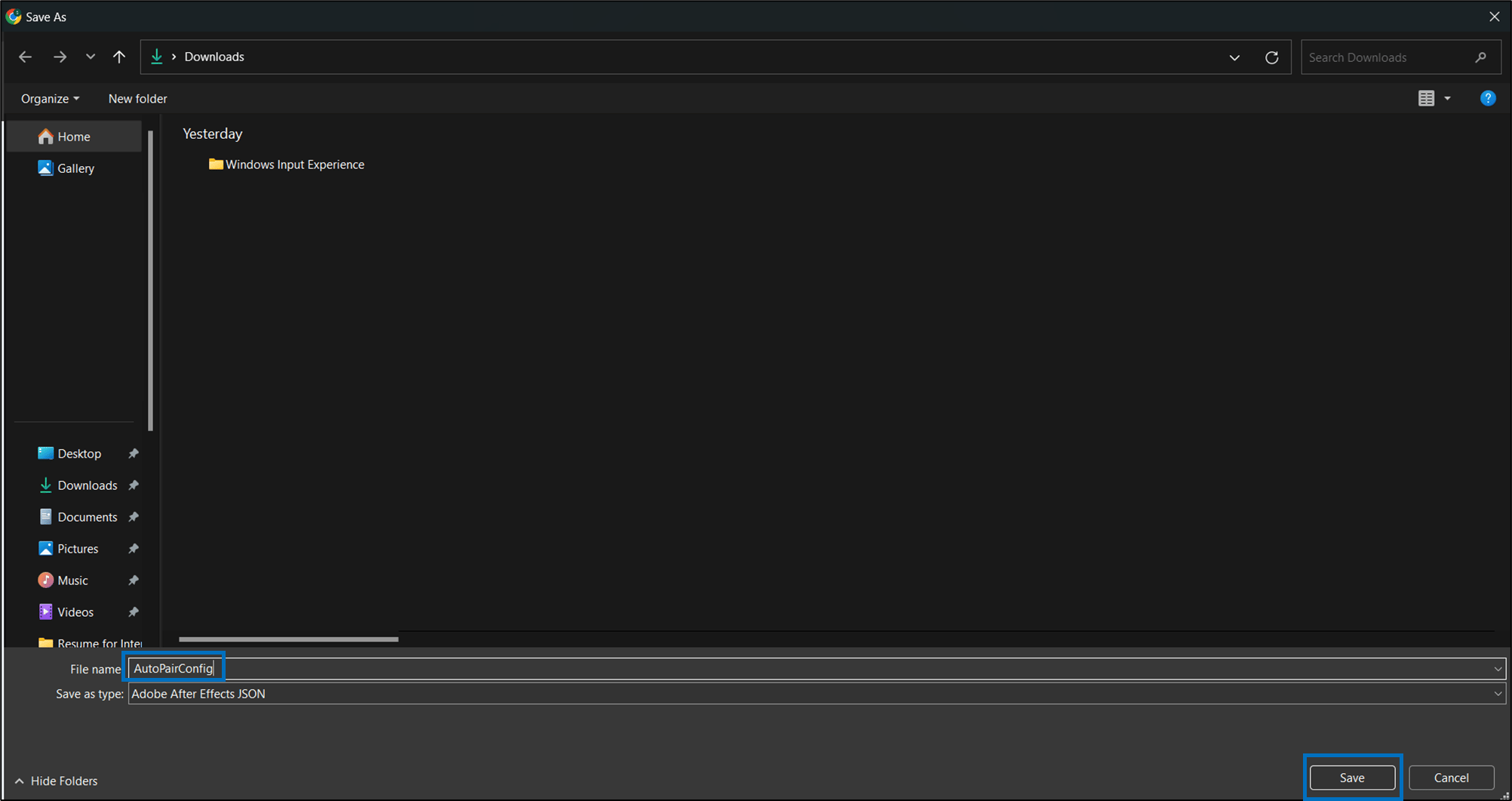
- Select Download. The Save As dialog box is displayed.
- Select the preferred folder to save the fileand then select Save.
How to download auto-pair config file from Tenant Settings for Chrome Vault
To download an endpoint config file:
To download an endpoint config file:
⌘I