

Introduction
In Oloid Portal, enabling Show on-screen keyboard feature display an on-screen keyboard during Windows login. This option is useful for devices without a physical keyboard, such as tablets.Steps to enable Show on-screen keyboard
- Log in to the Oloid Portal.
-
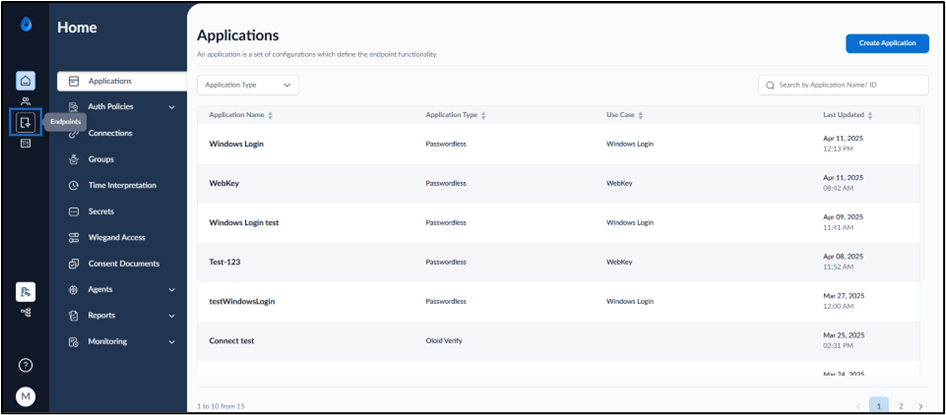
On the home page of the portal, click Endpoints on the left menu panel.
-
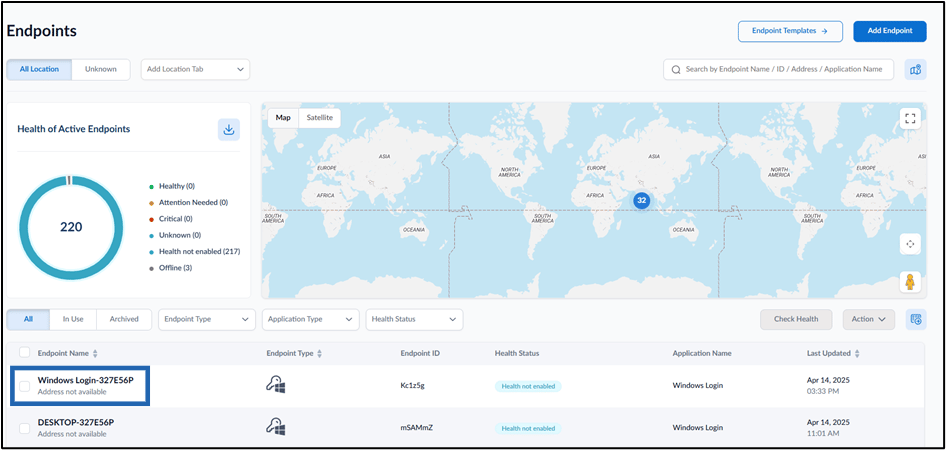
Select the paired Windows Login Endpoint.

-
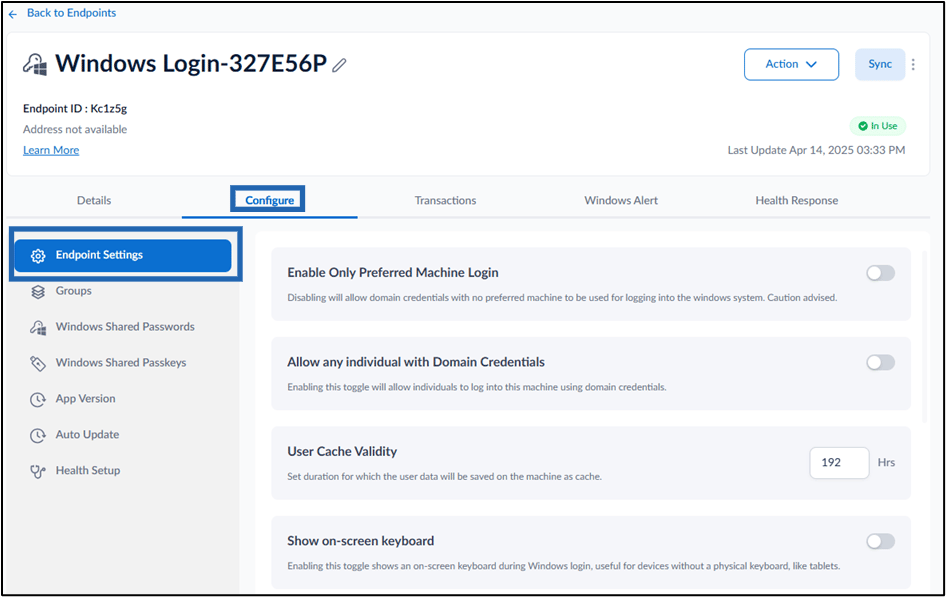
Go to Configure > Endpoint Settings tab.
-
Turn on Show on-screen keyboard toggle button to display an on-screen keyboard during Windows login. This option is useful for devices without a physical keyboard, such as tablets.

-
Click Save.
 Note: In Windows Authenticator app, you must sync the configuration to allow on-screen keyboard work properly. For more details, refer How to sync configuration in Supervisor App