Pre-requisite: You must create a Passwordless application of type Chrome Vault. For further details, refer How to create How to create and configure Chrome Vault application Steps to edit Configure tab:
  1. Log in to the Oloid Portal.
  2. On the Applications page, click on the Chrome Vault application to edit. How to edit Configure tab in Chrome... - screenshot 1 The application page is displayed. How to edit Configure tab in Chrome... - screenshot 2
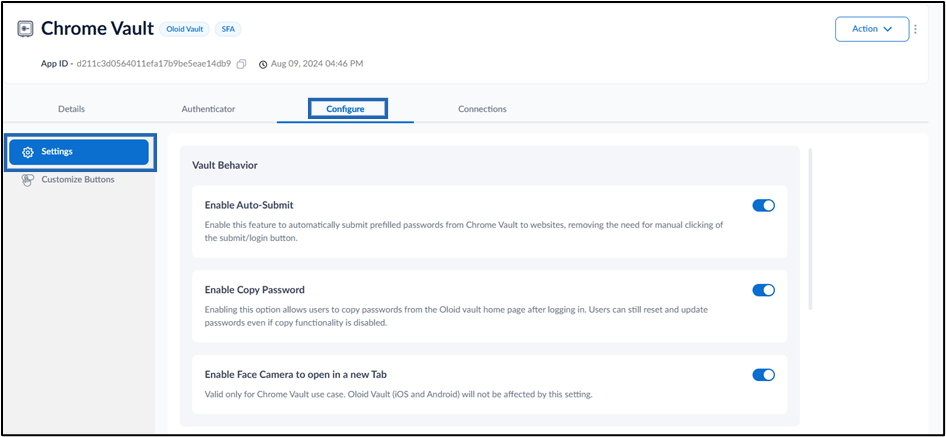
  3. Go to Configure tab > Click Settings. How to edit Configure tab in Chrome... - screenshot 3
Do the following:

Configure Settings Tab

Vault Behavior

  • Enable Auto-Submit: Select this option to allow automatic login using saved passwords from Chrome Vault without clicking Submit. How to edit Configure tab in Chrome... - screenshot 4
  • Enable Copy Password: Select this option to allow users to copy passwords from the Chrome Vault home page after logging in. How to edit Configure tab in Chrome... - screenshot 5

Enable Face Camera to open in a new Tab: Select this option to open the face camera in a new tab for Chrome Vault users. How to edit Configure tab in Chrome... - screenshot 6

Set Time-out durations for Re-authentication

  • How to edit Configure tab in Chrome... - screenshot 7
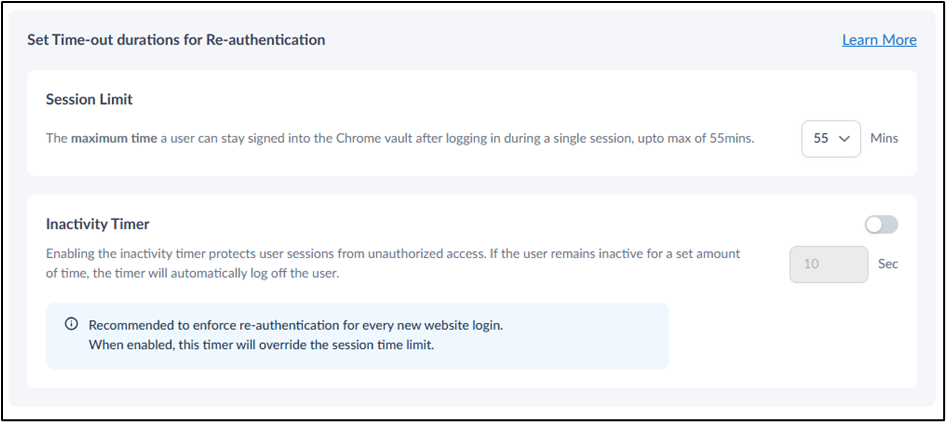
    • Session Limit: Set the maximum duration a user can remain signed into the Chrome Vault per session, up to a max of 55 mins.

Inactivity Timer: Enable this option to protect user sessions from unauthorized access. Set the timer to automatically log off the user after a specified period of inactivity.

Apply Endpoint Template**:**

  • How to edit Configure tab in Chrome... - screenshot 8
Select an endpoint template from the dropdown list to ensure the template is applied during endpoint pairing.