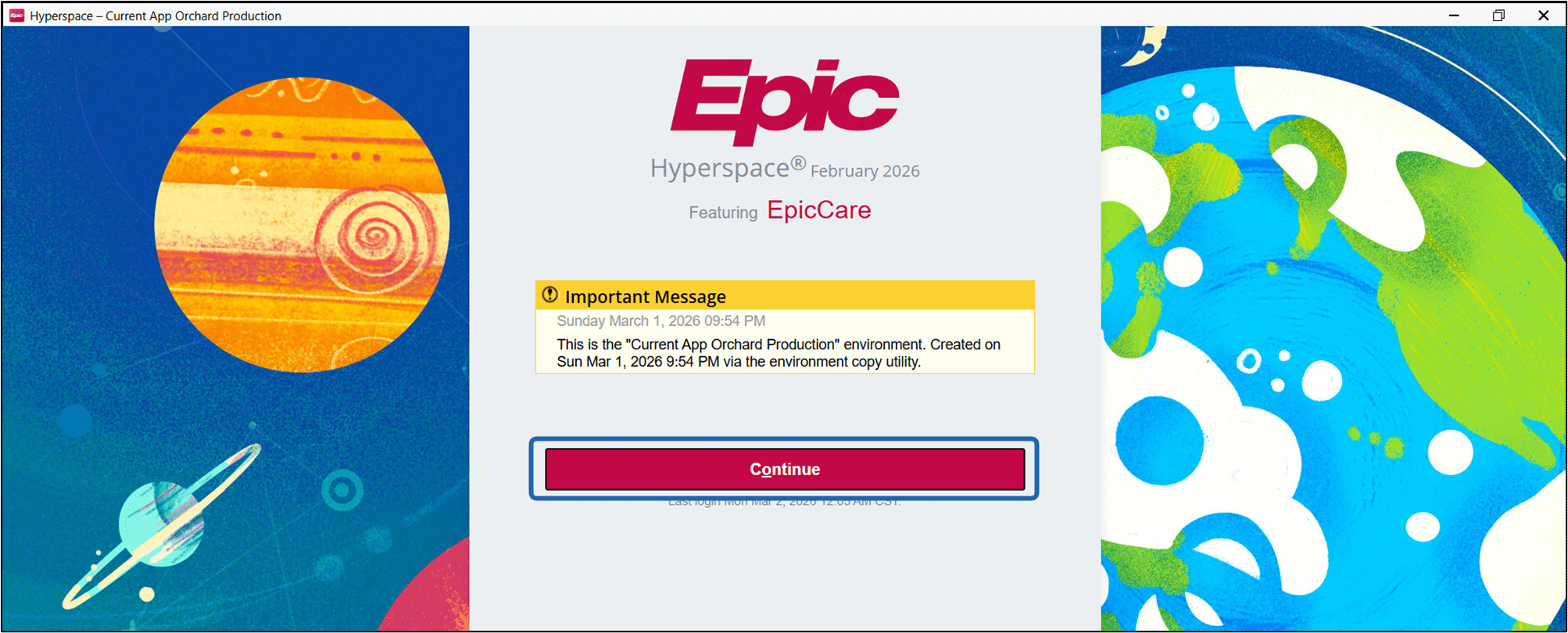
Introduction
Logging into Epic Hyperspace using Badge and PIN allows users to scan their assigned badge and verify their identity using a PIN before gaining access to Epic Hyperspace.Prerequisites
In the Oloid Portal, you must do the following:- Assign Badge ID to the user. For more details, refer How to assign Badge ID as credential to users
- Enable Badge as an authenticator in the Windows application. For more details, refer How to enable Badge in Windows application
- Add PIN access to the user. For more details, refer How to add PIN as credential to users
- Enable PIN as an authenticator in the Windows application. For more details, refer How to enable PIN in Windows application
-
Epic Vault Password must be created for the user.
Note: Vault Password is required for Username/ Password flow. For more information, refer: How to create Vault Password for a user
Steps to Log in to Epic Hyperspace
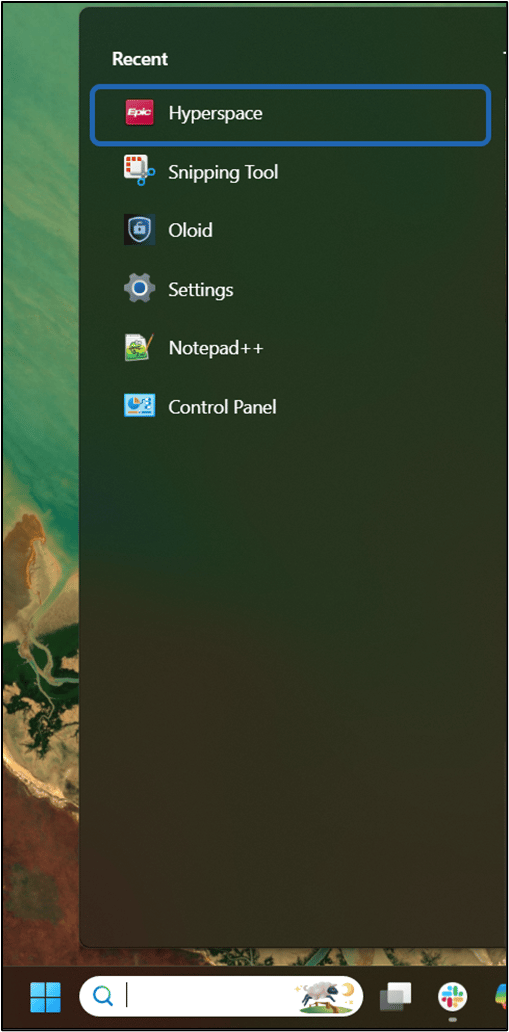
- Launch the Epic Hyperspace application on your Windows machine.
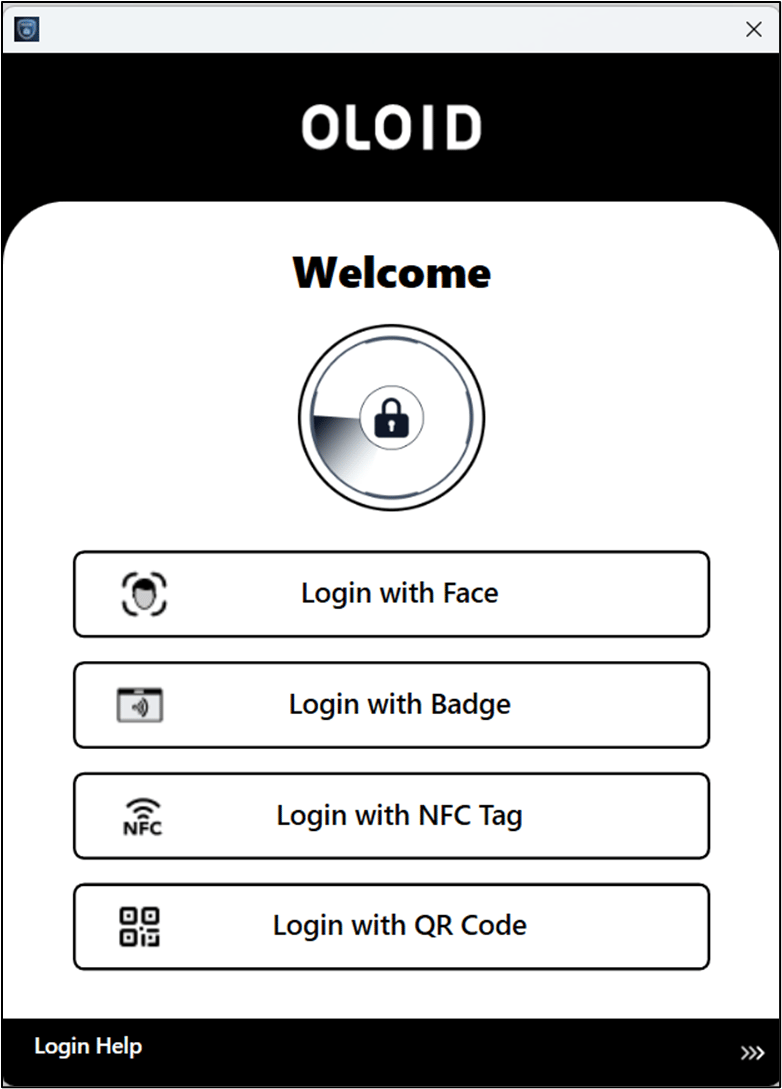
- To Login using Username & Password.
- ToLogin using Face.
- To Login using Badge.
- To Login using QR code.
- To Login using NFC ID.
Login using Username & Password
If Username / Email have been configured as first factor, users must do the following:Note: To login using Email/ Employee ID, Face must be enabled as a credential in the Tenant admin portal.
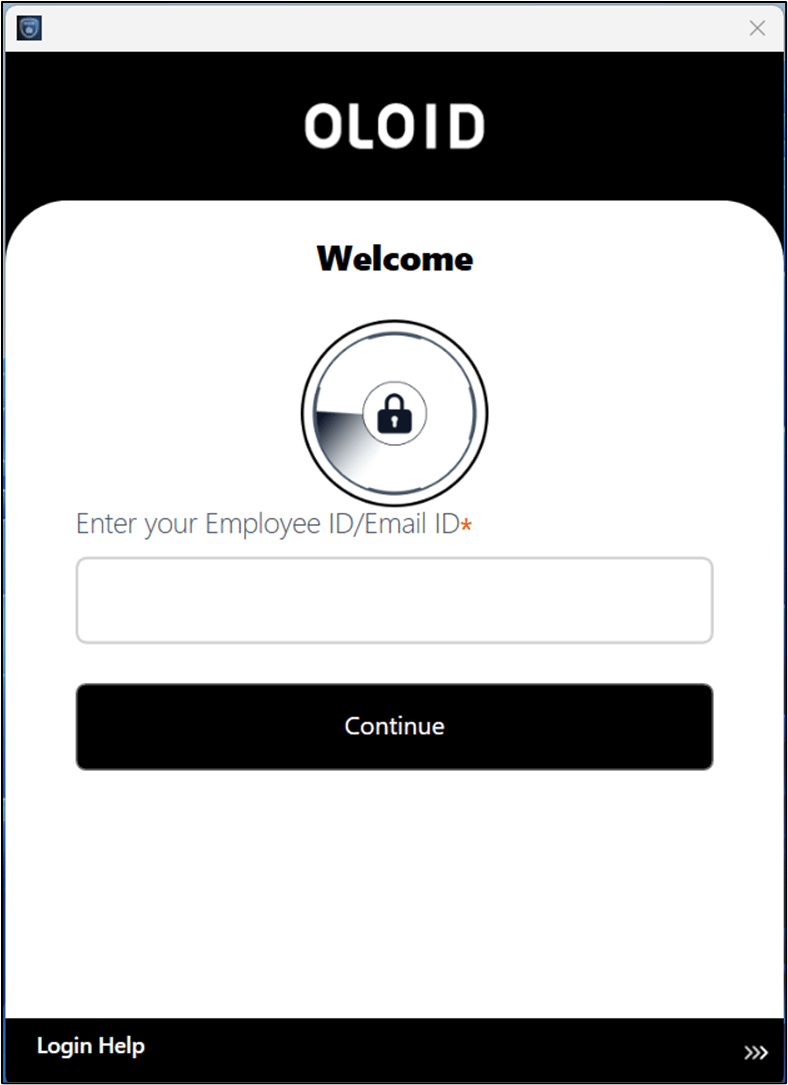
- The Windows login app opens and the Welcome page is displayed, Enter Email ID / Employee ID.
- Click Continue.
Login using Face
- The Windows login app opens and the Welcome page is displayed, Click Face.
-
The camera turns on. Place your face in front of the camera for facial authentication.
The camera auto-captures the user’s face.
If manual capture is enabled, press Enter or Spacebar, or click on the camera icon.
On successful facial authentication, you are signed in to the Windows system.
Note: If the user has multiple passwords configured in the Oloid Portal, then the Choose Your Account page is displayed. You can select a specific account to sign in successfully.
Login using Badge
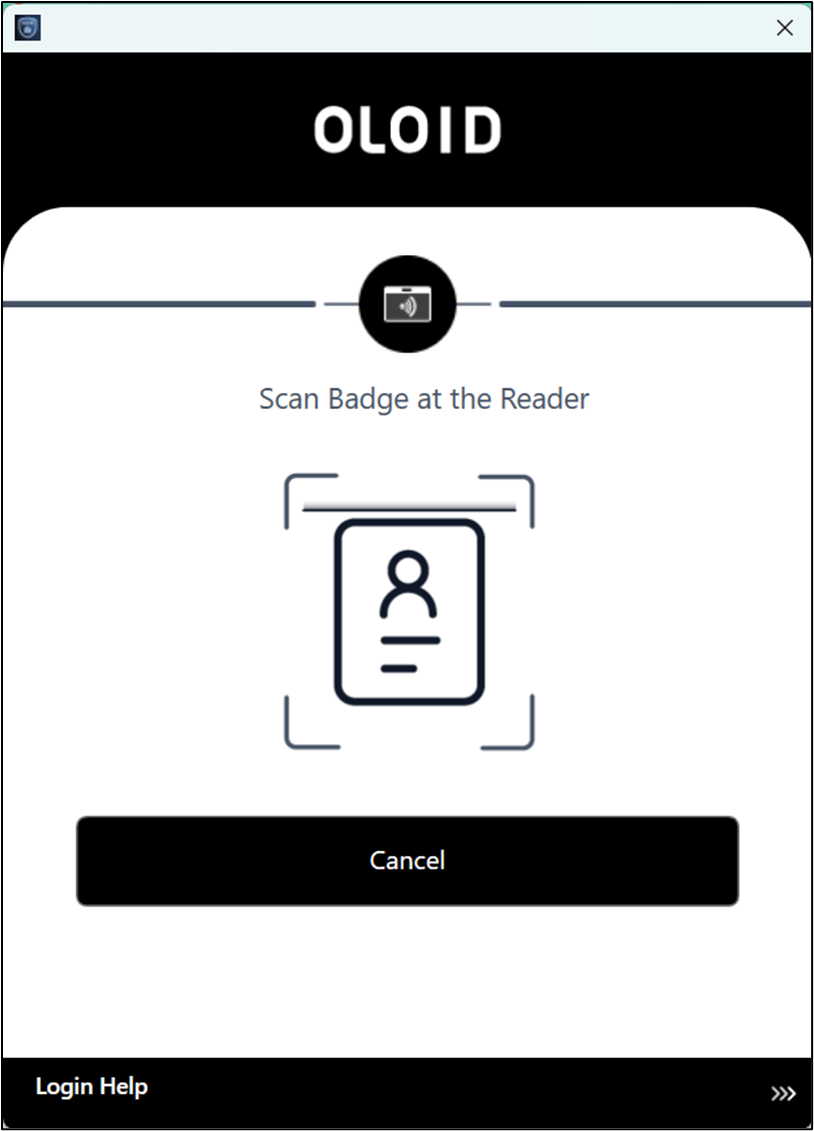
The Scan Badge pop-up box is displayed.- Tap the Badge on the Badge Reader to scan it.
Login using QR code.
- The Windows login app opens and the camera turns on.
- Show your QR Code in front of the camera for QR Code authentication.

Login using NFC ID
- The Windows login app opens and the Tap NFC Tag at the device screen is displayed.
- Tap the NFC Tag on the Reader to scan it. The NFC ID is successfully authenticated.
Multi Factor Authentication (MFA)
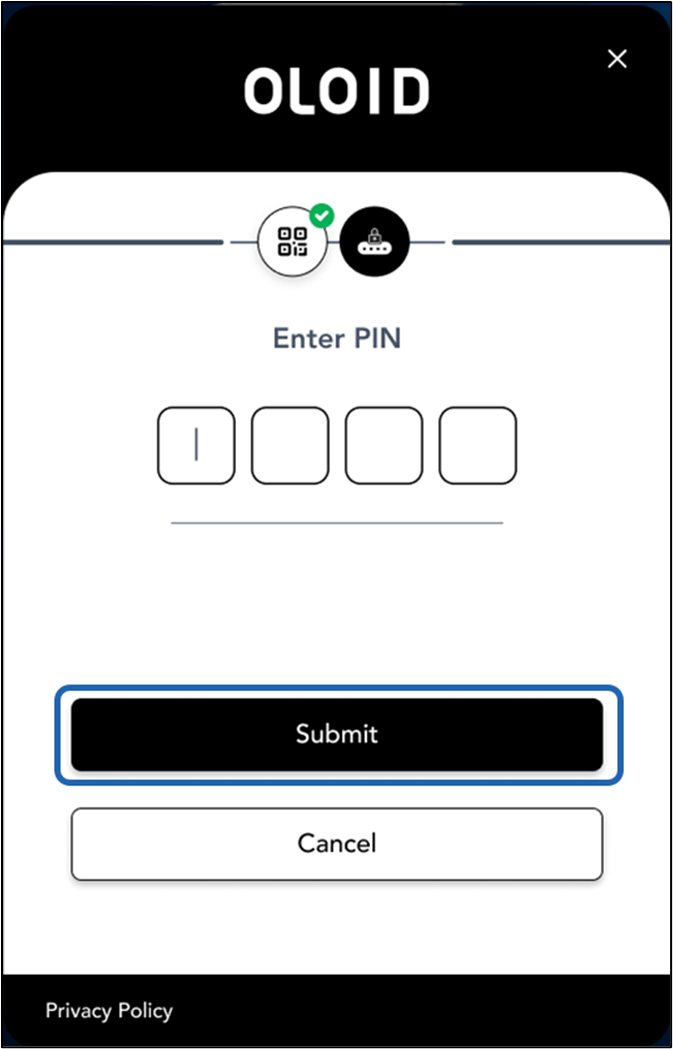
If the Application if configured for MFA then the user must authenticate using one of the following second factors.- PIN
- Passwords
- Duo
- Ping One
- Okta
- Web view for IDP
PIN MFA
Passwords
Duo
The Choose Your Account pop-up box is displayed.Note: If the user has multiple passwords configured in the Oloid Portal, they can select a specific account to sign in. If the user has only one account configured, Choose Your Account pop-up box will not be displayed.
- Select the account to sign in.
- The Duo Security pop-up box is displayed.
-
Select the user’s phone number from the Device dropdown in the User Details section.
Note: The Device dropdown displays multiple phone numbers only if the user has more than one phone number configured in the system.
-
Do one of the following:
- Duo Push:
- Select Send push to send a notification to the registered mobile number. The Push notification is displayed in your registered device.
- Tap Approve.
- Passcode:
- Select Enter a Passcode to send a Passcode to the registered mobile number. A Passcode is displayed on the Duo mobile application.
- Enter the passcode in the passcode field and click Log In. OR
- Click Text me New Codes. You will receive a SMS with a verification code.
- Enter the code in the Passcode Login field and then click Login.
- Duo Push:
Ping One
Okta
Web view for IDP
- The Login confirmation screen is displayed.
- Click Continue.