

Pre-requisites for getting started with Oloid Verify
Oloid Verify: Pre-req/System Requirements
Hardware requirement for iPad
Model iPad Pro (11- inch) and newer True Depth Camera Available Mount and Case for the tabletElectrical and Power Requirement
- 120V outlet access for charging device.
- PoE adapter if the customer prefers a wired network connection.
Others
- Sufficient illumination around the tablet so that the facial features of the end user are clearly visible.
- Tablet should be mounted in such a way that the camera of device is at 5 feet height from the floor
Network architecture of Oloid Verify
Refer guide on Network architecture of Oloid VerifySet up iPad in Kiosk Mode
Refer guide Set up iPad in Kiosk ModeOloid Platform Configuration for Oloid Verify App
Oloid Verify is used based on the configuration in the Oloid Portal. To use Oloid Verify, the application, connection, and template (optional) have to be preconfigured in the Oloid Portal. For details on configuration setup, refer to the following Oloid Platform Documents and Videos. Oloid Platform - Enterprise FeaturesApp Installation and Admin Setup
Pre-requisite:- You should be a Tenant Admin.
- Application, Connections, and template (optional) are configured in Tenant Admin Portal.
- Go to App Store and download Oloid Verify App. Refer to How to download Oloid Verify application guide.
-
Install the application and upon successful installation, launch the app.
The login page is displayed.
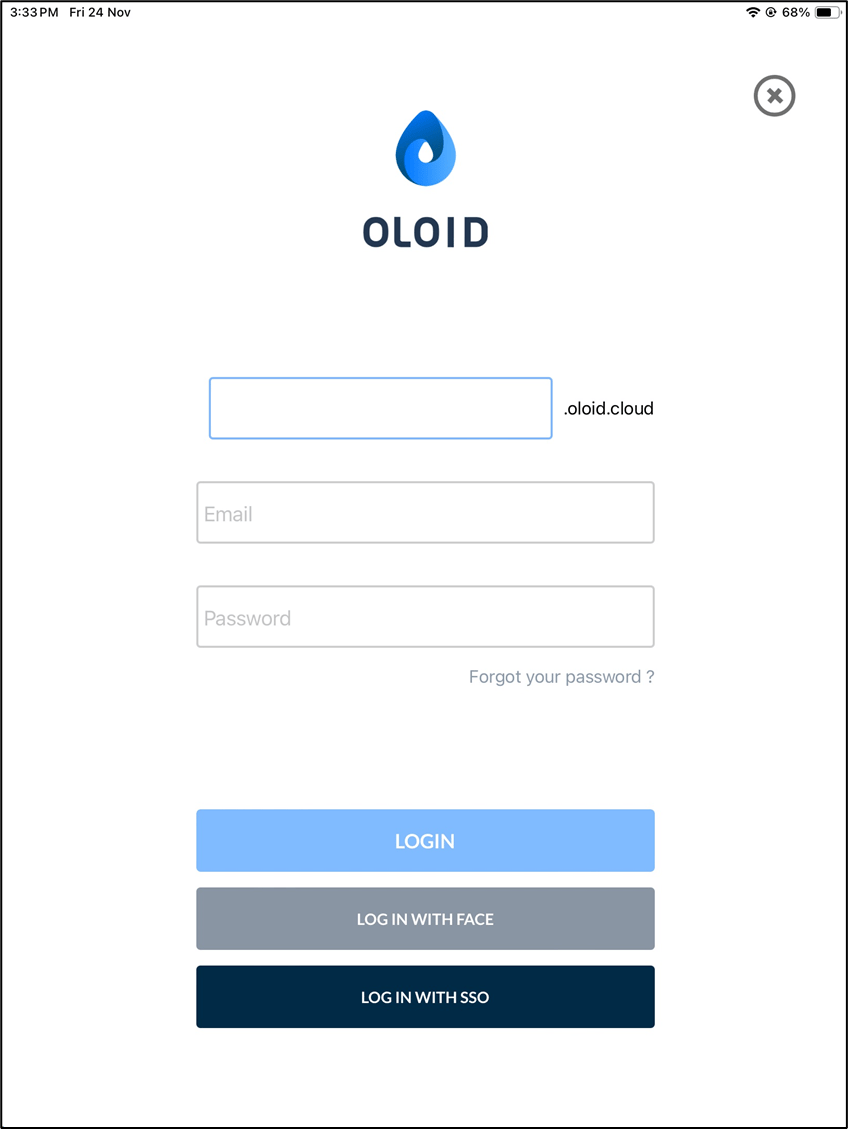
- Enter Tenant Name.
- Enter your email id in the Email text field.
- Enter your password in the Password text field.
-
Tap LOGIN.
The Settings page is displayed.
Note: If your face is added to the Tenant Portal as a Tenant Admin, you can tap on LOG IN WITH FACE to log in using your face.
-
Do the following on the Settings page.
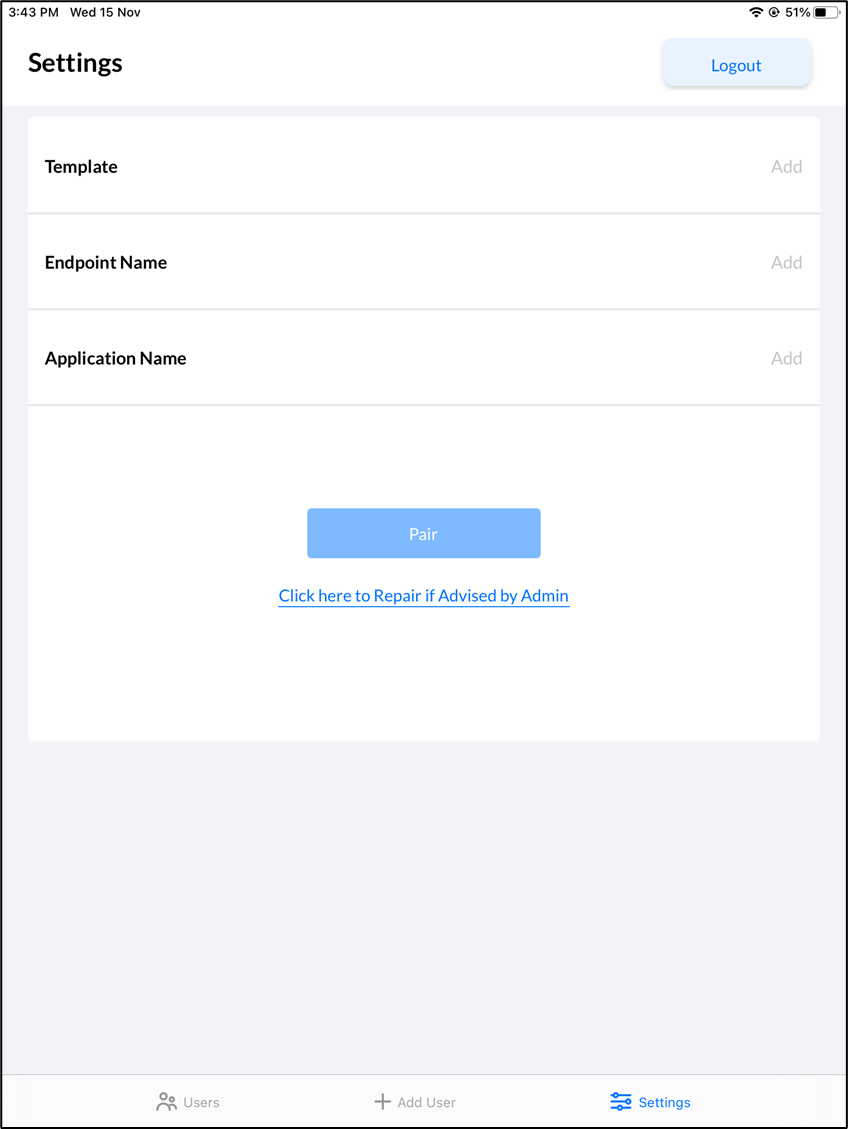
- Add Template (optional).
- Enter Endpoint Name.
- Select Application Name from Application Name list.
-
Click Pair.
The settings are saved and the Device Setup success message is displayed.
 Note: Once the iPad is successfully paired, other settings can be configured in the tenant admin portal.
-
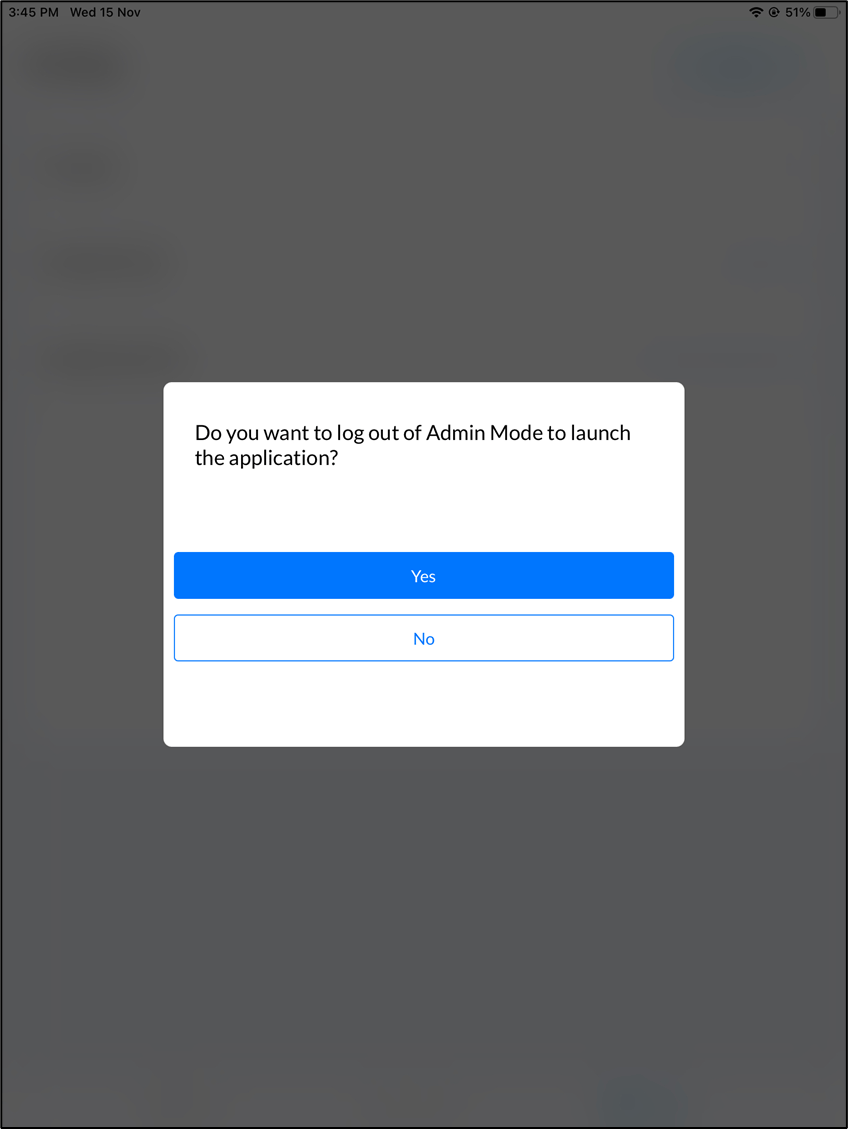
The application prompts you to log out of Admin mode.
-
Do one of the following:
-
Click Yes to log out and launch the application (preview mode).
The app displays preview mode and allows you to capture live Images for facial transactions.
Note: To go back to admin mode, double-click with two fingers on preview mode and tap Yes- To Continue.
- Click No to stay logged in to the admin mode. You can now
-
Click Yes to log out and launch the application (preview mode).
The app displays preview mode and allows you to capture live Images for facial transactions.