

Introduction
This guide provides detailed instructions to install and set up the Oloid Device Lock and Oloid Vault applications on Android devices through SOTI MobiControl. It also includes a set of basic regression test cases with expected outcomes to ensure that, with every new build release, all core use cases function as intended and no regressions occur.Prerequisites
- The device is already enrolled in SOTI MobiControl.
- A stable internet connection is available.
- A valid Microsoft account is available for the user.
Steps to Configure
- Installation of Oloid DeviceLock and Oloid Vault.
- Enable Oloid Vault accessibility.
- Allow restricted settings.
- Enable Oloid DeviceLock accessibility.
- Pair Endpoint
- Login with SSO
- Enroll User Credentials
- Authentication Flow
Installation of Oloid DeviceLock and Oloid Vault
- Launch the SOTI MobiControl app on the device.


- Tap the Menu option on the top-left side of the screen.

- Tap App Catalog menu.
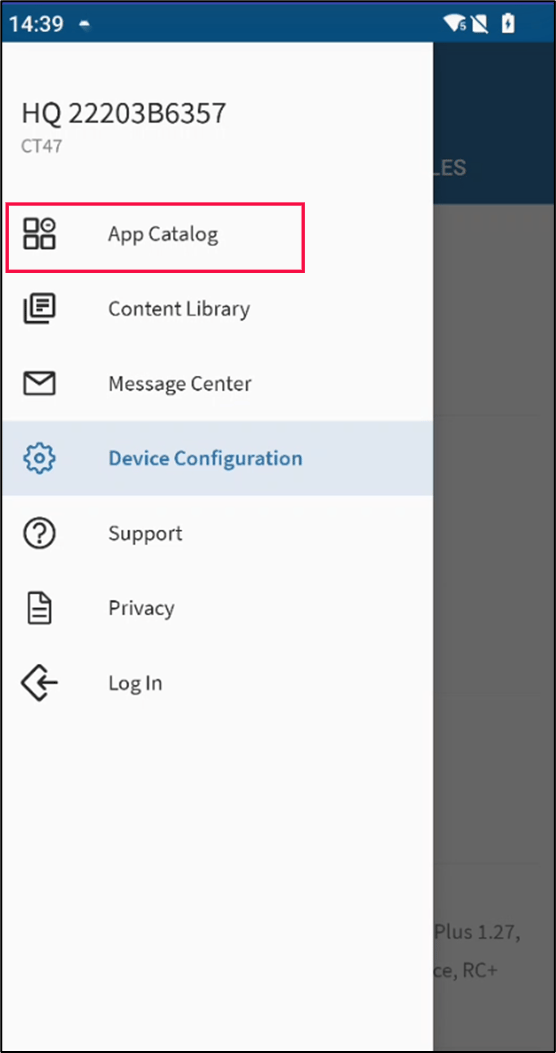
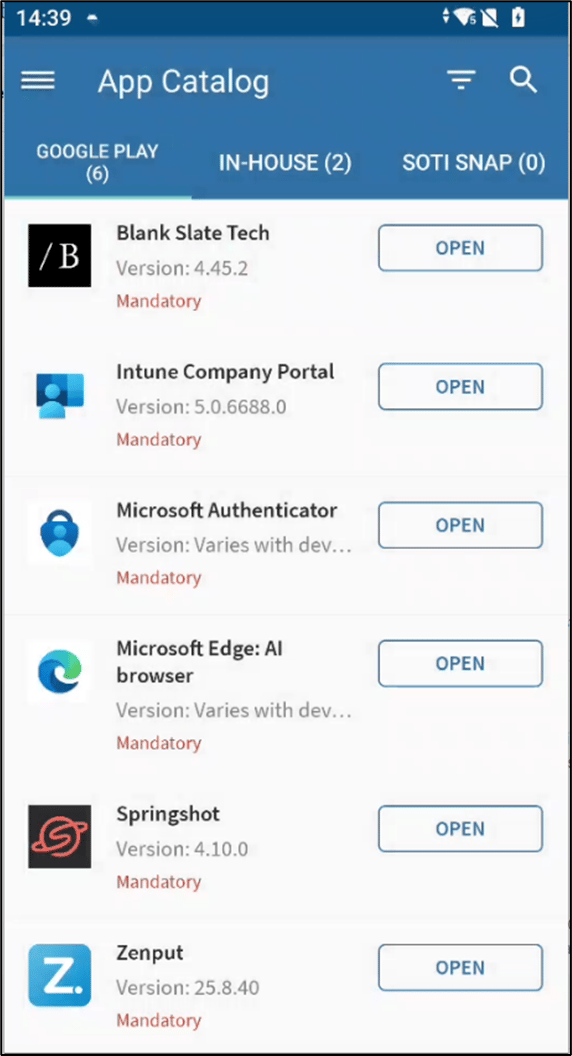
- Go to In-House Apps tab and do the following:
- Tap install Oloid Device Lock.
- Tap install Oloid Vault.


Enable Oloid Vault Accessibility
- Open Oloid Vault app.
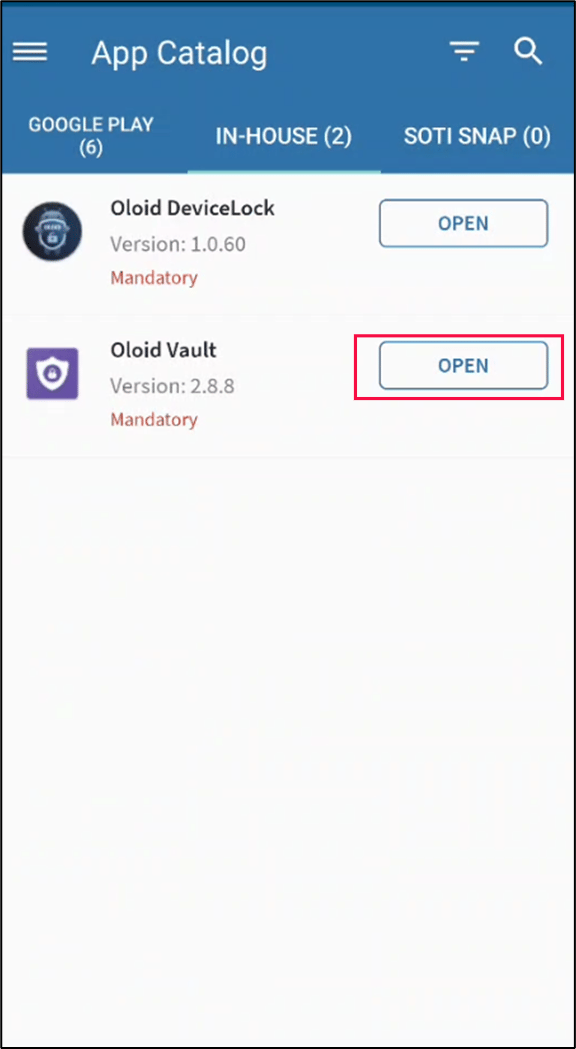
- Select Oloid Vault.
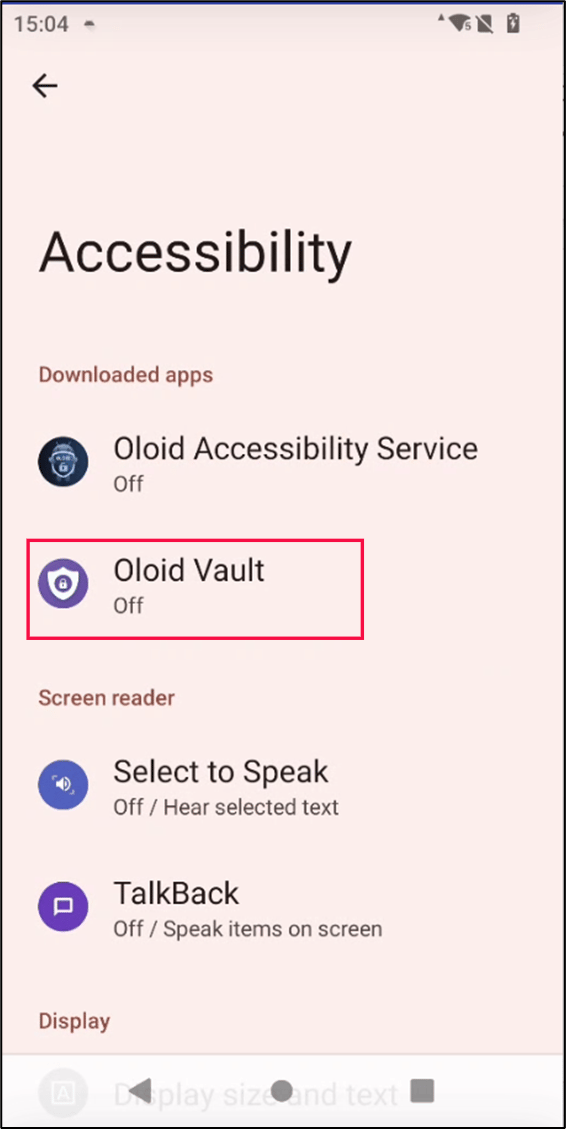
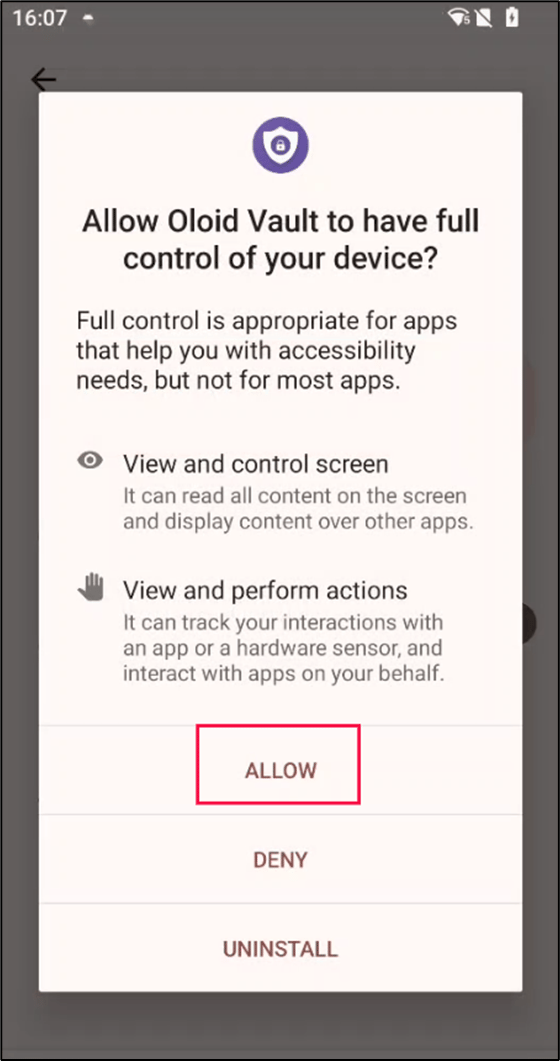
- Enable Use Oloid Vault toggle.

- Select Allow.

Enable Autofill option for Oloid Vault
- Open settings on you Android Device.

- Enter Autofill in the search bar text field.
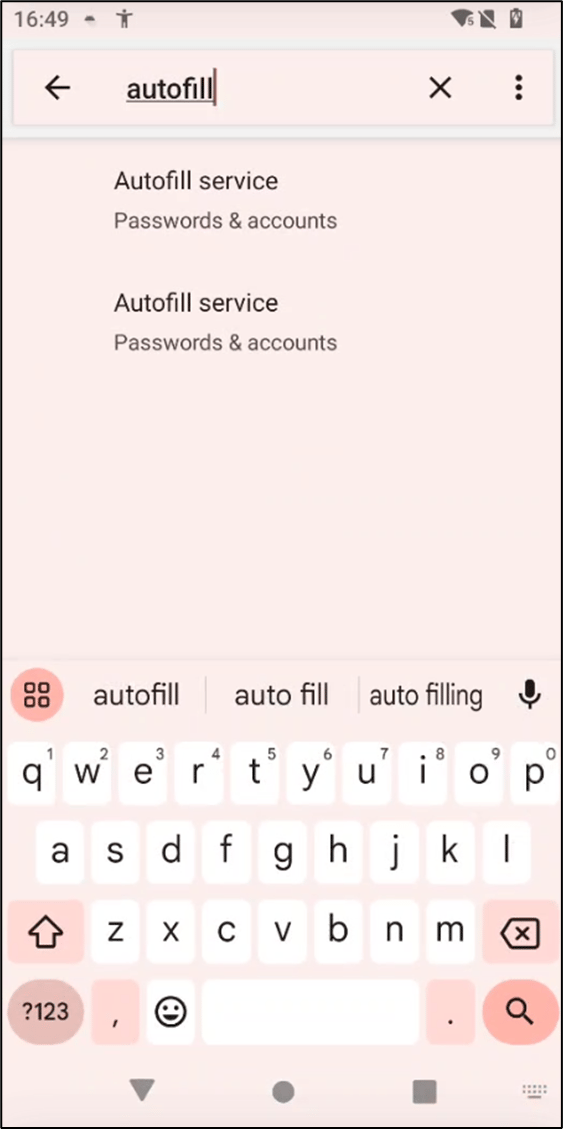
- Tap the option under Autofill.

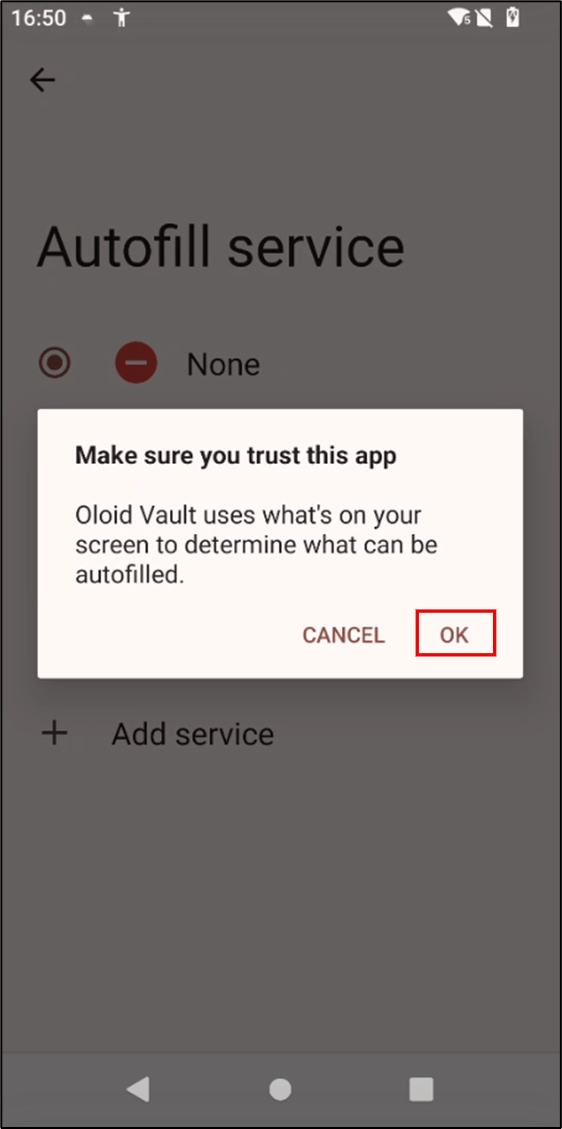
- Tap Oloid Vault option under Autofill service.

- Tap OK.

Oloid Device Lock set up
- Launch the Oloid DeviceLock app.
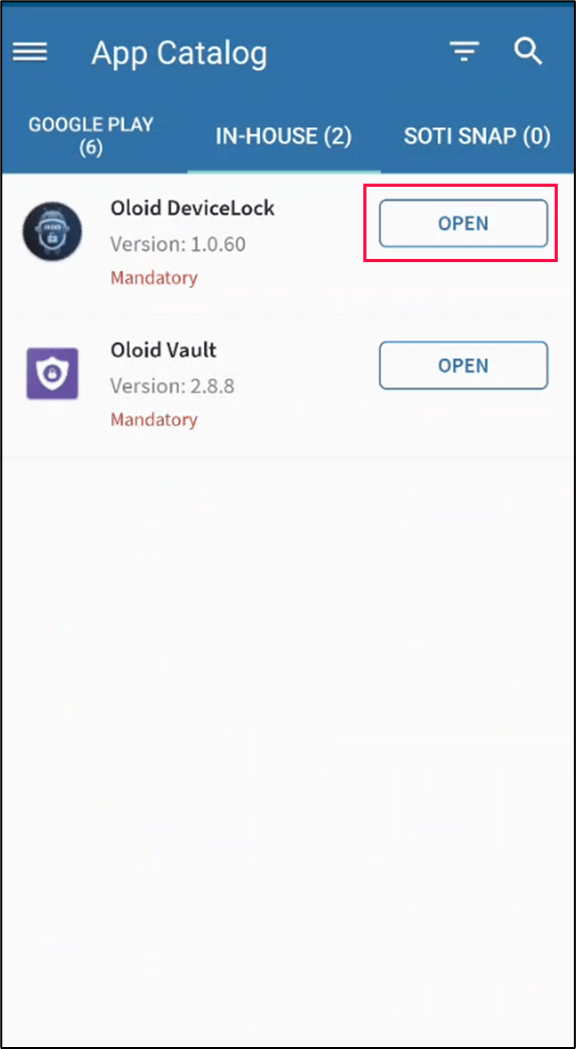
- On the pop-up box, tap Allow.
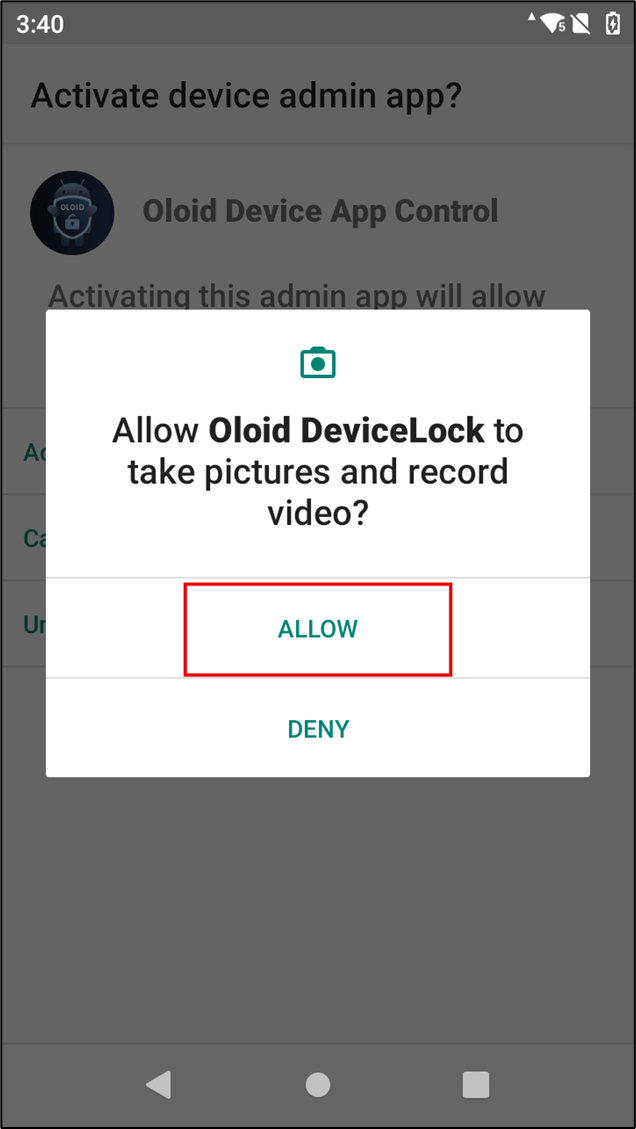
- Tap Activate device admin app.

Allow Accessibility service for DeviceLock App.
- Tap Agree.

- Select Oloid Accessibility Service.
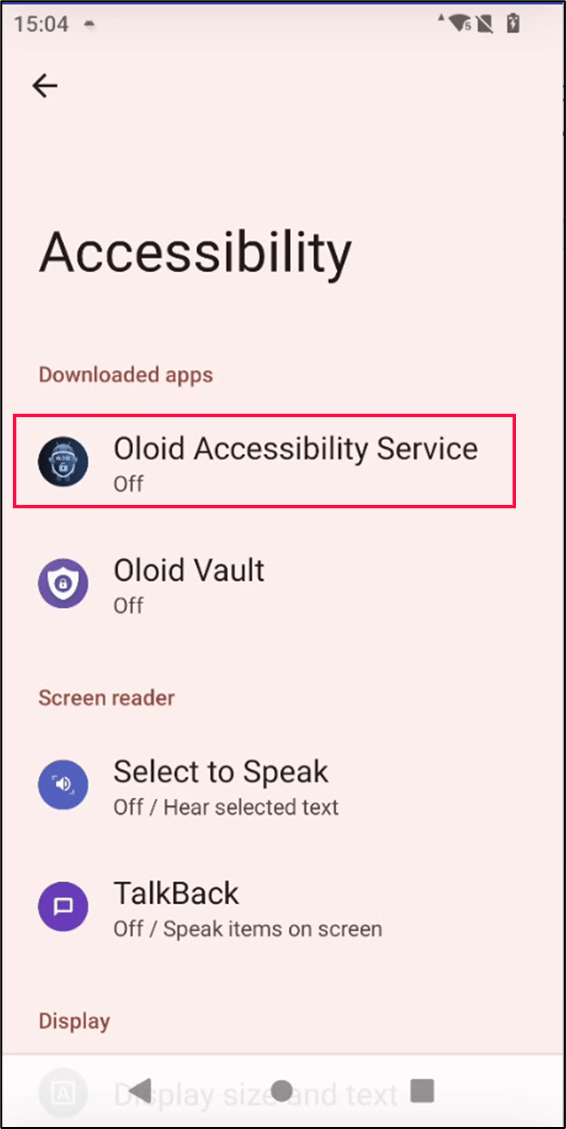
- Enable Use Oloid Accessibility Service toggle.

- Tap allow when prompted.

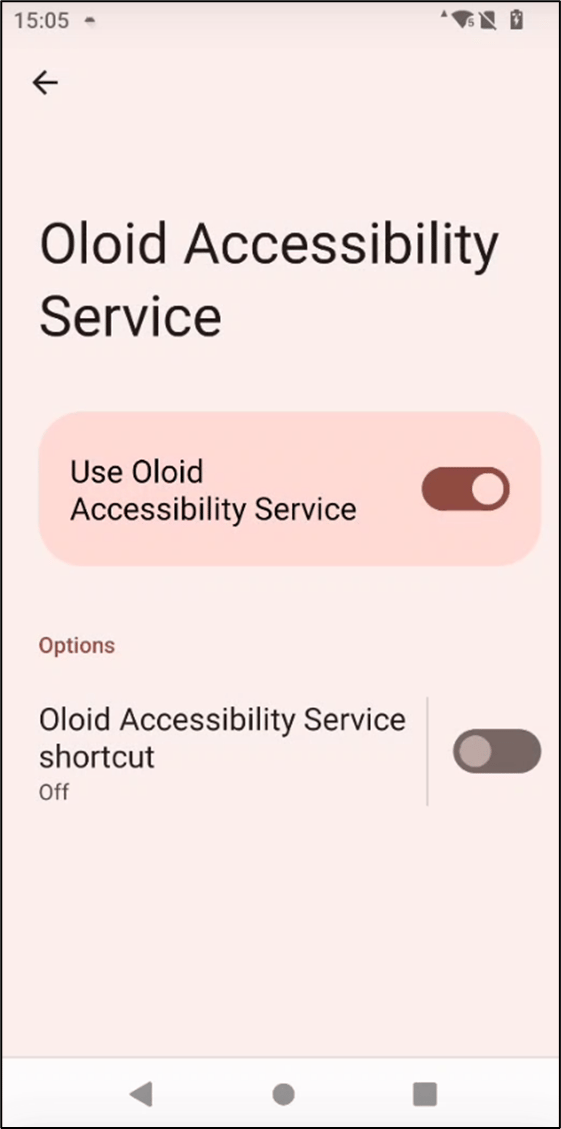
Note: While enabling the accessibility, if you get the restricted settings, then you can enable restricted setting. For more details refer this section Allow Restricted Setting.
Allow Restricted Setting
- Go to the Android device Home Screen.
- Long tap the Oloid Device Lock app > Tap App Info.

- Tap the three-dot menu on the right-top side of the screen.

- Select Allow Restricted Settings.

- Launch Oloid DeviceLock App and allow accessibility service for DeviceLock App. For more details refer this section Allow Accessibility service for DeviceLock App.
Pair Endpoint
-
Tap Auto-pair option.
 Note: You must enroll credentials for the users to perform the below steps:

Note: Admin/Supervisor can either manually login via Login with supervisor option or can proceed with Login with SSO.
Login with SSO
- Select Login with SSO.
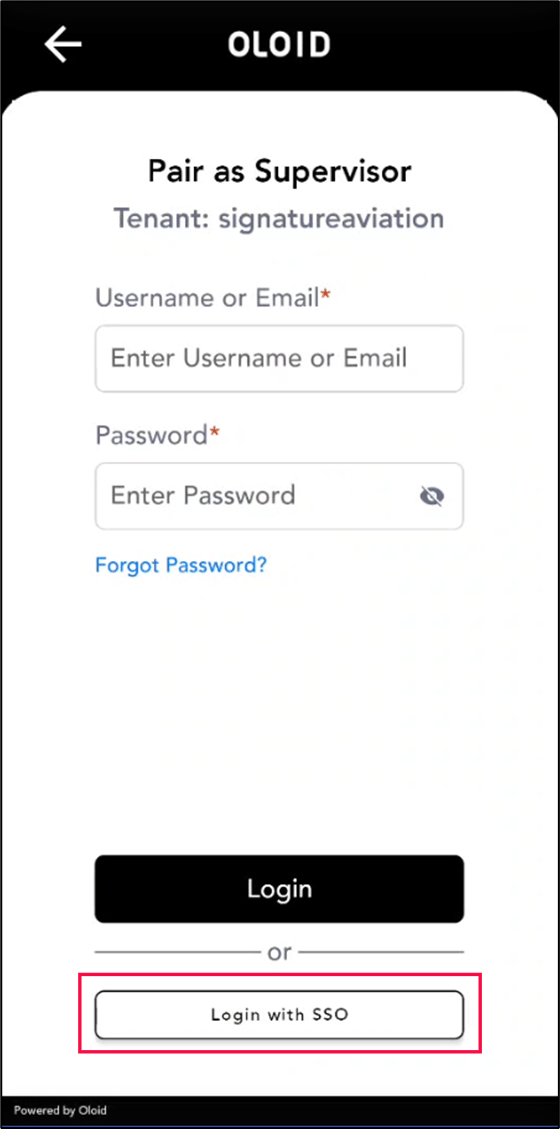
- Choose Continue with Microsoft.

- Enter your Microsoft Email ID > Select Next.

- Enter Password > Tap Sign In.
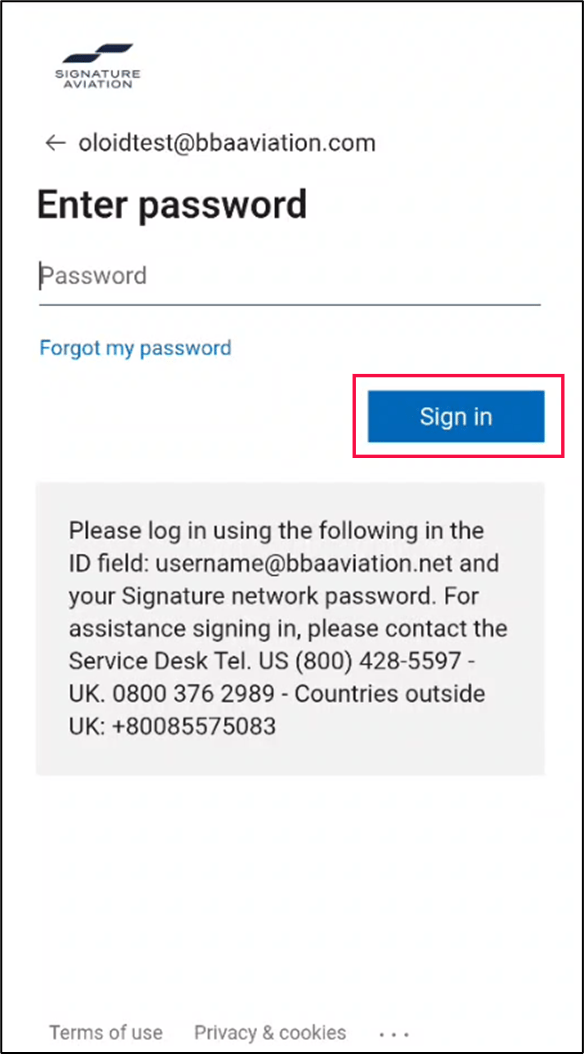
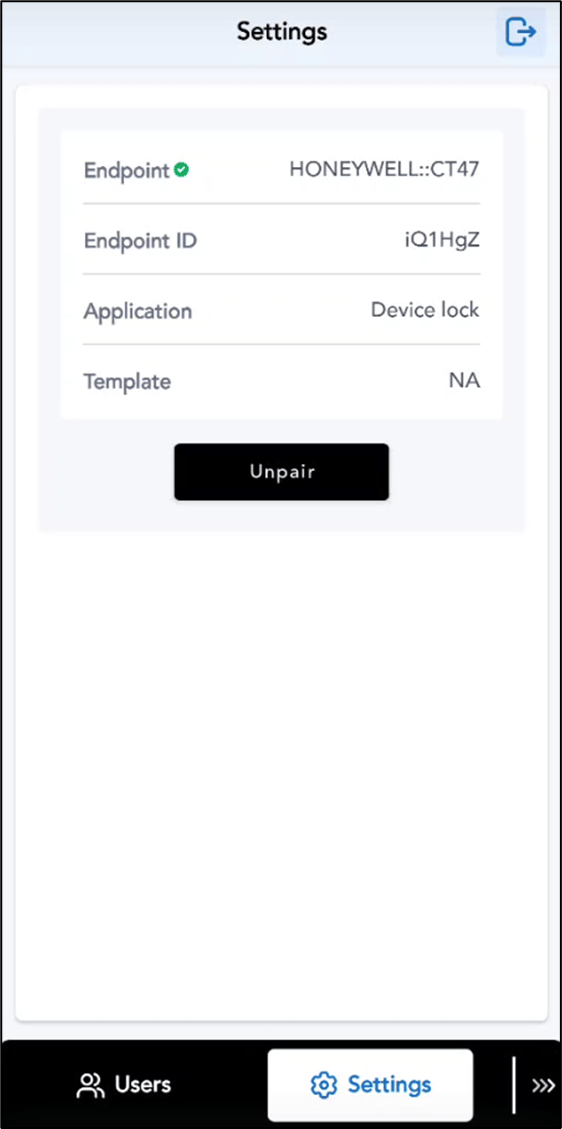
Enroll User credentials
- Enroll Face. To enroll face refer How to enroll face for users in the DeviceLock App.
- Enroll PIN. To enroll PIN refer How to enroll PIN for users in the DeviceLock App.
-
Enroll NFC/ID. To enroll NFC/ID refer How to enroll NFC/ID for users in the DeviceLock App.
Note: Once the Credentials are enrolled for the user, Log out of Admin Mode and Initial Screen of device lock with configured Auth methods will be displayed
Authentication Flow
-
Authenticate using Device Lock (Face + PIN or NFC + PIN).

-
Enter your Microsoft account password > Tap sign-in.
Note: If it is first-time login, you need to manually enter your credentials.

-
Select Save.

 Note: Using Accessibility, auto-login is attempted into SOTI.
 -
If auto-login does not occur, tap the Login button manually.
The SOTI dash board screen is appeared.

- Once logged in, you can access the customer apps like - Blank slate, Spring shot, Aero, etc.
- For all future app logins, auto-login will occur automatically.
Summary
By following the above steps, the Oloid Device Lock and Oloid Vault applications will be fully installed, configured, and ready for use.- Administrators can log in using Microsoft SSO for enrolling with Face, NFC, and PIN credentials
- Oloid Vault enables Autofill, allowing seamless access and auto-login to Microsoft and non-Microsoft applications.