

Introduction
This document explains how User can authenticate and manage punches using Oloid Connect.Prerequisites
- The Oloid Connect application is created and configured. For more, refer toHow to Create and Configure Oloid Connect Application in Tenant Admin Portal
- You must configure Workday Punch Integration in the Oloid Connect Application. For more, refer to Configure Workday Punch Integration
- The endpoint must be paired with the Oloid Connect application. For more, refer to How to Pair Oloid Connect Endpoint
Steps to Authenticate and Punch
- Authenticate using provided credentials. For More, refer toOloid Connect - How to Authenticate a User Using Credentials After successful authentication, the Intent screen is displayed.
- Record your punch as required. See use cases for details Punch Management Use Cases
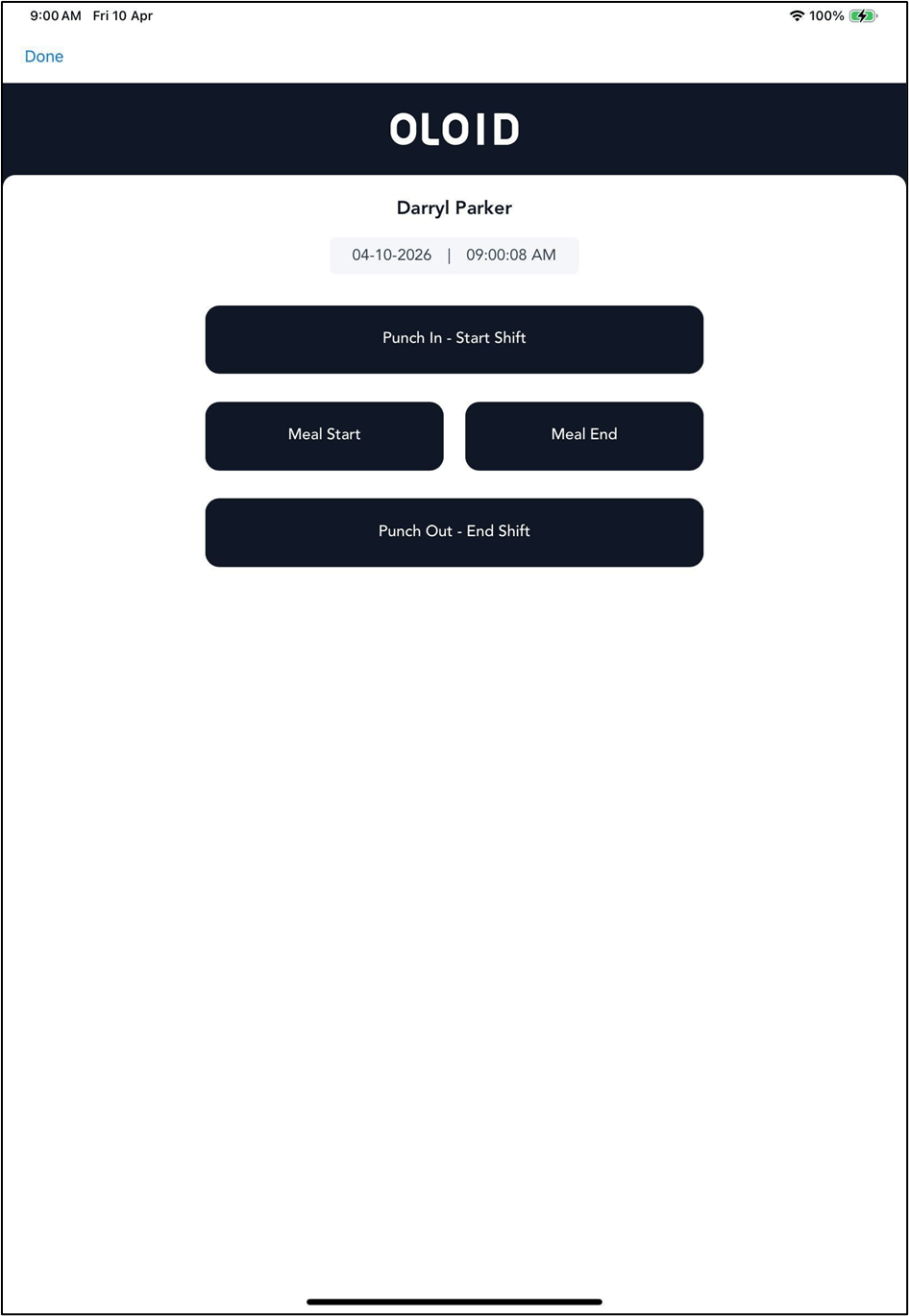
Punch Management Use Cases
Use Case – 1: Record Shift Using Standard Punch Options
Introduction
This use case explains how to record a work shift using standard punch options such as starting a shift, managing meal breaks, and ending a shift.Prerequisites
- The device is powered on and connected to the network.
- The intent screen is displayed.
Steps
- Tap Punch In – Start Shift.
- Tap Meal Start to begin a break.
- Tap Meal End to resume work.
- Tap Punch Out – End Shift.
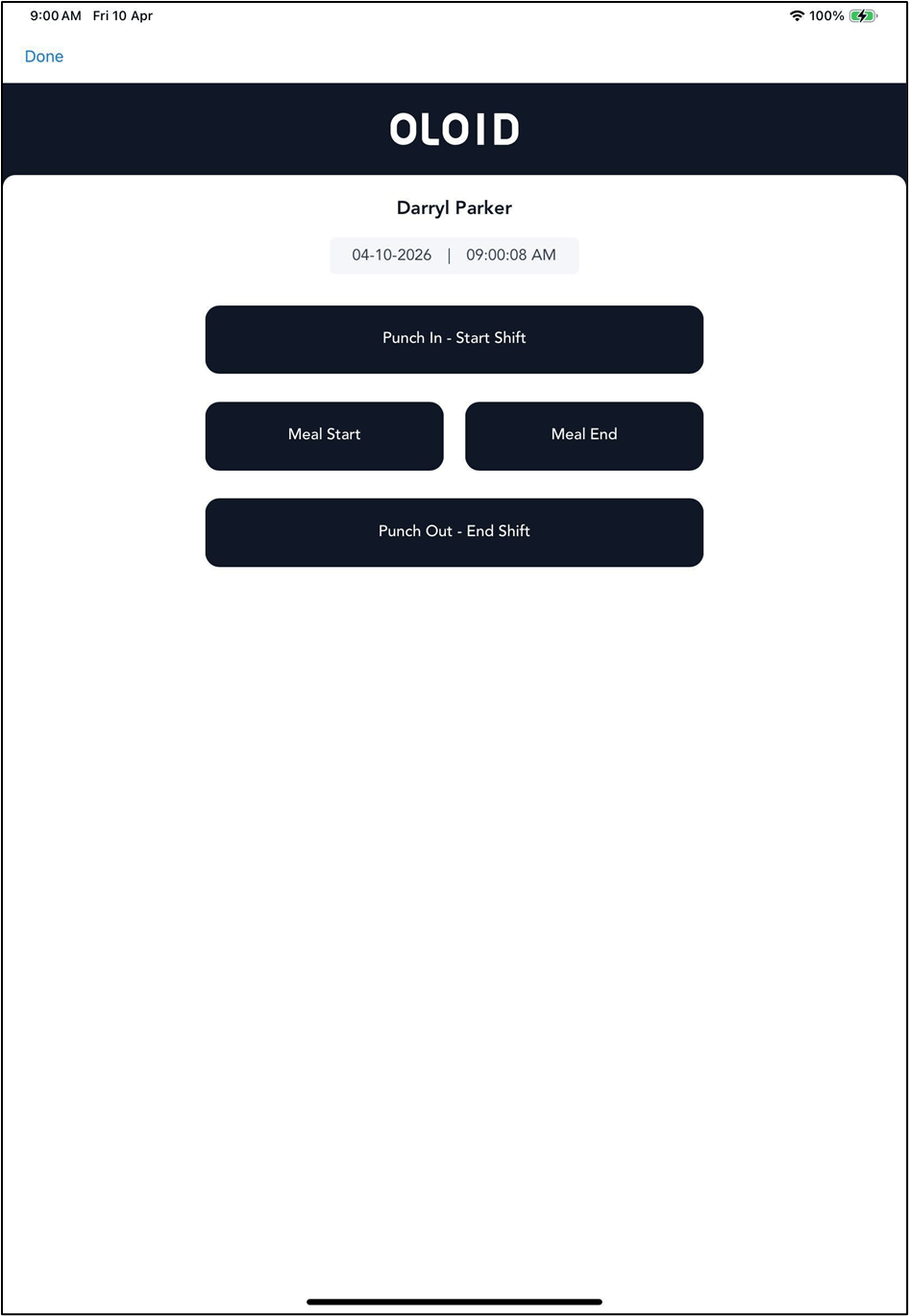
Outcome
The system records all actions with the current date and time.Use Case – 2: Record Shift with Location-Based Punch
Introduction
This use case explains how to record a shift when location details are displayed on the Punch Management screen.Prerequisites
- The device is powered on and connected to the network.
-
Location is displayed on the intent screen.
Note: Contact Oloid Support to Configure location.
Steps
- Verify the displayed Location.
- Tap Clock In to start the shift.
- Tap Check Out – Meal to begin a break.
- Tap Check In – Meal to resume work.
- Tap Clock Out to end the shift.

Outcome
The system records punch actions along with the associated location.Use Case – 3: Manage Missed Punches and Submit Attestation
Introduction
This use case explains how to manage missed, incorrect punch records and Submit Attestation.Prerequisites
- The device is powered on and connected to the network.
-
Missed punch options are enabled.
Note: The Add Missed Shift, Attestation, and Previous Punches buttons are pre-configured. For any queries related to these, please contact Oloid Support.
Steps
- Tap + Add Missed Shift to add a missing punch entry.
- Tap Previous Punches to review or edit existing records.
- Tap Attestation to confirm punch details (if applicable).

Edit Previous Punches
If there are missed or incomplete punches, you can edit previous punches.Note: Only punches for the current day and previous 24 hours can be edited.
Steps to Edit
- Tap Previous Punches.
- The Previous Punches screen is displayed with punch details for past days.
- Identify the missing or incorrect entry.
- Tap the Edit icon next to the required punch.
- Enter or update the punch details.
- Tap Submit Time.
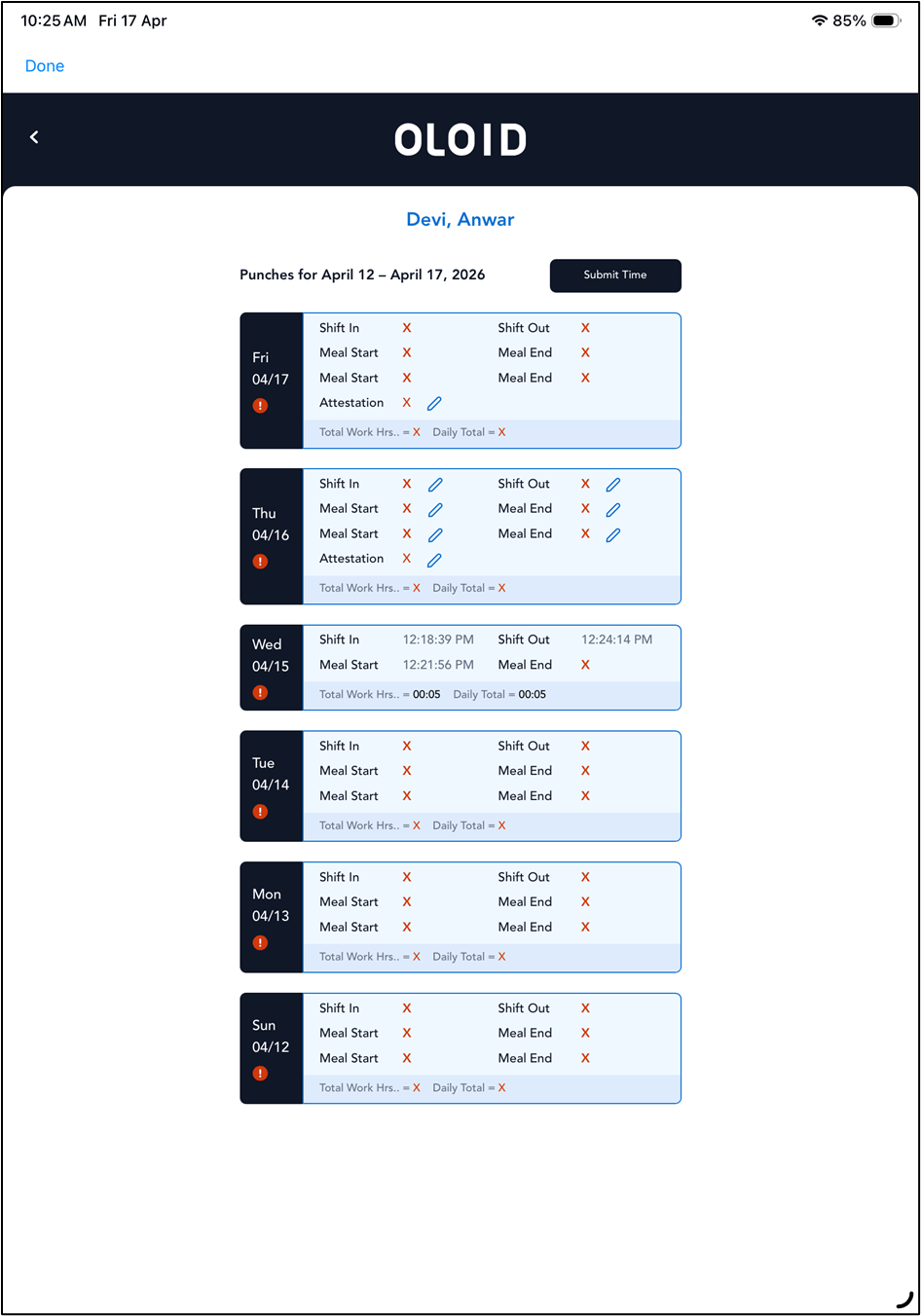
Submit Attestation
Attestation is required based on system configuration (for example, early punch-in before configured meal duration).Note: If the user performs a punch that violates configured rules (for example, entering before a 30-minute meal window), the attestation screen is displayed.
Steps to Complete Attestation Form
- Review the attestation questions.
- Select Yes or No for each question.
- Enter details in the Attestation Comment field (if required).
- Select the confirmation checkbox:
- I have reviewed all of my current and past punches and confirm that they are accurate and complete.
- Tap Submit.

Attestation Scenarios
Based on configuration, one or more of the following may be displayed:Scenario 1: Rest Break Confirmation
- Confirm if required rest breaks were taken.

Scenario 2: Meal Break Waiver
- Confirm if the meal break was waived.
- Provide a reason for missing the meal.
Scenario 3: Multiple Meal Checks
- Confirm first and second meal breaks.
-
Provide explanations if missed.
 Note: The attestation questions are configured by the system admin and may vary.